> This is part 1 of 4 of the full documentation (pages 1–100 of 361).
> The content is paginated: fetch every part to see all of it.
> Next part: https://docs.pollination.solutions/user-manual/llms-full.txt/1
> Page index: https://docs.pollination.solutions/user-manual/llms.txt
# Pollination User Manual
This manual includes everything that you need to know about the Pollination products.
## Welcome to the Pollination User Manual!
This manual includes what you will need to understand, buy and use the Pollination products.
## What is Pollination?
If you landed here from a search not knowing what Pollination is you should probably visit [our website](https://pollination.solutions/) but here is also a quick summary.
Pollination exists to address the pain point of preparing the energy models based on architectural design models. Without Pollination, most practitioners creating their models by tracing over 2D drawing. What a \[...] waste of time and talent!
Pollination Revit plugin and Pollination Revit and Grasshopper plugins streamline the transition of building models from Revit and Rhino to building energy simulation software so you don't have to trace over the drawings anymore. It is easier, faster and it gives you a better model.
We understand that everyone has their own preferred energy simulation software, as it is a very fragmented market. That is why we support a growing list of the most frequently used building simulation software, including but not limited to EnergyPlus, eQuest, OpenStudio, IESVE, DesignBuilder, IDA ICE, Ladybug Tools Honeybee, and Pollination Rhino.
Unlike other interoperability tools, we don't rely on gbXML. For all the software mentioned above, we export the model to their native file format. For instance, we generate an IDF file for EnergyPlus, an INP file for eQuest, and a GEM file for IESVE. That's how we can guarantee the quality of the export and a successful import to your software of choice. That said, Pollination also exports a valid gbXML file that you can use to export your model to software like TRACE700, TRACE 3D Plus, HAP 6.3+, EnergyPro, and more.
We understand the desire for an exact percentage or a specific number of hours that Pollination will save you. However, we can't provide that without making up some numbers. The truth is that the time saved varies between models, but here's what we've observed among customers using Pollination:
* For models that previously took 1-2 days to build without Pollination, the time is reduced to a couple of hours with Pollination.
* For models that used to take a week or more, the time can be reduced to a couple of days.
Once you learn how to use Pollination, you can say goodbye to drawing models from scratch..
If you are still skeptical, [check out what our customers are saying about Pollination](https://www.pollination.solutions/customers). More likely than not, you'll recognize some of the faces, and you can get in touch with them to ask about Pollination and how it has helped them with their projects.
## We guarantee the quality of the Pollination exported models
Before moving to the next part to explain how the plugins work, it's helpful to mention that [we have a pact with our customers](https://www.pollination.solutions/pact) to export every valid Pollination model to Pollination-supported file formats without errors. If we can't fix it, you'll receive a full refund.
{% embed url="" %}
## We support you for getting started with your real world projects
We understand that trying yet another building energy modeling plugin can be risky. While you need a better workflow, you don't want to look bad by recommending a plugin that doesn't work. To make it easier to get started, we will help you export your first Revit and Rhino models at no cost, even before you commit to buying the plugins. If anything goes wrong, it will be on us, and if it works, you'll look like the smartest person in the office!
## Pollination Revit Plugin
We know, particularly when it comes to a Revit plugins to export energy models, everyone is extremely skeptical. We know what you might be thinking. "*This sounds good but* *have you seen the models that we get from architects?*" - Yes. We have! And we have helped hundreds of customers to use Pollination with those real-world models. We can help you to do the same.
Here is our secret sauce: instead of trying to develop a magic one-click software that claims to fix everything but disappoints when used in real-world projects, we have built a software that helps automate most of the process while relying on your intelligence to ensure the quality of the outcome, especially when dealing with real-world, imperfect Revit models.
We expect you to put in some minimum effort, and in return, we will save you hours and days of time. If you're looking for a single-click magical button to give you a cleaned-up model, Pollination is not for you.
Here is a 15-minute video that walks you through the process using the current version of the Revit plugin.
{% embed url="" %}
In the next couple of months, we will release a new version of the Revit plugin with a much better user interface and a streamlined workflow. Here is a demo of the upcoming version of the Revit plugin.
{% embed url="" %}
If you enjoy detailed step-by-step tutorials, then you should check out the hands-on tutorials for the Revit plugin.
{% content-ref url="/pages/PYMV3n0UX1Pve8Fyk9W3" %}
[Hands on Tutorial: Exporting Revit Advanced Sample Model](/user-manual/revit-plugin/pollination-revit-classic/hands-on-tutorial)
{% endcontent-ref %}
## Pollination Rhino Plugin
Here is an example of a complex geometry that is translated using the Pollination Rhino Plugin. You model doesn't have to be this complex to use Pollination but if you get one, you know that there is a software that you can use to create the model without causing major damage to your brain.
Not everyone has access to a Revit Model. If you only have 2D CAD, PDF drawings, or 3D models, you can use the Pollination Rhino plugin to build your models.
This process technically involves redrawing the model, but it is much faster than using the native geometry modeling environment of the energy modeling software. The combination of Rhino's robust geometry library and [Pollination's commands](/user-manual/rhino-plugin/pollination-commands/by-use-case) for setting up and fixing models has made the Rhino plugin "the best tool for generating building performance geometry" in the market.
Here are two example of models that are built by the Pollination Rhino plugin for real world projects.
Credits: Cloud City by Thornton Tomasetti and Studio Tomás Saraceno
See the [Rhino plugin section](/user-manual/rhino-plugin/getting-started) to get started with using the Rhino plugin.
### Integration with Grasshopper
If you are a Ladybug Tools user Pollination can save you from the complexity of building the energy model itself in Grasshopper. Pollination Grasshopper Plugin allows you to reuse the Pollination Rhino models as input for your favorite Grasshopper and Ladybug Tools workflows.
{% embed url="" %}
Ladybug Tools Grasshopper script before and after Pollination
{% endembed %}
Here is an example of using Pollination Rhino with Ladybug Tools plugins to quickly transition from a Revit model to running hundreds of parametric studies.
## Buying Pollination
Refer to [this section of the user manual](/user-manual/getting-started/buying-pollination-products) for everything that you need to know about buying Pollination including Pollination licensing structure.
It might worth a mention that unlike many other software companies, our pricing [is on our website](https://www.pollination.solutions/pricing#cad-plugins). You don't have to contact us if you only would like to know the pricing.
{% embed url="" %}
## Getting in touch
We will always be happy to hear from individual and companies interested in adopting more efficient workflows. You can always post your questions on [Pollination Discourse](https://discourse.pollination.solutions/), contact us [from our website](https://www.pollination.solutions/contact), or email our co-founder directly at `mostapha [at] ladybug [dot] tools`.
{% hint style="info" %}
As you use this manual to navigate Pollination, you may notice some incomplete sections or screenshots don't look 100% the same on your computer. Since we are still testing and improving our platform, things are changing rapidly. We'll try our best to update changes as we make them!
{% endhint %}
# Creating a Pollination Account
To start your Pollination journey you will need a free Pollination account. This page explains the steps for creating a new Pollination account.
## Visit
To create an account, visit and choose your preferred method for signing up. We currently support sign-up via email and with a Google account.
You need to input additional information about yourself when you create your account for the first time.
## Verify your email
As part of the process, you should receive an email from `pollination@app.pollination.solutions` to verify your email address. Please check your spam and junk folders if you don't see an email confirmation in your inbox.
**In some cases, you may need to get in touch with your IT team in case you don't see the email in the spam of junk folders.**
## Confirm the Discourse Account
After creating your Pollination account you will automatically be added to [Pollination Discourse](https://discourse.pollination.solutions) page to be able to post your questions, interact with the other Pollination users. You will receive a verification email to confirm your Discourse sign up. Once you verify your account, you can log into Pollination Discourse using the same Pollination authentication.
## Frequently Asked Questions
### Can I delete my Pollination account?
Yes. You can always delete your Pollination account. To delete your Pollination account, navigate to your profile page and click on "Delete Account." Be aware that this will permanently erase all your information from Pollination and cannot be undone. You can create a new account later using the same credentials if needed.
# Free Trial of Pollination Products
This page explains the process for trying the Pollination Rhino and Revit plugins for free before purchasing a subscription.
Both Pollination Rhino and Revit plugins offer a 30-day free trial license. To begin your trial, first [create a Pollination account](/user-manual/getting-started/create-a-pollination-account), and then simply download the plugins and start using them.
## Downloading the installers
You can download the installers from [this page on our website](https://app.pollination.solutions/cad-plugins). You can also find the link on the landing page.
Once you download the installer double click on it and follow the steps.
## Frequently Asked Questions
### Silent Installation
For silent machine-wide installation use the command below.
```
path-to-the-installer.exe --TargetDir "C:\Program Files\Pollination" --mode unattended --unattendedmodeui minimal
```
### Debugging Installation Issues
If you get an error during the installation see the installation log file in the `%TEMP%` folder or your computer. Look for a file that is named `installbuilder_installer_{number}.log`. You may see several log files in the folder if you have used the installer several times. You should select the file that was created last.
### License Population
You do not need to populate the licenses after the installation. As long as the users have been added to the license pool they will be able to check out a license from inside the CAD plugins. [Refer to this section to learn more about managing license pools](/user-manual/getting-started/account-setup/managing-license-pools).
Each plugin includes a license manager that allows you to activate your trial after answering a few questions. To use the license manager in Rhino, use the command `PO_LicenseManager`. In Revit, navigate to the Pollination tab and click the `License Manager` button. For more information, [visit this ](/user-manual/revit-plugin/core-concepts-and-best-practices/managing-pollination-revit-license)[page](/user-manual/revit-plugin/core-concepts-and-best-practices/managing-pollination-revit-license).
### Do I need a credit card to start the trial?
No credit card is needed, and you don't need to get in touch with us to start your trial! You can do it all on your own. Enjoy the free ride, and let us know if you have any questions or feedback. We're always looking for questions and feedback! Just have a look at the discussions in [Pollination Discourse forum](https://discourse.pollination.solutions/), and you will see that we mean it. Many of the features are developed directly based on our customers' feedback.
You can get in touch with us directly via [our website](https://www.pollination.solutions/contact) or by posting on [Discourse](https://discourse.pollination.solutions/).
# Buying Pollination Products
This section covers everything that you need to know for buying Pollination. We will explain [Pollination subscription types](/user-manual/getting-started/buying-pollination-products/seats-vs-licenses) before explaining [how to set up your Pollination organization](/user-manual/getting-started/buying-pollination-products/setting-up-your-pollination-organization) and [buy the subscriptions for your organization](/user-manual/getting-started/buying-pollination-products/creating-new-pollination-subscriptions).
Let's answer some of the most frequently asked questions that come up in the process of buying Pollination before getting started.
## Frequently asked questions
### Where can I find Pollination Terms of Service? Is Pollination GDPR compliant?
Yes. You can find Pollination Terms of Service, as well as other legal documents under the [legal section](/user-manual/legal/terms_of_service).
### Are you collecting project data? What is your data privacy policy?
No. Unless you use Pollination for cloud simulation, which we don't offer anymore, we don't collect project identifiable data. See our [Privacy Policy](/user-manual/legal/privacy_policy) document for more details.
### How can I get a quote?
If you need to know the prices, our rates are listed on [our pricing page](https://pollination.solutions/pricing). To start a purchase order, send us an email at `sales [at] pollination [dot] solutions`. Please provide a detailed list of the subscriptions you are interested in purchasing. [See this page to understand how the Pollination licensing works.](/user-manual/getting-started/buying-pollination-products/seats-vs-licenses)
### Do you offer purchase by both invoices and credit cards?
Yes, we support both methods. You can purchase a Pollination license using either a credit card or an invoice. The invoice-based purchase is available only for yearly subscriptions. [See this page to learn how to request an invoice](/user-manual/getting-started/buying-pollination-products/creating-new-pollination-subscriptions).
### How can I set you as a vendor in our company's system?
We use [Paddle](https://www.paddle.com/) for processing all our payments. Paddle acts as a Pollination reseller ([or, to be more accurate, the Merchant of Record](https://www.paddle.com/blog/what-is-merchant-of-record)). This means you will pay and receive invoices from Paddle on behalf of Ladybug Tools, and not directly from Ladybug Tools. This is important if you need to set us up as a vendor in your company's system.
[You can find Paddle's procurement information on this page](https://www.paddle.com/about/procurement).
# Understanding Pollination Subscriptions Types
This page explains how the hybrid Pollination licensing works.
## Pollination Subscriptions Types
Pollination provides a hybrid licensing model with two main complementary subscription types: Concurrent Use License and Authorized Users.
Think of it like a fleet of company cars. You have **5 cars (Concurrent Use Licenses)** available for a department of **50 employees (Authorized Users)**. Any of the 50 *registered* employees can check out a car if one is available. **You don't need to buy a separate car for every single person**.
Subscriptions for authorized users are considerably more affordable, costing as little as one-twentieth the price of a full concurrent use license. This approach makes it feasible to provide access to all individuals in need without bearing the significant expense of separate licenses.
### Determining the Number of Concurrent Use Licenses versus Authorized Users
You can decided on the subscription for your organization in two steps:
**Step 1: Choose how many people need to use the software *****at the same time*****.**
* This is where you select the number of **Concurrent Use Licenses**. This determines the maximum number of simultaneous sessions.
**Step 2: Choose *****who***** on your team needs access.**
* This is where you select the number of **Authorized Users**. This determines the total number of users eligible to use the licenses when they are not occupied by others in the organization.
### Comparison Table
| Subscription Type | Concurrent Use License | Authorized User |
| ----------------------------------------------- | ------------------------------------------------- | ----------------------------------------------------- |
|
Primary Purpose
| Defines simultaneous active sessions. | Defines total pool of eligible people. |
| **Portability** | Floating. Moves between any authorized user. | Tied to a specific Pollination account. |
| **Access Type** | "First come, first served" from the license pool. | Provides the permission to request a license. |
| **Cost** | Higher (full plugin price). | Lower (fee for organization and license pool access). |
### Examples
Let's go through a couple of examples:
#### First example
You need a license of the Rhino plugin and a Revit plugin license just for yourself as a single user.
In this scenario, purchase only a "Bundled Pollination Rhino and Revit Plugin Concurrent Use License." There is no need for any additional authorized user subscriptions.
#### Second example
You have a team of 10 modelers, and you require 2 of them to use the Pollination Revit plugin at the same time.
In this scenario, purchase two "Pollination Revit Plugin Concurrent Use License" and one "10 Authorized User" package. Keep in mind that you will have 11 authorized users in total because the organization already includes 1 which is usually used by the IT to set up your organization.
{% hint style="info" %}
We chose the "10 Authorized Users" package instead of purchasing nine "1 Authorized User" subscriptions because it's more cost-effective.
{% endhint %}
### Pricing
[Check our pricing page for details on "concurrent use licenses" and extra "authorized users"](https://www.pollination.solutions/pricing).
### Questions
For additional questions, visit the [FAQ section on our pricing page](https://pollination.solutions/pricing#faq). If you have further inquiries about subscriptions, [please contact us](https://www.pollination.solutions/contact).
# Setting Up your Pollination Organization
To buy Pollination products, first create a Pollination organization. Visit [Pollination Web Application](https://app.pollination.solutions) and click on the link that is highlighted below.
Click the link to navigate to the page for entering your organization information. Complete the required fields and click the "Create Organization" button.
{% hint style="info" %}
No need to worry about the Avatar URL; you can update the profile image later in the organization settings.
{% endhint %}
Once the organization is created you will be redirected to the organization's subscription page automatically. You will be the first and the only owner of the organization.
# Creating New Pollination Subscriptions
{% hint style="info" %}
Only `Super Admin` and `Billing Admin` roles can create a new organization subscription.
{% endhint %}
{% hint style="info" %}
As a reminder, we use [Paddle](https://www.paddle.com/) to process all our payments. [See here for more information](/user-manual/getting-started/buying-pollination-products#how-can-i-set-you-as-a-vendor-in-our-companys-system).
{% endhint %}
To create a new subscription you need to go to the "Subscription" tab under your organization. If you have just created the organization you should automatically be redirected to the subscription page, otherwise, you can find the organization on the Pollination web application home page, and click on the "Subscriptions" link.
Click on the Subscriptions button in the organization card
Subscription tab
To create a new subscription, click the green box. Use the user interface to choose between yearly and monthly subscriptions, set the quantity for each, and select the payment method.
## Payment with Card
You can see a summary of your subscriptions at the bottom of the card.
When ready, click "Proceed to Checkout" to complete your payment.
Use the user interface to checkout with a card
## Payment by Invoice
For yearly subscriptions, you can request an invoice. Select "Pay by Invoice" as the payment method and click "Request Invoice".
Then feel out the required information and click on the "Submit Invoice Request" button.
You will receive a confirmation email. Our team will contact you within a few days to confirm and send it. Once you receive the invoice, you'll have 30 days to make the payment to keep your account active.
# Managing Pollination Organization
In managing a Pollination Organization, besides handling subscriptions which happens less frequently, you typically deal with adding or removing members from the organization and managing the license pools. This section of the documentation includes what you need to know to manage an existing Pollination organization.
* [Managing Organization Members](/user-manual/getting-started/account-setup/managing-members)
* [Managing Organization License Pools](/user-manual/getting-started/account-setup/managing-license-pools)
* [Managing Organization Subscriptions](/user-manual/getting-started/account-setup/managing-subscriptions)
# Managing Members
{% hint style="info" %}
Only `Super Admin` , `License Admin`, and `Project Admin` roles can manage adding or removing members to the organization and the license pools.
{% endhint %}
After creating the organization and purchasing the subscriptions, the next step is to add all Pollination users in your company to the organization. There are two main benefits to doing this:
1. Providing them with access to concurrent licenses for Rhino and Revit plugins.
2. Enabling them to assist in managing the organization.
### Adding new members to the organization
* Navigate to the **Members** tab.
* Click the **Add Member** button.
* Search for your team member using their Pollination handle.
* Add them to the list.
* Click **Add** to complete the process.
{% hint style="info" %}
To locate a user in the dropdown, you need their Pollination handle; email addresses are not searchable.
{% endhint %}
### Adding new members to the organization and the license pools
You can add members to the organization and assign them to license pools simultaneously. If needed, you can always [assign them to a license pool at a later time](/user-manual/getting-started/account-setup/managing-license-pools).
### Assigning Organization Roles
New members join as `member` without admin rights. Click the field in front of their name to assign an organization role with admin privileges.
Pollination provides 4 different organization roles:
* **Super Admin:** This role can manage all resources in the organization.
* **Billing Admin:** This role can manage billing and subscriptions in the organization.
* **License Admin:** This role can manage license pools in the organization.
* **Project Admin:** This role can add, remove and manage projects in the organization.
### Removing a member from the organization
To remove a member from the organization, click the trash icon.
# Managing License Pools
{% hint style="info" %}
Only `Super Admin` , and `License Admin` roles can manage adding or removing members to the organization and the license pools.
{% endhint %}
All Pollination CAD licenses for an organization are concurrent use licenses, allowing multiple members to share a license at different times. To share access, the organization admins must add members to the organization and then to the License Pool.
### Adding new members to the license pool
* Navigate to the license pools
* Locate the appropriate license pool and select the Members tab.
* To find a member's account, check the field at the bottom of the card. If the account is missing, you may need to add them to the organization first. Follow these instructions to add members to the organization.
* Locate the desired member and click the blue circle icon to add them to your license pool. You can add several members at once.
### Removing a member from the license pool
To remove a member from a license pool, click the trash icon.
# Managing Subscriptions
{% hint style="info" %}
Only `Super Admin` and `Billing Admin` roles can manage organization subscriptions.
{% endhint %}
{% hint style="info" %}
As a reminder, we use [Paddle](https://www.paddle.com/) to process all our payments. [See here for more information](/user-manual/getting-started/buying-pollination-products#how-can-i-set-you-as-a-vendor-in-our-companys-system).
{% endhint %}
After [creating a subscription](/user-manual/getting-started/buying-pollination-products/creating-new-pollination-subscriptions), you can manage it through the user interface. You need to navigate to the organization and click on the "Subscription" tab.
The screenshot below highlights the key actions you can take.
### Editing a subscription
You can edit an existing subscription by clicking on the "Edit
After you change a subscription, click on "Preview Changes" Button to preview the changes.
After reviewing the preview, you can confirm or cancel your changes.
### Subscription Modification Policy
* **Increasing Subscriptions**: If you add new products or increase quantities, the prorated amount will be charged immediately. You'll also see the updated cost for the next billing cycle.
* **Decreasing Subscriptions**: If you remove products or reduce quantities, the difference will be credited to your account for the next billing cycle. We cannot withdraw this difference from Paddle for a refund.
### Canceling a subscription
To cancel your subscription, click the "Cancel Subscription" button. Your subscription will remain active until the end of the current billing period.
To reactivate your subscription, you must do so before the cancellation date.
# The Pollination Pact
The Pollination plugins offer interoperability with a wide range of simulation engines and interfaces. Exporters are supported for the following engines and file formats:
* [Ladybug Tools (HBJSON and DFJSON)](https://www.ladybug.tools/)
* [IES-VE (GEM)](https://www.iesve.com/)
* [TRACE 700 (gbXML, XLSX, and EXP)](https://www.trane.com/commercial/latin-america/pr/en/products-systems/design-and-analysis-tools/trane-design-tools/trace-700.html)
* [eQuest (INP)](https://www.doe2.com/equest/)
* [DesignBuilder (dsbXML)](https://designbuilder.co.uk/)
* [OpenStudio (OSM)](https://openstudiocoalition.org/)
* [EnergyPlus (IDF and epJSON)](https://energyplus.net/)
* [IDA ICE (IDM)](https://www.equa.se/en/ida-ice)
* [Radiance (RAD)](https://www.radiance-online.org/)
* [TRACE 3D Plus (gbXML)](https://www.trane.com/commercial/latin-america/gy/en/products-systems/design-and-analysis-tools/trane-design-tools/trace-3d-plus-load-design.html)
* [EnergyPro (gbXML)](https://www.energysoft.com/)
* [CBECC (SDD XML)](https://www.energy.ca.gov/programs-and-topics/programs/building-energy-efficiency-standards/2025-energy-code-compliance-software)
* [Green Building XML (gbXML)](https://www.gbxml.org/)
Many of the formats above can also be imported to the Pollination plugins.
All exporters and importers transfer geometry as faithfully as possible between platforms and many formats also support the transfer of attributes assigned to that geometry (eg. constructions, internal loads, etc.). For a full list of attributes that can be transferred to/from each format, see the complete documentation for [Export](/user-manual/interoperability/export) and [Import](/user-manual/interoperability/import) pages.
## Pollination Pact
Our pact with you is simple. Every valid Pollination model should export and import to the corresponding simulation tool with no errors. If you face any issues in the translation process with a valid model, that is a bug. If you find a bug, and report it, we will fix it. If we can't fix it, we'll give you a full refund.
## Validation
At the heart of this interoperability guarantee is a concept called [Model Validation](/user-manual/interoperability/validation). All Pollination plugins come equipped with a validation routine, which can be run on any model to yield a list of issues to be fixed within Pollination software before export. If validation issues are not addressed before export, they can cause problems or errors in the destination software. Each type of validation issue has its own [Error Code](/user-manual/interoperability/validation/validation-error-codes) and corresponds with a set of possible commands that can be run in the Pollination plugin to fix the problem in different ways.
# Export
The Pollination plugins support exporting all geometry as faithfully as possible to a few different file formats. Usually, some properties assigned to the geometry area also exported.
## In the Pollination Revit Plugin (Model Editor)
In the Pollination Model Editor, the entire model can always be exported to any of the formats below by going to the "Export" menu while the whole model displaying in the Model Editor workspace.
A portion of the model can be exported by using the the "Export" menu with only part of the model displaying in the workspace.
## In the Pollination Rhino Plugin
In the Pollination Rhino plugin, using the native Rhino "File > Save As" dialog will bring up the option to save the entire Pollination model to any of the destination file formats below.
Using the native Rhino "File > Export Selected" dialog will bring up the option to save the currently selected portion of the model to any of the destination file formats below.
## Supported Formats
Files in the following format can be exported from the Pollination plugins:
* [Ladybug Tools (HBJSON and DFJSON)](https://www.ladybug.tools/)
* [IES-VE (GEM)](https://www.iesve.com/)
* [TRACE 700 (gbXML, XLSX, and EXP)](https://www.trane.com/commercial/latin-america/pr/en/products-systems/design-and-analysis-tools/trane-design-tools/trace-700.html)
* [eQuest (INP)](https://www.doe2.com/equest/)
* [DesignBuilder (dsbXML)](https://designbuilder.co.uk/)
* [OpenStudio (OSM)](https://openstudiocoalition.org/)
* [EnergyPlus (IDF and epJSON)](https://energyplus.net/)
* [IDA ICE (IDM)](https://www.equa.se/en/ida-ice)
* [Radiance (RAD)](https://www.radiance-online.org/)
* [TRACE 3D Plus (gbXML)](https://www.trane.com/commercial/latin-america/gy/en/products-systems/design-and-analysis-tools/trane-design-tools/trace-3d-plus-load-design.html)
* [EnergyPro (gbXML)](https://www.energysoft.com/)
* [CBECC (SDD XML)](https://www.energy.ca.gov/programs-and-topics/programs/building-energy-efficiency-standards/2025-energy-code-compliance-software)
* [Green Building XML (gbXML)](https://www.gbxml.org/)
All file formats export geometry as faithfully as possible into the destination engines. Some file formats support the translation of effectively all pollination model properties but, others will only translate some of the properties assigned to the model geometry. These are summarized below.
### Commercial Simulation Platforms
By exporting to the native file formats used by commercial simulation platforms, the Pollination plugins not only faithfully translate geometry but some properties assigned to this geometry (eg. zoning) can also be exported.
| Model Element | TRACE 700 | IES-VE | DesignBuilder | IDA ICE | TRACE 3D Plus |
| -------------------------------------- | -------------- | -------------- | -------------- | -------------- | -------------- |
| Geometry | ✅ | ✅ | ✅ | ✅ 4 | ✅ |
| Zoning | ✅ | ✅ 1 | ✅ 1 | ✅ 5 | ✅ 1 |
|
| ✅ | :x: | :x: | :x: | :x: |
| Program Types | ✅ 2 | ✅ 3 | :x: | :x: | :x: |
| HVAC Systems | :x: | :x: | :x: | :x: | :x: |
| SHW Systems | N/A | :x: | :x: | :x: | N/A |
1 Supported via an export option that merges rooms of the same zone (or shared plenums) into a single volume.\ 2 Exported as Room templates through the TRACE 700 EXP file format.\ 3 Map-able to IES-VE Templates through the Pollination Bridge navigator (WIP).\ 4 Includes an auto-generated building body to set interior vs. exterior boundary conditions.\ 5 Zones are exported as Groups in the IDM.
### Free Simulation Platforms
The Pollination plugins also export to a wide variety of free and open source engines. Due to the well-documented, text-readable file formats of these engines, nearly all attributes can be transferred through the export.
| Model Element | Ladybug Tools | OpenStudio | EnergyPlus | eQuest | Radiance |
| -------------------------------------- | ------------- | ---------- | -------------- | -------------- | -------------- |
| Geometry | ✅ | ✅ | ✅ | ✅ | ✅ |
| Zoning | ✅ | ✅ | ✅ | ✅ 1 | ✅ 1 |
|
| ✅ | ✅ | ✅ | ✅ | N/A |
| Program Types | ✅ | ✅ | ✅ 2 | ✅ 3 | N/A |
| HVAC Systems | ✅ | ✅ | ✅ | ✅ 4 | N/A |
| SHW Systems | ✅ | ✅ | ✅ | :x: | N/A |
1 Supported via an export option that merges rooms of the same zone into a single volume.\ 2 Translated to SpaceList objects for easy editing of all spaces with the same program.\ 3 Translated to switch statements for easy editing of all zones with the same program.\ 4 Only HVAC grouping is translated and not any HVAC attributes.\ 5 Exported insofar as the geometry properties can influence the assigned Radiance modifiers.
### Dedicated Standards Compliance Platforms
The Pollination plugins are also often usable with location-specific energy code compliance software. Pollination offers dedicated exporters to assist with California Title 24 compliance through the native XML format of CBECC and a specially-formatted gbXML for EnergyPro 9, which are fully covered by the [Pollination Pact](https://www.pollination.solutions/pact). Other compliance software packages that can import gbXML (eg. Lesosai and SIMIEN) usually accept the generic gbXML files that the Pollination plugins export, particularly if the gbXML export options are configured for maximal compatibility with them. However, while the generic gbXML files exported by Pollination are accurate and highly customizable in terms of their format, compatibility issues may still sometimes arise when importing them due to varying import implementations. For this reason, exports of generic gbXMLs to platforms not listed on this page are not covered by the Pollination Pact.
| Model Element | gbXML (Generic) | CBECC | EnergyPro |
| -------------------------------------- | --------------- | ----- | --------- |
| Geometry | ✅ | ✅ | ✅ |
| Zoning | ✅ 1 | ✅ | ✅ |
|
| ✅ 1 | :x: | :x: |
| Program Types | N/A | :x: | :x: |
| HVAC Systems | :x: | :x: | :x: |
| SHW Systems | N/A | :x: | :x: |
1 Included in the exported data but there is no guarantee that destination software can import it if not listed on this page.
# Ladybug Tools
There is no loss of data when transferring models between Pollination and Ladybug Tools. All features of the Pollination model are translated into the HBJSON or DFJSON format and read back to Pollination when importing from these formats.
| Model Element | Ladybug Tools |
| -------------------------------------- | ------------- |
| Geometry | ✅ |
| Zoning | ✅ |
|
| ✅ |
| Program Types | ✅ |
| HVAC Systems | ✅ |
| SHW Systems | ✅ |
## In the Pollination Revit Plugin (Model Editor)
To use models in the Pollination Model Editor with Ladybug Tools for Grasshopper, simply save the model as a "Honeybee Model (.hbjson)". This can be loaded into Grasshopper via the [HB Load Objects](https://docs.ladybug.tools/honeybee-primer/components/3_serialize/load_objects) component.

HBJSONs can also be opened directly within the Pollination Rhino plugin for further cleanup and customization before use with Ladybug Tools.
Models passing Generic validation in the Model Editor will work well with all Ladybug Tools simulation features.
## In the Pollination Rhino Plugin (Export/Import DFJSON and HBJSON)
The Pollination Rhino plugin offers a "File > Save As" option for "Honeybee Model (\*.hbjson)", which can be loaded into Grasshopper via the [HB Load Objects](https://docs.ladybug.tools/honeybee-primer/components/3_serialize/load_objects) component.
However a more seamless integration with Ladybug Tools is achievable via the Pollination Rhino Grasshopper Components.
## Pollination Rhino Grasshopper Components
In addition to interoperability offered by importing and exporting DFJSON and HBJSON, the Pollination Rhino Plugin includes several Grasshopper components to ensure these models can be used seamlessly with the Ladybug Tools Grasshopper plugin.

Of the available components, three types are particularly relevant to the interoperability between Pollination Rhino and Ladybug Tools:
* *Primitives entity components* to translate Pollination Rhino entities (eg. Room) into Honeybee entities
* *Primitives library components* to use Pollination UI from inside Grasshopper
* *Serializer components* to serialize a Honeybee model in Grasshopper to other file formats.
## Primitives entity components
Primitive components are is similar to native Grasshopper params except they bring fully-detailed objects (eg. Room or Model) instead of .
Right click on it to access to menu of actions. Generally the available features are:
* **Synchronize**: It refreshes the data which the component is reading.
* **Select**: It selects the objects from Rhino canvas
* **Bake**: It bakes Honeybee objects or Pollination Rhino objects
* **Internalise**: It saves in persistent memory the data
* **Clear**: It clear the persistent memory
### Sample of Pollination Rhino to Honeybee Grasshopper objects
Use one of the entity components, for example \_Pollination Room \_and right click on it.

Click on \_Select Pollination Rooms \_to select the rooms you want from Rhino canvas. It converts every Pollination Rhino room to a Honeybee room.

Continue the workflow with Honeybee. For example, I can add border shades to all apertures. Use one of the preview components of Honeybee to check the geometries.

At this point you can decide to continue with Honeybee or going back to Rhino using the Bake feature.
# IESVE
## Export to IES-VE (GEM)
Given the limitations of the GEM format, exporting Pollination models to IES-VE only transfers geometry and a few general properties. Transfer of other energy simulation properties (eg. Program Types) from Pollination to IES-VE is currently a work in progress (WIP).
| Model Element | IES-VE |
| -------------------------------------- | -------------- |
| Geometry | ✅ |
| Zoning | ✅ 1 |
|
| :x: |
| Program Types | ✅ 2 |
| HVAC Systems | :x: |
| SHW Systems | :x: |
1 Supported via an export option that merges rooms of the same zone (or shared plenums) into a single volume.\ 2 Map-able to IES-VE Templates through the Pollination Bridge navigator (WIP).
### In the Pollination Revit Plugin (Model Editor)
Exporting an IES-VE GEM file from the Pollination Model Editor just involves going to the "Export" tab on the left side of the window and selecting "IE-SVE Geometry (.gem)" as the file format.

## In the Pollination Rhino Plugin
Exporting a GEM from the Pollination Rhino plugin just involves the "File > Save As" menu and then selecting "IES-VE Geometry (\*.gem)" as the file type as seen in this video:
{% embed url="" %}
How to export a Pollination model to IES-VE
{% endembed %}
# TRACE 700
While the native TRACE 700 .TRC file type is proprietary and not a format that the Pollination plugins can author, TRACE 700 has a fairly robust importer for gbXML and also supports an importer for its own .EXP file type, which Pollination can author to transfer programs to TRACE 700 as room templates. Combined with an XLSX that Pollination exports, which includes values to paste into the TRACE 700 component tables, virtually all attributes of even the largest Pollination models can be transferred to TRACE 700 in a matter of minutes.
| Model Element | TRACE 700 |
| -------------------------------------- | -------------- |
| Geometry | ✅ |
| Zoning | ✅ |
|
| ✅ |
| Program Types | ✅ 1 |
| HVAC Systems | :x: |
| SHW Systems | N/A |
1 Exported as Room templates through the TRACE 700 EXP file format.
## In the Pollination Revit Plugin (Model Editor)
Exporting an Pollination Model to TRACE 700 technically only requires the export of a gbXML, which is formatted for compatibility with TRACE 700. This can be done by going to the "Export" tab on the left side of the window and selecting "TRACE 700 Files (.zip)" as the file format with "Green Building XML (.xml)" as the "File Type." Importing the resulting gbXML into TRACE 700 will transfer all geometry, zoning, and boundary conditions to TRACE 700.

To export the other energy properties from Pollination to TRACE 700, the EXP and XLSX files can be used. A full overview of how to use these different file types is summarized in the following videos.
#### Intro to Pollination TRACE 700 Workflows
{% embed url="" %}
Intro to Pollination TRACE 700 Workflows
{% endembed %}
#### Workflows 1 & 2 - Importing Geometry and Zoning with gbXML
{% embed url="" %}
Workflows 1 & 2 - Importing Geometry and Zoning with gbXML
{% endembed %}
#### Workflow 3 - Importing Loads and Construction Templates with EXP
{% embed url="" %}
Workflow 3 - Importing Loads and Construction Templates with EXP
{% endembed %}
#### Workflow 4 - Overriding Template Properties with XLSX
{% embed url="" %}
Workflow 4 - Overriding Template Properties with XLSX
{% endembed %}
#### Finale - Detailed Airflow Calculations and Simulate!
{% embed url="" %}
Finale - Detailed Airflow Calculations and Simulate!
{% endembed %}
## In the Pollination Rhino Plugin
Trace 700 export will be coming soon to the Pollination Rhino plugin.
# DesignBuilder
## Export to DesignBuilder (dsbXML)
While the native .dsb file format used by DesignBuilder is proprietary and not a format that the Pollination plugins can author, the DesignBuilder team spent a good fraction of the early 2020's building a new XML file type for import/export, which exposes the full parameter set of the DesignBuilder application in a manner that third party software like Pollination can use. Entitled dsbXML (short for “DesignBuilder XML”), the file format gives full control to specify all properties of the DesignBuilder model and allows for a 100% faithful translation of geometry from Pollination to DesignBuilder. At the the moment, Pollination exporters for dsbXML are focused on translation of geometry and boundary conditions but the translation of other attributes is a work in progress (WIP) and will likely be supported in the future.
| Model Element | DesignBuilder |
| -------------------------------------- | -------------- |
| Geometry | ✅ |
| Zoning | ✅ 1 |
|
| :x: |
| Program Types | :x: |
| HVAC Systems | :x: |
| SHW Systems | :x: |
1 Supported via an export option that merges rooms of the same zone (or shared plenums) into a single volume.
### In the Pollination Revit Plugin (Model Editor)
Exporting a dsbXML file from the Pollination Model Editor just involves going to the "Export" tab on the left side of the window and selecting "DesignBuilder Model (.xml)" as the file format.

The dsbXML exporter has an extra option to select the version of DesignBuilder that you are exporting to (with both the 7.3 stable release and the latest development 2025.1 version of DesignBuilder supported). Using the new export option and importing the dsbXML is fairly straightforward once you have done it the first time as this video demonstrates:
{% embed url="" %}
How to export a Pollination model to DesignBuilder in the Model Editor
{% endembed %}
## In the Pollination Rhino Plugin
Exporting a dsbXML file from the Pollination Rhino plugin just involves the "File > Save As" menu and then selecting "DesignBuilder XML (\*.xml)" as the file type.

The dsbXML exporter has an extra option to select the version of DesignBuilder that you are exporting to (with both the 7.3 stable release and the latest development 2025.1 version of DesignBuilder supported). There is also an option to select a "Subface Type", which can be used to translate certain types of Honeybee Doors to DesignBuilder Sub-Surfaces during export. This enables people to set up DesignBuilder models with Sub-Surfaces in a way that does not require them to split walls/roofs/floors in the traditional manner that this is done
The following video demonstrates how the new "Save As dsbXML" feature can be used to get Sub-Surfaces in DesignBuilder, which can be used for modeling radiant heating/cooling as well as complex facade cases like spandrel panels:
{% embed url="" %}
How to export a Pollination model to DesignBuilder in the Rhino Plugin
{% endembed %}
# OpenStudio/EnergyPlus
All energy simulation features of Pollination models are transferred to both the OpenStudio (OSM) as well as EnergyPlus (IDF + epJSON) formats.
| Model Element | OpenStudio | EnergyPlus |
| -------------------------------------- | -------------- | -------------- |
| Geometry | ✅ | ✅ |
| Zoning | ✅ | ✅ |
|
| ✅ | ✅ |
| Program Types | ✅ 1 | ✅ 2 |
| HVAC Systems | ✅ | ✅ |
| SHW Systems | ✅ | ✅ |
1 Translated to SpaceType objects for easy editing of all spaces with the same program.\ 2 Translated to SpaceList objects for easy editing of all spaces with the same program.
## In the Pollination Revit Plugin (Model Editor)
Exporting an OSM from the Pollination Model Editor just involves going to the "Export" tab on the left side of the window and selecting "OpenStudio Model (.osm)" as the file format.

## In the Pollination Rhino Plugin
Exporting an OSM from the Pollination Rhino plugin just involves the "File > Save As" menu and then selecting "OpenStudio Model (\*.osm)" as the file type as seen in this video:
{% embed url="" %}
How to export a Pollination Rhino model to OpenStudio
{% endembed %}
# eQuest
## Export to eQuest (INP)
Due to the well-documented, text-readable INP file format used by eQuest, nearly all attributes can be transferred through the export.
| Model Element | eQuest |
| -------------------------------------- | -------------- |
| Geometry | ✅ |
| Zoning | ✅ 1 |
|
| ✅ |
| Program Types | ✅ 2 |
| HVAC Systems | ✅ 3 |
| SHW Systems | :x: |
1 Supported via an export option that merges rooms of the same zone into a single volume.\ 2 Translated to switch statements for easy editing of all zones with the same program.\ 3 Only HVAC grouping is translated and not any HVAC attributes.
### In the Pollination Revit Plugin (Model Editor)
Exporting an eQuest INP file from the Pollination Model Editor just involves going to the "Export" tab on the left side of the window and selecting "eQuest Model (.inp)" as the file format.

## In the Pollination Rhino Plugin
Exporting an INP from the Pollination Rhino plugin just involves the "File > Save As" menu and then selecting "eQuest Geometry (\*.inp)" as the file type as seen in this video:
{% embed url="" %}
How to export a Pollination model to eQuest INP
{% endembed %}
# IDA ICE
## Export to IDA ICE (IDM)
Thanks to the open nature of the IDM file format that IDA ICE uses, the Pollination plugins are able to author IDMs directly. At the the moment, Pollination exporters for IDM are focused on accurate translation of geometry and zoning but the translation of other energy simulation attributes may be supported in the future.
| Model Element | IDA ICE |
| -------------------------------------- | -------------- |
| Geometry | ✅ 1 |
| Zoning | ✅ 2 |
|
| :x: |
| Program Types | :x: |
| HVAC Systems | :x: |
| SHW Systems | :x: |
1 Includes an auto-generated building body to set interior vs. exterior boundary conditions.\ 2 Zones are exported as Groups in the IDM.
### In the Pollination Revit Plugin (Model Editor)
Exporting an IDM file from the Pollination Model Editor just involves going to the "Export" tab on the left side of the window and selecting "IDA-ICE Model (.idm)" as the file format.

## In the Pollination Rhino Plugin
Exporting an IDM from the Pollination Rhino plugin just involves the "File > Save As" menu and then selecting "IDA-ICE Model (\*.idm)" as the file type as seen in this video:
{% embed url="" %}
How to export a Pollination model to IDA ICE
{% endembed %}
# gbXML
The Pollination plugins have the ability to export a generic gbXML file with many different export options, making these gbXMLs highly customizable in terms of their format. While it is often possible to configure gbXML export options for maximal compatibility with different target software packages, issues may still sometimes arise when importing them into software not listed on the [interoperability page](/user-manual/interoperability/export) due to varying gbXML import implementations. For this reason, exports of generic gbXMLs are not covered by the [Pollination Pact](https://www.pollination.solutions/pact) and there is no guarantee that certain types of data included within the gbXML can be imported to the destination software. The list below summarizes what is included in these generic gbXMLs.
| Model Element | gbXML (Generic) |
| -------------------------------------- | --------------- |
| Geometry | ✅ |
| Zoning | ✅ 1 |
|
| ✅ 1 |
| Program Types | N/A |
| HVAC Systems | :x: |
| SHW Systems | N/A |
1 Included in the exported data but there is no guarantee that destination software can import them.
## In the Pollination Revit Plugin (Model Editor)
Exporting a gbXML from the Pollination Model Editor just involves going to the "Export" tab on the left side of the window and selecting "Green Building XML (.xml)" as the file format. The exporter comes with a range of options to support the many different ways that gbXML files can be interpreted by destination simulation tools:

## In the Pollination Rhino Plugin
Exporting a gbXML from the Pollination Rhino plugin just involves the "File > Save As" menu and then selecting "Green Building XML (\*.xml)" as the file type as seen in this video:
{% embed url="" %}
How to export a Pollination Rhino model to gbXML
{% endembed %}
# Import
The Pollination plugins support importing geometry and (some) properties from a few different file file formats.
In both the Pollination Rhino Plugin and the Model Editor of the Pollination Revit Plugin, there are two modes to open the file formats.
* Open: Creates a new Pollination model and follows all conventions of the opened file (including units)
* Import: Adds the file to the current Pollination model and converts the imported file to the current units
## Supported Formats
Files in the following format can be opened or imported to the Pollination plugins:
* [Ladybug Tools (HBJSON and DFJSON)](https://www.ladybug.tools/)
* [OpenStudio (OSM)](https://openstudiocoalition.org/)
* [Green Building XML (gbXML)](https://www.gbxml.org/)
* [EnergyPlus (IDF and epJSON)](https://energyplus.net/)
* [IES-VE (GEM)](https://www.iesve.com/)
There is no loss of information when importing from HBJSON or DFJSON but only certain model elements\
can be imported from the other formats. These are summarized below.
| Model Element |
| ✅ | ✅ 3 | ✅ | :x: | :x: 4 |
| Program Types | ✅ | ✅ | :x: | :x: | :x: |
| HVAC Systems | ✅ | :x: | :x: | :x: | :x: |
| SHW Systems | ✅ | :x: | :x: | :x: | :x: |
| Everything Else | ✅ | :x: | :x: | :x: | :x: |
1 IDF only supports Apertures/Doors with 3-4 vertices (more complex window geometries are usually triangulated).\ 2 No window frames of window constructions are imported.\ 3 These become divorced from Pollination ProgramTypes since they are not a part of SpaceTypes.\ 4 These may eventually be supported depending upon [this issue](https://github.com/NREL/OpenStudio/issues/4320).
# Validation
## Validation
Our pact with you is simple. Every valid Pollination model should export and import to the corresponding simulation tool with no errors.
At the heart of this interoperability guarantee is a concept called model validation. All Pollination plugins come equipped with a validation routine, which runs a number of tests on the model to yield a list of issues to be fixed within Pollination software before export (turning the model from invalid to valid). If validation issues are not addressed before export, they can cause problems or errors in the destination software. Each type of validation issue has its own [Error Code](/user-manual/interoperability/validation/validation-error-codes) and corresponds with a set of possible commands that can be run in the Pollination plugin to fix the problem in different ways.
### What Validation Is And Is Not
Validation is meant to be a comprehensive check of all things that could make a model un-simulate-able or import with errors in a destination simulation tool. This includes general geometry checks like compliance with [the 5 golden rules of Pollination model geometry](https://github.com/ladybug-tools/honeybee-schema/wiki/2.1-Face3D-Schema#the-5-golden-rules-of-honeybee-schema-geometry) as well as engine-specific checks like adjacent constructions being in reverse order of materials for EnergyPlus simulation.
While a valid model can be simulated in simulation engines, it is always the modeler's responsibility to ensure that the assumptions of the valid model align with the real building design. In other words, a valid model does not guarantee reasonable or accurate simulation results. Just that the model will import to the destination software without errors or warnings and that the exported model will be as faithful translation of the geometry as possible into that destination tool.
### Example
Two room volumes colliding or overlapping with one another will often result in erroneous solar calculations in simulation tools. Validation routines within the Pollination plugins identify these cases and offer a range of ways to fix the problem (eg. subtract one room volume from the other, draw a line down the middle of the overlap and align the two rooms to it, etc.). By using the Pollination validation routine and corresponding fixing commands, virtually any Revit or Rhino model can be made into a valid simulation model in a fraction of the time it would take to redraw geometry within the destination simulation tool.
***
## How to Validate for Different Plugins
### Validating in the Pollination Revit Plugin (Model Editor)
In the Model Editor of the Pollination Revit Plugin, validation is performed in its own dedicated tab on the left side of the interface. Just selecting the "Destination engine" and hitting "Run" will bing up a list of issues to resolve in the model (if any exist).

### Validating in the Pollination Rhino Plugin
Validation within the Pollination Rhino plugin is performed by running the [https://github.com/pollination/pollination-docs/tree/master/interoperability/rhino-plugin/pollination-commands/po\_validatemodel.md](https://github.com/pollination/pollination-docs/tree/master/interoperability/rhino-plugin/pollination-commands/po_validatemodel.md "mention") command. The command has an option to select a "Destination", which refers to the simulation tool to which the model will be exported. Running the command will bring up a window where each individual error can be highlighted and you can zoom into each problematic geometry so that it can be fixed.

Additionally, whenever you open or import a HBJSON or DFJSON in the Pollination Rhino plugin, you will also be asked if you want to validate the model upon import so that you are aware of any issues with the model before working with it.
### Validating in Ladybug Tools for Grasshopper
Validation can also be performed within the Grasshopper visual scripting interface of Rhino by plugging a Honeybee Model into the [HB Validate Model](https://docs.ladybug.tools/honeybee-primer/components/3_serialize/validate_model) component of Ladybug Tools. This component runs the same set of checks that the po\_validatemodel.md]\(../rhino-plugin/pollination-commands/po\_validatemodel.md "mention") command runs in the Pollination Rhino plugin. However, validation errors are only returned as a list of text, making it much harder to visualize and fix them compared to using the Pollination Rhino plugin's command.
### Validating from Command Line
Lastly, validation can also be run on a `.hbjson` or `.dfjson` file from the command line by installing [lbt-dragonfly](https://pypi.org/project/lbt-dragonfly/) and then running the [`honeybee validate model`](https://www.ladybug.tools/honeybee-core/docs/cli/validate.html) command for a HBJSON or the [`dragonfly validate model`](https://www.ladybug.tools/dragonfly-core/docs/cli/validate.html) command for a DFJSON. Note that you may also need to install specific honeybee or dragonfly extensions to be able to validate for a specific destination engine.
# Error Codes
### Validation Error Codes
Below is a list of all validation error codes that can be obtained from the validation process. Each one is described in detail and many include suggestions for how to fix them.
### Core Error Codes
#### 000000
**Unknown Error** - A blank error code reserved for cases where the specific origin of the error is unknown. This error code should not appear in "normal" usage of the validation process and is typically an artifact of new honeybee extensions that are just starting to add their own validators.
#### 000001
**Duplicate Shade Identifier** - Two or more Shades in the model have the same identifier. This is not only illegal in EnergyPlus and can cause strange behavior in Radiance, but it can also result in errors during the serialization of the model to/from any file format. For example, properties for EnergyPlus or Radiance may be assigned to the incorrect object.
This issue should be fixed by finding the object with the duplicate identifier and changing its ID or deleting the object. In Rhino, the [PO\_ResetIdentifier](/user-manual/rhino-plugin/pollination-commands/alphabetically/po_resetidentifier)command can be used to change object identifiers.
#### 000002
**Duplicate Sub-Face Identifier** - Two or more Apertures or Doors in the model have the same identifier. This is not only illegal in EnergyPlus and can cause strange behavior in Radiance, but it can also result in errors during the serialization of the model to/from any file format. For example, properties for EnergyPlus or Radiance may be assigned to the incorrect object.
This issue should be fixed by finding the object with the duplicate identifier and changing its ID or deleting the object. In Rhino, the [PO\_ResetIdentifier](/user-manual/rhino-plugin/pollination-commands/alphabetically/po_resetidentifier)command can be used to change object identifiers.
#### 000003
**Duplicate Face Identifier** - Two or more Faces in the model have the same identifier. This is not only illegal in EnergyPlus and can cause strange behavior in Radiance, but it can also result in errors during the serialization of the model to/from any file format. For example, properties for EnergyPlus or Radiance may be assigned to the incorrect object.
This issue should be fixed by finding the object with the duplicate identifier and changing its ID or deleting the object. In Rhino, the [PO\_ResetIdentifier](/user-manual/rhino-plugin/pollination-commands/alphabetically/po_resetidentifier)command can be used to change object identifiers.
#### 000004
**Duplicate Room Identifier** - Two or more Rooms in the model have the same identifier. This is not only illegal in EnergyPlus and can cause strange behavior in Radiance, but it can also result in errors during the serialization of the model to/from any file format. For example, properties for EnergyPlus or Radiance may be assigned to the incorrect object.
This issue should be fixed by finding the object with the duplicate identifier and changing its ID or deleting the object. In Rhino, the [PO\_ResetIdentifier](/user-manual/rhino-plugin/pollination-commands/alphabetically/po_resetidentifier)command can be used to change object identifiers.
#### 000101
**Non-Planar Geometry** - Not all of the vertices of a given geometry object (Face, Aperture, Door, Shade) lie within the same plane. In order to fail this test, a vertex must be further from the plane by the Model's tolerance.
This error must be fixed for simulation in both Radiance and EnergyPlus since these engines only accept planar geometry.
If the non-planarity of the geometry is not that severe, it can sometimes be fixed by using the [PO\_RebuildRooms](/user-manual/rhino-plugin/pollination-commands/alphabetically/po_rebuildrooms) command with the `RebuildFaces` option or by using the [PO\_AlignInPlan](/user-manual/rhino-plugin/pollination-commands/alphabetically/po_aligninplan) command. Otherwise, more detailed editing of vertices on the individual geometry object may be required.
#### 000102
**Self-Intersecting Geometry** - The edges of a geometry object (Face, Aperture, Door, Shade) intersect one another (like a bowtie shape). This can cause issues when performing shading calculations in both Radiance and EnergyPlus.
Note that duplicated vertices are still considered valid in Honeybee model geometry and vertices are considered duplicates if they are close to each other within the Model tolerance. So this error will typically only arise when the edges of the object noticeably intersect one another.
Typically, the geometry must be redrawn in order to fix it, though it is sometimes possible to fix it simply by rearranging vertices.
#### 000103
**Zero-Area Geometry** - The area of the geometry is smaller than the model tolerance. These geometries do not affect Radiance simulation and are automatically removed upon export to EnergyPlus so there is usually no requirement to fix them. However, it is often nice to do so in order to clean up the model.
The typical way to address these zero-area geometries is to simply delete them.
#### 000104
**Invalid Sub-Face Geometry** - An Aperture or a Door is not co-planar with its parent Face or does not lie completely inside the parent Face boundary. Fixing this is a requirement for both EnergyPlus and Radiance. In EnergyPlus, this error can result in an incorrect estimation of solar gains if an Aperture is significantly larger than its parent Face or is facing the incorrect direction. In Radiance, the parent Face will not have the child geometries properly "punched" out of it, often resulting in odd visuals.
Note that this error will still arise even when the child Aperture or Door is only sharing an edge with the parent Face, which is technically still acceptable for certain Energy simulations but will often cause issues in Radiance and will result in display issues for most model viewers.
The best way to address the issue is to zoom into the geometry and move or scale the incorrect sub-face until it is valid. Completely removing the sub-face and redrawing it is also an option when many of these errors arise at once.
#### 000105
**Overlapping Sub-Face Geometry** - The Apertures and/or Doors of a Face overlap with one another such that the sum of their areas is greater than the parent Face. Fixing this is a requirement for both EnergyPlus and Radiance. In EnergyPlus, this error can result in over-estimation of solar gains as multiple overlapping Apertures each contribute solar energy to the parent Room. In Radiance, the parent Face will not have the child geometries properly "punched" out of it, often resulting in parts of the Aperture that overlap with others becoming opaque.
The best way to address the issue is to zoom into the geometry and delete any sub-faces that are known to be incorrect or duplicated.
#### 000106
**Non-Solid Room Geometry** - There is a Room in the model that is not a closed solid to within the model tolerance. Closed Room solids are required for EnergyPlus simulation since the volume of air in the Room cannot be calculated if the Room does not form a closed solid. Furthermore, the orientation of Walls, Roofs, Floors, and Apertures in relation to the inside/outside of the Room volume cannot be verified when the Room is not solid, which is required for correct solar calculations.
While a Radiance simulation with non-closed Room solids can technically succeed, there will usually be light leaks into the Room if it is not a closed solid, resulting in potentially inaccurate radiance/luminance values. Furthermore, some modifiers that behave differently depending on the orientation of the geometry they are applied to maybe assigned incorrectly given that the relation of the Walls, Roofs, Floors, and Apertures to the inside/outside of the Room volume cannot be verified. This is particularly dangerous with BSDF modifiers and 3 or 5-phase simulations.
There are two ways that a Room is not recognized as a solid:
1. Naked Edges - The Room volume is open resulting in edges that belong to only one Face. This case should be fixed by patching the hole with a new Face geometry or moving the geometries around the hole to close it up.
2. Non-manifold Edges - The Room has an edge that is shared by three or more Faces. This often means that there is a Face extending inward or outward from the Room volume, thereby interfering with the Room's volumetric calculations. Non-manifold edges can also result from tiny "sliver Faces" that are smaller than the Model tolerance and therefore collapse into a single edge shared by multiple Faces. Non-manifold edges should typically be fixed by deleting the sliver Face or the Face extending inward/outward from the Room volume.
The message associated with the error should list the number of naked and non-manifold edges contained in the Room geometry.
#### 000107
**Degenerate Room Volume** - There is a Room in the model that effectively has zero volume from the perspective of the Model tolerance. This can happen when all of the Faces of a Room are coplanar with one another, effectively making a "sliver" Room. It is a common side-effect of aligning small rooms to an axis in plan. Often, the best fix for this case is to simply delete the degenerate Room from the model.
#### 000108
**Colliding Room Volumes** - There are two Rooms in the Model with volumes that collide with one another such that each Room geometry extends into the other. While this will not cause a simulation failure for either EnergyPlus or Radiance, it may cause a failure to translate to IES-VE, eQuest, or IDA-ICE (or it will result in warnings when the model is opened in these programs). It's also generally considered poor modeling in the EnergyPlus documentation, even though it does not cause the simulation to stop.
The issue can often be corrected by using the [PO\_AlignInPlan](/user-manual/rhino-plugin/pollination-commands/alphabetically/po_aligninplan) command or the [PO\_AlignToRoom](https://github.com/pollination/pollination-docs/blob/master/rhino-plugin/pollination-commands/po_aligntoroom.md) command in the Rhino plugin. In the Revit plugin, checking room bounding elements or using alignment lines can usually correct the issue.
#### 000201
**Self-Referential Adjacency** - The model contains a Face, Aperture, or Door with a Surface boundary condition that references itself. This is illegal for EnergyPlus simulation, though it may have little to no effect on Radiance simulation if the geometry is clean.
It should be fixed by either re-solving adjacency or, if the Face, Aperture, or Door has no adjacent geometry object in the model, the boundary condition could be changed to be Adiabatic or Outdoors.
#### 000202
**Intra-Room Adjacency** - The model contains a Room with two Faces that are adjacent to each other and reference each other in their Surface boundary conditions. This cannot be possible if the Room is a closed solid and this particular type of error may sometimes be accompanied by a "Non-Solid Room Geometry" error (often with non-manifold edges). This condition is illegal for EnergyPlus simulation, though it may have little to no effect on Radiance simulation if the geometry is clean.
It should be fixed by either deleting the self-referencing Faces or (if the parent Room is solid) by re-solving adjacency.
#### 000203
**Object with Multiple Adjacencies** - The model contains Faces, Apertures, or Doors with Surface boundary conditions that indicate multiple objects are adjacent to a single Face, Aperture, or Door object. This is illegal for EnergyPlus simulation, though it may have little to no effect on Radiance simulation if the geometry is clean.
It should usually be fixed by deleting one of the objects that are among the "multiple adjacent objects." Alternatively, if the geometry is clean, it might also be fixed by re-solving adjacency.
#### 000204
**Missing Adjacency** - The model contains a Face, Aperture, or Door with a Surface boundary condition referencing another object that is not in the model. This can often happen if a previously existing Room has been deleted from the model or some change has been made to reset identifiers or boundary conditions in the model. It is illegal for EnergyPlus simulation and will usually result in duplicated interior geometries in Radiance simulations, which may succeed but have patchy or incorrect modifiers.
It can usually be fixed by re-solving adjacency.
#### 000205
**Mismatched Area Adjacency** - The model contains an adjacent pair of Faces, Apertures, or Doors that are otherwise valid but do not have equivalent areas to each other within the model tolerance. Matching areas are required for EnergyPlus simulation in order to ensure there is matching heat flow across adjacent Faces. Otherwise, conservation of energy is usually violated and EnergyPlus will give a severe error. This condition may have little to no effect on Radiance simulation if the geometry is otherwise "clean."
This error can usually be fixed by re-solving adjacencies with the intersection step selected in order to ensure any mismatched geometries are correctly split with their neighboring geometry.
#### 000206
**Non-Adjacent AirBoundary** - The model contains an AirBoundary Face that does not have a Surface boundary condition and is not adjacent to another Room in the Model. All AirBoundary Faces must be adjacent to another Room for EnergyPlus simulation since EnergyPlus expects to simulate detailed radiant heat and air exchange between Rooms across an AirBoundary. In Radiance simulation, a non-adjacent AirBoundary is permissible, though it's effectively equivalent to having a Room geometry open to the outdoors.
The error might be fixed by re-solving adjacency or, if the erroneous AirBoundary Face is not between two Rooms, then it should be changed to a different face type like a Wall, Roof, or Floor.
### Radiance Error Codes
#### 010001
**Duplicate Modifier Identifier** - Two or more Modifiers in the model have the same identifier. While Radiance will often let the simulation proceed with this situation, it can result in confusing results since Radiance will always use the first occurrence of the modifier that is found in the input files. This situation can also result in issues during the serialization of the model to/from any file format. For example, a geometry object may be assigned the incorrect modifier between the two duplicate identifiers.
This issue should be fixed by finding the object with the duplicate identifier and changing its identifier.
#### 010002
**Duplicate ModifierSet Identifier** - Two or more ModifierSets in the model have the same identifier. This situation can result in issues during the serialization of the model to/from any file format. For example, a Room object may be assigned the incorrect ModifierSet between the two duplicate identifiers.
This issue should be fixed by finding the object with the duplicate identifier and changing its identifier.
#### 010003
**Duplicate SensorGrid Identifier** - Two or more SensorGrids in the model have the same identifier. While this situation is typically safe for serializing the model to/from file formats, it will result in one sensor grid result overwriting another in any Radiance simulation of the model.
This issue should be fixed by finding the object with the duplicate identifier and changing its identifier.
#### 010004
**Duplicate View Identifier** - Two or more Views in the model have the same identifier. While this situation is typically safe for serializing the model to/from file formats, it will result in one view overwriting another in any Radiance simulation of the model.
This issue should be fixed by finding the object with the duplicate identifier and changing its identifier.
#### 010005
**SensorGrid Room Not In Model** - The model contains a SensorGrid that references a Room that is not in the Model (via the SensorGrid's room\_identifier property). This can often happen if a previously existing Room has been deleted from the model or some change has been made to reset identifiers of Rooms in the model. This situation may not need to be fixed for many simple types of Radiance simulations but will cause issues in more complex 3 or 5-phase simulations, which rely on the Room reference to determine the light sources.
This issue should be fixed by finding the SensorGrid and either removing its room\_identifier or changing it to match the Room that it is actually assigned to.
#### 010006
**View Room Not In Model** - The model contains a View that references a Room that is not in the Model (via the View's room\_identifier property). This can often happen if a previously existing Room has been deleted from the model or some change has been made to reset identifiers of Rooms in the model. This situation may not need to be fixed for many simple types of Radiance simulations but will cause issues in more complex 3 or 5-phase simulations, which rely on the Room reference to determine the light sources.
This issue should be fixed by finding the View and either removing its room\_identifier or changing it to match the Room that it is actually assigned to.
### Energy Error Codes
#### 020001
**Duplicate Material Identifier** - Two or more Material layers in the model have the same identifier. This is illegal in EnergyPlus, and it can also result in issues during the serialization of the model to/from any file format. For example, a construction may be assigned the incorrect material layer between the two duplicate identifiers.
This issue should be fixed by finding the object with the duplicate identifier and changing its identifier.
#### 020002
**Duplicate Construction Identifier** - Two or more Constructions in the model have the same identifier. This is illegal in EnergyPlus, and it can also result in issues during the serialization of the model to/from any file format. For example, a Face or Aperture may be assigned the incorrect construction between the two duplicate identifiers.
This issue should be fixed by finding the object with the duplicate identifier and changing its identifier.
#### 020003
**Duplicate ConstructionSet Identifier** - Two or more ConstructionSets in the model have the same identifier. This can result in issues during the serialization of the model to/from any file format. For example, a Room may be assigned the incorrect construction set between the two duplicate identifiers.
This issue should be fixed by finding the object with the duplicate identifier and changing its identifier.
#### 020004
**Duplicate ScheduleTypeLimit Identifier** - Two or more ScheduleTypeLimits in the model have the same identifier. This is illegal in EnergyPlus and can result in issues during the serialization of the model to/from any file format. For example, a Schedule may be assigned the incorrect schedule type limit between the two duplicate identifiers.
This issue should be fixed by finding the object with the duplicate identifier and changing its identifier.
#### 020005
**Duplicate Schedule Identifier** - Two or more Schedules in the model have the same identifier. This is illegal in EnergyPlus and can result in issues during the serialization of the model to/from any file format. For example, a ProgramType may be assigned the incorrect schedule between the two duplicate identifiers.
This issue should be fixed by finding the object with the duplicate identifier and changing its identifier.
#### 020006
**Duplicate ProgramType Identifier** - Two or more ProgramTypes in the model have the same identifier. This can result in issues during the serialization of the model to/from any file format. For example, a Room may be assigned the incorrect program type between the two duplicate identifiers.
This issue should be fixed by finding the object with the duplicate identifier and changing its identifier.
#### 020007
**Duplicate HVAC Identifier** - Two or more Heating, Ventilation, and Air Conditioning (HVAC) systems in the model have the same identifier. This can result in issues during the serialization of the model to/from any file format. For example, a Room may be assigned the incorrect HVAC system between the two duplicate identifiers.
This issue should be fixed by finding the object with the duplicate identifier and changing its identifier.
#### 020008
**Duplicate SHW Identifier** - Two or more Service Hot Water (SHW) systems in the model have the same identifier. This can result in issues during the serialization of the model to/from any file format. For example, a Room may be assigned the incorrect SHW system between the two duplicate identifiers.
This issue should be fixed by finding the object with the duplicate identifier and changing its identifier.
#### 020009
**SHW System Room Not In Model** - The model contains a Service Hot Water (SHW) system that references a Room under its ambient\_condition, which is not present in the model. SHW Systems can be placed within Honeybee Rooms in order to model the heat loss from the hot water tank to the Room. In the case of heat pump water heaters, this is also used to model the fact that the water heater will pull heat from the room in order to heat the water in the tank. So this Room that contains the SHW system must be present in the model for it to be simulate-able.
This issue is most easily fixed by changing the SHW Systems' ambient\_condition to a temperature value in Celsius or to a Room that is known to be within the model.
#### 020010
**Multiple Vegetation Materials** - The model contains more than one Vegetation Material across its Constructions, which are used to model green roofs and approximate the temperatures of vegetated surfaces. EnergyPlus is unable to simulate models with more than one vegetation material because of its own internal limitations.
The easiest way to fix the issue is to remove one of the vegetation materials or make sure that only one vegetation material is assigned to the geometry in the model.
#### 020011
**Room With HVAC Lacks Setpoint** - The model contains a Room without a thermostat setpoint specification but with a detailed HVAC assigned to it. This creates a situation that cannot be simulated in EnergyPlus since it is unclear what temperature the assigned HVAC system should heated and cool the space to.
This issue is most easily fixed by assigning a Program with a Setpoint specification to the Room with the HVAC. Alternatively, if the Room is actually unconditioned, then the HVAC assigned to the Room must be removed.
#### 020012
**DetailedHVAC Rooms Not In Model** - The model contains a Detailed HVAC system, which references Rooms that are not in the model. This can happen when some of the original Rooms that the HVAC was assigned to have been deleted. The model will be un-simulate-able in EnergyPlus if the Detailed HVAC system continues to reference the non-existent Room.
This issue can typically be fixed by editing the Detailed HVAC system and reassigning Rooms to it from the Model.
#### 020013
**Room Referenced by Multiple Detailed HVAC** - The model contains two or more Detailed HVAC systems that reference the same Room. This can create situations where it is unclear which HVAC is intended to deliver the heating and cooling.
This issue can typically be fixed by editing the Detailed HVAC systems of the model and reassigning Rooms to each system such that each Room has only one HVAC.
#### 020014
**Zone with Different Room HVACs** - The model contains rooms that have two different HVAC systems but they are a part of the same zone. Trying to simulate Multiple HVAC systems serving one zone typically causes EnergyPlus simulation failures given that one system needs to have a clear priority over the other in order to function. So, if this error exists in the model, the OpenStudio/EnergyPlus exporters will simply ignore all but one of the HVAC systems assigned to the zone (chosen at random).
The easiest way to solve the issue is to remove the HVAC that is not supposed to belong from the rooms in the zone, leaving only one "correct" system assigned to one or more of the rooms. If the zone is actually supposed to have a sophisticated setup with more than one piece of heating/cooling equipment, then this must be set up as a detailed Ironbug system such that controls for which system takes priority can be specified. Once constructed, such a detailed system can be applied to all rooms in the zone in order to simulate correctly.
#### 020101
**Building Height Exceeds Max Elevation** - The model is more than a kilometer above the ground plane. EnergyPlus computes wind speeds, air pressures, and adjusts outdoor temperatures to account for the height above the ground using the Z values of the geometry coordinates. This is an important consideration when modeling skyscrapers but it can be detrimental when a building has been modeled with its coordinates at the height above sea level and the location is significantly above sea level (eg. Denver, Colorado).
The easiest way to solve the issue is to just move all of the model geometry down so that the scene origin generally aligns with where ground boundary conditions exist in the model. In the event that you are modeling a Jetsons-style space city in the stratosphere, then it is safe to ignore this validation error but note that EnergyPlus will not simulate the model if it is more than 12 km above the origin.
#### 020201
**Mismatched Adjacent Constructions** - Two adjacent Faces, Apertures, or Doors do not have constructions with material layers that are in reversed order from each other, thereby making the order of material layers for the interior Wall, Floor, or Window ambiguous. This is illegal in EnergyPlus and typically results from applying the same asymmetric construction to an adjacent Face or Aperture pair. It can also happen if two adjacent geometry objects have completely different constructions from one another.
The simplest way to fix the issue is to re-assign a symmetric construction to both adjacent objects. Symmetric constructions are ones where the reversed order of materials is the same as the non-reversed order. The issue can also be solved by taking an existing asymmetric construction, duplicating it, reversing its material order, giving it a new name/identifier, and assigning it to the other adjacent object.
### DOE-2 Error Codes
#### 030101
**Floor Plate Exceeds Maximum Vertex Count** - The floor plate of a room or story needs more than 120 unique vertices in order to represent it. The DOE-2 engine currently does not support more than 120 unique vertices per POLYGON object, which is used to represent these geometries.
In the case of a room floor plate exceeding the 120-vertex limit, the easiest way to address the issue is to use the [Split](https://docs.pollination.solutions/user-manual/model-editor/commands/alphabetically/me_split) command to split the room into two or more rooms, each of which should have less than 120 unique vertices.
For story floor plates exceeding the 120-vertex limit, addressing the issue can be more challenging because the official recommendation of the eQuest documentation is to split the story into two or more stories. This can be accomplished in the model editor by using the [Split](https://docs.pollination.solutions/user-manual/model-editor/commands/alphabetically/me_split) command with a non-zero "Gap Distance" to effectively introduce a gap between two parts of a story floor plate, each of which could have less than 120 unique vertices. This gap will result in the Pollination eQuest exporter translating each of the two disconnected parts of the story floor plate as two separate eQuest stories. While this addresses the problem, the walls along the gap will have outdoor boundary conditions in the export and so they will likely have to be manually changed to adiabatic within eQuest in order to remove their impact on building energy use.
Depending on the exact reason for the high number of vertices, it may also be possible to address the issue using commands like [Remove Short Segments](https://docs.pollination.solutions/user-manual/model-editor/commands/alphabetically/me_remove_short_segments) and [Align](https://docs.pollination.solutions/user-manual/model-editor/commands/alphabetically/me_align) to remove small segments that are inconsequential to the energy simulation. If there are several curved floor plates in the model, the [Simplify Curved Edges](https://docs.pollination.solutions/user-manual/model-editor/commands/alphabetically/me_simplify_curved_edges) command may also be useful.
#### 030102
**Room Contains Holes** - The room's floor plate has one or more holes in it. EQuest currently has no way to represent such rooms so, if the issue is not addressed, the hole will simply be removed as part of the process of exporting to an INP file.
The easiest way to address the issue is to use the [Split](https://docs.pollination.solutions/user-manual/model-editor/commands/alphabetically/me_split) command to split the room into two or more rooms through the hole(s).
#### 030103
**Story Floor Plate Contains Courtyards** - The floor plate of the story has one or more holes in it as would be expected for a building with (a) courtyard(s). EQuest currently has no way to represent such courtyards so, if the issue is not addressed, the courtyards will simply be removed as part of the process of exporting to an INP file.
The easiest way to address the issue is to create a small gap (at least a half of a foot wide) that cuts a line from the outer-most boundary of the story to the courtyard, effectively joining the courtyard to the outer boundary. This is the officially recommended workaround from the eQuest developers as is illustrated in the eQuest Schematic Design Wizard when, on the second page, “Rectangular Atrium” is selected for the building shape.
This can be accomplished in the model editor by using the [Split](https://docs.pollination.solutions/user-manual/model-editor/commands/alphabetically/me_split) command with a non-zero "Gap Distance" to effectively introduce a gap along a line that runs from the outer-most boundary of the story to the courtyard.
### Dragonfly Error Codes
#### 100001
**Duplicate ContextShade Identifier** - Two or more ContextShades in the model have the same identifier. This is not only illegal in EnergyPlus and can cause strange behavior in Radiance, but it can also result in errors during the serialization of the model to/from any file format. For example, properties for EnergyPlus or Radiance may be assigned to the incorrect object. This issue should be fixed by finding the object with the duplicate identifier and changing its ID or deleting the object.
#### 100002
**Duplicate Room2D Identifier** - Two or more Rooms in the model have the same identifier. This is not only illegal in EnergyPlus and can cause strange behavior in Radiance, but it can also result in errors during the serialization of the model to/from any file format. For example, properties for EnergyPlus or Radiance may be assigned to the incorrect object. This issue should be fixed by finding the object with the duplicate identifier and changing its ID or deleting the object.
#### 100003
**Duplicate Story Identifier** - Two or more Stories in the model have the same identifier. This can result in errors during the serialization of the model to/from any file format. For example, properties for EnergyPlus or Radiance may be assigned to the incorrect object. This issue should be fixed by finding the object with the duplicate identifier and changing its ID or deleting the object.
#### 100004
**Duplicate Building Identifier** - Two or more Buildings in the model have the same identifier. This can result in errors during the serialization of the model to/from any file format. For example, properties for EnergyPlus or Radiance may be assigned to the incorrect object. This issue should be fixed by finding the object with the duplicate identifier and changing its ID or deleting the object.
#### 100101
**Degenerate Room Geometry** - There is a Room in the model that effectively has zero volume from the perspective of the Model tolerance. This can happen when all of the wall segments of a Room2D are colinear with one another, effectively making a "sliver" Room. It is a common side-effect of aligning small rooms.
Often, the best fix for this case is to simply delete the degenerate room from the model.
#### 100102
**Self-Intersecting Room Geometry** - There is a Room in the model with floor geometry that intersects itself (like a bowtie). This can cause issues when performing shading calculations in both Radiance and EnergyPlus and other interfaces like IES-VE, IDA-ICE, and eQuest will throw errors if they discover this type of condition.
Oftentimes, such rooms are not meant to be in the destination simulation engine so they can be simply be deleted. In the case that the room represents geometry that is supposed to be in the simulation engine, the room geometry must typically be redrawn in order to fix it. However, it is sometimes possible to fix it simply by rearranging the room vertices.
Note that duplicated vertices are still considered valid and vertices are considered duplicates if they are close to each other within the Model tolerance. So this validation error will only arise when the edges of the object noticeably intersect one another.
#### 100103
**Invalid Window Parameters** - Windows or Skylights are formatted such that the resulting geometries overlap with one another, are degenerate/self-intersecting (like a bowtie), or they extend past the parent face. When the window or skylight geometry is translated to into a complete 3D Honeybee model, the resulting Apertures or Doors will be invalid, creating issues with shading calculations in both Radiance and EnergyPlus and throwing errors in other interfaces like IES-VE, IDA-ICE, and eQuest.
In the model editor, the easiest way to fix these cases is to run the [Repair Windows](https://docs.pollination.solutions/user-manual/model-editor/commands/alphabetically/me_repair_windows) command, which will delete degenerate windows, offset windows from the parent face edges, and offers options for resolving overlaps between the window geometries.
#### 100104
**Overlapping Room Geometries** - Rooms of the same Story have floor geometries that overlap with one another in plan. Overlaps in Room floor geometries mean that the Room volumes collide with one another. While this condition is not necessarily un-simulate-able in EnergyPlus or Radiance, it will often create improper exterior boundary conditions around the collision. Also, several other energy modeling interfaces like IES-VE, IDA-ICE, and eQuest will throw errors when they discover this type of condition.
In the model editor, this situation can almost always be fixed by using the [Subtract Rooms](https://docs.pollination.solutions/user-manual/model-editor/commands/alphabetically/me_subtract_rooms) command with the two rooms that overlap, which will perform a boolean subtraction operation with the room floor plates to eliminate the overlap. Alternatively, if the overlap is small, this situation can typically be corrected by moving the Room vertices or [Aligning](https://docs.pollination.solutions/user-manual/model-editor/commands/alphabetically/me_align) the two rooms around the area where they overlap.
Note that the validation check for this case accounts for the Model tolerance such that room overlaps smaller than the tolerance are ignored. So this validation error only arises for cases where the room floors noticeably overlap with one another or one room completely encompasses the other.
#### 100105
**Invalid Roof** - The geometries that make up the Story's Roof extend below the floors of the Story's rooms. Roofs that lie below or intersect the room floor plates will cause an invalid calculation of the Room volume when translated to Honeybee, often producing self-intersecting walls. Note that the floors of room plenums can also trigger this error if they lie below or intersect with the roof geometry.
Strategies for correcting this error are different depending on on what criteria triggered it. Sometimes, it is obvious that the roof geometry which triggered the error is inconsequential or is not meant to exist in the simulation model (especially if the roof lies completely below the room). In this case, the roof geometry can be simply be deleted. In other cases where the case of room plenum floors triggering the error, the issue can often be fixed by just setting the room's plenum depths to zero. If the room plenum depths are already zero and the roof geometry is clearly important to the simulation, then resolving the problem typically involves editing the room boundary. For example, [Offsetting](https://docs.pollination.solutions/user-manual/model-editor/commands/alphabetically/me_offset) the room from the edges where it intersects the roof so that roof/room intersection no longer occurs. Moving the room floor elevation down can also typically resolve the error, though this is often not the desired approach given that it can make the simulation geometry significantly different than the design geometry.
Note that roofs touching the edges of floor plates within the tolerance are permitted and can be translated to closed 3D Room volumes. So this error is only triggered in the case that roofs intersect the room floor plate or lie completely below it.
#### 100106
**Invalid Room Floor Elevation** - The Story has room floor elevations that are too different from one another for them to be a part of the same Story. Oftentimes, this can happen because all of the rooms of a Building were accidentally added to the same Story when they should have been placed on separate Stories. However, it can also happen if floor elevations of certain Room2Ds in the Story were edited to the point that it no longer makes sense to have them on the same Story as the other Room2Ds.
In the case where editing the room floor elevations triggered the error, the validation error message(s) should give detailed information about the fastest way to make the Story valid by changing the smallest number of Room2D floor heights.
However, in situations where this error arose by accidentally adding all of the Room2Ds of a Building to the same Story (resulting in very long validation error messages), separating the Room2Ds into different Stories is likely the better approach.
#### 100107
**Invalid Room Plenum Depths** - The combination of the floor and ceiling plenum depths assigned to the room exceed the room's floor-to-ceiling height. This error may also be raised if the existence of a plenum depth contradicts the fact that the room does not have a floor or a ceiling.
The validation error message(s) will give information about what exactly triggered the error. To solve the error, the plenum depths typically just need to be set to zero or, in the case of a contradiction with having a floor/ceiling, it can be corrected by just adding back the floor/ceiling.
#### 100108
**Colliding Rooms Between Stories** - Room volumes of two different stories collide with one another in 3D space. While this condition is not necessarily un-simulate-able in EnergyPlus or Radiance, it will often create improper exterior boundary conditions around the collision. Also, several other energy modeling interfaces like IES-VE, IDA-ICE, and eQuest will throw errors when they discover this type of condition.
This error can typically be resolved by changing the room floor-to-ceiling heights or floor elevations. For cases of complex collisions, the best result might be achieved by [Creating a Boundary](https://docs.pollination.solutions/user-manual/model-editor/commands/alphabetically/me_create_boundary) around one of the two rooms, using that boundary to [Split](https://docs.pollination.solutions/user-manual/model-editor/commands/alphabetically/me_split) the other room, and then adjusting the floor-to-ceiling height (or floor elevation) of the portion that was split so that it no longer collides with the room above (or below) it. Using the [Subtract Rooms](https://docs.pollination.solutions/user-manual/model-editor/commands/alphabetically/me_subtract_rooms) command with the rooms that overlap may also be useful for helping resolve these complex cases.
Note that the validation check for this case accounts for the Model tolerance such that room collisions smaller than the tolerance are ignored. So this validation error only arises for cases where the room floors noticeably collide with one another.
#### 100201
**Mismatched Adjacency** - The room contains a wall with an interior boundary condition that is adjacent to the wall of another room, which lacks the interior boundary condition. The fact that the interior boundary condition is not reciprocated can cause failures and unexpected results in simulation engines that use EnergyPlus including DesignBuilder, OpenStudio, and TRACE. Models exported to eQuest will also have errors if they contain this situation.
This error typically happens from editing room geometry after adjacencies had been solved. It can usually be fixed by [Joining Coplanar Faces](https://docs.pollination.solutions/user-manual/model-editor/commands/alphabetically/me_join_coplanar_faces) and re-[Solving adjacency](https://docs.pollination.solutions/user-manual/model-editor/commands/alphabetically/me_solve_adjacency) across the model.
#### 100202
**Mismatched WindowParameter Adjacency** - The room contains a wall with interior windows that is adjacent to a wall that does not have the same windows. This can happen when one of the walls with the windows has been edited without the same edits being performed to the adjacent wall. Mis-matched window parameters will cause the interior boundary condition to be ignored when exporting the model, replacing it with an outdoor boundary condition that will simulate in destination engines but won't yield desired results, especially for exterior conduction.
The error can usually be fixed by [Joining Coplanar Faces](https://docs.pollination.solutions/user-manual/model-editor/commands/alphabetically/me_join_coplanar_faces) and re-[Solving adjacency](https://docs.pollination.solutions/user-manual/model-editor/commands/alphabetically/me_solve_adjacency) across the model.
#### 100203
**Missing Adjacency** - The room contains a wall with an interior boundary condition that is adjacent to another room or wall that is not in the Story. This can often happen if a previously existing room has been deleted from the model or moved to a different story. A missing adjacency will cause the interior boundary condition to be ignored when exporting the model, replacing it with an outdoor boundary condition. This may be the desired result but the best practice is to represent these cases accurately in the model and use outdoor boundary conditions instead of interior adjacent ones.
The error can usually be fixed by [Joining Coplanar Faces](https://docs.pollination.solutions/user-manual/model-editor/commands/alphabetically/me_join_coplanar_faces) and re-[Solving adjacency](https://docs.pollination.solutions/user-manual/model-editor/commands/alphabetically/me_solve_adjacency) across the model.
### Dragonfly Warning Codes
#### 101001
**Small Hole in Room Floor** - There is a small hole within a room floor plate, which likely indicates that the hole is not representative of an exterior boundary condition in an energy model. This issue is typically solved by running the [Remove holes](https://docs.pollination.solutions/user-manual/model-editor/commands/alphabetically/me_remove_holes) command.
#### 101002
**Small Gap Between Rooms** - There is a small gap between two or more rooms, which likely indicates that the gap is not representative of an exterior boundary condition in an energy model. This issue is typically solved by running the [Fill holes](https://docs.pollination.solutions/user-manual/model-editor/commands/alphabetically/me_fill_holes) command, though it can also typically be solved by running the [Align](https://docs.pollination.solutions/user-manual/model-editor/commands/alphabetically/me_align) command.
#### 101003
**Small Exposed Gap** - There is a small gap between two or more rooms, which is also along the perimeter of the story floor plate and likely indicates that the gap is not representative of an exterior boundary condition in an energy model. This issue is typically solved by running the [Align](https://docs.pollination.solutions/user-manual/model-editor/commands/alphabetically/me_align) command or the [Pull to room](https://docs.pollination.solutions/user-manual/model-editor/commands/alphabetically/me_pull_to_room) command.
# Before You Begin: Is the Pollination Revit Plugin Right for You?
The Pollination Revit plugin is a practical solution. It is built upon our years of experience in exporting hundreds of real-world Revit models. It took us many iteration to develop a solution that balances the level of automation and user control in the process.
Our guiding principle has been not to simplify the inherent complexities, and never claim to offer a magic bullet. Instead, we've developed a pragmatic product designed to help you generate a valid energy model even from imperfect real-world Revit files. Our commitment is to assist you in exporting your models from Revit, provided you approach the process with realistic expectations.
Let's start by clarifying three key facts about using Revit models for energy modeling:
1. **Revit models *****always***** require some cleanup before being exported as energy models.** While you may have heard otherwise, in some marketing campaigns, our extensive experience with real-world projects shows this is consistently the case. Accepting this reality is the first step.
2. **Revit models are prepared for documentation, not simulation.** This fundamental purpose isn't likely to change, regardless of our personal preferences.
3. **Despite imperfections, Revit models contain valuable data for energy models.** Overlooking this fact could lead to significant rework, as demonstrated by the common need to trace over PDFs when manual methods fail.
These points mean that every export process necessitates a minimum amount of work to accurately extract valuable information from Revit. The Pollination plugin empowers you to visualize, edit, and validate this information efficiently with many automated commands. Once you achieve a valid Pollination model, [we guarantee an accurate export to all supported simulation software](https://www.pollination.solutions/pact).
**If this perspective on Revit models and energy modeling matches yours, then Pollination is designed to help you succeed; otherwise, you may want to look somewhere else.**
Let's answer some of the most frequently asked questions that come up about the Pollination Revit plugin before getting started.
## Frequently Asked Questions
### Does Pollination Revit plugin support linked models?
Yes. [See here for more information](/user-manual/revit-plugin/core-concepts-and-best-practices/setting-up-linked-models).
### Does Pollination Revit plugin come with a free trial?
Yes. Pollination Revit plugin comes with a 30-day free trial. You can start your free trial by simply [downloading the latest installer from our website](https://app.pollination.solutions/cad-plugins) and follow the installation instructions. Once you open the Revit plugin for the first time, [use the license manager to start your trial](/user-manual/revit-plugin/core-concepts-and-best-practices/managing-pollination-revit-license).
### Do I need an Internet connection to use the Revit plugin?
Yes. In order for the plugins to work, a constant internet connection is required. Our server checks for a valid license, so you are unable to use Pollination plugins offline.
### What is your data privacy policy?
The data related to your Revit models never leaves your computer. See our [Privacy Policy](/user-manual/legal/privacy_policy) for details.
### How much does a license of the Revit plugin cost?
The prices are listed on our [pricing page](https://pollination.solutions/pricing). The total price depends on the combination of the number of concurrent license use and number of authorized users. [See this page for more information.](/user-manual/getting-started/buying-pollination-products/seats-vs-licenses)
### Are Pollination licenses floating licenses? How many people can use the license at the same time?
They are **not** floating licenses with unlimited activation. However you could buy several concurrent use licenses and share them among several authorized users. [See this page for all your licensing questions](/user-manual/getting-started/buying-pollination-products/seats-vs-licenses).
### How would we manage the licenses?
You can use the license pools under your Pollination organization to manage the licenses. [See this page for more information](/user-manual/getting-started/account-setup/managing-license-pools).
### Is there a discount for students and academics?
Yes. You can find the links under [the FAQ section on our pricing page](https://pollination.solutions/pricing#faq).
### Can I get a demo of the Revit plugin?
Yes. [See this page for demos](/user-manual/revit-plugin/pollination-revit-classic/pollination-revit-plugin-classic-demos).
# Pollination Revit Plugin Demo
We understand it's common practice to request a live demo of software, which we are happy to provide. However, we have found it most helpful to conduct the demo after you have watched the recorded demos and tried Pollination with at least one of your projects. This way, the demo will be a more useful show and tell, allowing us to answer your specific questions effectively.
Here is a demo of the latest version of the Revit plugin that covers the basic steps in the process.
{% embed url="" %}
{% hint style="warning" %}
If your Revit plugin tab looks different from the one in the video, you are using the Revit plugin classic version. Head to the download page to download the latest version of the plugin.
{% endhint %}
See the [Export Your First Model](/user-manual/revit-plugin/export-your-first-model) page for an in-depth tutorial with more information on each step of the process. We will also record a shorter demo soon!
# Core Concepts & Best Practices
This section covers some of the core concepts and best practices in the Pollination Revit plugin.
# Modeling Best Practices
The ideal Revit model for Pollination
The Pollination Revit plugin is designed to work with any Revit model, but following these best practices will save you and your team the time needed for extracting valid analytical models from Revit. You can share this document with the person who is in charge of managing the Revit model.
\
**Review rooms, spaces**, **or areas to be placed correctly**\
The Pollination Revit plugin uses rooms, spaces, or areas as the source of the geometry for creating Pollination rooms (also known as thermal zones in energy modeling tools). Make sure they are placed correctly in the Revit file, as well as that they are placed on the desired Level.\
\
**Minimize the use of separation lines**\
There are cases in which one might need to use separation lines to bound the rooms or break them down, but try to minimize the use of separation lines as long as possible. Instead, rely on the room-bounding properties of the Revit elements to create the rooms and spaces.\
\
**Review the model for unintended room-bounding objects**\
The geometry of rooms, spaces, or areas in Revit can be affected by various room-bounding objects in the model. Primarily, these are Walls/Floors and Ceilings, but other objects and Families can also be room-bounding. It's a good practice to turn off room-bounding for Columns, Casework, or even sometimes Walls that were modeled with the intent to represent a Wall Finish.\
\
**Minimize the number of window and curtain wall types**\
The Pollination plugin uses the windows and curtain walls to identify the apertures in the model. The plugin can manage as many types as needed, but the user needs to select the ones that represent an aperture in the model. The fewer the number of them, the easier the review process.\
\
**Simplify Revit families whenever possible**\
The pollination plugin parses all of the windows, curtain walls, and doors in the model. The simpler they are, the better. Complex nested Families and over-detailed geometries in families can lead to slower performance and lower quality. If possible, simplify your Families or replace them with less detailed versions.\
\
**Minimize the use of design options**\
Since most of the building simulation specialists are not advanced Revit users, it will be much easier for them to use the plugin with a Revit file that only has the primary design option. Multiple design options in the model can confuse an inexperienced Revit user.
# Navigating Pollination Plugin Tab
This page includes a short description of all the buttons in the Pollination plugin tab in Revit.
Once Revit opens, you can find a tab for Pollination in the ribbon. The Pollination tab has 3 sections:
* Plugin
* Resources
* Model
Pollination Tab
Below is the list of different sections and buttons:
## Plugin
### License Manager
Use the License Manager button to return your existing license or retrieve a new license. [See here for more information](/user-manual/revit-plugin/core-concepts-and-best-practices/managing-pollination-revit-license).
### Discourse
Use the Discourse to open the Pollination Discourse website. The link takes you directly to the Revit category.
### User Manual
Use the User Manual button to access the Pollination Revit user manual (this page).
### About
Use the About button to see the information about the libraries installed in the Revit plugin.
### Enable/Disable Pollination
Use this button to enable or disable the Pollination plugin. Note that disabling the plugin erases any information related to Pollination from this model. You will **NOT** be able to access this information by enabling the plugin.
### Update Checker
This button will notify you when a newer version of the Pollination Revit plugin is available. You can click on the button to go to the download page and download the latest version of the plugin.
### Reload Setting
This button reloads all the levels, phases, and links from Revit. This data is used by Pollination when creating an energy model.
## Resources
### Material Manager
Select to access the available materials for energy simulation. You can also use this menu to create new materials or edit existing ones.
### Construction Manager
Select to access the available constructions for energy simulation. You can also use this menu to create new constructions or edit existing ones.
### ConstructionSet Manager
Select to access the available construction sets for energy simulation. You can also use this menu to create new construction sets or edit existing ones.
### Schedule Manager
Select to access the available schedules for energy simulation. You can also use this menu to create new schedules or edit existing ones.
### Program Type Manager
Select to access the available program types for energy simulation. You can also use this menu to create new program types or edit existing ones.
## Model
### Show Bounding
Use this button to highlight the room-bounding elements in the view.
### Hide Bounding
Use this button to turn off the highlighted room-bounding elements in the view.
### Un-Group All
Use this button to ungroup all the grouped items in Revit.
### Manage Room Properties
Use this button to manage the properties for the selected rooms. The room properties manager allows for changing the construction set, program types, and HVAC, among other room properties.
***
###  Select Doors & Windows
Use the Select Windows/Doors menu to select the Revit families that should be translated to windows, skylights, or doors when exporting the rooms.
###  Select Roofs
Use the Select Roofs menu to select the Revit roof families that should be included in the Pollination model.
###  Export Rooms
Use Create Rooms to create Pollination rooms from Revit rooms, spaces, or areas. This menu also allows you to assign room properties and export them to a Pollination snapshot.
###  Export Shades
Use the Create Shades menu to select the objects in the Revit model that should be translated to shades. You can export the shades snapshot directly or include it as part of the rooms snapshot.
###  Export Model
Use this button to edit the snapshots and export them to any of the [supported file formats](/user-manual/model-editor/supported-file-formats/export).
# Managing Pollination Revit License
You need to make sure to have access to a valid license to use the Pollination Revit plugin. If you haven't used the Revit plugin in the past, you can use a 30-day free trial to test the plugin. You will need to buy a Pollination Revit license to use the Pollination Revit plugin after the trial period.
In either case, you can use the Pollination License Manager to retrieve a license from a license pool or return the license to the license pool.
## Checking out a license from the license pool
To activate your license:
1. Go to the Pollination tab, and click on the License Manager button.\\
2. Click on the Sign in button, and sign in to your Pollination account using a web browser.\\
3. You should see your account name in the first button if the login is successful.\\
4. Click on Check out a license to check out a license from the license pool.\\
5. If successful, you will see a green text that says "Your license is valid!". You can close out the window and start using the plugin.\
\\
## Returning the license to the license pool
The Pollination Revit plugin *tries* to return the license to the license pool automatically when you close Revit. You can also use the License Manager to return the license to the license pool at any point. Click on the License Manager button, and click on Return License.\\
## Auto Activate option
The License Manager provides an `Auto Activate` option for the users who use the plugin frequently.
If this option is selected, the plugin tries to check out a license from the license pool automatically every time the user opens Revit. This option is unchecked by default, and you should only select it if:
1. You use the plugin very frequently.
2. Your organization has enough licenses, so you don't block the other users from using Pollination.
# Setting Up Linked Models
Most of the larger Revit projects are created as linked models. Pollination supports importing windows, doors, and shades from linked models. However, you can only export rooms, spaces, or areas created inside the host model. This means that if your project has rooms in multiple Revit files, you must open each file individually to export the rooms.
{% hint style="info" %}
We understand opening several Revit models is not ideal, but unfortunately, there is not much that we can do to address this issue because of [this bug in the Revit API](https://forums.autodesk.com/t5/revit-api-forum/getboundarysegments-with-linked-models/m-p/13382343). We will revisit this limitation once the bug has been fixed.
{% endhint %}
This video walks you through the process of setting up a linked model.
{% embed url="" %}
[You can download the sample models that are used in this video from here](https://drive.google.com/drive/folders/101O3R74LbmvXGYSbKX6G6sKl4AjDPLn-?usp=sharing).
To use linked Models:
## 1. Save the host model as a Central Model
The first step in the process is to ensure you open the model with the rooms, areas, or spaces as the host model, and save the model as a Central Model. You can see if the model is already saved as a Central Model in the `File Save Options` menu.
## 2. Review the linked Revit models
Ensure all the other Revit models are linked to the host model correctly. The `Manage Links` button is under the Manage tab in Revit.
## 3. Load the families from linked models
Use the `Links` dropdown in `Select Apertures/Doors` and `Create Shades` menus to load the families from the linked model to the selection.\\
Once you add the linked models in the Pollination UIs, you can select them just like how you would select the families from the host model.
# Export your First Model
Preparing a Revit model for energy simulation can be a complex task. We designed this plugin to help you navigate that process one step at a time, breaking down the technical hurdles into manageable milestones. This hands on tutorial walks you through the process of exporting a simulation-ready model from your Revit model. If you are looking for a shorter demo, [see the demo page](/user-manual/revit-plugin/pollination-revit-plugin-demos).
## Revit plugin components
The Pollination Revit Plugin consists of three main component. It starts with the **Pollination Tab** in Revit, which communicates through the **Revit Connector** to the **Model Editor**.
## Understanding the typical export process
Image below shows the typical workflow of exporting a model from Revit.
Once you open the Pollination Revit plugin by clicking on the **Export Model** button, you will follow these steps to build our model:
### Step 1: Load Rooms/Spaces
In the first step we will load Revit rooms, spaces, or areas into the Model Editor. This step includes reviewing the rooms in the Model Editor and fixing any visible or hidden issues in the model with the help of Model Editor commands. At the end of this step we will have a valid model that consists of all the extruded Pollination rooms.
### Step 2: Add Roofs
In the second step, we will load the roofs from Revit and add them to the Model Editor. You only want to export roofs if they are slanted roofs or have a different height than the default floor extrusion height. In most models, you will need to perform some clean up on the roofs in the Model Editor to ensure they align with the room boundaries and remove any unwanted holes or overlaps.
### Step 3: Add Windows & Doors
In the third step, we will load the openings from Revit and add them to the model inside the Model Editor. We will see how to customize the frame thickness and the type of the curtain panel before adding them to your model. At the end of this step we will have a full valid model with the sloped roofs and all the windows and doors.
### Step 4: Add Shades
In the fourth step, we will load any the necessary Revit elements as shading objects.
### Step 5: Export Model
Finally, we will head to the Export panel to send your model to your simulation engine of choice. Pollination supports a growing list of software, and we are continually working on adding new ones. If you don't see your energy modeling software of choice here, feel free to reach out to us to discuss possibilities.
# Step 0: Getting Started Checklist
Here is a short checklist before getting started with this tutorial:
1. If you haven't already installed the Revit plugin, you need to [download and install the plugin](/user-manual/getting-started/free-trial-of-pollination-products#downloading-the-installers) on your computer.
2. You need to [buy a license](/user-manual/getting-started/buying-pollination-products) if you have already used the 30-day trial period. See [this page](/user-manual/revit-plugin/core-concepts-and-best-practices/managing-pollination-revit-license) for managing the Pollination Revit license.
3. If you will be using a license from a Pollination organization, ensure you have been added to the correct license pool. [See this page for more information](/user-manual/getting-started/account-setup/managing-license-pools).
4. We will use the Revit Advanced Sample model for this tutorial. If you don't have the sample model, you can download it from [this page](https://drive.google.com/drive/folders/1sUdlhcai6RS7IMr-_WjC1orQqesrm6lT?usp=sharing) for different versions of Revit.
Once you are ready, go to the Pollination tab and click on the **Export Model** button to open the Pollination plugin. If it is your first time opening the plugin you will need to log into your Pollination account.
# Step 1: Load Revit Rooms/Spaces
In the first step we will load Revit rooms, spaces, or areas into the Model Editor. This step includes reviewing the rooms in the Model Editor and fixing any visible or hidden issues in the model with the help of Model Editor commands. At the end of this step we will have a valid model that consists of all the extruded Pollination rooms.
## Typical workflow
Follow these steps to prepare your room geometry for export:
1. **Review and Select Sources per Level**: Choose Rooms, Spaces, or Areas for each level. Note: Pollination defaults to the category with the highest count.
2. **Review & Add Missing Rooms**: Right-click a level and select Review to open the Revit plan view. Add any missing rooms, spaces or areas directly in Revit.
3. **Sync Changes**: After editing in Revit, right-click the level and select Refresh Data.
4. **Set to Export**: Change the Export Status column to "Export" for all levels you wish to include.
5. **3D Preview**: Click Preview to inspect the geometry. If needed, adjust Arc Subdivision or Min Hole Area in the settings.
6. **Finalize**: Click Add to Model to begin the geometry cleaning process.
### Pro Tips
1. You can batch-edit multiple levels at once by holding `Ctrl` while selecting levels.
2. You can use the **How it works** button to get a quick interactive tour of the steps in the UI.
## Pollination models
Extruded rooms from Revit at the start of the Step 1
{% file src="/files/2LpXf1140wGGSWAbxQ4h" %}
Cleaned up extruded rooms as the end of the step 1
{% file src="/files/SMPrTF0cAMDeBnGpBaxr" %}
## Video Tutorials
Watch these videos for a step-by-step guide:
{% embed url="" %}
{% embed url="" %}
{% embed url="" %}
# Step 2: Add Roofs
In the second step, we will load the roofs from Revit and add them to the Model Editor. You only want to export roofs if they are slanted roofs or have a different height than the default floor extrusion height. In most models, you will need to perform some clean up on the roofs in the Model Editor to ensure they align with the room boundaries and remove any unwanted holes or overlaps.
## Typical workflow
First ensure the correct **Links** and **Phases** are selected, then follow these steps to import your roofs.
1. **Isolate Roofs**: Press Ctrl + A to select all roofs, then right-click and select Review to view them in a Revit 3D view.
2. **Filter Selection**: In Revit, select any roofs you don't want, right-click, and choose Hide in View > Elements.
3. **Sync Visible**: Come back to this menu. Click Refresh and select Refresh from Visible Elements to update the list based on your current Revit view.
4. **Set to Export**: Change the Export Status column to "Export" for the selected roofs.
5. **3D Preview**: Click Preview to inspect the geometry. Adjust Arc Subdivision or Mesh Detail in settings if needed.
6. **Finalize**: Click Add to Model to begin the roof geometry cleaning process.
### Pro Tip
Use the "Pick" option to select faces from Floors or Generic Models that should be modeled as roofs.
## Pollination model
Load Revit roofs at the start of step 2
Rooms with slanted roofs at the end of step 2
{% file src="/files/O9vzsQCum7PoG0Psp0yL" %}
## Video tutorial
Watch this video for a step-by-step guide:
{% embed url="" %}
# Step 3: Add Windows & Doors
In the third step, we will load the openings from Revit and add them to the model inside the Model Editor. We will see how to customize the frame thickness and the type of the curtain panel before adding them to your model. At the end of this step we will have a full valid model with the sloped roofs and all the windows and doors.
## Typical workflow
Ensure the correct **Links** and **Phases** are selected, then follow these steps:
1. **Isolate Windows**: Under the Windows tab, press Ctrl + A to select all, then right-click and select Review to view them in Revit.
2. **Filter Selection**: In Revit, select any windows you don't want, right-click, and choose Hide in View > Elements.
3. **Sync Visible**: Return to this menu, click Refresh, and select Refresh from Visible Elements.
4. **Set to Export**: Change the Export Status column to "Export" for the selected windows.
5. **Repeat for Doors**: Switch to the Doors tab and repeat the process above.
6. **Joint Review**: Use Preview All or Select All to inspect windows and doors together. Ensure there are no overlaps between the two categories.
7. **Finalize**: Click Add to Model. You may need to adjust Projection Distance or Angle Tolerance in the settings depending on your wall thickness.
### Pro Tip
If your windows include shades with curved geometry, uncheck "Ignore Non-Planar Faces" and adjust the "Mesh Detail" in settings for better accuracy.
## Pollination model
Loading windows & doors from Revit at the start of step 3
Model with windows & doors at the end of step 3
{% file src="/files/kA7b1WShyQ6LBNeCUmNX" %}
## Video tutorial
{% embed url="" %}
# Step 4: Add Shades
In the fourth step, we will load any the necessary Revit elements as shading objects.
## Typical workflow
Follow these steps to add shading geometry from your current Revit selection:
1. **Select in Revit**: Highlight the elements in your Revit model that you want to use as shades.
2. **Load Selection**: Click "Add Shades from Revit" to import your current selection into this menu.
3. **Review & Filter**: Right-click any item to Review or Select it in Revit. Uncheck the "Export" box to exclude specific items from the final model.
4. **3D Preview**: Click Preview to inspect the geometry.
5. **Finalize**: Click Add Shades to Model to complete the process.
### Pro Tip
If your selection includes curved or non-planar geometry, ensure "Ignore Non-Planar Faces" is unchecked in the settings. You can also adjust the "Mesh Detail" value to control the accuracy of the resulting mesh.
## Pollination model
Load shades from Revit
Pollination model with shades
{% file src="/files/rUjGIPomIT3RPK9YV27b" %}
## Video tutorial
{% embed url="" %}
# Step 5: Export Model
Finally, we will head to the Export panel to send your model to your simulation engine of choice. Pollination supports a growing list of software, and we are continually working on adding new ones. If you don't see your energy modeling software of choice here, feel free to reach out to us to discuss possibilities.
## Video tutorial
{% embed url="" %}
## Sample exported models
### Pollination Rhino (.HBJSON)
Revit sample model in [Pollination] Rhino (.HBJSON)
{% file src="/files/RKdbIEXlwMT9WEDb5jJ7" %}
In addition to the software that we listed above you could use the gbXML export to import the model to many other software including but not limited to Career HAP, and EDSL Tas. We also provide a modified version of the gbXML format optimized for TRACE 700, and TRACE 3D Plus.
Revit sample model in Tas (.gbXML)
Revit sample model in TRACE 3D Plus (.TRACEXML)
Revit Sample Model in HAP 6.3 (.gbXML)
# Pollination Revit Classic
# Pollination Revit Classic Plugin Demos
We understand it's common practice to request a live demo of software, which we are happy to provide. However, we have found it most helpful to conduct the demo after you have watched the recorded demos and tried Pollination with at least one of your projects. This way, the demo will be a more useful show and tell, allowing us to answer your specific questions effectively.
We have already recorded two separate demos for you that show the process. [One is only 15 minutes long](#id-15-minute-demo), and [the other is 40 minutes long](#id-40-minute-demo). There is also [a longer hands-on video tutorial series](#hands-on-tutorial) that walks you through every step of the process.
Finally, [there is a demo of the upcoming Revit plugin v3.0](#revit-plugin-v3.0-demo) that shows a demo of the upcoming version of the plugin.
### 15-minute Demo
Here's a brief 15-minute demo that illustrates the complete workflow of the Revit plugin.
{% embed url="" %}
### 40-minute Demo
Here is a longer version of the demo that shows the same process but with more details in each step.
{% embed url="" %}
### Hands on Tutorial
If you're interested to more than just a demo, you should [check out the full hands on tutorial](/user-manual/revit-plugin/pollination-revit-classic/hands-on-tutorial). It is developed based on many workshops that we have taught during the last several years and walks you through every step of the process using the Revit advance sample model.
{% content-ref url="/pages/PYMV3n0UX1Pve8Fyk9W3" %}
[Hands on Tutorial: Exporting Revit Advanced Sample Model](/user-manual/revit-plugin/pollination-revit-classic/hands-on-tutorial)
{% endcontent-ref %}
### Revit plugin v3.0 Demo
One more thing! We're currently in the process of developing a brand new version of the Revit plugin to:
1. Improve the overall performance
2. Streamline the overall process
3. Add the ability to load construction and spaces types from Revit
The v3.0 is not currently available publicly but should be available at some point in 2026. Here is a demo of the latest version of the Revit plugin v3.0.
{% embed url="" %}
# Hands on Tutorial: Exporting Revit Advanced Sample Model
{% hint style="info" %}
[Before starting this tutorial, you may want to ensure the Pollination Revit plugin is the right tool for you](/user-manual/revit-plugin/getting-started).
{% endhint %}
In this tutorial, we cover the process for exporting the Revit Advanced sample model as an energy model. By the end of this tutorial, you should be able to:
1. Understand the overall workflow for exporting energy models from Revit
2. Identify the most common issues in Revit models when exporting them as energy models
3. Understand and apply best practices to address those issues in the Model Editor
4. Determine when to address issues inside Revit versus the Model Editor
To get the most out of this tutorial, please follow the steps sequentially, as we'll be building upon concepts introduced earlier.
{% embed url="" %}
## Getting Started Checklist
Here is a short checklist before getting started with this tutorial:
1. If you haven't already installed the Revit plugin, you need to [download and install the plugin](/user-manual/getting-started/free-trial-of-pollination-products#downloading-the-installers) on your computer.
2. You need to [buy a license](/user-manual/getting-started/buying-pollination-products) if you have already used the 30-day trial period. See [this page](/user-manual/revit-plugin/core-concepts-and-best-practices/managing-pollination-revit-license) for managing the Pollination Revit license.
3. If you will be using a license from a Pollination organization, ensure you have been added to the correct license pool. [See this page for more information](/user-manual/getting-started/account-setup/managing-license-pools).
4. We will use the Revit Advanced Sample model for this tutorial. If you don't have the sample model, you can download it from [this page](https://drive.google.com/drive/folders/1sUdlhcai6RS7IMr-_WjC1orQqesrm6lT?usp=sharing) for different versions of Revit.
# Understanding the Export Process
Let's first breakdown the overall process for exporting Revit models using the Pollination Revit Plugin. You can watch this video or read the text below to understand the overall process.
{% embed url="" %}
Pollination breaks down the export process into 3 required and 2 optional steps.
Typical steps for exporting the model from Revit
These steps are:
* Selecting windows and doors
* Selecting roofs (optional)
* Exporting rooms, areas, or spaces as Pollination snapshots
* Exporting shades as Pollination snapshots (optional)
* Cleaning up and exporting the snapshots in the Model Editor
Export buttons in the Revit UI
## 1. Selecting doors and windows
In the first step, we need to select the family types that should be exported as windows and doors. Pollination lists all the possible families and helps you visualize them so you can pick the right families to be exported as windows and doors.
Select Windows/Doors Menu
## 2. Selecting roofs (optional)
In the second step, we have the option to review and select the roofs that should be included in the model. In most cases, you would only want to include the non-horizontal roofs as part of the model.
This step is mainly useful for models with many different roof segments that you may not want to be included in the model.
By default, all the roofs will be exported to the Model Editor. That gives you the option to bypass this step and [edit them later in the Model Editor](/user-manual/model-editor/workflows/editing-roofs) - also see step 5.
## 3. Exporting rooms, areas, or spaces as Pollination snapshots
Once we have picked the doors and windows, we go through the process of reviewing and exporting the Revit rooms, spaces, or areas as Pollination rooms. Pollination helps you to create clean plan floors in Revit so you can review them quickly, and insert any missing rooms with exterior faces. It also helps you visualize the rooms with windows before exporting them as snapshots to ensure they look as expected.
Export Rooms Menu
{% hint style="info" %}
We don't worry about cleaning up gaps and small holes in this step. That's for step 5.
{% endhint %}
## 4. Exporting shades (optional)
You can also use the Pollination Revit plugin to export shades. It is not a required step but a popular one nevertheless. Pollination provides several options for selecting shades, and an easy way to visualize them before the export. It also provides options to remove small faces from the shade automatically. This feature is particularly useful when exporting non-planar geometries as shades from Revit.
Export Shades Menu
## 5. Cleaning up and exporting the snapshots in the Model Editor
Once you have the snapshots, you are free from the slowness of Revit and into the fast and *magical* world of Model Editor. I know that I said there is no magic in our process, but some of the Model Editor features might feel magical. The Model Editor provides automated commands to remove all the holes, align all the gaps, and fill the larger holes with rooms. It also helps you find and fix any validation issues in the model and export them as energy models!
Model Editor
And finally, you can export your model to all the supported file formats with a single click.
Exported Revit Model
# Selecting Doors and Windows Families
Unlike many other Revit plugins, Pollination doesn't try to guess the windows and doors families in a Revit model. Instead, we ask you to pick the families that should be exported from Revit as windows and doors.
{% embed url="" %}
To select windows and doors families, click on the `Select Doors & Windows` button.
You should see a UI similar to the screenshot below. There are two tabs for windows and doors. You see the list of families on the left side and a preview window on the right. By default, the status of all the families is set to "Ready to review".
{% hint style="warning" %}
For models with many windows and doors family types, it could take up to several minutes for the UI to be fully loaded. This is one of the main items on our list to improve in the upcoming versions. Until then, be patient and let the plugin load all the window families and list their materials!
{% endhint %}
{% hint style="info" %}
Ensure to select the correct Phases in the project. In some projects, like renovation projects, the windows and doors might be in a different Phase (e.g., Existing) from the rooms (e.g., New construction).
{% endhint %}
# Selecting Windows Family Types
The next step is to go through the list of windows and curtain wall panels and select the ones that should be exported as windows.
{% embed url="" %}
There are two ways to identify the families in the Revit model:
1. Right-click on the family name and click on `Select All`. That will select all the families with the same type in the Revit active view. It's usually easier to see the windows if you are in a 3D view.\\
Highlighting the family type in the viewport
2. Select the family, and use the \`Preview\` button to preview them in the Pollination 3D viewer inside the menu.
Preview a family inside the menu
In this sample model, there are only 3 different family types, and it is quite straightforward which ones should be exported as windows. This is how the menu should look after selecting the correct families. Pay attention to the `Export Status` column and the `Export Summary` to ensure you have selected the correct families.
If the numbers inside the Export summary section is 0 you have forgotten to change the status to export
{% hint style="info" %}
In larger models, you might have to review tens of different families. In those cases, pay attention to the count column and start with the ones with the highest number and work your way towards the less frequent ones.
{% endhint %}
## Understanding "Panel Calculation" options
Pollination provides 3 different options for calculating window panels:
* Single Panel
* Multi Panel
* Bounding Box
The Revit sample model includes simple windows family types, and the default *Single Panel* mode works without any issues, but in the real world, you will see more complex examples. Here is an example of a window that also includes 2 different shading elements and the frames as part of the window.
A window family which also includes the exterior shade
The *Single Panel* option tries to create a single panel from all the geometries. Since the shade elements are not aligned with the window, this is how the window would look when the Single Panel option is selected. Note the diagonal edge on the left side of the window.
In cases like this, the easiest way to address the issue is to use the *Bounding Box* option that creates a rectangle around all the geometry to generate a rectangular panel. This will, however, make the window area slightly larger than it needs to be.
Another option is to deselect the non-glass materials. That will only create a bounding box or a single panel around the glass pieces.
If you want to be very specific and create a separate panel for each piece of glass, you should use the *Multi Panel* option. This option is only useful when there are several pieces of glass in the window family.
{% hint style="info" %}
To get the desired results, you must deselect all the other materials except for the glass pieces. Otherwise, you will see a piece of glass for every element in the window family.
{% endhint %}
## Confirming your selection
Once you have reviewed the windows and doors, press OK to confirm your selection. It is time to move to the next step for creating rooms.
{% hint style="warning" %}
If you don't save the Revit model, this selection will only be available in the current session, and you'll have to select the windows and doors again.
{% endhint %}
## Frequently Asked Questions
### Is it possible to only export the exterior doors and windows?
We currently don't support this option directly in Revit, but you can use the "[Simplify Windows](/user-manual/model-editor/commands/alphabetically/me_simplify_windows)" command in the Model Editor to remove the interior windows after exporting the model.
### Does Pollination include the frame thickness in the exported window?
The answer to this question is different for windows vs curtain wall panels. See [this page](/user-manual/model-editor/typical-editing-process-for-windows-and-doors) for a detailed answer to this question.
### How can I load the windows and doors from linked Revit models?
Both windows and doors menus have a dropdown for loading families from linked models. Simply select the linked model, and you will see the families loaded in the table. See [this page](/user-manual/revit-plugin/core-concepts-and-best-practices/setting-up-linked-models) for more information about setting up linked models.
# Selecting Door Family Types
The process of selecting doors is the same as the one for windows, with two minor differences
* This is an "Is Glass" property for doors. This option allows you to export the doors that are mostly glass as windows.
* The "Multi Panel" option is not included in the "Panel Calculation" options. In the case of doors, we keep the options simple to a single panel or a bounding box.
{% embed url="" %}
For this tutorial, we export the curtain wall doors as glass doors (technically windows).
## Confirming your selection
Once you have reviewed the windows and doors, press OK to confirm your selection. It is time to move to the next step for creating rooms.
{% hint style="warning" %}
If you don't save the Revit model, this selection will only be available in the current session, and you'll have to reselect the windows and doors later.
{% endhint %}
# For Those Who Want to Know More
## Exporting the preview as HTML or HBJSON
There is an option to export the preview as an HTML or an HBJSON file. You can use the HTML file to inspect different family types and geometries, and the HBSJON file to import the apertures to the Pollination Rhino plugin or Ladybug Tools.
Preview export options
# Upcoming Improvements
We know that selecting family types from a table is not the most intuitive approach. As part of refactoring the Revit plugin user interface, we are working on a workflow that uses a Revit 3D view to select the window and door families.
To enhance intuitiveness and flexibility, we are testing a revised export process. This new order involves exporting rooms first, allowing users to then add windows and doors, a change from the current window-first, then room export.
You can watch a short demo of the upcoming version of the Revit plugin below.
{% embed url="" %}
[Let us know](https://discourse.pollination.solutions/c/revit-plugin) if there is anything else that you would like to improve about the process for exporting windows and doors. Thank you!
# Selecting Roofs (optional)
{% embed url="" %}
To start selecting roofs click on the Select Roofs button.This is an optional step to remove the unnecessary roofs from being exported to snapshots. In most cases, you would only need to export the slanted roofs. By default, all the roofs are selected to be exported.
The button opens up a menu that allows you to select the roof families that should be included in the Pollination model. Like the "Select Doors & Windows" menu, you can visualize the shades in the UI before exporting them.
Select Roofs Menu
### Top Face option
In some models it might make sense to use the top face in the roof geometry to make it easier to clean up the roof. Or sometimes you might want to have a geometry that looks the same as the architecture model. See this topic on Discourse.
{% embed url="" %}
# Exporting Rooms, Spaces, and Areas
Once you select the windows and doors families, it is time to export the rooms, spaces, or areas as Pollination rooms.
{% hint style="info" %}
In this tutorial, we will use rooms as the geometry source, but the workflow will be the same for exporting Revit spaces or areas.
{% endhint %}
To start exporting Revit rooms, spaces, or areas as a Pollination snapshot, click on the `Export Rooms` button.
You should see a UI similar to the screenshot below. This UI walks you through the required steps for reviewing and exporting the rooms, spaces, or areas as a Pollination snapshot. Use the back and forward buttons on the bottom left to navigate the different steps.
# Export Settings
{% embed url="" %}
Pollination provides several settings to control the export process. For this tutorial and most other cases, you don't need to change any of the default values, nevertheless, it is useful to understand every setting.
## Export Settings
### Boundary Location
This setting determines the location of room boundaries. The default option is "At Wall Center", suitable for most energy modeling tools, except IDA ICE. For IDA ICE, select "At Wall Finish", which creates a gap between rooms.
At Wall Center vs At Wall Finish
### Room Parsing Timeout (s)
Set the maximum time Revit plugin should spend trying to parse a single room before it ignores the room. Setting this value is useful for larger models with complex curtain walls to ensure a single room doesn't block the parsing process of other rooms.
### Tolerance (ft)
The model tolerance. The default value is 0.0033 ft, which is around 1 mm. You rarely need to change this value.
### Bounding Box Offset (ft)
This setting defines the offset value for the room bounding box when locating doors and windows for each room. The default is 1 ft, suitable for most buildings. Adjust this value only for buildings with very thick walls and windows near the exterior, far from the room boundary.
### Arc Subdivision Length (ft)
This value sets the subdivision length for dividing arc edges of the rooms. Setting this value to a smaller value will generate a shape that is closer to the original geometry, but generates many surfaces. The default value is set to 2 ft, which should work fine for most cases.
### Min. Hole Area (document area units)
This setting is used to set an option to ignore 'room holes' with an area smaller than the specified value. This option is particularly useful when trying to ignore columns that are typically 'room bounding' elements and often participate in room geometry creation, resulting in holes being added to rooms. The default value for this option is set to '0', which will process all such columns.
Minimum hole area
### Phase
Select the appropriate project phase from the dropdown. Typically, rooms are assigned to the "New Construction" phase, representing the latest changes. In renovation projects that involve new construction, rooms may span multiple phases. In such cases, select all relevant phases.
### Display Name
Set the room naming format to customize room names. By default, room names feature the room number and name separated by a dash, such as: 101 - Living Room
{% hint style="info" %}
More advanced techniques are available in the Model Editor for naming rooms using various room properties, including user data. Check out [this topic on Discourse](https://discourse.pollination.solutions/t/ability-to-denote-general-room-space-types-or-have-manage-room-properties-pick-up-the-room-space-tag-info/2890/24) for an example.
{% endhint %}
### User Data
By default, the Pollination plugin only exports the geometry information and doesn't include any of the other Revit parameters. In some advanced workflows, you might want to use the Revit properties to later modify the model in the Model Editor, Grasshopper, or the Pollination Rhino plugin. For those cases, you can select the user data that you would like to be exported as part of the room.
User Data Menu
Once you review the settings, click on the right arrow to go to the next step.
## Frequently Asked Questions
### Can we use the outer or inner sides of the walls as room boundaries instead of the center of the wall?
Revit doesn't support having two different boundary locations for interior versus exterior walls. That means you have to select the center of the wall for both exterior and interior walls. To address this limitation, we have developed a workflow to offset the exterior walls inwards or outwards in the Model Editor. See [this section](/user-manual/model-editor/workflows/adjusting-floor-plans-for-exterior-wall-thickness) for more information.
### Can I export other room/space/area properties from the Revit model?
Yes. You can export any of the Revit parameters as user data. [See above](#user-data).
# Create and Review Floor Plans
{% embed url="" %}
Now that you understand the export settings, it is time to export your first level as a snapshot.
In step 2, you see the list of levels in the Revit model. Note that not every Revit level includes rooms, spaces, or areas. Check the Rooms, Spaces, and Areas columns to get a quick sense of which levels are the ones with the data that you need.
The Revit advanced sample model includes 3 levels with Rooms:
* 01 - Entry Level
* 02 - Floor, and
* 03 - Floor
For each of those levels, you need to:
1. Create and review the floor plans
2. Set the extrusion height.
## Creating and Reviewing Floor Plans
To create the floor plans, click on the small (+) icon on the right side and select "Create Floor Plan". This will create a new floor plan for this level and open it up in Revit.
If the plan already exists, you will see the options to "Open Floor Plan" and "Delete Floor Plan".
Pollination floor plans are standard Revit views with customized visibility and graphics to make it easy to only see the relevant information. In particular, the Pollination floor plan views highlight walls, windows, rooms, areas, and spaces in addition to separation lines.
### Placing rooms
After creating the floor plans, ensure there are no missing rooms with exterior walls in the model. This is an important step to ensure you won't miss any exterior windows and doors in the export process. Even though you can place rooms in the Model Editor, you cannot add windows to those rooms.
In the Revit sample model, there is a missing room on the third floor that must be placed before exporting the rooms from Revit. There are also smaller missing rooms on the south side between the bathrooms.
You can place a room in Revit by selecting the "Room" button under the "Architecture" tab. [For more information about creating rooms, see the Revit documentation](https://help.autodesk.com/view/RVT/2023/ENU/?guid=GUID-B3420A54-A9BC-4AEE-A07C-CD7A9DC782FB).
## Setting up the Extrusion Height
After reviewing the plans and placing rooms, you should set the extrusion height for each level. You can do this either by typing the number manually or by right-clicking in the cell and selecting the top level. The plugin calculates the extrusion height based on the difference between the level elevations of the current level and the top level.
Setting up the Extrusion Height
{% hint style="warning" %}
If the extrusion height is left empty, Pollination tries to *guess* the room height based on the Revit geometry, which is unlikely to be what you would want in an energy model.
{% endhint %}
{% hint style="info" %}
This value is only used in the Extruded Floors mode and will be ignored when Full Geometry is used.
{% endhint %}
After placing the missing rooms and setting up the extrusion height, you're ready to review and export the rooms. We will do this process one level at a time.
{% hint style="info" %}
See [this section](/user-manual/revit-plugin/pollination-revit-classic/hands-on-tutorial/exporting-rooms-spaces-and-areas/for-those-who-want-to-know-more#understanding-the-levels-table) for a detailed explanation of every column in the Levels table.
{% endhint %}
# Parse, Review, and Export Each Level as a Pollination Snapshot
{% embed url="" %}
After placing the missing rooms and setting up the extrusion height, it is finally time to export the rooms. **We will do this process level by level**. Meaning that we export the Entry Level first, and then export the second floor, and finally the third floor. We will later merge the levels together in the Model Editor.
{% hint style="danger" %}
I understand the urge to select all the levels together, and try to export them as one snapshot, and to be honest, it will probably be fine for this model, but in almost every real-world model, you will save time by exporting the levels one at a time and reviewing them separately. Exporting several models together adds additional overhead to every step in the process, which makes the overall process slower.
{% endhint %}
## Exporting the Entry Level
In Step 2, select the "01 - Entry Level" and click Next to go to Step 3.
Step 2
In step 3, you will see the list of rooms on the first level. This is an opportunity to select only a few rooms from the level, which is useful when you are only interested in exporting part of the floor, or when you're trying to debug a certain room. In most other cases, you simply click next to go to Step 4.
Step 3
In Step 4, the plugin starts parsing all the rooms that have been selected in Step 3. The image below highlights the main parts of the user interface.
Step 4
Once the rooms are parsed, you can do a quick quality check by checking the "Windows" column to ensure the windows have been added to the rooms correctly.
{% hint style="info" %}
If you see the windows count for all the rooms is 0, go back to the step for [selecting windows](/user-manual/revit-plugin/pollination-revit-classic/hands-on-tutorial/selecting-doors-and-windows-families/selecting-window-family-types) and ensure the export status is set to "Export" correctly.
{% endhint %}
Then select all the rooms, either by pressing Ctrl + A or clicking on the select all rooms button, and click on the preview button to see a 3D preview of the rooms in the Pollination UI. There are 3 buttons for creating a preview, and we will discuss the differences between them shortly, but for now, select the button on the right side with the flash icon. You should see something like the image below.
01 - Entry Level
You can use the 3D preview window to inspect the model and identify any possible issues. In the case of the Revit sample model, you will notice that the entry lounge space doesn't look correct. In Revit, it is a double-height space with a slanted roof, but it has currently been extruded to the same height as the rest of the rooms on the level. It also doesn't have a slanted roof.
We will fix these issues by overwriting the extrusion height of the room and fixing the "Is Top Exposed" property:
1. Double-click on the Number column to sort the rooms by number.
2. Find room Lounge 120, select the row, right click, and select the "Override/Reset Height" option.
3. Click inside the "Height" cell and change the number from 3800 to 7600.
4. Select the "Is Top Exposed" option for this room.
5. Click on the preview button with the box icon to repart the room from Revit, and visualize it.
Once you go through these steps, you should see an image similar to the screenshot below.
Steps to fix the Lounge room
{% hint style="info" %}
See [this section](/user-manual/revit-plugin/pollination-revit-classic/hands-on-tutorial/exporting-rooms-spaces-and-areas/for-those-who-want-to-know-more#understanding-the-3-preview-options) to better understand the difference between the 3 different options to create a preview.
{% endhint %}
Now that the Lounge room is fixed, we can do another preview to ensure everything looks as expected before going to the last step of the process.
Quick preview of the 01 - Entery Level after fixing the Lounge room
Click on the next button to go to Step 5.
Click on the "Create Snapshot" button to save the rooms as a Pollination Snapshot
In this step, you can set the room program types, construction sets, and HVAC templates, but we won't discuss them as part of this tutorial. For now, we only focus on exporting the geometry. Make sure all the rooms are selected, and then click on the "Create Snapshot" button. You should see a pop-up window to set the name of the Snapshot, optionally add a description, and save it to your hard drive.
{% hint style="info" %}
Snapshots include all the model information that you set up in Revit. You will use them to clean up the model and export it as an energy model. Save them in a folder that you can remember and access in the future.
{% endhint %}
## Exporting Second and Third Levels
Now, repeat the export process for the second and third levels, creating two distinct snapshots. Neither of these levels contains double-height spaces. However, when processing the third floor, be sure to designate all rooms as "Is Top Exposed".
Setting the "Is Top Exposed" property for 03 - Floor
Once you have the snapshots, you're ready to clean up the model with a few clicks inside the Model Editor. One optional next step is to export the shade elements from the Revit model as a separate snapshot.
## Frequently Asked Questions
### Is it possible to select more than one level in Step 2? Why do we need to export the model level by level?
You might be wondering if it's possible to select multiple levels in Step 2. Additionally, the choice of exporting the model level by level might not be immediately clear. Let's clarify these points.
Yes. It is possible to select several levels at the same time, but unless the model is quite small, we don't recommend doing so. In almost every real-world model, you will save time by exporting the levels one at a time and reviewing them separately. Exporting several models together adds additional overhead to every step in the process, makes it harder to select specific rooms if needed, and adds to the time for creating the 3D preview, which makes the total export process slower.
# Frequently Asked Questions about Exporting Rooms
{% embed url="" %}
### I don't see any rooms, spaces, or areas in the generated plan. What should I do?
Most Revit Architecture models include Rooms or Areas. The Revit Mechanical models include Spaces. If you don't see any Rooms, Spaces, or Areas, ensure you have [selected the correct Phase(s) in the Export Settings](/user-manual/revit-plugin/pollination-revit-classic/hands-on-tutorial/exporting-rooms-spaces-and-areas/export-settings#phase).
If you still see the count of all the rooms, spaces, and areas being 0, you need to place the rooms yourself. [See above for more information](#placing-rooms).
### When I click to place a room, it doesn't create the room. Instead, I see a small blue box. What do I need to do?
Revit calculates the perimeter of the rooms based on the room bounding elements in the plan. If you can't place the room, it usually means that some parts of the room elements are not Room Bounding. Use the Pollination "Show Bounding" button to highlight the Room Bounding elements in the plan view and identify the leak.
Use the Show Bounding button to hightlight the Room Bounding elements in the floor plan
Once you find the leak, you can either change the element properties to be Room Bounding or use a Revit Room Separation Line to stop the leak. You can find the Room Separation line under the "Architecture" tab and next to the "Room" button.
### Can I only export the building perimeter to create a core and perimeter model?
Yes. Export the rooms to the Model Editor. There, you can [combine the rooms to include the exterior walls](/user-manual/model-editor/workflows/exporting-the-exterior-envelope) and then [use the "Split Core and Perimeter" command](/user-manual/model-editor/workflows/creating-core-and-perimeter-models).
### Can I merge the rooms with similar program types and orientation into spaces?
Yes. Export the rooms to the Model Editor, and then use the "[Merge Rooms](/user-manual/model-editor/commands/alphabetically/me_merge_rooms)" command to merge them.
### Should I build a separate level for plenums in Revit? What's the best practice for modeling floor and ceiling plenums?
We don't recommend building a separate level for plenums in Revit. You can easily add the plenums to the rooms inside the Model Editor. [See here for more information](/user-manual/model-editor/workflows/adding-ceiling-and-floor-plenums).
# For Those Who Want to Know More
## Understanding the 3 Preview Options
Pollination provides 3 different preview options.
3D Preview Options
Starting from right to left:
1. Reload Preview: This button creates a preview of the selected rooms based on their latest properties.
2. Update Properties & Reload Preview: This button updates the room Pollination properties, such as "Height" and "Is Top Exposed," before generating the preview. This option is slightly slower than the first option, and should only be used when you have made a change in any Pollination properties.
3. Reparse Geometry & Reload Preview: This button re-parses the selected rooms from Revit before generating the preview. This option could be much slower than the other two options, and should only be used when there has been a change in the Revit model (such as editing the room boundary, or windows/doors selection) or there is a need to re-parse the room because of changes in Pollination properties. For example, when the room height is changed and you need to re-parse the room to project the windows based on the new height.
## Excluding Windows, Doors, and Roofs from the Export
In some cases, mostly when dealing with larger models, you may want to exclude the windows, doors, and roofs from the initial parsing when trying to understand the quality of the model and the necessary steps. For such cases, use the options on steps 3 and 4 to exclude windows, doors, and roofs from the parsing and visualization steps.
Exclude Options
{% hint style="info" %}
These options are also helpful for debugging the model and understanding which part of the model might be adding the complexity. In particular, we have just recently started to support non-planar roofs, and we expect to find some problematic models in the first couple of months. This option will allow you to continue exporting the model even though it may not include the non-planar roof.
{% endhint %}
## Understanding the Levels Table
This section provides a basic explanation of every column in the Levels Table.
Levels Table
### Name
This column includes the level names in Revit. The level names in Revit are always unique in each model.
### Elevation
A numerical value that indicates the elevation of the level. This value is useful to sort the levels and calculate the extrusion height.
### Geometry Source
Pollination can use Revit Rooms, Area, or Spaces as the source of creating Pollination rooms. You need to select the correct source based on your model. In the Revit sample model, we will be using Rooms since the model includes several rooms.
### Geometry Calculation
Pollination supports two different methods for geometry calculation: Extruded Floors and Full Volume. Unless the model includes tilted walls, choose the `Extruded Floors` method for Geometry Calculation.
### Window Calculation
Pollination supports two different methods for calculating the windows. The `Detailed` method creates a separate piece of glass for each window or curtain wall panel, while the `Simple Ratio` creates a single window per wall based on the sum of the area of all the windows in the wall.
The best practice is to use the `Detailed` method to ensure the window geometry is exported correctly. You can always use the [Simplify Windows](/user-manual/model-editor/commands/alphabetically/me_simplify_windows) command in the Model Editor to simplify the windows, if necessary.
### Rooms/Spaces/Areas
These columns show the number of rooms, spaces, or areas that have been placed on each level. Not every level in a Revit model is used to place rooms, spaces, or areas. You can hide all those levels by selecting the `Hide Levels without Rooms/Spaces/Areas`.
### Computational Height
Computation height is the distance above the room level where the room perimeter is calculated. Unless you're using the `Full Volume` for Geometry Calculation, you won't need to change this value. [You can read more about Room Computational Height in this post](https://www.engipedia.com/revit-room-computation-height-what-is-it-good-for/).
### Extrusion Height
A numerical value in document units that sets the extrusion height for all the Pollination rooms that are created based on the rooms, spaces, or areas on the level.
{% hint style="warning" %}
If left empty, Pollination tries to *guess* the room height based on the Revit geometry, which is unlikely to be what you would want in an energy model.
{% endhint %}
{% hint style="info" %}
This value is only used in the Extruded Floors mode and will be ignored when Full Geometry is used.
{% endhint %}
# Upcoming Improvements
The room, area, and space export process is functional and reliable, but the user experience needs enhancement.
The main limitation of the current workflow is the disconnect between the Pollination Snapshot and the Revit model. Once the snapshot is created, you can no longer update one of the rooms without going through the whole process for that room. This needs to change to provide a more interactive and iterative process.
Also, as we mentioned in the upcoming changes for selecting windows and doors, the process will be much intuitive if the user exports the Pollination rooms first, and then starts adding the windows to the existing rooms. The current approach, although functional, is somewhat backwards.
Here is a short video that shows a preview of what to expect next.
{% embed url="" %}
[Let us know](https://discourse.pollination.solutions/c/revit-plugin) if there is anything else that you would like to improve about the process for exporting rooms. Thank you!
# Exporting Shades (optional)
{% embed url="" %}
To start exporting shades as a Pollination snapshot, click on the Export Shades button.
The button opens up a menu that allows you to select Revit elements and export them as shade objects in an energy model. Like the "Export Rooms" menu, you can visualize the shades in the UI before exporting them.
There are 3 options for adding elements as shades:
1. "Add Shades" allows you to select the items from the Revit viewport and add them to the selection. Don't forget to click on the small button in Revit.\\
2. "Add Shades from Selection" is similar to the previous item, with the difference that it allows you to add the current selection as shades.
3. "Add Shades from Links" allows you to select elements from linked models and add them as shades.
## Understanding the "Detached" option
Shade elements can be attached to the building (such as window overhangs) or detached from the building (such as neighbor buildings and trees). Use the "Detached" property in the table to indicate if the shade is attached or detached from the building.
{% hint style="info" %}
This property only translates to DFJSON, HBJSON, and GEM file formats. Attached shades translate to local shades in IESVE.
{% endhint %}
## Additional parsing options
The Export Shades menu provides two options to control the export process.
### Ignore non-planar faces
Use this option to ignore the non-planar faces in the selection. By default, the Pollination plugin converts non-planar faces to several planar mesh faces.
### Area filter
Revit models can include many details that are "too much detail" for energy models. This option helps you filter out these small geometries. The default value is 1 m2.
# Exporting Model
Once you have the snapshots, you can use the Pollination Model Editor to clean them up quickly and export them to any of the [supported file formats](/user-manual/model-editor/supported-file-formats/export). By the end of this section you will export the Revit Sample Model as a valid energy model to your platform of choice while learning how to use the Model Editor. At that point you can also add the Pollination Revit plugin to your resume! :)
To open the Model Editor, click the "Export Model" button.
This video gives you an overview of the Model Editor UI.
{% embed url="" %}
Here is a screenshot of the Model Editor user interface.
For this specific model, we will merge the snapshots before starting the clean-up, but for larger models with more levels, you may want to clean up the snapshots for each level first, before combining them into a single snapshot.
# Merging Levels into a Single Snapshot
{% embed url="" %}
For anyone who might need the files, here are the files you'll need to follow this section.
{% file src="/files/NUed6oQIEqO0s7GBmpXL" %}
{% file src="/files/nwlZffxc8W6026Ky9Tla" %}
{% file src="/files/9PqFfxvOA69B91tGTQdC" %}
Before starting the cleaning process, let's combine all the levels together.
1. Click on `File > Open` and open the .pomf file for level 1 (01 - Entry Level.pomf).
2. Use `File > Save As` to save it as a new Pollination model. Let's name it Full Model.pomf.
3. Use `File > Open` to open the new model (Full Model.pomf).
4. Now use `File > Import` to import `02 - Floor.pomf` and `03 - Floor.pomf` into the full model file.
You may need to turn on the visibility of the level after importing them if the visibility is off by default.
Click on the eye to change the visibility of the level
Press `Ctrl + A` to select all the rooms, click on the Preview button, and press OK to see the 3D preview.
Congrats! You're ready to start editing the model.
# Understanding the Typical Editing Process
{% embed url="" %}
The process for editing models can vary on a model-by-model basis. But in most cases, it includes 5 typical steps:
1. Fix visible misalignment and gaps
2. Fill holes with rooms, and merge smaller rooms
3. Check for small misalignment and gaps
4. Ensure model validation
5. Edit slanted and extended roofs
In this section of the tutorial, we will go through these steps to clean the Revit sample model.
## For Those Who Want to Know More
You can read more about each step of a typical clean-up process [on this page](/user-manual/model-editor/typical-editing-process-breakdown). There are also other optional steps that you might want to take to increase the quality of your model:
* [Converting roof extensions to shades](/user-manual/model-editor/workflows/editing-roofs)
* [Merging rooms](/user-manual/model-editor/workflows/merging-rooms-with-similar-programs) and [simplifying windows](/user-manual/model-editor/workflows/simplifying-windows)
* [Renaming rooms](/user-manual/model-editor/workflows/renaming-rooms)
* [Adjusting floor plan boundaries based on external wall thickness](/user-manual/model-editor/workflows/adjusting-floor-plans-for-exterior-wall-thickness)
[See here](/user-manual/model-editor/workflows) for a collection of the most common Model Editor workflows.
# Fixing Visible Misalignment and Gaps
{% embed url="" %}
For anyone who might need the files, here are the files you'll need to follow this section.
{% file src="/files/GXH8o0JIYGD8ewzUMuDf" %}
In this step, we fix the misalignment in the model where the room walls/edges are not aligned. We also remove the small holes from the model and fill the gaps between the rooms. The most frequently used commands for this step are:
*  [Auto Align](/user-manual/model-editor/commands/alphabetically/me_auto_align)
*  [Align \[to Line\]](/user-manual/model-editor/commands/alphabetically/me_align)
*  [Remove Holes](/user-manual/model-editor/commands/alphabetically/me_remove_holes)
*  [Pull to Room](/user-manual/model-editor/commands/alphabetically/me_pull_to_room)
*  [Remove Short Segments](/user-manual/model-editor/commands/alphabetically/me_remove_short_segments)
*  [Join Coplanar Faces](/user-manual/model-editor/commands/alphabetically/me_join_coplanar_faces)
# Filling Holes with Rooms
Next, we place the missing rooms and merge the small rooms like small ducts, risers, and shafts with adjacent rooms. The most frequently used commands for this step are:
*  [Fill Holes \[with Rooms\]](/user-manual/model-editor/commands/alphabetically/me_fill_holes)
*  [Merge Small Rooms](/user-manual/model-editor/commands/alphabetically/me_merge_small_rooms)
{% embed url="" %}
For anyone who might need the files, here are the files you'll need to follow this section.
{% file src="/files/dWhpHRtuGpq8EzKMqnlh" %}
# Ensuring Model Validation
{% embed url="" %}
For anyone who might need the files, here are the files you'll need to follow this section.
{% file src="/files/LrmY9rLrQZxqWNAvNl7r" %}
One last step before exporting the model is to ensure there are no more issues in the model that we might have missed, and ensure the model is valid. This is a very important step in the process. A valid model is guaranteed to be exported successfully without any issues. We take this responsibility very seriously. [You can see the Pollination Pact here](https://www.pollination.solutions/pact).
To ensure the validity of the model we check every level for small gaps, and any mistakes in adjacency before using the validation routine. The Model Editor provides a collection of commands and utilities to help with this process:
* [Find Adjacency Gaps](/user-manual/model-editor/commands/alphabetically/me_find_adjacency_gaps)
* Highlight Non-orthogonal Walls (Alt + O)
*  [Solve Adjacency](/user-manual/model-editor/commands/alphabetically/me_solve_adjacency)
* Highlight External Walls (Alt + E)
We will also use the validation routine to ensure the model is valid. If you have followed the previous steps, you should have already resolved most of the validation errors related to the floor plans.
The most common validation issues that you might see at this point are related to the overlapping windows and doors. We will use the [Repair Windows](/user-manual/model-editor/commands/alphabetically/me_repair_windows) command to fix those validation issues.
# Merging Shades Snapshot into the Model and Converting Roof Extensions to Shades
{% embed url="" %}
For anyone who might need the files, here are the files you'll need to follow this section.
{% file src="/files/oublZ3YRMW8KNDhzuauy" %}
Last but not least, we will convert the roof extensions on top of the entrance into shades. To do so, you need to create a boundary around the rooms and use the boundary to split the roof. Then you can select the roof and convert it to a shade using the [Roof to Shades](/user-manual/model-editor/commands/alphabetically/me_roof_to_shade) command.
# Exporting the Valid Model
{% embed url="" %}
If you need the files, here are the files you'll need to follow along this section.
{% file src="/files/oublZ3YRMW8KNDhzuauy" %}
Here is a copy of the final model after validation.
{% file src="/files/cwRqYk7gxvxz7zKEQPYA" %}
Well done! Time to enjoy the outcome of your work. Click the export button, and export the model to any of the supported file formats.
{% hint style="info" %}
If no geometry is selected, Pollination exports all the rooms and shades in the model. But if you select any of the rooms or shades, it will only export the selected items.
{% endhint %}
Here is a copy of the PoMF file.
{% file src="/files/ulJ3ZXal6xBVB6rovp36" %}
For this tutorial, we will export the model to Pollination Rhino (.HBJSON), IESVE (.GEM), eQuest (.INP), DesignBuilder (dsbXML), OpenStudio (.OSM), and gbXML. See below for a screenshot of each exported model, and download the export files.
[You can learn more about all the supported file formats and the export options here](/user-manual/model-editor/supported-file-formats/export).
### Pollination Rhino (.HBJSON)
Revit sample model in [Pollination] Rhino (.HBJSON)
{% file src="/files/RKdbIEXlwMT9WEDb5jJ7" %}
In addition to the software that we listed above you could use the gbXML export to import the model to many other software including but not limited to Career HAP, and EDSL Tas. We also provide a modified version of the gbXML format optimized for TRACE 700, and TRACE 3D Plus.
Revit sample model in Tas (.gbXML)
Revit sample model in TRACE 3D Plus (.TRACEXML)
Revit Sample Model in HAP 6.3 (.gbXML)
# An Alternative Workflow for Exporting Doors, Windows, and Roofs
This page explains an alternative workflow that uses the Import Windows functionality to add doors and windows to the rooms after exporting and editing the rooms in the Model Editor.
If you have seen [the upcoming version of the Revit plugin (AKA Revit plugin v3.0)](broken://pages/NHnKRo8L1LVFFY1iBLlz) you might have noticed that among other changes we have changed the order in which we select and export different elements. We realized that it is usually much more straightforward to export the rooms first, clean them up, and then add roofs, windows, and doors. This video shows how you could achieve the same in the current version of the Revit plugin.
{% embed url="" %}
If you would like to follow along this video, and you don't want to go through the exporting process from Revit, here are the files:
{% file src="/files/QQ6rUubEYoIuMFZ6iGOM" %}
{% file src="/files/ZcEj6CZaEgdMWx7p65cL" %}
{% file src="/files/nImNmraMjM8MQsOMtSuI" %}
# What is Pollination Model Editor?
Pollination Model Editor is an easy-to-use interface for editing Pollination models. It helps you automatically fix all the common issues in energy model geometries.
Model Editor is the outcome of cleaning up hundreds of Revit models using the Pollination Revit plugin. The Model Editor helps you automatically find and fix all the common issues in energy model geometries. If there is a common issue with Revit models, [we have a workflow for you to fix it](/user-manual/model-editor/workflows)! Most of the fixes involve just a few clicks.
{% embed url="" %}
Finding and fixing gaps with a few clicks
{% endembed %}
Moreover, unlike the other tools in the market, Pollination's wide array of supported file formats makes it the interoperability tool of choice for creating building performance simulation geometries. Most tools lock you into one or two proprietary formats, but Pollination is set to change this once and for all. When you have a valid model in any Pollination interface, including the Model Editor, you can export it to your favorite building performance simulation software, including but not limited to IES VE, eQuest, OpenStudio, EnergyPlus, Ladybug Tools' Honeybee, and IDA ICE.
See the [supported file formats](/user-manual/model-editor/supported-file-formats) section for the full list of import and export possibilities.
## How can I use the Model Editor?
You can use the Model Editor as part of the Pollination Revit plugin. It comes as part of the Revit plugin workflow and as a standalone application.
{% embed url="" %}
## Model Editor UI
The screenshot below shows the different sections of the model editor.
See the next page to learn how to use the Model Editor for cleaning up the Revit sample model.
# Getting Started
Getting started with using the model editor!
This page includes several videos that walk you through the process of cleaning up the advanced Revit sample model. You don't need the sample snapshot or the Revit plugin to follow this video. You can use the online version of the Model Editor and select the sample model by clicking on the Pollination logo on the bottom right side of the screen and selecting `About`.
{% hint style="info" %}
See [this page](/user-manual/revit-plugin/pollination-revit-classic/hands-on-tutorial) to learn how to create these snapshots using the Pollination Revit plugin.
{% endhint %}
## Understand the Model Editor user interface
{% embed url="" %}
* [0:00](https://www.youtube.com/watch?v=LAF5xUpm4uA\&t=0s) Introduction
* [0:21](https://www.youtube.com/watch?v=LAF5xUpm4uA\&t=21s) How to follow this video using the online version
* [0:54](https://www.youtube.com/watch?v=LAF5xUpm4uA\&t=54s) User interface overview
* [6:55](https://www.youtube.com/watch?v=LAF5xUpm4uA\&t=415s) Merge the snapshots into a single snapshot
## Remove holes and clean up room edges
{% embed url="" %}
* [0:00](https://www.youtube.com/watch?v=FbfHtKUG1ko\&t=0s) Introduction
* [0:30](https://www.youtube.com/watch?v=FbfHtKUG1ko\&t=30s) Room editing commands overview
* [1:25](https://www.youtube.com/watch?v=FbfHtKUG1ko\&t=85s) Turn off commands help pop-up
* [1:42](https://www.youtube.com/watch?v=FbfHtKUG1ko\&t=102s) Remove the holes inside the rooms using the "Remove Holes" command
* [2:04](https://www.youtube.com/watch?v=FbfHtKUG1ko\&t=124s) Changing units
* [2:33](https://www.youtube.com/watch?v=FbfHtKUG1ko\&t=153s) Remove columns at the edge of the rooms using the "Remove Short Segments" command
* [3:17](https://www.youtube.com/watch?v=FbfHtKUG1ko\&t=197s) Clean up the room walls using the "Join Coplanar Faces" command
* [4:09](https://www.youtube.com/watch?v=FbfHtKUG1ko\&t=249s) Summary
## Find alignment issues and gaps in the model
{% embed url="" %}
* [0:00](https://www.youtube.com/watch?v=GWsH_sPnUF4\&t=0s) Review the causes of misalignments and gaps in Revit
* [0:45](https://www.youtube.com/watch?v=GWsH_sPnUF4\&t=45s) Highlighting non-orthogonal lines using ALT + O
* [1:28](https://www.youtube.com/watch?v=GWsH_sPnUF4\&t=88s) Find adjacency gaps using a command with the same name
* [2:48](https://www.youtube.com/watch?v=GWsH_sPnUF4\&t=168s) Explain the strategy to fix the internal misalignments versus the facade alignment
* [3:25](https://www.youtube.com/watch?v=GWsH_sPnUF4\&t=205s) How to delete the points
## Fix alignment issues and gaps
{% embed url="" %}
* [0:00](https://www.youtube.com/watch?v=oiI-HzEsFWQ\&t=0s) Review "Pull to Room" and "Align to Room" commands
* [0:24](https://www.youtube.com/watch?v=oiI-HzEsFWQ\&t=24s) Use the "Pull to Room" command
* [0:55](https://www.youtube.com/watch?v=oiI-HzEsFWQ\&t=55s) Create alignment lines
* [1:18](https://www.youtube.com/watch?v=oiI-HzEsFWQ\&t=78s) Considerations about creating infinite alignment lines
* [1:37](https://www.youtube.com/watch?v=oiI-HzEsFWQ\&t=97s) Local alignment lines
* [2:15](https://www.youtube.com/watch?v=oiI-HzEsFWQ\&t=135s) Use the "Align" command for the first time
* [2:48](https://www.youtube.com/watch?v=oiI-HzEsFWQ\&t=168s) Fix other gaps in the model
* [3:36](https://www.youtube.com/watch?v=oiI-HzEsFWQ\&t=216s) Fix the misalignments caused by the artistic separation lines
* [5:14](https://www.youtube.com/watch?v=oiI-HzEsFWQ\&t=314s) Fix the interior and facade misalignments
* [6:06](https://www.youtube.com/watch?v=oiI-HzEsFWQ\&t=366s) Clean up the room edge. An example of using the "Pull to Room" command effectively
* [6:50](https://www.youtube.com/watch?v=oiI-HzEsFWQ\&t=410s) Aligning the exterior facade for all three levels
* [10:30](https://www.youtube.com/watch?v=oiI-HzEsFWQ\&t=630s) Review the quality of the alignment and fix the issues
* [11:31](https://www.youtube.com/watch?v=oiI-HzEsFWQ\&t=691s) A word of caution about not cleaning up the model more than needed
## Validate the model
{% embed url="" %}
* [0:00](https://www.youtube.com/watch?v=qfg-4JwBmOc\&t=0s) Use the "Validation" command
* [0:44](https://www.youtube.com/watch?v=qfg-4JwBmOc\&t=44s) Checking the validation errors
* [1:16](https://www.youtube.com/watch?v=qfg-4JwBmOc\&t=76s) Use the 3D preview
* [1:36](https://www.youtube.com/watch?v=qfg-4JwBmOc\&t=96s) Use the "Repair Windows" command to repair the windows
* [3:50](https://www.youtube.com/watch?v=qfg-4JwBmOc\&t=230s) Undo history
* [4:57](https://www.youtube.com/watch?v=qfg-4JwBmOc\&t=297s) Use the "Repair Windows" command to repair the windows for the second case
## Check every level for one last time
{% embed url="" %}
* [0:00](https://www.youtube.com/watch?v=5V5NxnBibdE\&t=0s) Manage level's visibility
* [0:45](https://www.youtube.com/watch?v=5V5NxnBibdE\&t=45s) Place missing rooms using the "Fill gaps" command
* [1:56](https://www.youtube.com/watch?v=5V5NxnBibdE\&t=116s) Edit rooms' properties in the table
* [3:23](https://www.youtube.com/watch?v=5V5NxnBibdE\&t=203s) Use solve adjacency and check for gaps
* [4:55](https://www.youtube.com/watch?v=5V5NxnBibdE\&t=295s) Quality check the second level
* [5:22](https://www.youtube.com/watch?v=5V5NxnBibdE\&t=322s) Quality check the third level
## Add shades and prepare the model for export to IES VE
{% embed url="" %}
* [0:00](https://www.youtube.com/watch?v=BX1OhBDdUX0\&t=0s) Add shades' snapshot to the model
* [1:17](https://www.youtube.com/watch?v=BX1OhBDdUX0\&t=77s) Check ceiling adjacencies
* [2:06](https://www.youtube.com/watch?v=BX1OhBDdUX0\&t=126s) Export options
* [2:30](https://www.youtube.com/watch?v=BX1OhBDdUX0\&t=150s) Using the "Snap to Grid" command as an additional step before exporting to IES VE
* [6:17](https://www.youtube.com/watch?v=BX1OhBDdUX0\&t=377s) Our pact with the Pollination users
## Model simplification before export to eQuest
{% embed url="" %}
* [0:00](https://www.youtube.com/watch?v=5BVGc2xUkog\&t=0s) Review the level of detail in the model
* [1:12](https://www.youtube.com/watch?v=5BVGc2xUkog\&t=72s) Use the "Merge Room" command for merging rooms
* [3:26](https://www.youtube.com/watch?v=5BVGc2xUkog\&t=206s) Use the "Simplify Windows" command to simplify the windows
* [6:50](https://www.youtube.com/watch?v=5BVGc2xUkog\&t=410s) Export to an INP file to export the model to eQuest
## Create a core perimeter model
{% embed url="" %}
* [0:00](https://www.youtube.com/watch?v=GKmj2vb8qgw\&t=0s) Switch to the entry-level before clean-up
* [1:02](https://www.youtube.com/watch?v=GKmj2vb8qgw\&t=62s) Use the "Merge Rooms" command with a higher tolerance to avoid clean-up
* [2:42](https://www.youtube.com/watch?v=GKmj2vb8qgw\&t=162s) Use the "Split Core and Perimeter" command
* [3:44](https://www.youtube.com/watch?v=GKmj2vb8qgw\&t=224s) Model boundary cleanup
* [5:26](https://www.youtube.com/watch?v=GKmj2vb8qgw\&t=326s) Re-run the "Split Core and Perimeter" command
* [6:05](https://www.youtube.com/watch?v=GKmj2vb8qgw\&t=365s) Closing remarks
# Typical Editing Process Breakdown
The process for editing models can vary on a model-by-model basis. This section tries to list the typical process for cleaning a model using the Model Editor.
## Fix visible misalignments and gaps
First, you need to fix the visible misalignments in the model where the room walls/edges are not aligned. You can also remove the small holes from the model and fill the gaps between the rooms. The most frequently used commands for this step are:
*  [Auto Align](/user-manual/model-editor/commands/alphabetically/me_auto_align)
*  [Align \[to Line\]](/user-manual/model-editor/commands/alphabetically/me_align)
*  [Remove Holes](/user-manual/model-editor/commands/alphabetically/me_remove_holes)
*  [Pull to Room](/user-manual/model-editor/commands/alphabetically/me_pull_to_room)
*  [Remove Short Segments](/user-manual/model-editor/commands/alphabetically/me_remove_short_segments)
*  [Join Coplanar Faces](/user-manual/model-editor/commands/alphabetically/me_join_coplanar_faces)
## Fill holes with rooms, and merge smaller rooms
The next step is to place the missing rooms and merge the small rooms like small ducts, risers, and shafts with adjacent rooms. The most frequently used commands for this step are:
*  [Fill Holes \[with Rooms\]](/user-manual/model-editor/commands/alphabetically/me_fill_holes)
*  [Merge Small Rooms](/user-manual/model-editor/commands/alphabetically/me_merge_small_rooms)
## Fix small misalignments and gaps
After finding and fixing all the visible issues, it is time to inspect the model for invisible issues that you might have missed. The Model Editor provides a collection of commands and utilities to help with this process:
* [Find Adjacency Gaps](/user-manual/model-editor/commands/alphabetically/me_find_adjacency_gaps)
* Highlight Non-orthogonal Walls (Alt + O)
*  [Solve Adjacency](/user-manual/model-editor/commands/alphabetically/me_solve_adjacency)
* Highlight External Walls (Alt + E)
When you find any of these issues, you can use the commands from the first step to fix the alignment and gaps. In some cases, with a small overlap between the rooms, you may find the [Subtract Rooms](/user-manual/model-editor/commands/alphabetically/me_subtract_rooms) command helpful and easier than using the alignment commands. You might also use the [Fill Holes](/user-manual/model-editor/commands/alphabetically/me_fill_holes) command to fill the small holes between the rooms.
## Ensure model validation
One last step before exporting the model is to ensure the model is valid by using the [Validate Model](/user-manual/model-editor/commands/alphabetically/me_validate_model) command. If you have followed steps 1-3, you should have resolved most of the validation errors related to the floor plans already. The most common validation issues that you might see at this point are related to the overlapping windows and doors. Use the [Repair Windows](/user-manual/model-editor/commands/alphabetically/me_repair_windows) command to fix those validation issues.
## Edit slanted and extended roofs
In some models, with slanted roofs or extended roofs, you may also need to [edit the roofs or convert the roof extensions to shade objects](/user-manual/model-editor/workflows/editing-roofs). The most frequently used commands for this step are:
* [Create Boundary](/user-manual/model-editor/commands/alphabetically/me_create_boundary)
* [Split \[Roofs\]](/user-manual/model-editor/commands/alphabetically/me_split)
*  [Roofs to Shade](/user-manual/model-editor/commands/alphabetically/me_roof_to_shade)
*  [Find Roof Intersection](/user-manual/model-editor/commands/alphabetically/me_find_roof_intersection)
*  [Subtract Roofs](/user-manual/model-editor/commands/alphabetically/me_subtract_roofs)
*  [Align \[Roofs to Lines\]](/user-manual/model-editor/commands/alphabetically/me_align)
*  [Preview Roofs](/user-manual/model-editor/commands/alphabetically/me_preview_roofs)
## Export the model
Once the editing is complete, you have the flexibility to export the model to any of the [supported file formats](/user-manual/model-editor/supported-file-formats/export).
The next section includes a collection of the most common Model Editor workflows.
# Typical Editing Process for Windows and Doors
Exporting windows and doors can be one of the most challenging parts of the process. If you spend enough time [selecting the correct windows and doors family types](/user-manual/revit-plugin/pollination-revit-classic/hands-on-tutorial/selecting-doors-and-windows-families), you should have a great starting point when you get to the Model Editor. That said, we all know how it goes when you're on a deadline and you want to get the model out as soon as possible. That's why we have developed a collection of commands in the Model Editor to help you with the worst-case scenario.
Here is the list of available commands:
1.  [Make Windows Flush](/user-manual/model-editor/commands/alphabetically/me_make_windows_flush)
2.  [Offset Windows for Frame](/user-manual/model-editor/commands/alphabetically/me_offset_windows)
3.  [Remove Small Windows](/user-manual/model-editor/commands/alphabetically/remove-small-windows)
4.  [Repair Invalid Windows](/user-manual/model-editor/commands/alphabetically/me_repair_windows)
5.  [Rectangularize windows](/user-manual/model-editor/commands/alphabetically/me_rectangularize_windows)
6.  [Simplify Windows](/user-manual/model-editor/workflows/simplifying-windows)
Here is the typical process for editing windows in the Model Editor.
## Resolve small gaps and overlaps
The first step of the process is to ensure the gaps or overlaps between the windows are fixed. You can use the [Make Windows Flush](/user-manual/model-editor/commands/alphabetically/me_make_windows_flush) command to flush the windows.
## Adjusting windows for frame thickness
In some cases, the gap between the curtain wall panels is due to the frame thickness. In those cases, try using the [Offset Windows for Frame](/user-manual/model-editor/commands/alphabetically/me_offset_windows) command. This command not only fills the gap between the windows, but it also offsets the boundary of the windows based on the input value for frame thickness.
When working on adjusting the windows for frames, it is important to understand the difference between "windows" and "curtain wall panels".
### Windows
In most cases, the window family includes the frame as part of the family, but with a different material. You can include or exclude the frame from the exported window [by selecting or deselecting the frame material](/user-manual/revit-plugin/pollination-revit-classic/hands-on-tutorial/selecting-doors-and-windows-families/selecting-window-family-types#understanding-panel-calculation-options).
### Curtain wall panels
The frame is not included in the curtain wall panels. As explained above, you can use the [Make Windows Flush](/user-manual/model-editor/commands/alphabetically/me_make_windows_flush) in the Model Editor to adjust the window size to include the frame.
## Remove small windows
The next step in the cleanup is to remove the small windows that might exist in the model. Small windows usually exist because of the curtain wall panels that cover part of the floor slab thickness of the upper level. That results in creating small windows at the edge of the floor. The other typical case is when the windows are projected on a curved wall. Depending on the complexity of the model, you might find some small windows being projected by mistake. In both cases, you could use the [Remove Small Windows](/user-manual/model-editor/commands/alphabetically/remove-small-windows) command to remove these windows from the model.
## Rectangularize windows
In some cases, you might end up with windows and doors with non-aligned edges. This is usually the result of not filtering the materials correctly and not selecting the correct panel calculation method when selecting doors and windows ([see here](/user-manual/revit-plugin/pollination-revit-classic/hands-on-tutorial/selecting-doors-and-windows-families/selecting-window-family-types#understanding-panel-calculation-options)), but regardless of the reason, you can use the [Rectangularize Windows](/user-manual/model-editor/commands/alphabetically/me_rectangularize_windows) command to change these windows and doors to clean rectangles.
## Repair invalid windows
If you have followed the steps above, at this point, the only possible issues are windows and doors with large overlaps or windows and doors that extend outside the walls. In both cases, you can use the [Repair Invalid Windows](/user-manual/model-editor/commands/alphabetically/me_repair_windows) command to resolve these issues automatically.
## Reducing the number of windows
Once you have cleaned up the windows, you may want to use the [Simplify Windows](/user-manual/model-editor/workflows/simplifying-windows) command to simplify the windows' geometry and reduce the number of windows in the model. This command allows you to simplify the geometry by merging multiple windows into a single window per wall or roof.
## FAQ
### Is it possible to apply these commands to only a selection of the windows in a room?
Yes. If you select one or more lines in addition to the rooms when you run these commands, only the windows that align with these lines will be affected by the command.
# Model Editor Most Common Workflows
This section covers the most common workflows that are used in the process of cleaning a model. Let us know if you need any additional workflows that are missing from this page.
# Fixing Holes, Misalignments, and Small Gaps
Most of the models that are exported from Revit have many holes in them. Some are holes that should not have been there, like the footprint of a column in the middle or at the edge of the rooms, and some are holes that need to be filled in a room. This is usually the case for electrical space, an elevator shaft, or an exhaust duct, where architects don't place a room. This section covers how to deal with all these cases.
In addition, gaps and misalignments between the rooms and spaces are common in models. Either it is because of the difference in the wall thickness, a slight move of the wall between the different levels, or careless use of Revit separation lines, you can see misalignments and gaps in every model. Model Editor provides you with functionalities to find the gaps and misalignments and fix them.
One of the most useful commands is the [Auto Align](/user-manual/model-editor/commands/alphabetically/me_auto_align) command which combines many of the steps that are documented as separate workflows below.
{% embed url="" %}
You can read the full announcement here:
{% embed url="" %}
## Removing column holes from inside the rooms
Removing the column holes from inside the rooms is straightforward. Use the [remove holes](/user-manual/model-editor/commands#remove-holes) command to remove the holes smaller than a certain area. Input the maximum area threshold as the input, and press run. You can apply the command to multiple rooms at once.
{% embed url="" %}
## Removing column holes on the facade
You can remove the columns from the sides of the building by either using the [Remove Short Segments](/user-manual/model-editor/commands#remove-short-segments) or [Align](/user-manual/model-editor/commands#align) commands. Depending on the regularity of the holes and setbacks, you may need to use the command more than once.
In most cases, you may want to run the [Join Coplanar Faces](/user-manual/model-editor/commands#join-coplanar-faces) command after removing the segments to remove the unnecessary vertices from the wall.
{% embed url="" %}
## Finding the gaps
You can find the gaps in the model by selecting the rooms and running the [Find Adjacency Gaps](/user-manual/model-editor/commands#find-adjacency-gaps) command. Set a reasonable value for finding the unwanted gaps between the rooms. The command generates red dots where there are issues.
To delete the points:
1. Right-click on the canvas, and click on `Select all points`.
2. Click on the `Delete` button to delete the points.
{% embed url="" %}
## Finding orthogonality issues
Find adjacency gaps should find all the unwanted gaps in your model, but that is not always enough. In some cases, the model has slightly non-orthogonal walls that are fully aligned with other walls. Use `Alt + O` to highlight those walls in your model.
{% embed url="" %}
## Fixing misalignments between the rooms
There are 3 different commands to help you with fixing the misalignments between the rooms:
* [Align to lines and points](/user-manual/model-editor/commands#align)
* [Pull to room](/user-manual/model-editor/commands#pull-to-room)
* [Subtract rooms](/user-manual/model-editor/commands#subtract-rooms)
Depending on the case, you may need to use one or all of these commands.
{% embed url="" %}
{% embed url="" %}
{% embed url="" %}
Pull to Room
{% endembed %}
{% embed url="" %}
# Snapping Model to Grid
Certain platforms, including IESVE, are optimized to work when every corner of every room is on a grid. If that's a requirement for your model, use the [Snap to Grid](/user-manual/model-editor/commands#snap-to-grid) command. The command works for both rooms and shades.
{% embed url="" %}
# Filling Holes with Rooms
You can add the missing rooms in two steps:
1. Select the rooms around the missing rooms.
2. Use the [Fill Holes](/user-manual/model-editor/commands#fill-holes) command to place a room in the missing areas. The command allows you to set the basename for the newly created rooms. It also allows you to set an area threshold for merging the small rooms with the larger adjacent rooms automatically.
Keep in mind that the hole area should be fully bounded. You might need to use the [Pull to Room](/user-manual/model-editor/commands#pull-to-room) or [Align](/user-manual/model-editor/commands#align) command to clean the rooms around the hole, ensuring the hole is fully bound before adding a new room.
{% embed url="" %}
# Merging Rooms with Similar Programs
It is common for energy modelers to simplify the architectural models before exporting them as an energy model. We currently support merging several rooms together into a single room or simplifying several windows into one or multiple windows.
### Merge rooms
You can merge several rooms into a single room by selecting the rooms and using the [Merge Rooms](/user-manual/model-editor/commands#merge-rooms) command. The command also provides options for simplifying the walls or the windows as part of the merge process.
{% embed url="" %}
# Merging Small Rooms with the Adjacent Rooms
In many models of hospital or lab buildings, you will have several small rooms in the model for risers, etc. The [Merge Small Rooms](/user-manual/model-editor/commands/alphabetically/me_merge_small_rooms) command merges small rooms into the larger adjacent rooms. If there are several adjacent rooms, the rooms are always merged into the adjacent large room with which they share the most perimeter.
{% embed url="" %}
# Simplifying Windows
You can simplify windows and skylights in your model using the [Simplify Windows](/user-manual/model-editor/commands#simplify-windows) command.
{% embed url="" %}
# Simplifying Curved Edges
There are two different ways to simplify curved edges.
You can use the [Simplify Curved Edges](/user-manual/model-editor/commands/alphabetically/me_simplify_curved_edges) command to simplify and reduce the number of vertices defining curved edges of rooms based on the deviation distance.
{% embed url="" %}
The other option is to use the Polyline tool to draw a polyline and align the curved edges to it.
{% embed url="" %}
# Adjusting Floor Plans for Exterior Wall Thickness
Some modeling codes are very specific about how the boundary of the room should be located for external versus internal walls. By default, Revit locates the boundary lines in the middle of the walls for both interior and exterior walls. You can use a combination of [Create Boundary](/user-manual/model-editor/commands#create-boundary), [Offset](/user-manual/model-editor/commands#offset), and [Align](/user-manual/model-editor/commands#align) commands to adjust the floor boundary to match the outside of the exterior walls.
{% embed url="" %}
# Exporting the Exterior Envelope
Sometimes all you need is the building envelope. You can use the [Merge Rooms](/user-manual/model-editor/commands/alphabetically/me_merge_rooms) command with a high tolerance value to merge the rooms on the floor together quickly. This is also a necessary step for creating [core and perimeter models](/user-manual/model-editor/workflows/creating-core-and-perimeter-models).
# Creating Core and Perimeter Models
Model Editor provides the necessary functionalities to easily and quickly build core and perimeter models from your Pollination models. In most cases, the process has three steps:
1. Merging the rooms. If the model is not clean, you may need to use a large tolerance value.
2. Cleaning up the boundary. You want to ensure the edges of the room don't have small setbacks or segments to avoid creating several small perimeter zones.
3. Use the [Split Core and Perimeter](/user-manual/model-editor/commands/alphabetically/me_split_core_and_perimeter) command to create a core and perimeter model.
{% embed url="" %}
# Editing Roofs
The Pollination Model Editor provides a collection of commands and features for editing roofs in your models. Either it is aligning the edges of the roofs with the rooms, or splitting the roof extensions into shades.
An example model with complex roof
An example of converting the roof extensions into shades
This video tutorial walks you through the roof editing features in the Pollination Model Editor.
{% embed url="" %}
For more information, see the announcement post here:
{% embed url="" %}
# Adding Ceiling and Floor Plenums
Starting from Pollination Revit v2.138.4, the Model Editor supports the functionality for adding ceiling or roof plenums to your rooms. Here is a recording that gives you an overview of the feature
{% embed url="" %}
## How it works
### Set the ceiling plenum depth or floor plenum depth in the room properties
Each Pollination room has a property to set up `Ceiling plenum depth` and `Floor plenum depth`. By default, the value is set to 0.
### QA/QC
By default, changing the properties does not create new plenum rooms in the model editor. This is by design to keep the number of rooms as small as possible. But when you export the model from Model Editor, these plenum depth properties are converted to a separate room.
There are 3 ways to check the plenums before exporting the model:
#### Use Alt + P to highlight the rooms with plenums.
{% embed url="" %}
#### Use Color-by to color the rooms by plenum depth.
{% embed url="" %}
#### Use the 3D preview to visualize them in 3D.
### Adding plenums as rooms inside the Model Editor
If, for any reason, you need to convert the plenums to rooms inside the model editor, you can use the `Separate Plenums` button. The button is located on top of the `Levels` table. Using this button creates new levels with plenums as separate rooms. It also resets the `plenum depth` property to 0 in the host rooms.
{% embed url="" %}
### IES VE export
The plenums are exported to IES VE GEM files as voids.
See the original announcement post here:
{% embed url="" %}
# Renaming Rooms
Editing the names of the rooms based on different room properties has been one of the most common requests for the Model Editor. Use the Python script editor to rename all the rooms or a selection of the rooms based on the different room properties. See [this example](/user-manual/model-editor/python-script-editor/your-first-python-script#rename-the-rooms) for getting started.
See this example for a more advanced option that uses the room program type for renaming the rooms.
{% embed url="" %}
# Validating Models
You can use the [Validate Model](/user-manual/model-editor/commands#validate-model) command to ensure your model meets all the validation requirements. In case the model is invalid, you can use several Model Editor commands including the alignment commands, and the [Repair Windows](/user-manual/model-editor/commands#repair-windows) command to validate the model.
{% embed url="" %}
# Commands
Below is the list of commands available in the Pollination Model Editor.
## Room Commands
**Align**
Align the selected rooms' vertices to the selected lines/polylines if the room vertices lie within the specified Alignment Distance. [Read more](/user-manual/model-editor/commands/alphabetically/me_align).
**Auto align**
Automatically align selected rooms to common axes identified across them. The command is intended to automatically perform most of the alignments that would typically be done manually. Note that having a line selected while running this command will force the generated alignment axes to be generated only in the plane of that line. [Read more](/user-manual/model-editor/commands/alphabetically/me_auto_align).
**Auto block**
Automatically group rooms into blocks using the most common orientation of right angles in the rooms. [Read more](https://github.com/pollination/pollination-docs/tree/master/model-editor/commands/me_auto_block.md).
**Auto zoning**
Automatically assign zones to rooms with similar properties. Properties that are used to group rooms into zones include story, orientation, and (optionally) energy programs. [Read more](https://github.com/pollination/pollination-docs/tree/master/model-editor/commands/me_auto_zoning.md).
**Join coplanar faces**
Join coplanar walls of the room, effectively removing colinear vertices from the room polygon. Use this command to simplify the geometry and clean up the model before running 'solve adjacency' or 'alignment' commands. [Read more](/user-manual/model-editor/commands/alphabetically/me_join_coplanar_faces).
**Match and replace rooms**
Replace the room floor plate geometry of selected rooms using the rooms of a base story in the selection. This is useful for the case that several stories with repeated room geometry exist over the building all with unique room names and window geometry. However, only one story represents the clean room floor plates such that a desired result can be achieved by simply replacing the room geometry of the other stories with that of the base story. [Read more](/user-manual/model-editor/commands/alphabetically/me_match_and_replace_rooms).
**Pull to room**
Pull the vertices of one or more rooms to the first 'target' room in the selection. The operation of pulling can be thought of as aligning the rooms to the target room's segments and then snapping to its vertices. [Read more](/user-manual/model-editor/commands/alphabetically/me_pull_to_room).
**Remove holes**
Remove the holes inside the room that are smaller than a certain specified Area Threshold. Use this command to remove column and duct holes from inside rooms. [Read more](/user-manual/model-editor/commands/alphabetically/me_remove_holes).
**Remove short segments**
Remove the segments of the room polygon that are smaller than a certain specified Segment Distance. Use this command to remove column holes and other unwanted small segments at the edges of the rooms. [Read more](/user-manual/model-editor/commands/alphabetically/me_remove_short_segments).
**Simplify Curved Edges**
Simplify and reduce the number of vertices defining curved edges of rooms. [Read more](/user-manual/model-editor/commands/alphabetically/me_simplify_curved_edges).
**Snap to grid**
Snap the selected rooms to a cartesian grid defined by a Grid Increment distance, which sets the resolution of the grid. This command is useful for IES VE modelers who need geometry on a grid for ease of edit-ability. [Read more](/user-manual/model-editor/commands/alphabetically/me_snap_to_grid).
**Subtract rooms**
Subtract one room from another room. Useful for resolving colliding room geometries. [Read more](/user-manual/model-editor/commands/alphabetically/me_subtract_rooms).
**Export openings**
Export windows and doors to HBJSON. Use this file to edit the geometry in Pollination Rhino plugin. You can then use the import windows button to import the edited windows back to Model Editor. [Read more](https://github.com/pollination/pollination-docs/tree/master/model-editor/commands/me_export_openings.md).
**Import openings**
Import windows and doors from a HBJSON file, replacing the currently-assigned windows. If rooms are selected while running this command, only the windows and doors of the selected rooms will be updated. [Read more](https://github.com/pollination/pollination-docs/tree/master/model-editor/commands/me_import_openings.md).
**Make openings flush**
Make the edges of nearby windows flush with one another. Useful for cleaning up overlapping windows in a way that does not merge them together like 'Repair Windows' or removing gaps between windows without offsetting all edges like 'Offset windows for frame'. [Read more](https://github.com/pollination/pollination-docs/tree/master/model-editor/commands/me_make_openings_flush.md).
**Offset openings for frame**
Offset the edges of all windows and/or skylights by a certain distance. Useful for translating between interfaces that expect the window frame to be included within or excluded from the geometry. [Read more](https://github.com/pollination/pollination-docs/tree/master/model-editor/commands/me_offset_openings_for_frame.md).
**Rectangularize openings**
Convert windows and/or skylights to rectangles. Useful for cleaning Revit-exported window families that are supposed to be rectangular. [Read more](https://github.com/pollination/pollination-docs/tree/master/model-editor/commands/me_rectangularize_openings.md).
**Remove small openings**
Remove windows of the room that are smaller than a certain specified Area Threshold. [Read more](https://github.com/pollination/pollination-docs/tree/master/model-editor/commands/me_remove_small_openings.md).
**Repair invalid openings**
Fix invalid windows by merging overlapping windows together, trimming windows that extend past the parent face, and deleting self-intersecting windows [Read more](https://github.com/pollination/pollination-docs/tree/master/model-editor/commands/me_repair_invalid_openings.md).
**Simplify openings**
Simplify and reduce the number of windows and/or skylights while maintaining the overall exterior window/skylight area. Useful for improving simulation speed without significantly changing energy use results. [Read more](https://github.com/pollination/pollination-docs/tree/master/model-editor/commands/me_simplify_openings.md).
**Fill holes**
Fill holes and gaps across the selected rooms with new rooms (or existing rooms that are adjacent to each hole). [Read more](/user-manual/model-editor/commands/alphabetically/me_fill_holes).
**Merge Small Rooms**
Merge small rooms in the selection into the larger adjacent rooms. Small rooms are always merged into the adjacent large room with which they share the most perimeter. [Read more](/user-manual/model-editor/commands/alphabetically/me_merge_small_rooms).
**Merge rooms**
Merge several rooms into a single room. Setting a Merge Distance that is larger than 0 will allow you to merge rooms that have gaps in between them - crossing gaps up to the specified distance. [Read more](/user-manual/model-editor/commands/alphabetically/me_merge_rooms).
**Split**
Split rooms or roofs by the selected lines/polylines. [Read more](/user-manual/model-editor/commands/alphabetically/me_split).
**Split core and perimeter**
Create core and perimeter rooms for a selected room. This is particularly useful for creating models according to typical zoning practices, where each façade orientation is a separate zone. [Read more](/user-manual/model-editor/commands/alphabetically/me_split_core_and_perimeter).
**Vertically split**
Split the selected rooms vertically if they are tall enough to cross multiple stories in the model. [Read more](/user-manual/model-editor/commands/alphabetically/me_vertically_split).
**Set air boundaries**
Set the adjacencies between the selected rooms to use air boundaries. Note that adjacencies should be solved between rooms before running this method in order for it to have any effect. If lines are selected while running this command, they will be used to set air boundaries for only the adjacencies that are coincident with those lines. [Read more](/user-manual/model-editor/commands/alphabetically/me_set_air_boundaries).
**Solve adjacency**
Solve adjacency between selected rooms by assigning interior boundary conditions where rooms touch one another. [Read more](/user-manual/model-editor/commands/alphabetically/me_solve_adjacency).
**Create boundary**
Create polyline boundaries around a selection of rooms. The command can return polylines for either the exterior border around the rooms or just the holes (or both). [Read more](/user-manual/model-editor/commands/alphabetically/me_create_boundary).
**Generate alignment axes**
Generate suggested alignment axes for rooms using a selected line to specify the alignment direction. All generated axes will be parallel to the selected line and will fall along the common axes of the selected rooms. [Read more](/user-manual/model-editor/commands/alphabetically/me_generate_alignment_axes).
**3D preview**
Show the selected rooms and shades in 3D. The preview shows up in a new floating window. [Read more](/user-manual/model-editor/commands/alphabetically/me_3d_preview).
**Find adjacency gaps**
Identify gaps smaller than a specified gap distance. Such gaps typically do not make the model invalid or un-simulate-able but they can create cases where adjacency solving fails to set interior boundary conditions where they likely should be. Small gaps can also result in sliver geometries for floors/ceilings in the case the inter-story adjacencies are solved. [Read more](/user-manual/model-editor/commands/alphabetically/me_find_adjacency_gaps).
**Validate**
Check whether the selected rooms are valid/simulate-able. Valid models should export to any of the supported BEM engines without errors. Invalid models will have their errors presented in a table with the option to select the part of the model where the error originates so that it can be fixed. [Read more](https://github.com/pollination/pollination-docs/tree/master/model-editor/commands/me_validate.md).
**Validate model**
Check whether the selected rooms are valid/simulate-able. Valid models should export to any of the supported BEM engines without errors. Invalid models will have their errors presented in a table with the option to select the part of the model where the error originates so that it can be fixed. [Read more](/user-manual/model-editor/commands/alphabetically/me_validate_model).
**Reload Program Types**
Reload all program types from the current model. [Read more](https://github.com/pollination/pollination-docs/tree/master/model-editor/commands/me_reload_program_types.md).
**Reload Rooms from Revit**
Replace rooms with updated version of the room from Revit. Existing openings will be projected onto the updated rooms based on the specified projection distance and angle tolerance. [Read more](https://github.com/pollination/pollination-docs/tree/master/model-editor/commands/me_reload_rooms_from_revit.md).
## Line Commands
**Create rooms**
Create room from selected closed polylines. Set the room display name, and adjust the Floor Height and Floor to Ceiling Height if needed. By default, the command uses the heights of the current active story. [Read more](/user-manual/model-editor/commands/alphabetically/me_create_rooms).
**Explode polyline**
Explode a polyline into several line segments. [Read more](/user-manual/model-editor/commands/alphabetically/me_explode_polyline).
**Join segments**
Join several segments into one or more polylines. [Read more](/user-manual/model-editor/commands/alphabetically/me_join_segments).
**Offset**
Offset the selected lines and/or polylines by a specified distance. [Read more](/user-manual/model-editor/commands/alphabetically/me_offset).
**Remove colinear vertices**
Remove colinear vertices from a polyline. [Read more](/user-manual/model-editor/commands/alphabetically/me_remove_colinear_vertices).
## Roof Commands
**Export roofs**
Export roofs to HBJSON. Use this file to edit the roofs in Pollination Rhino plugin. You can then use the import roofs button to import the edited roofs back to Model Editor. [Read more](/user-manual/model-editor/commands/alphabetically/me_export_roofs).
**Find roof gaps**
Identify gaps smaller than a specified gap distance. [Read more](/user-manual/model-editor/commands/alphabetically/me_find_roof_gaps).
**Find roof intersection**
Find the intersection between two or more roof geometries in 3D space and draw a line (or polyline) in the scene where this intersection exists. Intersection lines will only be drawn on the first roof geometry of the selection and no result will be returned when the intersection of roof planes lies outside the boundary of the first face of the selection. So it may be necessary to adjust the order of the selection if the desired result is not obtained. [Read more](/user-manual/model-editor/commands/alphabetically/me_find_roof_intersection).
**Import roofs**
Import roofs from a HBJSON file. All orphaned shades in the HBJSON file are translated to roof elements. [Read more](/user-manual/model-editor/commands/alphabetically/me_import_roofs).
**Merge roofs**
Merge coplanar roofs together that are on the same story and touching edges. [Read more](/user-manual/model-editor/commands/alphabetically/me_merge_roofs).
**Preview roofs**
Show the selected roofs in 3D. The 3D preview shows up in a new floating window. [Read more](/user-manual/model-editor/commands/alphabetically/me_preview_roofs).
**Reassign roofs**
Reassign the model's roof geometries to the stories to which they are most applicable. This is useful after splitting roof geometries with story boundaries such that different roof elements are now applicable to different stories. [Read more](/user-manual/model-editor/commands/alphabetically/me_reassign_roofs).
**Remove duplicate roofs**
Remove all duplicate roof geometries across the model. [Read more](https://github.com/pollination/pollination-docs/tree/master/model-editor/commands/me_remove_duplicate_roofs.md).
**Roof to shade**
Convert roofs to shade objects. [Read more](/user-manual/model-editor/commands/alphabetically/me_roof_to_shade).
**Shade to roof**
Convert shade objects to roofs. [Read more](https://github.com/pollination/pollination-docs/tree/master/model-editor/commands/me_shade_to_roof.md).
**Show tilt**
Show tilt of the roof temporarily. [Read more](/user-manual/model-editor/commands/alphabetically/me_show_tilt).
**Subtract roofs**
Subtract one roof part from another one. [Read more](/user-manual/model-editor/commands/alphabetically/me_subtract_roofs).
## Model Commands
**Auto top-ground**
Automatically assign top exposed properties to any rooms with no room above them and assign ground contact to all rooms of the bottom story. [Read more](https://github.com/pollination/pollination-docs/tree/master/model-editor/commands/me_auto_top-ground.md).
**Change units**
Change units and/or tolerance. [Read more](/user-manual/model-editor/commands/alphabetically/me_change_units).
**Convert to room2D**
Convert a room3D to a room2D. Room3D are not editable. [Read more](/user-manual/model-editor/commands/alphabetically/me_convert_to_room2d).
**Multipliers to geometry**
Click to convert multipliers assigned to stories into explicit room geometry. [Read more](/user-manual/model-editor/commands/alphabetically/me_multipliers_to_geometry).
**Separate plenums**
Click to convert ceiling and floor plenum depths assigned to rooms into explicit plenum room geometry. [Read more](/user-manual/model-editor/commands/alphabetically/me_separate_plenums).
**Validation report**
PDF report of visible shapes. [Read more](https://github.com/pollination/pollination-docs/tree/master/model-editor/commands/me_validation_report.md).
# By Use Case
# Room Commands
Below are all commands that operate on rooms.
## Align
Align the selected rooms' vertices to the selected lines/polylines if the room vertices lie within the specified Alignment Distance.
Options
**Distance**
The maximum distance between a room vertex and the line or polyline at which point the vertex will be aligned to the line
**Snap Method**
The method to be used for snapping room vertices to the lines. 'Snap Vertices' will snap the room vertices to the line/polyline vertices if they lie within the distance. 'Coordinate Vertices' will perform an additional step of inserting new room vertices when line/polyline vertices lie within the distance
**Constrain Edges**
Select to have all axes of the room edges that were not pulled to the line geometry be preserved
***
## Auto align
Automatically align selected rooms to common axes identified across them. The command is intended to automatically perform most of the alignments that would typically be done manually. Note that having a line selected while running this command will force the generated alignment axes to be generated only in the plane of that line.
Options
**Distance**
The distance with which room vertices will be aligned to common axes. No vertex in the input rooms will be moved more than this distance
**Exclude Angle**
A positive number in degrees for the maximum difference that a geometry segment can differ from the alignment axes for it to be ignored/excluded from alignment
**Axes Only**
Select to have this command only output the common axes of the selected rooms into the scene and not perform any auto-alignment of rooms with these axes. This can give more control over which axes are or are not used by allowing manual selection and aligning with desired axes
**Use Anchor Lines**
Select to have the currently selected line geometry override any suggested alignment axes. This can be used to ensure that auto-aligning does not move parts of the model that are already correct.
**Constrain Group Boundary**
Select to have the boundary around the rooms set as anchor lines, ensuring that the outer edges of the group do not move during alignment and only cases within the room group are aligned
**Group by Base Plane**
Select to have the command group the selected rooms by the underlying base plane that best fits the room geometry before auto-aligning them. This is useful in cases where the selected rooms contain different structural grids that are at angles to one another.
**Base Story Name**
Optional text for the name of the level among the selected rooms to be used as a base for auto-aligning the other rooms in the selection. Rooms on this base story will not be edited during the alignment operation.
***
## Auto block
Automatically group rooms into blocks using the most common orientation of right angles in the rooms.
Options
**Angle Increment**
A positive number in degrees for the angle increment between blocks. This sets an upper limit on the number of blocks given that 90 divided by this increment yields the maximum number of categories the rooms can be grouped into
**Separation Distance**
The distance with which rooms will be separated into distinct blocks based on proximity
***
## Auto zoning
Automatically assign zones to rooms with similar properties. Properties that are used to group rooms into zones include story, orientation, and (optionally) energy programs.
Options
**Orientation Count**
A positive integer to set the number of orientation groups to use for zoning. Setting this to 4, for example, will result in zones being established based on the four orientations (North, East, South, West).
**North Angle**
A number between 0 and 360 to set the clockwise north direction in degrees. (0=North, 90=East, 180=South, 270=West). Default is 0 for the world Y-axis. (North, East, South, West).
**Ignore Programs**
Select to have any room programs ignored during the automatic zoning process in which case rooms with different programs may appear in the same zone.
***
## Join coplanar faces
Join coplanar walls of the room, effectively removing colinear vertices from the room polygon. Use this command to simplify the geometry and clean up the model before running 'solve adjacency' or 'alignment' commands.
***
## Match and replace rooms
Replace the room floor plate geometry of selected rooms using the rooms of a base story in the selection. This is useful for the case that several stories with repeated room geometry exist over the building all with unique room names and window geometry. However, only one story represents the clean room floor plates such that a desired result can be achieved by simply replacing the room geometry of the other stories with that of the base story.
Options
**Base Story Name**
Text for the name of the level in the building that represents the clean room geometry to be used as a base for all of the stories to be replaced
**Overlap Percent**
A number between that represents the percentage of total floor area overlap between a given base room and a room in the replaced stories at which point the room will be replaced with the geometry from the base story. It is recommended that 50% be used as the lowest and most lenient overlap here given that lower numbers have the potential to match a room to two or more rooms in the base story
**Projection Distance**
A number to be used to project the original window and door geometry back onto the wall segments of each room after the floor geometry has been replaced. If the windows/doors on the original geometry do not differ by more than this distance between the base room and the replaced room, these original windows will be preserved
**Angle Tolerance**
Angle tolerance in degrees, which sets the maximum angle difference between the normal vectors of a window and wall at which point the window will be projected onto the wall and assigned to it
**Remove Unmatched**
Select to have the rooms in the selection the that are not matched to any room on the base story removed from the model. This is useful when the clean up of the base story included deletion of several small rooms, which you want to be removed from the other stories during replacement
***
## Pull to room
Pull the vertices of one or more rooms to the first 'target' room in the selection. The operation of pulling can be thought of as aligning the rooms to the target room's segments and then snapping to its vertices.
Options
**Pull Distance**
The maximum distance between a room vertex and the target room edges at which point the vertex will be pulled to the target room
**Coordinate Vertices**
Select to further coordinate the vertices after the initial pulling operation is complete. Coordination means that any vertices of the target room that lie within the specified distance to a pulled room but were NOT matched to a vertex on that room will be inserted into the pulled room
**Constrain Edges**
Select to have all axes of the room edges that were not pulled to the adjacent room be preserved
**Invert Selection**
Select to have the command pull the first room in the selection to all other rooms in the selection. This is the inverse of the default behavior, which uses the first room in the selection as a target and then pulls all following rooms to it
***
## Remove holes
Remove the holes inside the room that are smaller than a certain specified Area Threshold. Use this command to remove column and duct holes from inside rooms.
Options
**Area Threshold**
The maximum area for a hole below which it will be removed
***
## Remove short segments
Remove the segments of the room polygon that are smaller than a certain specified Segment Distance. Use this command to remove column holes and other unwanted small segments at the edges of the rooms.
Options
**Segment Distance**
The maximum length of a segment below which it will be removed
**Keep Coplanar Walls**
Select to have the coplanar walls kept in the result.
***
## Simplify Curved Edges
Simplify and reduce the number of vertices defining curved edges of rooms.
Options
**Deviation Distance**
The distance that a curved part of the room is allowed to differ from a straight line. Lower tolerance values correspond to a higher resolution of curvature with more vertices
***
## Snap to grid
Snap the selected rooms to a cartesian grid defined by a Grid Increment distance, which sets the resolution of the grid. This command is useful for IES VE modelers who need geometry on a grid for ease of edit-ability.
Options
**Grid Increment**
A positive number for dimension of each grid cell. This should be less than the smallest detail to resolve on the rooms. NOTE that this value can be different from the grid size in the preview
**Exclude Angle**
A positive number in degrees for the maximum difference that a geometry segment can differ from the grid for it to be ignored/excluded from snapping. Setting the exclude angle to zero will guarantee that all geometry is snapped to the grid. However, this may produce jagged geometries, particularly when there are parts of a geometry that are not intended to be aligned with a grid
***
## Subtract rooms
Subtract one room from another room. Useful for resolving colliding room geometries.
***
## Export openings
Export windows and doors to HBJSON. Use this file to edit the geometry in Pollination Rhino plugin. You can then use the import windows button to import the edited windows back to Model Editor.
***
## Import openings
Import windows and doors from a HBJSON file, replacing the currently-assigned windows. If rooms are selected while running this command, only the windows and doors of the selected rooms will be updated.
Options
**Projection Distance**
The distance used to project the window/door geometry onto parent rooms. Set to zero to have windows/doors only be added if they are coplanar with a room wall or roof.
**Angle Tolerance**
Angle tolerance in degrees, which sets the maximum angle difference between the normal vectors of the window and wall at which point the window will be projected onto the wall and assigned to it.
**Overwrite Existing**
When enabled, existing windows and doors will be removed before adding the new ones from the file.
**Apply to selected rooms only**
When enabled, windows will only be added to the rooms you have currently selected.
**Is Revit Sourced**
Select if the HBJSON file with windows has been exported directly from the Revit model. If so, the window geometry will be synchronized with the model's units and coordinate system if they have changed from the original Revit model.
***
## Make openings flush
Make the edges of nearby windows flush with one another. Useful for cleaning up overlapping windows in a way that does not merge them together like 'Repair Windows' or removing gaps between windows without offsetting all edges like 'Offset windows for frame'.
Options
**Distance**
The maximin distance that the edges of nearby windows will be moved in order to make them flush with one another
**Use Guide Lines**
Select to have the currently selected line geometry limit the scope over which the operation is performed to just the walls along the line geometry
**Ignore Skylights**
Select to have the skylights left as they are during the operation
**Ignore Windows**
Select to have the windows left as they are during the operation
***
## Offset openings for frame
Offset the edges of all windows and/or skylights by a certain distance. Useful for translating between interfaces that expect the window frame to be included within or excluded from the geometry.
Options
**Offset Distance**
The distance to offset the edges all windows and/or skylights. Positive values will offset the windows outwards (adding frame). Negative will offset the windows inwards (removing frame)
**Overlap Resolve Method**
The method that should be used for resolving overlaps between windows if offsetting causes them to collide. 'Offset To Flush' will make window edges flush at the centerline between windows that are closer than 2 times the offset distance. 'Offset And Merge' will join windows together that overlap after offsetting. 'Make Flush Only' will only make close windows flush without performing any additional offset of the boundary around each flush group
**Use Guide Lines**
Select to have the currently selected line geometry limit the scope over which the operation is performed to just the walls along the line geometry
**Ignore Skylights**
Select to have the skylights left as they are during the offset operation
**Ignore Windows**
Select to have the windows left as they are during the offset operation
***
## Rectangularize openings
Convert windows and/or skylights to rectangles. Useful for cleaning Revit-exported window families that are supposed to be rectangular.
Options
**Max Area Change Percent**
A number for the maximum percent change in area that is allowed by the operation. For example, setting this to 100 will allow windows to double in size (instead of leaving them un-rectangularized). Set to a negative number to have all windows rectangularized no matter the change in area
**Use Guide Lines**
Select to have the currently selected line geometry limit the scope over which the operation is performed to just the walls along the line geometry
**Ignore Skylights**
Select to have all skylights left as they are during the rectangularize operation
**Ignore Windows**
Select to have all windows left as they are during the rectangularize operation
***
## Remove small openings
Remove windows of the room that are smaller than a certain specified Area Threshold.
Options
**Area Threshold**
The area of a window below which it will be removed
**Use Guide Lines**
Select to have the currently selected line geometry limit the scope over which the operation is performed to just the walls along the line geometry
**Ignore Skylights**
Select to have all skylights left as they are during the operation
**Ignore Windows**
Select to have all windows left as they are during the operation
***
## Repair invalid openings
Fix invalid windows by merging overlapping windows together, trimming windows that extend past the parent face, and deleting self-intersecting windows
Options
**Parent Edge Offset**
A number for the distance from the parent face edges to which windows will be trimmed. Entering a non-zero number here can ensure that space is left on parent faces to account for window frames
**Rectangle**
Select to have overlapping window geometries resolved by replacing them with a boundary rectangle around the overlapped group instead of boolean unioning the overlapped geometries. Useful in cases where a dozen or more geometries overlap with one another such that the unioned result is not as clean or desirable as a bounding rectangle
***
## Simplify openings
Simplify and reduce the number of windows and/or skylights while maintaining the overall exterior window/skylight area. Useful for improving simulation speed without significantly changing energy use results.
Options
**Merge Distance**
The maximum distance between windows at which point they will be merged together into a single simpler window
**Single Window**
Select to have the windows simplified to a single window within the center of each wall, which matches the overall area of the original windows. Note that this process removes all doors
**Use Guide Lines**
Select to have the currently selected line geometry limit the scope over which the operation is performed to just the walls along the line geometry
**Ignore Skylights**
Select to have all skylights left exactly as they are during the operation
**Ignore Windows**
Select to have all windows left exactly as they are during the operation
**Ignore Doors**
Select to have all doors left exactly as they are during the operation. Not applicable when using Single Window
**Delete Doors**
Select to have all doors removed from the rooms
**Delete Interior**
Select to have the interior windows and doors removed from the rooms
***
## Fill holes
Fill holes and gaps across the selected rooms with new rooms (or existing rooms that are adjacent to each hole).
Options
**Area Threshold**
The area below which a hole gets merged into adjacent rooms and above which it will be filled with a new room. To fill all holes with new rooms, set the area threshold to zero. To have all holes merged into neighboring rooms, set the area threshold to a high number
**Courtyard Threshold**
The area above which a hole is considered a courtyard and therefore should not be filled at all. To have all holes in the selection filled regardless of how large they are, set this value to a negative number (or any number smaller than the Area Threshold).
**New Room Name**
Text to set the name of newly-generated rooms. In the case of multiple holes being filled, this input will be a base name and an integer will be automatically added to the end of each new room name
***
## Merge Small Rooms
Merge small rooms in the selection into the larger adjacent rooms. Small rooms are always merged into the adjacent large room with which they share the most perimeter.
Options
**Area Threshold**
The floor area below which rooms are considered small and should be merged into larger rooms of the selection.
***
## Merge rooms
Merge several rooms into a single room. Setting a Merge Distance that is larger than 0 will allow you to merge rooms that have gaps in between them - crossing gaps up to the specified distance.
Options
**Merge Distance**
The maximum distance between the rooms in which the rooms should be merged.
**Keep Coplanar Walls**
Select to have the coplanar walls across the original rooms preserved through the merging.
***
## Split
Split rooms or roofs by the selected lines/polylines.
Options
**Gap Distance**
An optional distance value to introduce a gap along the line/polyline that is splitting. This should almost always be zero except when using this command to work around eQuest's lack of support for courtyard buildings. In this case, the gap distance can be used to create a gap that connects the building exterior to the courtyard.
***
## Split core and perimeter
Create core and perimeter rooms for a selected room. This is particularly useful for creating models according to typical zoning practices, where each façade orientation is a separate zone.
Options
**Offset Distance**
The distance that the perimeter of the rooms will be offset
**Air Boundary**
Select to have the new separation walls between the core and perimeter rooms set to Air Boundary
***
## Vertically split
Split the selected rooms vertically if they are tall enough to cross multiple stories in the model.
***
## Set air boundaries
Set the adjacencies between the selected rooms to use air boundaries. Note that adjacencies should be solved between rooms before running this method in order for it to have any effect. If lines are selected while running this command, they will be used to set air boundaries for only the adjacencies that are coincident with those lines.
***
## Solve adjacency
Solve adjacency between selected rooms by assigning interior boundary conditions where rooms touch one another.
***
## Create boundary
Create polyline boundaries around a selection of rooms. The command can return polylines for either the exterior border around the rooms or just the holes (or both).
Options
**Mode**
The calculation mode for creating boundaries. The options are Include Holes, Exclude Holes , and Holes Only
**Merge Distance**
The maximum distance between rooms below which the boundary will be drawn around the rooms together (instead of being separate for each room). Setting a non-zero value here will allow you to draw boundaries around rooms that have gaps in between them (crossing gaps up to the specified distance)
***
## Generate alignment axes
Generate suggested alignment axes for rooms using a selected line to specify the alignment direction. All generated axes will be parallel to the selected line and will fall along the common axes of the selected rooms.
Options
**Distance**
The distance with which room vertices will be aligned to common axes. This dictates the resolution with which common axes will be generated
**All Common Axes**
Select to have this command output all common axes of the rooms regardless of whether the rooms are already aligned to the axes. By default, only common axes to which the rooms are not already aligned are output
***
## 3D preview
Show the selected rooms and shades in 3D. The preview shows up in a new floating window.
Options
**Color By**
A dropdown to indicate what should be used for coloring the geometry in 3D preview.
**Inter-Story Adjacencies**
Select to have the adjacency between the stories solved
**Exclude Plenums**
Select to have ceiling and floor plenum depths ignored. This results in each room in the table translating to a single room in 3D instead of a base room with plenums split off of it
**Merge Method**
Select how the rooms are merged during the translation. Merging rooms can reduce the complexity of the resulting Model and ultimately yield a faster simulation time with fewer results to manage. Note that rooms will only be merge-able if they form a contiguous volume across their solved adjacencies.
***
## Find adjacency gaps
Identify gaps smaller than a specified gap distance. Such gaps typically do not make the model invalid or un-simulate-able but they can create cases where adjacency solving fails to set interior boundary conditions where they likely should be. Small gaps can also result in sliver geometries for floors/ceilings in the case the inter-story adjacencies are solved.
Options
**Gap Distance**
The maximum distance between two rooms that is considered an unwanted adjacency gap. Differences between rooms that are higher than this distance are considered meaningful separations between rooms that should be preserved. Typical recommended values might be around 15 cm or 6''.
***
## Validate
Check whether the selected rooms are valid/simulate-able. Valid models should export to any of the supported BEM engines without errors. Invalid models will have their errors presented in a table with the option to select the part of the model where the error originates so that it can be fixed.
***
## Validate model
Check whether the selected rooms are valid/simulate-able. Valid models should export to any of the supported BEM engines without errors. Invalid models will have their errors presented in a table with the option to select the part of the model where the error originates so that it can be fixed.
Options
**Destination engine**
The destination engine for which validation will be performed. Selecting an option here will ignore checks that are not relevant for the engine. It is recommended to use the 'Generic' option if the intention is to make a model for multiple engines.
**Include Warnings**
Select to have validation run checks for cases that are not true errors but are likely still indicative of poor modeling that should be fixed. For example, small gaps between rooms, which does not make the model invalid but will result in interior boundary conditions not being assigned in cases where they are expected.
**Gap Distance**
The minimum distance of a gap between rooms that is considered an intentional separation. This is only used when 'include warnings' is selected.
***
## Reload Program Types
Reload all program types from the current model.
***
## Reload Rooms from Revit
Replace rooms with updated version of the room from Revit. Existing openings will be projected onto the updated rooms based on the specified projection distance and angle tolerance.
Options
**Projection Distance**
The distance used to project the window/door geometry onto parent rooms. Set to zero to have windows/doors only be added if they are coplanar with a room wall or roof.
**Angle Tolerance**
Angle tolerance in degrees, which sets the maximum angle difference between the normal vectors of the window and wall at which point the window will be projected onto the wall and assigned to it.
***
# Edit
Below are the commands that edit room floor geometry without creating new rooms.
## Align
Align the selected rooms' vertices to the selected lines/polylines if the room vertices lie within the specified Alignment Distance.
Options
**Distance**
The maximum distance between a room vertex and the line or polyline at which point the vertex will be aligned to the line
**Snap Method**
The method to be used for snapping room vertices to the lines. 'Snap Vertices' will snap the room vertices to the line/polyline vertices if they lie within the distance. 'Coordinate Vertices' will perform an additional step of inserting new room vertices when line/polyline vertices lie within the distance
**Constrain Edges**
Select to have all axes of the room edges that were not pulled to the line geometry be preserved
***
## Auto align
Automatically align selected rooms to common axes identified across them. The command is intended to automatically perform most of the alignments that would typically be done manually. Note that having a line selected while running this command will force the generated alignment axes to be generated only in the plane of that line.
Options
**Distance**
The distance with which room vertices will be aligned to common axes. No vertex in the input rooms will be moved more than this distance
**Exclude Angle**
A positive number in degrees for the maximum difference that a geometry segment can differ from the alignment axes for it to be ignored/excluded from alignment
**Axes Only**
Select to have this command only output the common axes of the selected rooms into the scene and not perform any auto-alignment of rooms with these axes. This can give more control over which axes are or are not used by allowing manual selection and aligning with desired axes
**Use Anchor Lines**
Select to have the currently selected line geometry override any suggested alignment axes. This can be used to ensure that auto-aligning does not move parts of the model that are already correct.
**Constrain Group Boundary**
Select to have the boundary around the rooms set as anchor lines, ensuring that the outer edges of the group do not move during alignment and only cases within the room group are aligned
**Group by Base Plane**
Select to have the command group the selected rooms by the underlying base plane that best fits the room geometry before auto-aligning them. This is useful in cases where the selected rooms contain different structural grids that are at angles to one another.
**Base Story Name**
Optional text for the name of the level among the selected rooms to be used as a base for auto-aligning the other rooms in the selection. Rooms on this base story will not be edited during the alignment operation.
***
## Auto block
Automatically group rooms into blocks using the most common orientation of right angles in the rooms.
Options
**Angle Increment**
A positive number in degrees for the angle increment between blocks. This sets an upper limit on the number of blocks given that 90 divided by this increment yields the maximum number of categories the rooms can be grouped into
**Separation Distance**
The distance with which rooms will be separated into distinct blocks based on proximity
***
## Auto zoning
Automatically assign zones to rooms with similar properties. Properties that are used to group rooms into zones include story, orientation, and (optionally) energy programs.
Options
**Orientation Count**
A positive integer to set the number of orientation groups to use for zoning. Setting this to 4, for example, will result in zones being established based on the four orientations (North, East, South, West).
**North Angle**
A number between 0 and 360 to set the clockwise north direction in degrees. (0=North, 90=East, 180=South, 270=West). Default is 0 for the world Y-axis. (North, East, South, West).
**Ignore Programs**
Select to have any room programs ignored during the automatic zoning process in which case rooms with different programs may appear in the same zone.
***
## Join coplanar faces
Join coplanar walls of the room, effectively removing colinear vertices from the room polygon. Use this command to simplify the geometry and clean up the model before running 'solve adjacency' or 'alignment' commands.
***
## Match and replace rooms
Replace the room floor plate geometry of selected rooms using the rooms of a base story in the selection. This is useful for the case that several stories with repeated room geometry exist over the building all with unique room names and window geometry. However, only one story represents the clean room floor plates such that a desired result can be achieved by simply replacing the room geometry of the other stories with that of the base story.
Options
**Base Story Name**
Text for the name of the level in the building that represents the clean room geometry to be used as a base for all of the stories to be replaced
**Overlap Percent**
A number between that represents the percentage of total floor area overlap between a given base room and a room in the replaced stories at which point the room will be replaced with the geometry from the base story. It is recommended that 50% be used as the lowest and most lenient overlap here given that lower numbers have the potential to match a room to two or more rooms in the base story
**Projection Distance**
A number to be used to project the original window and door geometry back onto the wall segments of each room after the floor geometry has been replaced. If the windows/doors on the original geometry do not differ by more than this distance between the base room and the replaced room, these original windows will be preserved
**Angle Tolerance**
Angle tolerance in degrees, which sets the maximum angle difference between the normal vectors of a window and wall at which point the window will be projected onto the wall and assigned to it
**Remove Unmatched**
Select to have the rooms in the selection the that are not matched to any room on the base story removed from the model. This is useful when the clean up of the base story included deletion of several small rooms, which you want to be removed from the other stories during replacement
***
## Pull to room
Pull the vertices of one or more rooms to the first 'target' room in the selection. The operation of pulling can be thought of as aligning the rooms to the target room's segments and then snapping to its vertices.
Options
**Pull Distance**
The maximum distance between a room vertex and the target room edges at which point the vertex will be pulled to the target room
**Coordinate Vertices**
Select to further coordinate the vertices after the initial pulling operation is complete. Coordination means that any vertices of the target room that lie within the specified distance to a pulled room but were NOT matched to a vertex on that room will be inserted into the pulled room
**Constrain Edges**
Select to have all axes of the room edges that were not pulled to the adjacent room be preserved
**Invert Selection**
Select to have the command pull the first room in the selection to all other rooms in the selection. This is the inverse of the default behavior, which uses the first room in the selection as a target and then pulls all following rooms to it
***
## Remove holes
Remove the holes inside the room that are smaller than a certain specified Area Threshold. Use this command to remove column and duct holes from inside rooms.
Options
**Area Threshold**
The maximum area for a hole below which it will be removed
***
## Remove short segments
Remove the segments of the room polygon that are smaller than a certain specified Segment Distance. Use this command to remove column holes and other unwanted small segments at the edges of the rooms.
Options
**Segment Distance**
The maximum length of a segment below which it will be removed
**Keep Coplanar Walls**
Select to have the coplanar walls kept in the result.
***
## Simplify Curved Edges
Simplify and reduce the number of vertices defining curved edges of rooms.
Options
**Deviation Distance**
The distance that a curved part of the room is allowed to differ from a straight line. Lower tolerance values correspond to a higher resolution of curvature with more vertices
***
## Snap to grid
Snap the selected rooms to a cartesian grid defined by a Grid Increment distance, which sets the resolution of the grid. This command is useful for IES VE modelers who need geometry on a grid for ease of edit-ability.
Options
**Grid Increment**
A positive number for dimension of each grid cell. This should be less than the smallest detail to resolve on the rooms. NOTE that this value can be different from the grid size in the preview
**Exclude Angle**
A positive number in degrees for the maximum difference that a geometry segment can differ from the grid for it to be ignored/excluded from snapping. Setting the exclude angle to zero will guarantee that all geometry is snapped to the grid. However, this may produce jagged geometries, particularly when there are parts of a geometry that are not intended to be aligned with a grid
***
## Subtract rooms
Subtract one room from another room. Useful for resolving colliding room geometries.
***
# Windows
Below are the commands that edit the room window geometry without changing floor geometry.
## Export openings
Export windows and doors to HBJSON. Use this file to edit the geometry in Pollination Rhino plugin. You can then use the import windows button to import the edited windows back to Model Editor.
***
## Import openings
Import windows and doors from a HBJSON file, replacing the currently-assigned windows. If rooms are selected while running this command, only the windows and doors of the selected rooms will be updated.
Options
**Projection Distance**
The distance used to project the window/door geometry onto parent rooms. Set to zero to have windows/doors only be added if they are coplanar with a room wall or roof.
**Angle Tolerance**
Angle tolerance in degrees, which sets the maximum angle difference between the normal vectors of the window and wall at which point the window will be projected onto the wall and assigned to it.
**Overwrite Existing**
When enabled, existing windows and doors will be removed before adding the new ones from the file.
**Apply to selected rooms only**
When enabled, windows will only be added to the rooms you have currently selected.
**Is Revit Sourced**
Select if the HBJSON file with windows has been exported directly from the Revit model. If so, the window geometry will be synchronized with the model's units and coordinate system if they have changed from the original Revit model.
***
## Make openings flush
Make the edges of nearby windows flush with one another. Useful for cleaning up overlapping windows in a way that does not merge them together like 'Repair Windows' or removing gaps between windows without offsetting all edges like 'Offset windows for frame'.
Options
**Distance**
The maximin distance that the edges of nearby windows will be moved in order to make them flush with one another
**Use Guide Lines**
Select to have the currently selected line geometry limit the scope over which the operation is performed to just the walls along the line geometry
**Ignore Skylights**
Select to have the skylights left as they are during the operation
**Ignore Windows**
Select to have the windows left as they are during the operation
***
## Offset openings for frame
Offset the edges of all windows and/or skylights by a certain distance. Useful for translating between interfaces that expect the window frame to be included within or excluded from the geometry.
Options
**Offset Distance**
The distance to offset the edges all windows and/or skylights. Positive values will offset the windows outwards (adding frame). Negative will offset the windows inwards (removing frame)
**Overlap Resolve Method**
The method that should be used for resolving overlaps between windows if offsetting causes them to collide. 'Offset To Flush' will make window edges flush at the centerline between windows that are closer than 2 times the offset distance. 'Offset And Merge' will join windows together that overlap after offsetting. 'Make Flush Only' will only make close windows flush without performing any additional offset of the boundary around each flush group
**Use Guide Lines**
Select to have the currently selected line geometry limit the scope over which the operation is performed to just the walls along the line geometry
**Ignore Skylights**
Select to have the skylights left as they are during the offset operation
**Ignore Windows**
Select to have the windows left as they are during the offset operation
***
## Rectangularize openings
Convert windows and/or skylights to rectangles. Useful for cleaning Revit-exported window families that are supposed to be rectangular.
Options
**Max Area Change Percent**
A number for the maximum percent change in area that is allowed by the operation. For example, setting this to 100 will allow windows to double in size (instead of leaving them un-rectangularized). Set to a negative number to have all windows rectangularized no matter the change in area
**Use Guide Lines**
Select to have the currently selected line geometry limit the scope over which the operation is performed to just the walls along the line geometry
**Ignore Skylights**
Select to have all skylights left as they are during the rectangularize operation
**Ignore Windows**
Select to have all windows left as they are during the rectangularize operation
***
## Remove small openings
Remove windows of the room that are smaller than a certain specified Area Threshold.
Options
**Area Threshold**
The area of a window below which it will be removed
**Use Guide Lines**
Select to have the currently selected line geometry limit the scope over which the operation is performed to just the walls along the line geometry
**Ignore Skylights**
Select to have all skylights left as they are during the operation
**Ignore Windows**
Select to have all windows left as they are during the operation
***
## Repair invalid openings
Fix invalid windows by merging overlapping windows together, trimming windows that extend past the parent face, and deleting self-intersecting windows
Options
**Parent Edge Offset**
A number for the distance from the parent face edges to which windows will be trimmed. Entering a non-zero number here can ensure that space is left on parent faces to account for window frames
**Rectangle**
Select to have overlapping window geometries resolved by replacing them with a boundary rectangle around the overlapped group instead of boolean unioning the overlapped geometries. Useful in cases where a dozen or more geometries overlap with one another such that the unioned result is not as clean or desirable as a bounding rectangle
***
## Simplify openings
Simplify and reduce the number of windows and/or skylights while maintaining the overall exterior window/skylight area. Useful for improving simulation speed without significantly changing energy use results.
Options
**Merge Distance**
The maximum distance between windows at which point they will be merged together into a single simpler window
**Single Window**
Select to have the windows simplified to a single window within the center of each wall, which matches the overall area of the original windows. Note that this process removes all doors
**Use Guide Lines**
Select to have the currently selected line geometry limit the scope over which the operation is performed to just the walls along the line geometry
**Ignore Skylights**
Select to have all skylights left exactly as they are during the operation
**Ignore Windows**
Select to have all windows left exactly as they are during the operation
**Ignore Doors**
Select to have all doors left exactly as they are during the operation. Not applicable when using Single Window
**Delete Doors**
Select to have all doors removed from the rooms
**Delete Interior**
Select to have the interior windows and doors removed from the rooms
***
# New
Below are the commands that create new rooms (typically by splitting, joining or filling gaps in existing rooms).
## Fill holes
Fill holes and gaps across the selected rooms with new rooms (or existing rooms that are adjacent to each hole).
Options
**Area Threshold**
The area below which a hole gets merged into adjacent rooms and above which it will be filled with a new room. To fill all holes with new rooms, set the area threshold to zero. To have all holes merged into neighboring rooms, set the area threshold to a high number
**Courtyard Threshold**
The area above which a hole is considered a courtyard and therefore should not be filled at all. To have all holes in the selection filled regardless of how large they are, set this value to a negative number (or any number smaller than the Area Threshold).
**New Room Name**
Text to set the name of newly-generated rooms. In the case of multiple holes being filled, this input will be a base name and an integer will be automatically added to the end of each new room name
***
## Merge Small Rooms
Merge small rooms in the selection into the larger adjacent rooms. Small rooms are always merged into the adjacent large room with which they share the most perimeter.
Options
**Area Threshold**
The floor area below which rooms are considered small and should be merged into larger rooms of the selection.
***
## Merge rooms
Merge several rooms into a single room. Setting a Merge Distance that is larger than 0 will allow you to merge rooms that have gaps in between them - crossing gaps up to the specified distance.
Options
**Merge Distance**
The maximum distance between the rooms in which the rooms should be merged.
**Keep Coplanar Walls**
Select to have the coplanar walls across the original rooms preserved through the merging.
***
## Split
Split rooms or roofs by the selected lines/polylines.
Options
**Gap Distance**
An optional distance value to introduce a gap along the line/polyline that is splitting. This should almost always be zero except when using this command to work around eQuest's lack of support for courtyard buildings. In this case, the gap distance can be used to create a gap that connects the building exterior to the courtyard.
***
## Split core and perimeter
Create core and perimeter rooms for a selected room. This is particularly useful for creating models according to typical zoning practices, where each façade orientation is a separate zone.
Options
**Offset Distance**
The distance that the perimeter of the rooms will be offset
**Air Boundary**
Select to have the new separation walls between the core and perimeter rooms set to Air Boundary
***
## Vertically split
Split the selected rooms vertically if they are tall enough to cross multiple stories in the model.
***
# Adjacency
Below are the commands that edit properties of room adjacencies.
## Set air boundaries
Set the adjacencies between the selected rooms to use air boundaries. Note that adjacencies should be solved between rooms before running this method in order for it to have any effect. If lines are selected while running this command, they will be used to set air boundaries for only the adjacencies that are coincident with those lines.
***
## Solve adjacency
Solve adjacency between selected rooms by assigning interior boundary conditions where rooms touch one another.
***
# Line
Below are the commands that generate lines/polylines from rooms.
## Create boundary
Create polyline boundaries around a selection of rooms. The command can return polylines for either the exterior border around the rooms or just the holes (or both).
Options
**Mode**
The calculation mode for creating boundaries. The options are Include Holes, Exclude Holes , and Holes Only
**Merge Distance**
The maximum distance between rooms below which the boundary will be drawn around the rooms together (instead of being separate for each room). Setting a non-zero value here will allow you to draw boundaries around rooms that have gaps in between them (crossing gaps up to the specified distance)
***
## Generate alignment axes
Generate suggested alignment axes for rooms using a selected line to specify the alignment direction. All generated axes will be parallel to the selected line and will fall along the common axes of the selected rooms.
Options
**Distance**
The distance with which room vertices will be aligned to common axes. This dictates the resolution with which common axes will be generated
**All Common Axes**
Select to have this command output all common axes of the rooms regardless of whether the rooms are already aligned to the axes. By default, only common axes to which the rooms are not already aligned are output
***
# Visualize
Below are the commands that visualize the rooms or properties of the rooms.
## 3D preview
Show the selected rooms and shades in 3D. The preview shows up in a new floating window.
Options
**Color By**
A dropdown to indicate what should be used for coloring the geometry in 3D preview.
**Inter-Story Adjacencies**
Select to have the adjacency between the stories solved
**Exclude Plenums**
Select to have ceiling and floor plenum depths ignored. This results in each room in the table translating to a single room in 3D instead of a base room with plenums split off of it
**Merge Method**
Select how the rooms are merged during the translation. Merging rooms can reduce the complexity of the resulting Model and ultimately yield a faster simulation time with fewer results to manage. Note that rooms will only be merge-able if they form a contiguous volume across their solved adjacencies.
***
## Find adjacency gaps
Identify gaps smaller than a specified gap distance. Such gaps typically do not make the model invalid or un-simulate-able but they can create cases where adjacency solving fails to set interior boundary conditions where they likely should be. Small gaps can also result in sliver geometries for floors/ceilings in the case the inter-story adjacencies are solved.
Options
**Gap Distance**
The maximum distance between two rooms that is considered an unwanted adjacency gap. Differences between rooms that are higher than this distance are considered meaningful separations between rooms that should be preserved. Typical recommended values might be around 15 cm or 6''.
***
## Validate
Check whether the selected rooms are valid/simulate-able. Valid models should export to any of the supported BEM engines without errors. Invalid models will have their errors presented in a table with the option to select the part of the model where the error originates so that it can be fixed.
***
## Validate model
Check whether the selected rooms are valid/simulate-able. Valid models should export to any of the supported BEM engines without errors. Invalid models will have their errors presented in a table with the option to select the part of the model where the error originates so that it can be fixed.
Options
**Destination engine**
The destination engine for which validation will be performed. Selecting an option here will ignore checks that are not relevant for the engine. It is recommended to use the 'Generic' option if the intention is to make a model for multiple engines.
**Include Warnings**
Select to have validation run checks for cases that are not true errors but are likely still indicative of poor modeling that should be fixed. For example, small gaps between rooms, which does not make the model invalid but will result in interior boundary conditions not being assigned in cases where they are expected.
**Gap Distance**
The minimum distance of a gap between rooms that is considered an intentional separation. This is only used when 'include warnings' is selected.
***
# Line Commands
Below are all commands that operate on lines/polylines.
## Create rooms
Create room from selected closed polylines. Set the room display name, and adjust the Floor Height and Floor to Ceiling Height if needed. By default, the command uses the heights of the current active story.
Options
**Room Name**
Text to set the name of the generated room.
**Use Current Story Height**
Select to use the current story height for the newly created room. Unselect this option to be able to have specify the room height and floor elevation explicitly
**Room Height**
Height of the room.
**Room Elevation**
Elevation of the room.
***
## Explode polyline
Explode a polyline into several line segments.
***
## Join segments
Join several segments into one or more polylines.
***
## Offset
Offset the selected lines and/or polylines by a specified distance.
Options
**Offset Distance**
The distance that the selected line/polyline will be offset. This can be either positive or negative and positive values will be interpreted as offsetting outwards or 'to the right' while negative numbers will be offset inwards or to 'to the left'
**Perimeter Polygons**
Select to have the output be a series of closed perimeter polygons instead of a single offset line or polyline. Perimeter polygons can be used to split rooms into core and perimeter
***
## Remove colinear vertices
Remove colinear vertices from a polyline.
Options
**Tolerance**
The maximum distance between a polyline vertex and the line drawn between neighboring vertices below which it is considered colinear
***
# Roof Commands
Below are all commands that operate on roofs.
## Export roofs
Export roofs to HBJSON. Use this file to edit the roofs in Pollination Rhino plugin. You can then use the import roofs button to import the edited roofs back to Model Editor.
***
## Find roof gaps
Identify gaps smaller than a specified gap distance.
Options
**Gap Distance**
The maximum distance between two roofs that is considered an unwanted adjacency gap. Differences between roofs that are higher than this distance are considered meaningful separations between roofs that should be preserved. Typical recommended values might be around 15 cm or 6''.
***
## Find roof intersection
Find the intersection between two or more roof geometries in 3D space and draw a line (or polyline) in the scene where this intersection exists. Intersection lines will only be drawn on the first roof geometry of the selection and no result will be returned when the intersection of roof planes lies outside the boundary of the first face of the selection. So it may be necessary to adjust the order of the selection if the desired result is not obtained.
***
## Import roofs
Import roofs from a HBJSON file. All orphaned shades in the HBJSON file are translated to roof elements.
Options
**Replace Current Roofs**
Select to have all of the roofs currently within the model replaced by the new roof geometries in the imported HBJSON file. If deselected, the roofs will simply be added to the current roof geometries in the model.
**Is Revit Sourced**
Select if the HBJSON file with roofs has been exported directly from the Revit model. If so, the roof geometry will be synchronized with the model's units and coordinate system if they have changed from the original Revit model.
***
## Merge roofs
Merge coplanar roofs together that are on the same story and touching edges.
***
## Preview roofs
Show the selected roofs in 3D. The 3D preview shows up in a new floating window.
***
## Reassign roofs
Reassign the model's roof geometries to the stories to which they are most applicable. This is useful after splitting roof geometries with story boundaries such that different roof elements are now applicable to different stories.
Options
**Overlap Threshold**
A number between 0 and 100 for the percent of a room's area that must be covered by a given roof geometry for it to be considered covering that room. Using a non-zero value can prevent incorrect roof assignment in cases where roofs extend slightly past the room they are intended for.
***
## Remove duplicate roofs
Remove all duplicate roof geometries across the model.
***
## Roof to shade
Convert roofs to shade objects.
***
## Shade to roof
Convert shade objects to roofs.
***
## Show tilt
Show tilt of the roof temporarily.
***
## Subtract roofs
Subtract one roof part from another one.
***
# Model Commands
Below are all commands that only operate on the entire model at once.
## Auto top-ground
Automatically assign top exposed properties to any rooms with no room above them and assign ground contact to all rooms of the bottom story.
Options
**Basement Count**
A positive integer to set the number of unique Stories on Building to make into basements. Setting this to a positive number will cause some walls to be set to underground and the floors of more rooms to be set to ground
***
## Change units
Change units and/or tolerance.
Options
**Units**
Model units system
**Format**
Model units format
**Angle Tolerance**
Model angle tolerance in degrees
**Tolerance**
Model absolute tolerance
**Reset Coordinate System**
Select to have this command reset the origin of the coordinate system in which the model exists to the lower left corner of the bounding box around the model. Useful when the model lies very far from the origin.
***
## Convert to room2D
Convert a room3D to a room2D. Room3D are not editable.
***
## Multipliers to geometry
Click to convert multipliers assigned to stories into explicit room geometry.
***
## Separate plenums
Click to convert ceiling and floor plenum depths assigned to rooms into explicit plenum room geometry.
***
## Validation report
PDF report of visible shapes.
***
# Alphabetically
# 3D preview
Show the selected rooms and shades in 3D. The preview shows up in a new floating window.
## Options
* **Color By**
A dropdown to indicate what should be used for coloring the geometry in 3D preview.
* **Inter-Story Adjacencies**
Select to have the adjacency between the stories solved
* **Exclude Plenums**
Select to have ceiling and floor plenum depths ignored. This results in each room in the table translating to a single room in 3D instead of a base room with plenums split off of it
* **Merge Method**
Select how the rooms are merged during the translation. Merging rooms can reduce the complexity of the resulting Model and ultimately yield a faster simulation time with fewer results to manage. Note that rooms will only be merge-able if they form a contiguous volume across their solved adjacencies.
# Align
Align the selected rooms' vertices to the selected lines/polylines if the room vertices lie within the specified Alignment Distance.
## Options
* **Distance**
The maximum distance between a room vertex and the line or polyline at which point the vertex will be aligned to the line
* **Snap Method**
The method to be used for snapping room vertices to the lines. 'Snap Vertices' will snap the room vertices to the line/polyline vertices if they lie within the distance. 'Coordinate Vertices' will perform an additional step of inserting new room vertices when line/polyline vertices lie within the distance
* **Constrain Edges**
Select to have all axes of the room edges that were not pulled to the line geometry be preserved
# Auto align
Automatically align selected rooms to common axes identified across them. The command is intended to automatically perform most of the alignments that would typically be done manually. Note that having a line selected while running this command will force the generated alignment axes to be generated only in the plane of that line.
## Options
* **Distance**
The distance with which room vertices will be aligned to common axes. No vertex in the input rooms will be moved more than this distance
* **Exclude Angle**
A positive number in degrees for the maximum difference that a geometry segment can differ from the alignment axes for it to be ignored/excluded from alignment
* **Axes Only**
Select to have this command only output the common axes of the selected rooms into the scene and not perform any auto-alignment of rooms with these axes. This can give more control over which axes are or are not used by allowing manual selection and aligning with desired axes
* **Use Anchor Lines**
Select to have the currently selected line geometry override any suggested alignment axes. This can be used to ensure that auto-aligning does not move parts of the model that are already correct.
* **Constrain Group Boundary**
Select to have the boundary around the rooms set as anchor lines, ensuring that the outer edges of the group do not move during alignment and only cases within the room group are aligned
* **Group by Base Plane**
Select to have the command group the selected rooms by the underlying base plane that best fits the room geometry before auto-aligning them. This is useful in cases where the selected rooms contain different structural grids that are at angles to one another.
* **Base Story Name**
Optional text for the name of the level among the selected rooms to be used as a base for auto-aligning the other rooms in the selection. Rooms on this base story will not be edited during the alignment operation.
---
[Next Page](https://docs.pollination.solutions/user-manual/llms-full.txt/1)
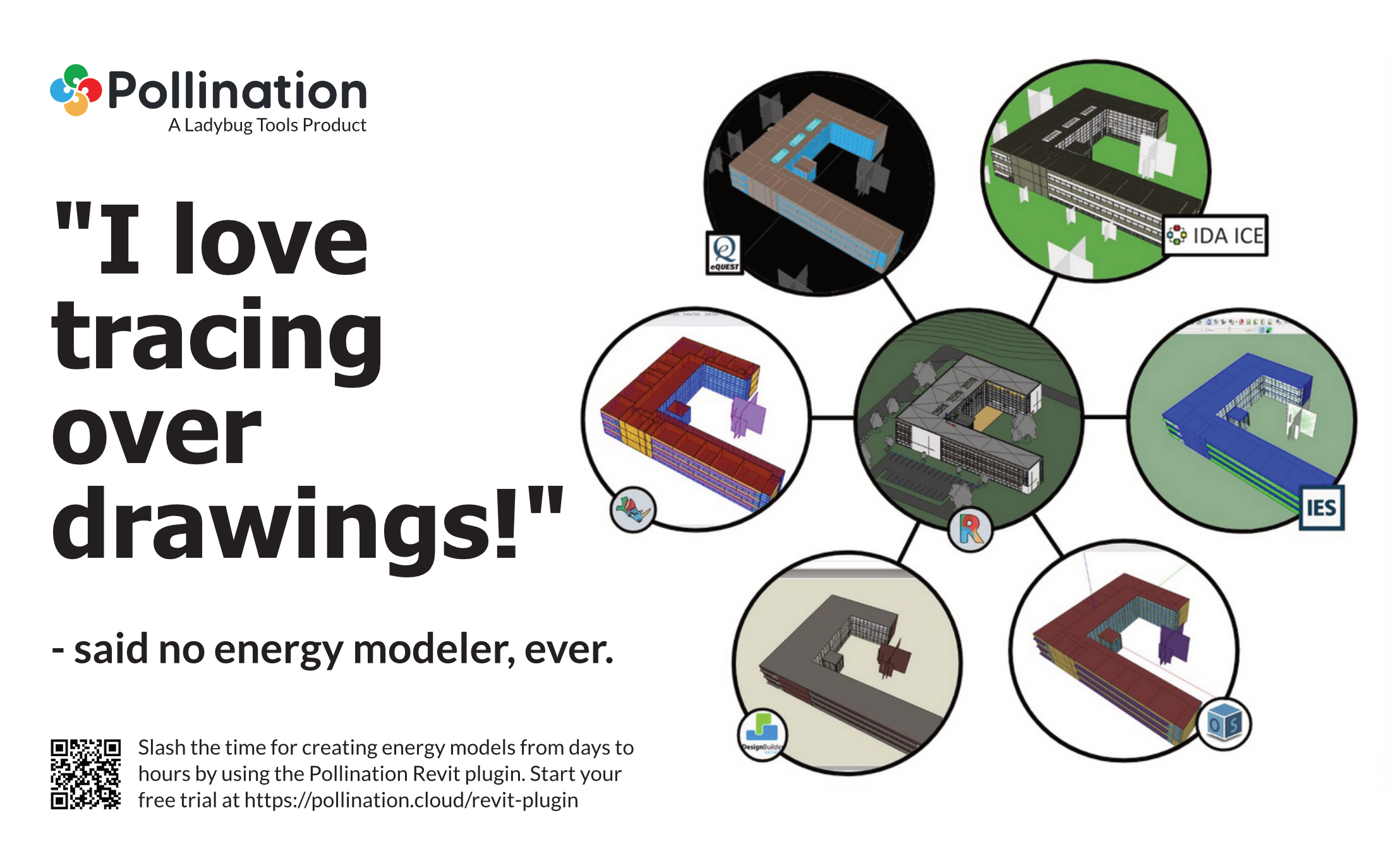
 Pollination exists to address the pain point of preparing the energy models based on architectural design models. Without Pollination, most practitioners creating their models by tracing over 2D drawing. What a \[...] waste of time and talent!
Pollination Revit plugin and Pollination Revit and Grasshopper plugins streamline the transition of building models from Revit and Rhino to building energy simulation software so you don't have to trace over the drawings anymore. It is easier, faster and it gives you a better model.
Pollination exists to address the pain point of preparing the energy models based on architectural design models. Without Pollination, most practitioners creating their models by tracing over 2D drawing. What a \[...] waste of time and talent!
Pollination Revit plugin and Pollination Revit and Grasshopper plugins streamline the transition of building models from Revit and Rhino to building energy simulation software so you don't have to trace over the drawings anymore. It is easier, faster and it gives you a better model.



 Pollination Revit Plugin
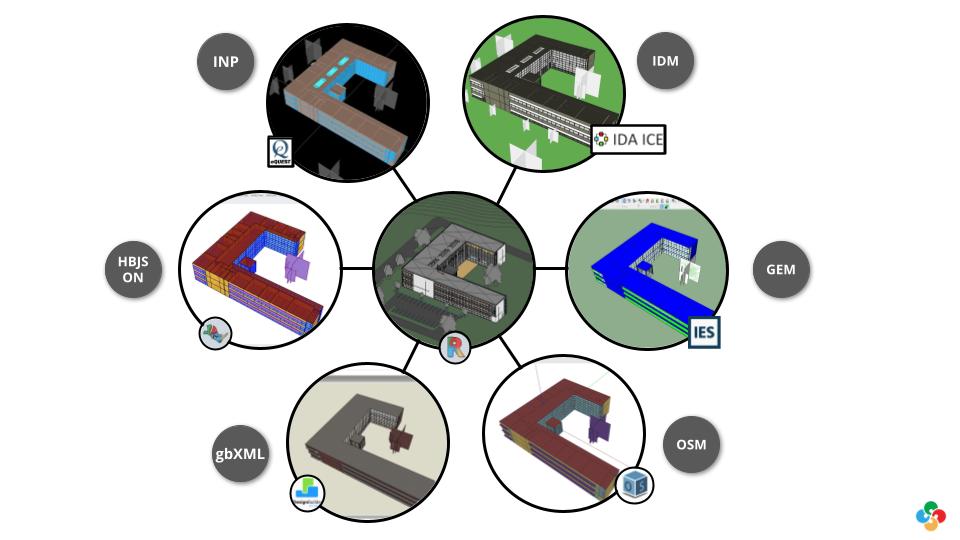

 Pollination Rhino Plugin
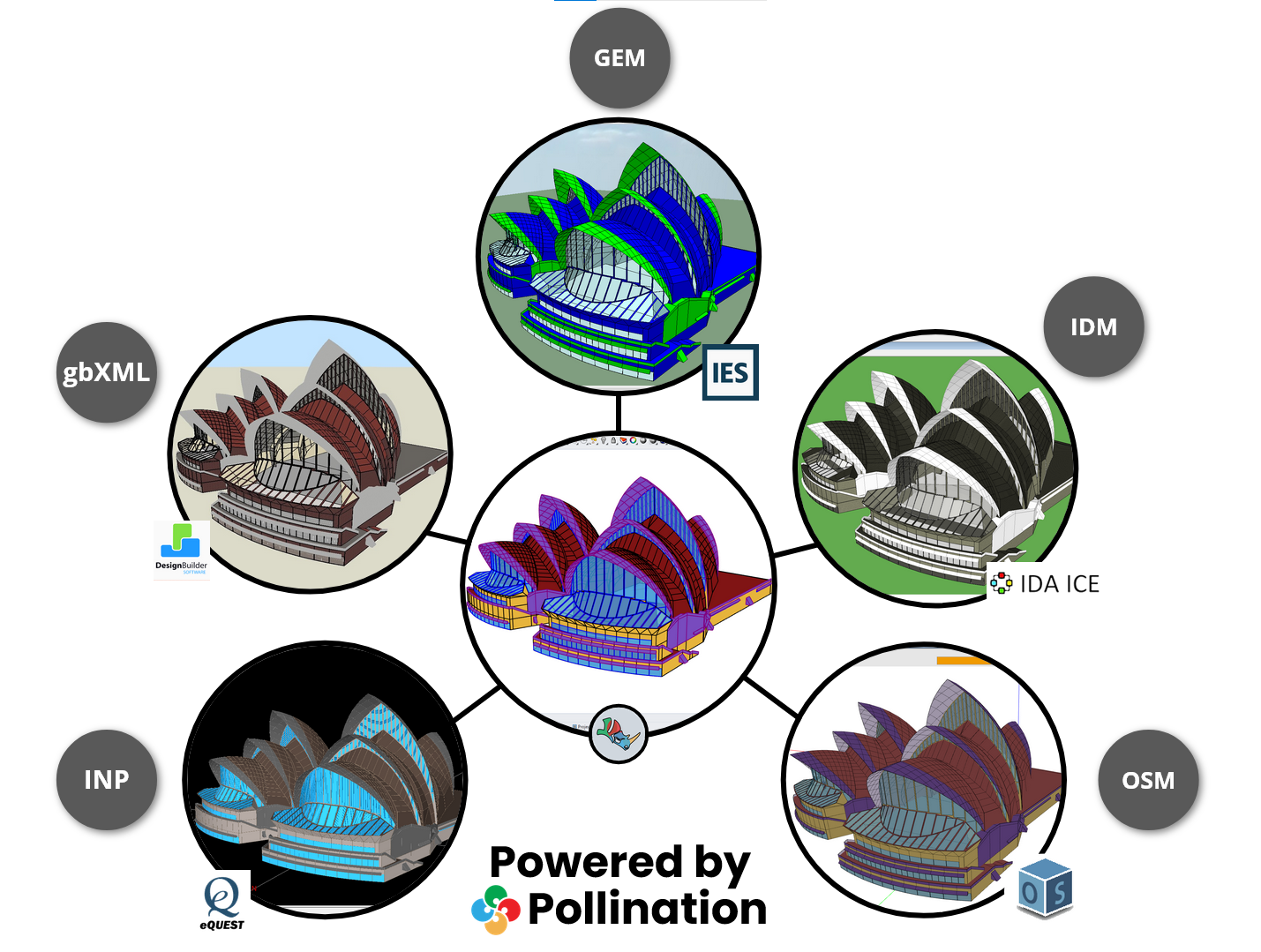
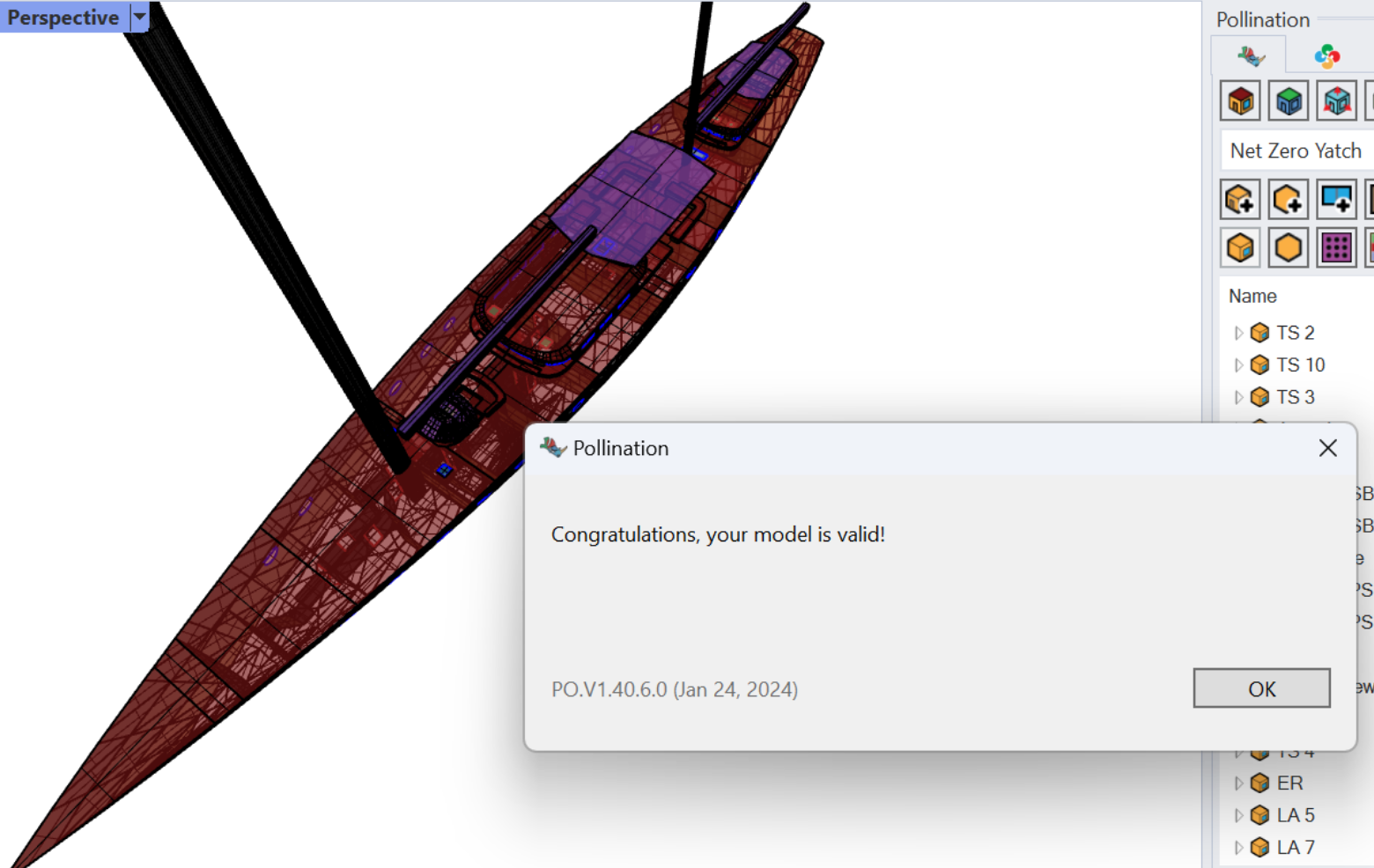
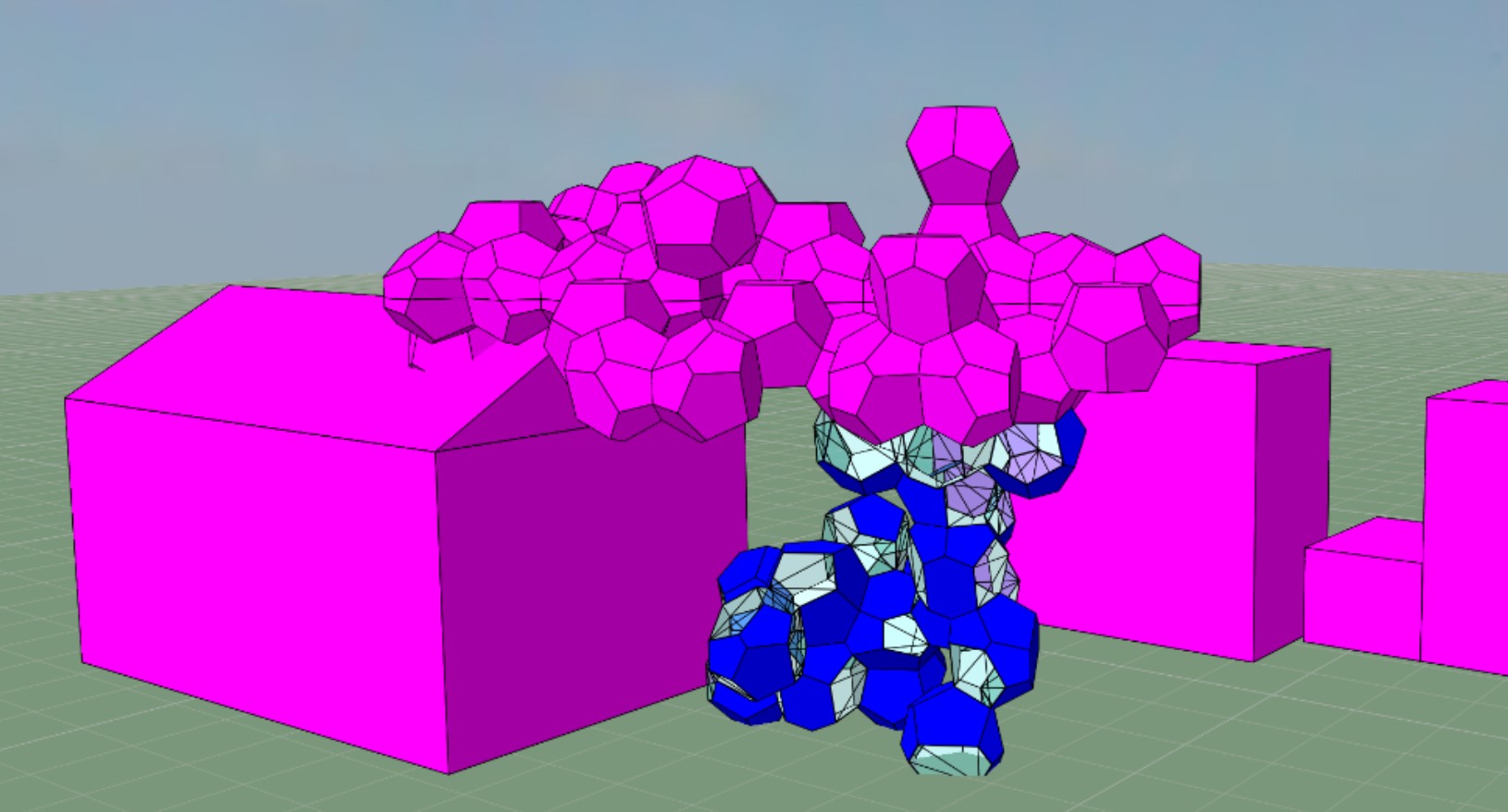
 Grasshopper Plugin allows you to reuse the Pollination Rhino models as input for your favorite Grasshopper and Ladybug Tools workflows.
{% embed url="
Grasshopper Plugin allows you to reuse the Pollination Rhino models as input for your favorite Grasshopper and Ladybug Tools workflows.
{% embed url="
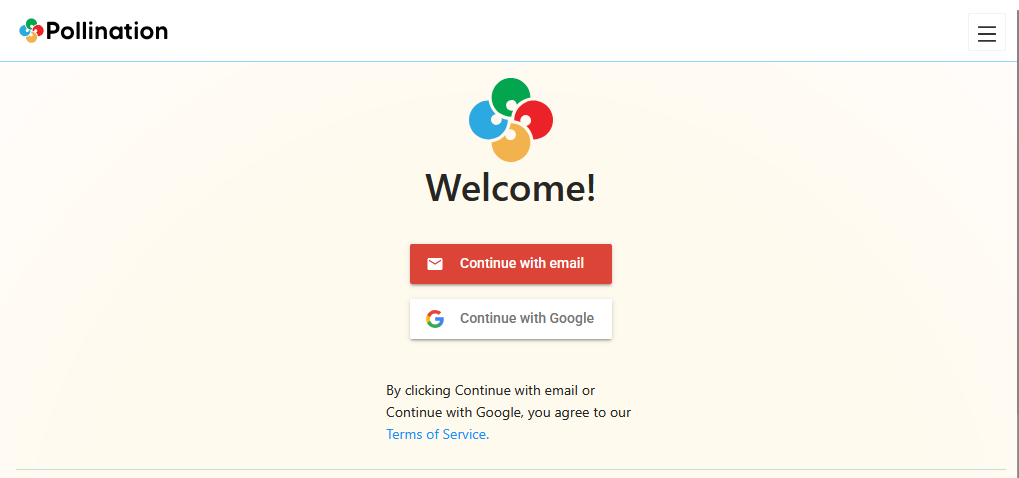
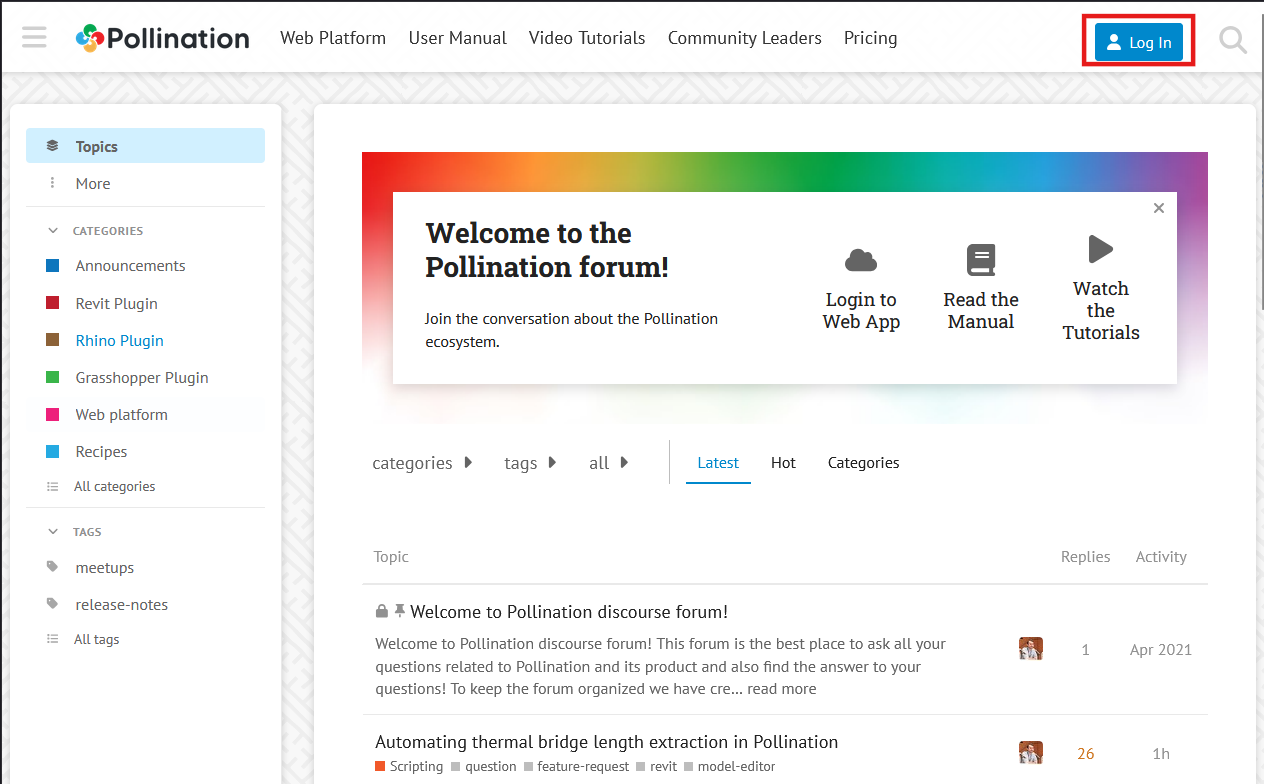


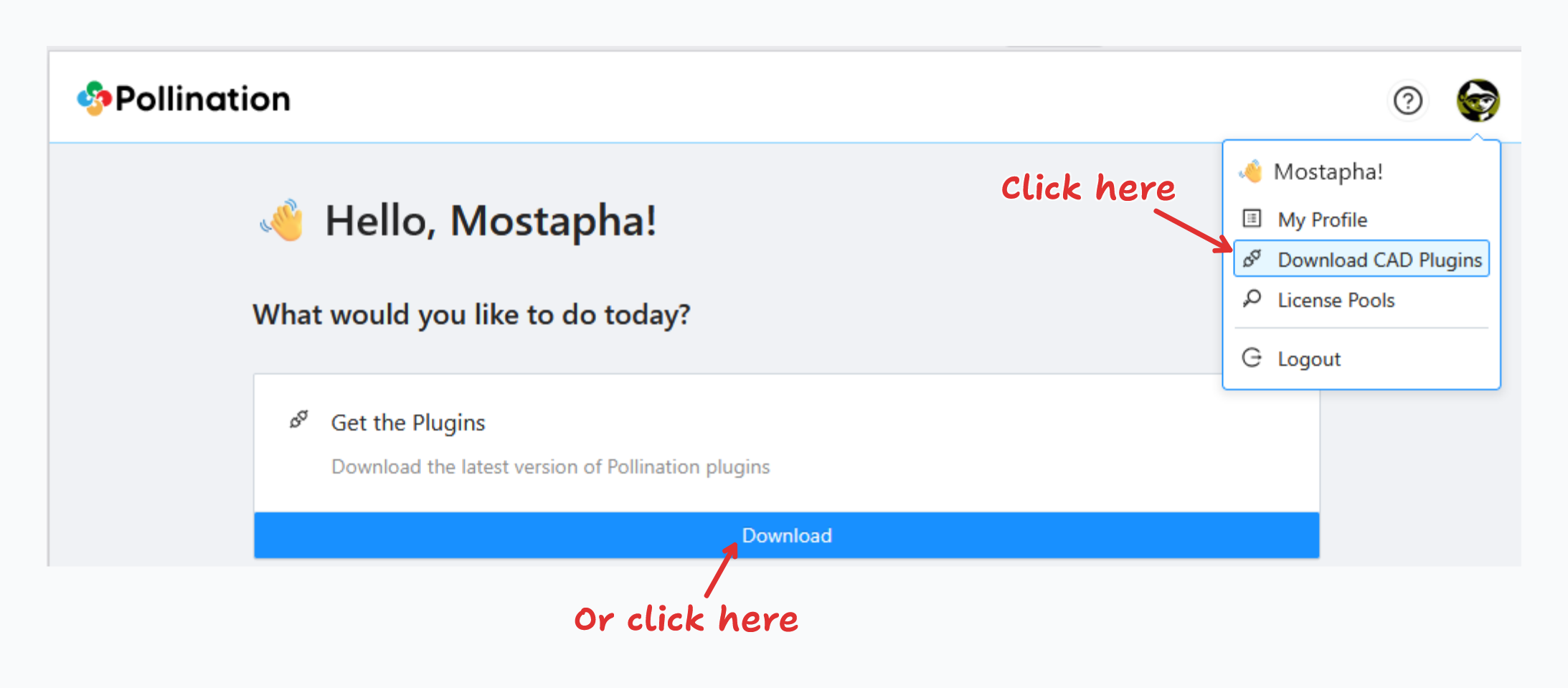
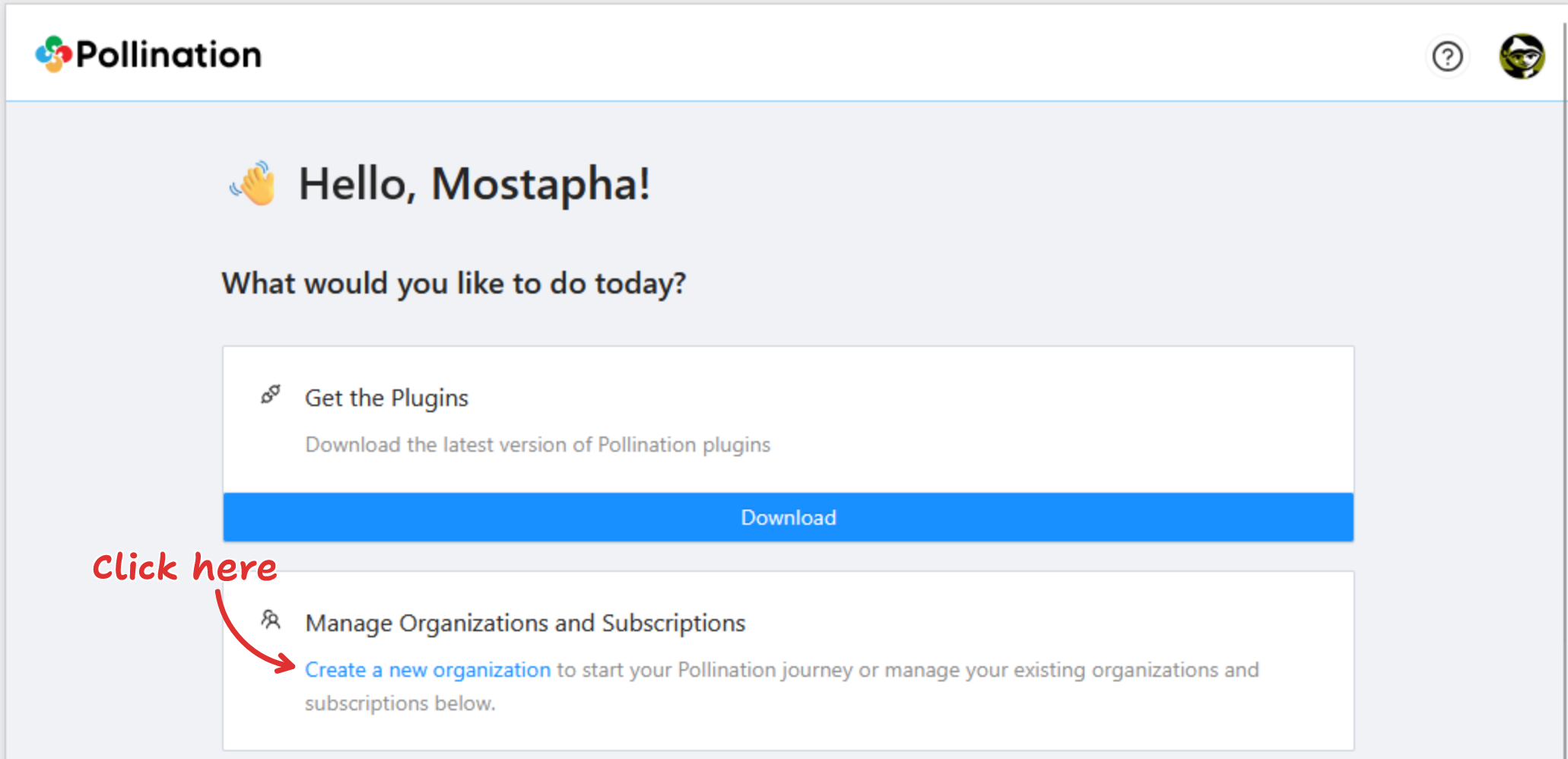
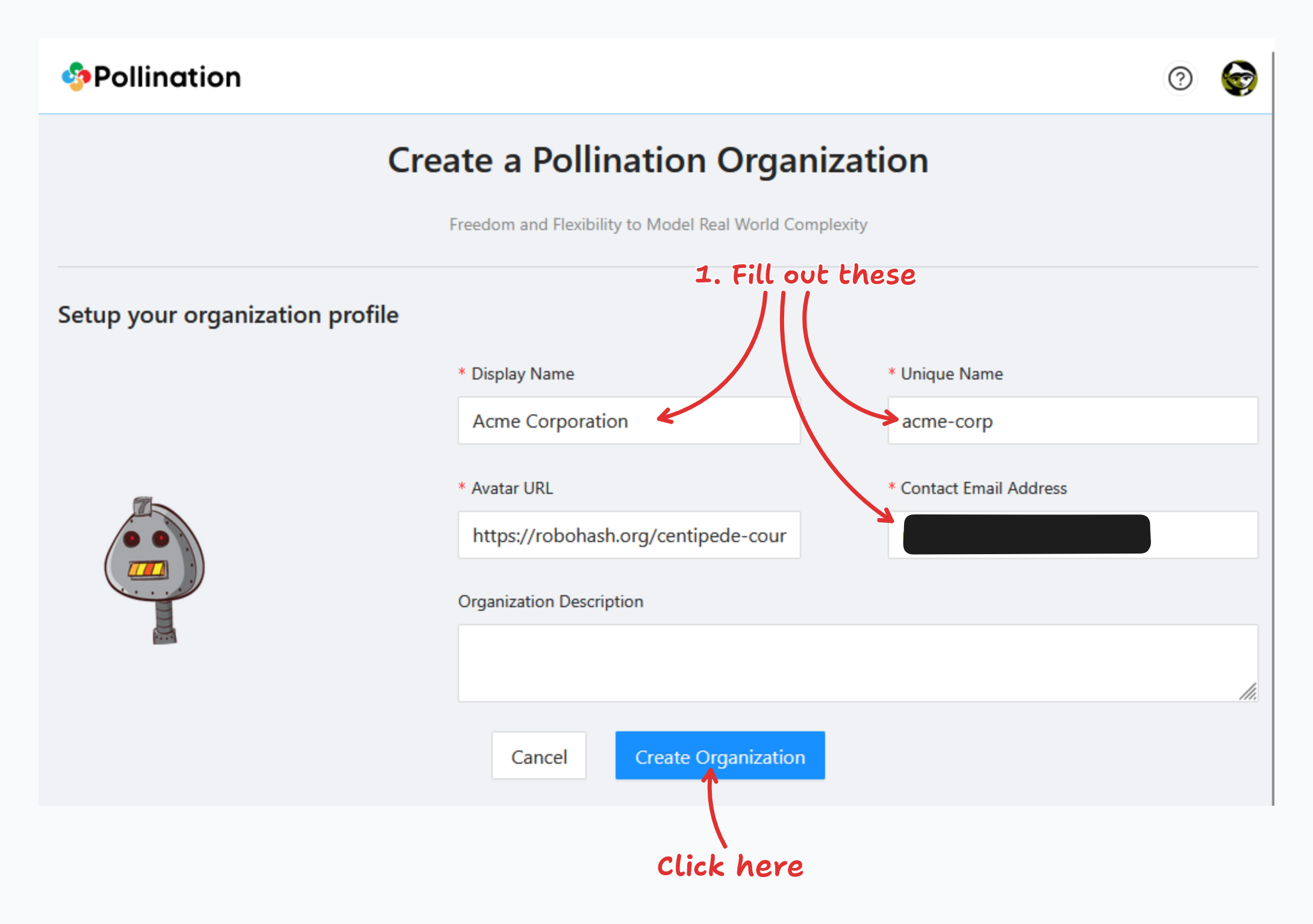
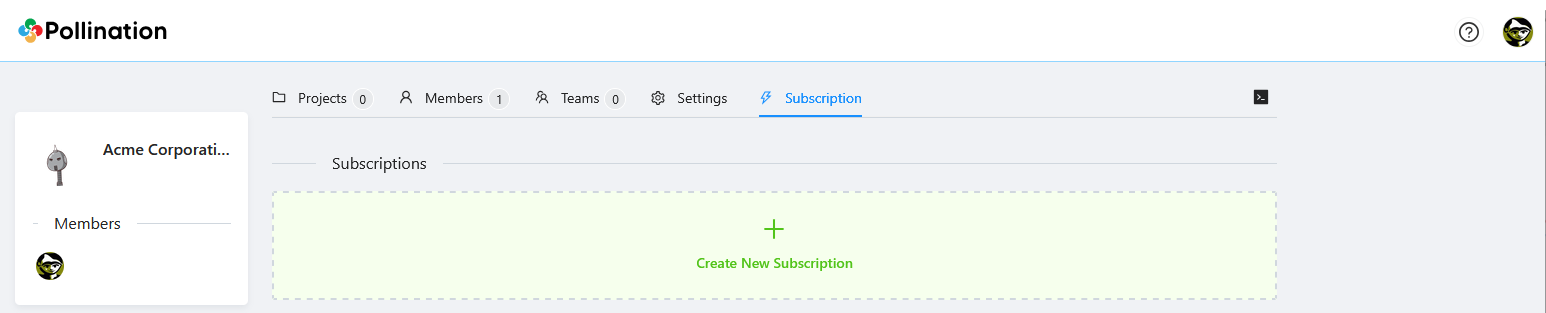
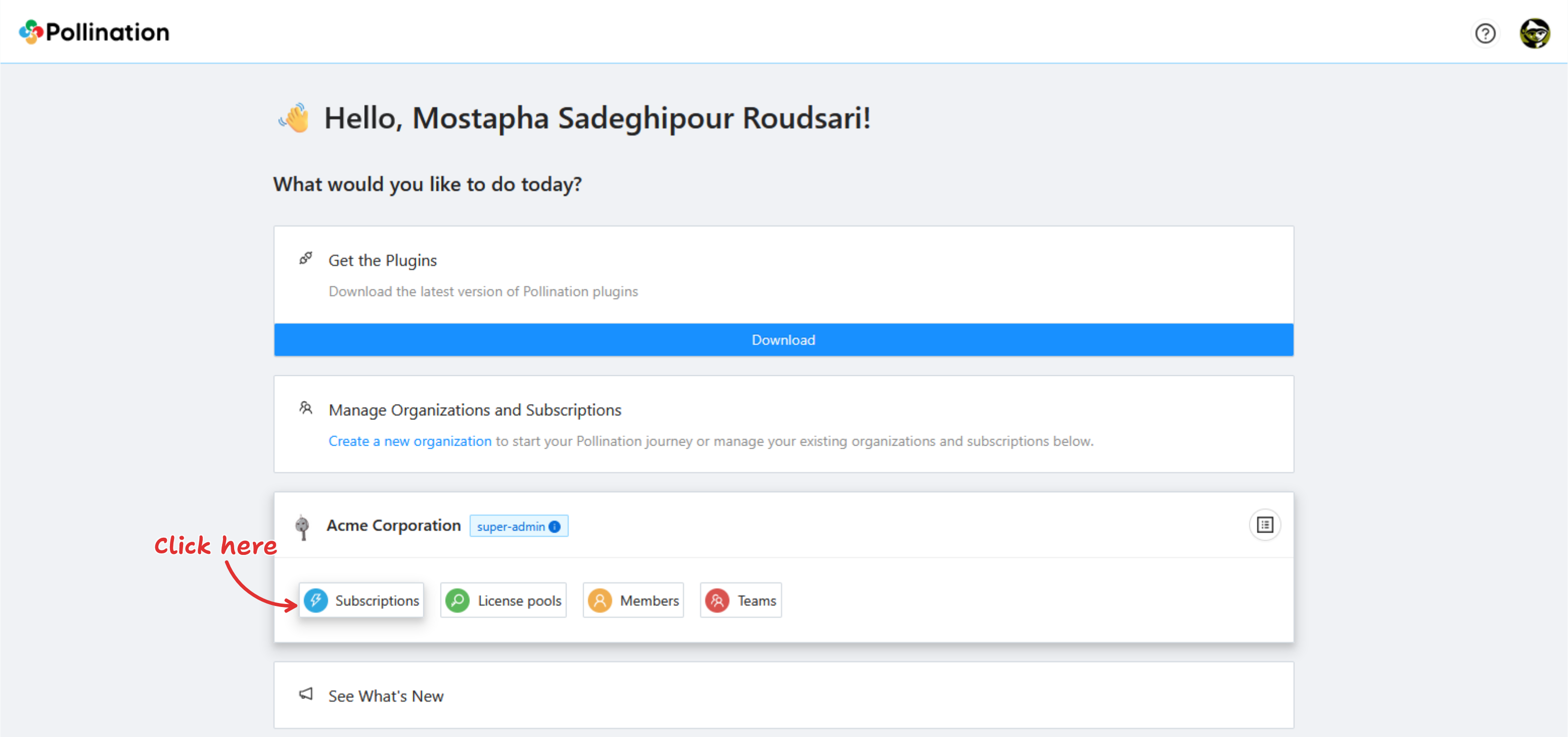
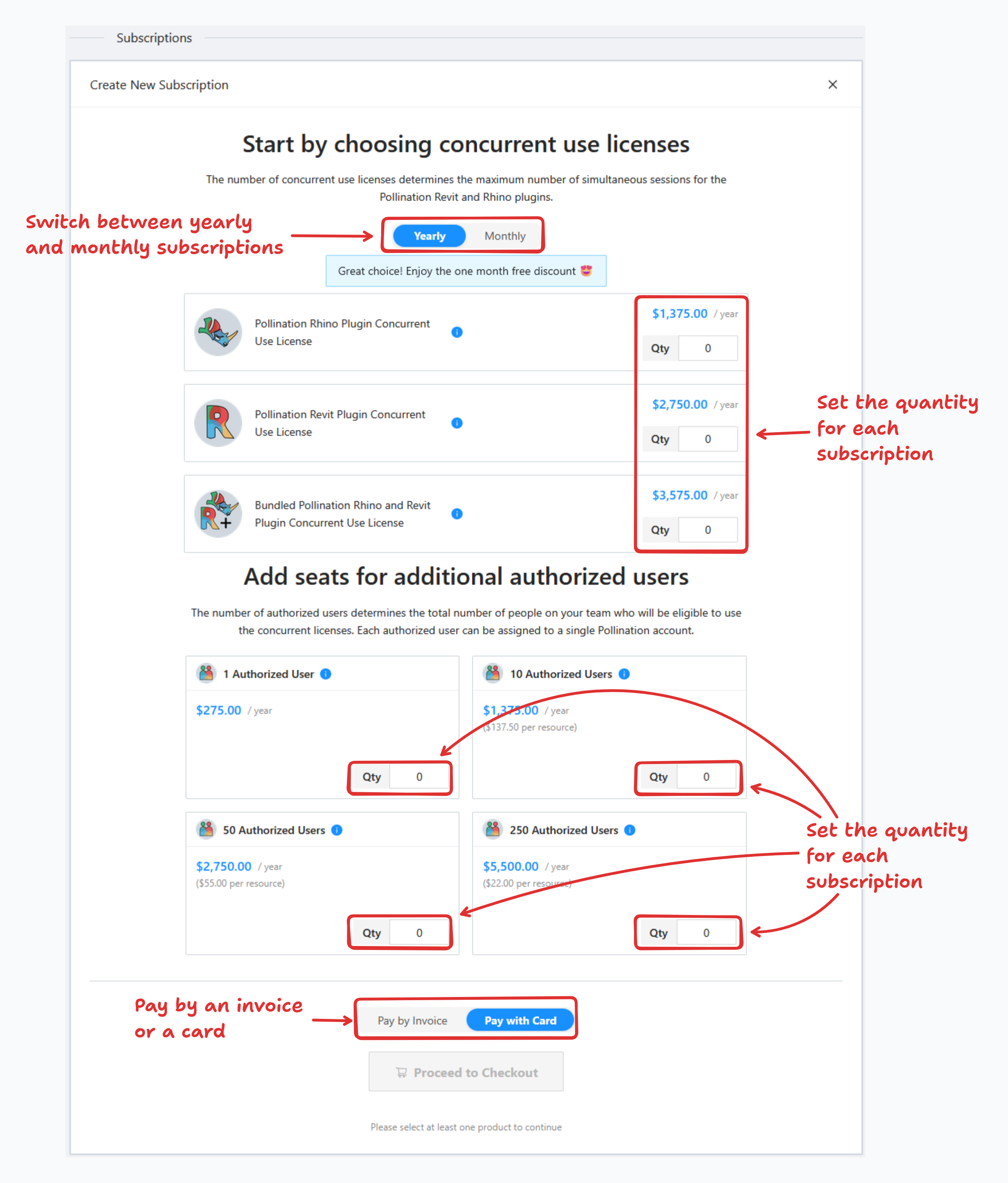
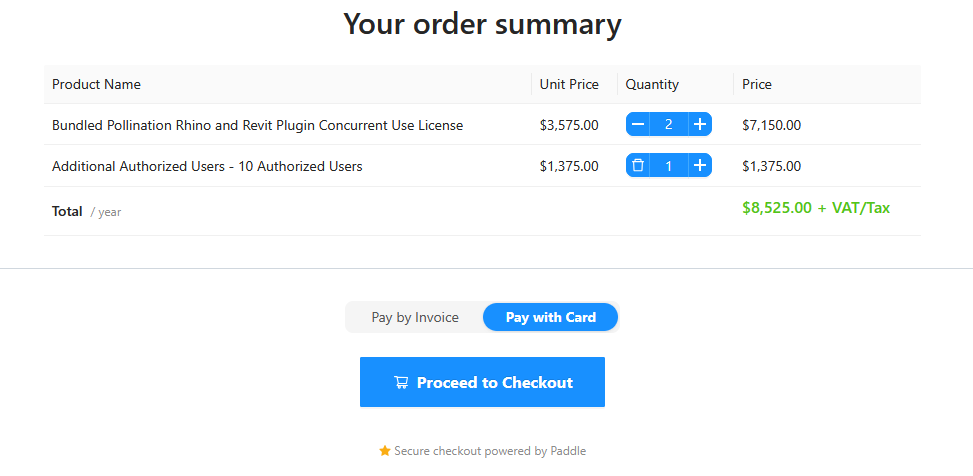
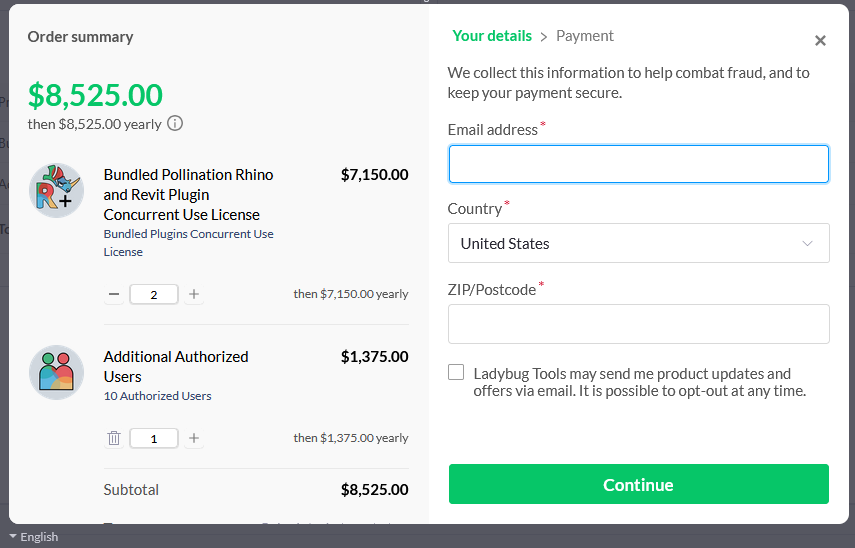

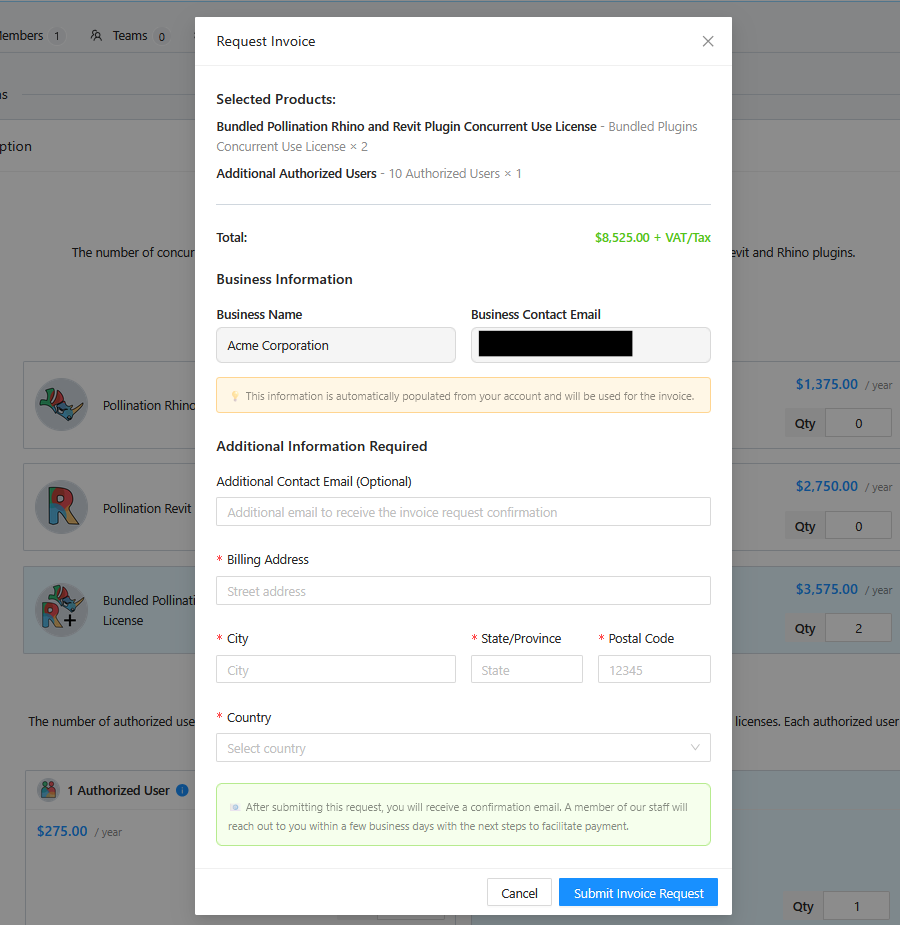

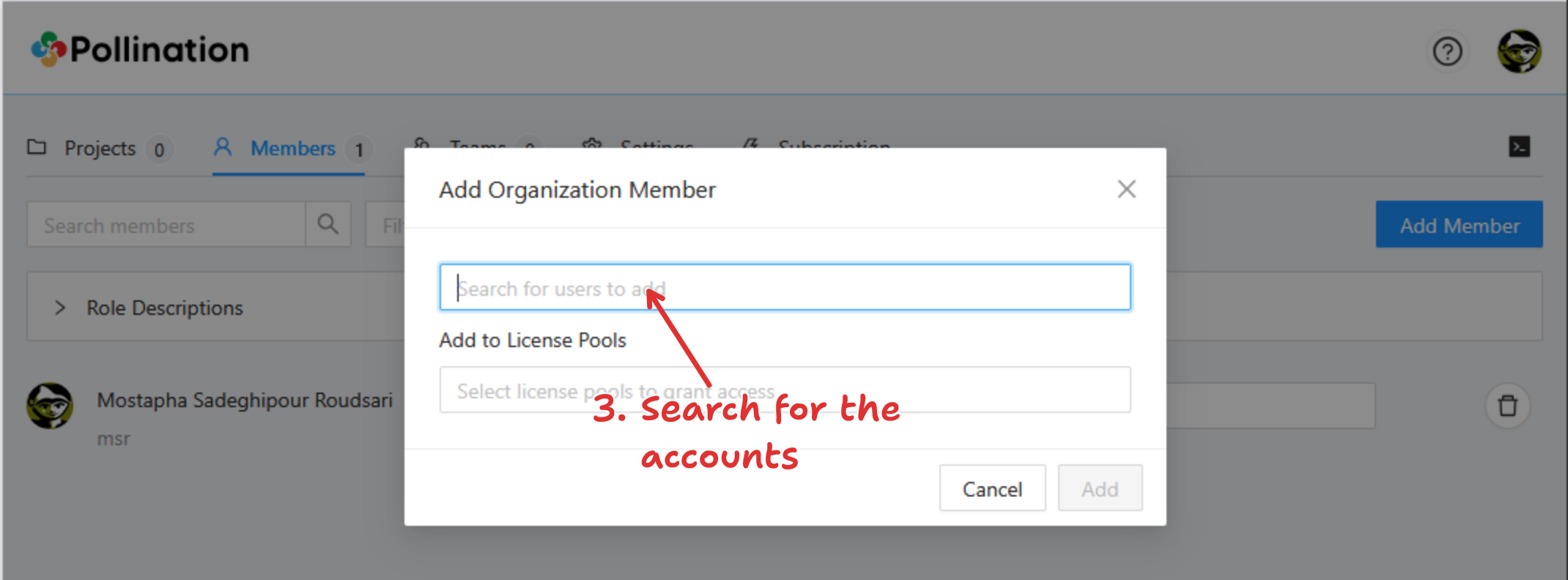
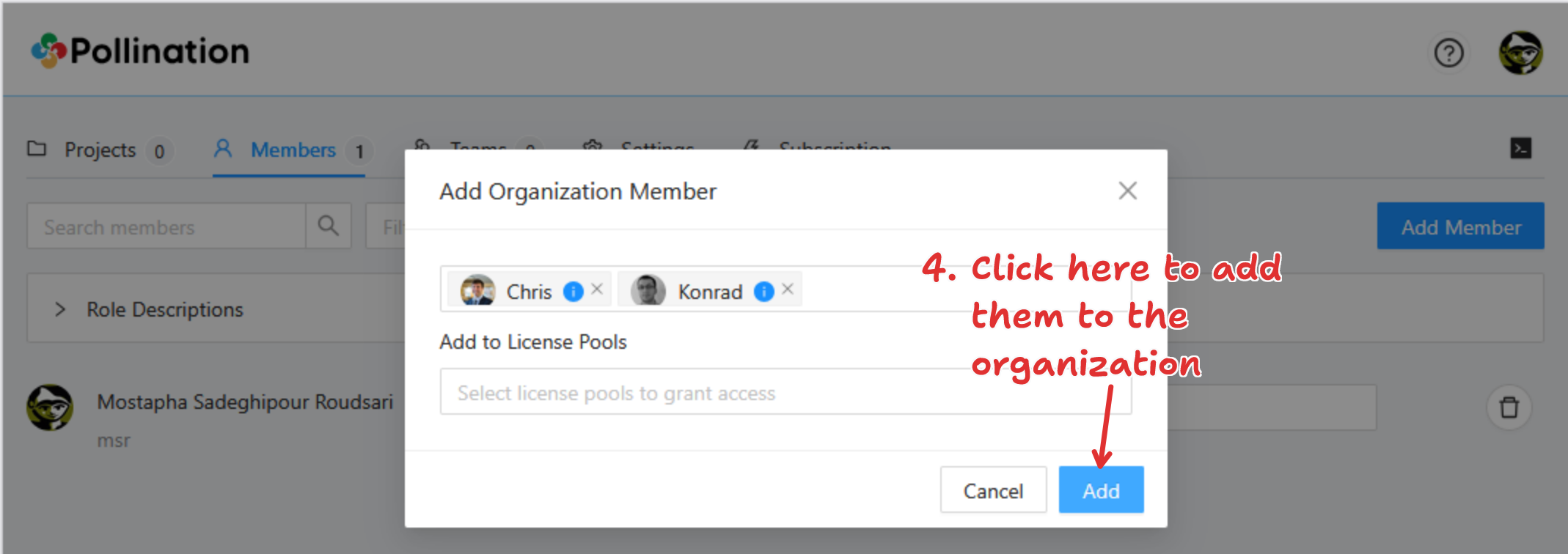
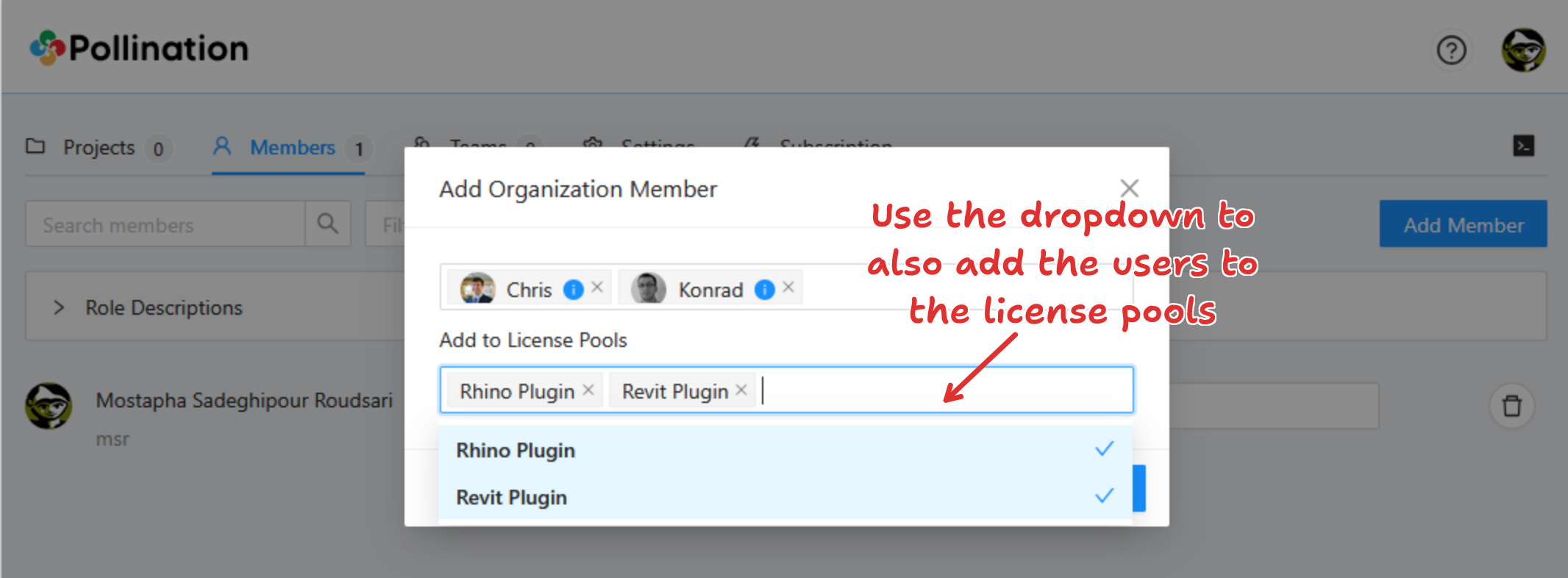
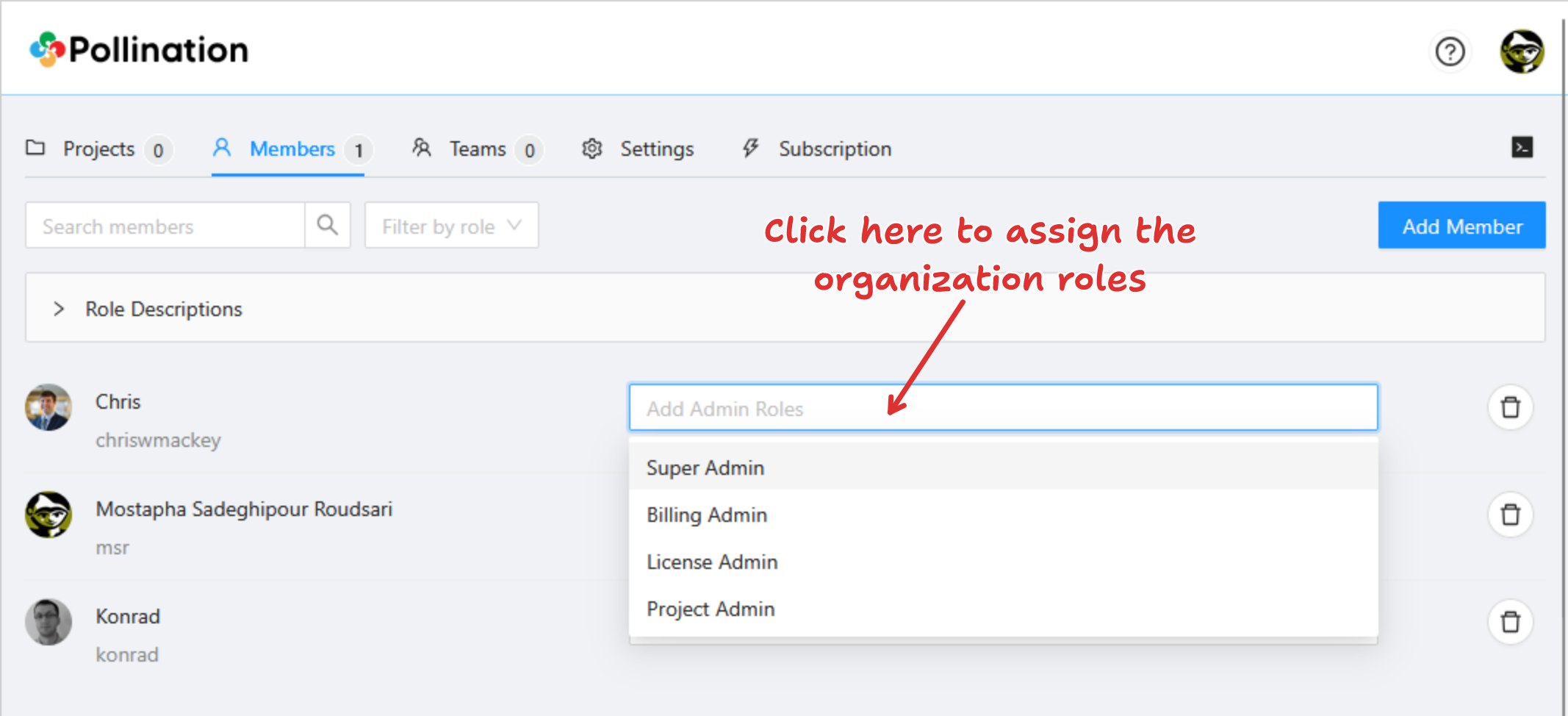
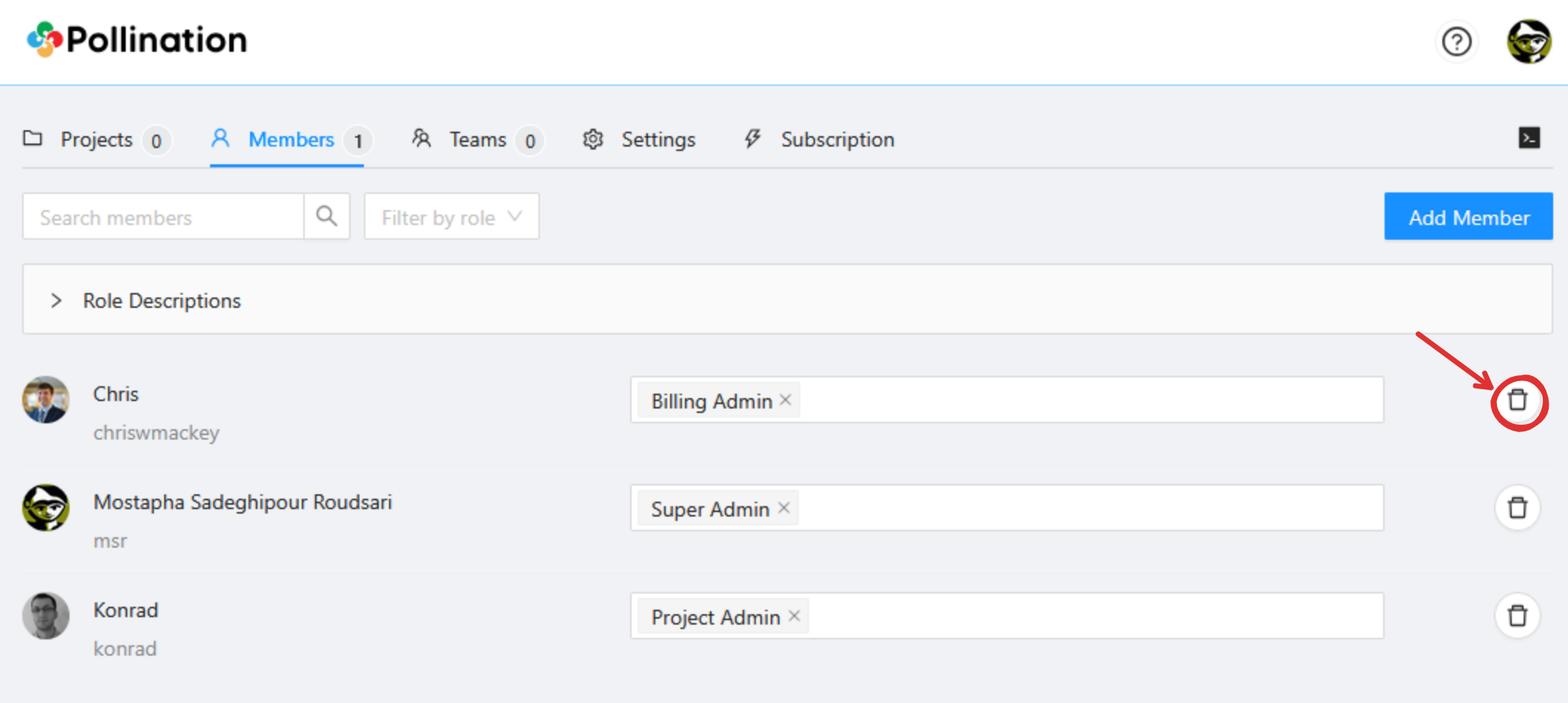
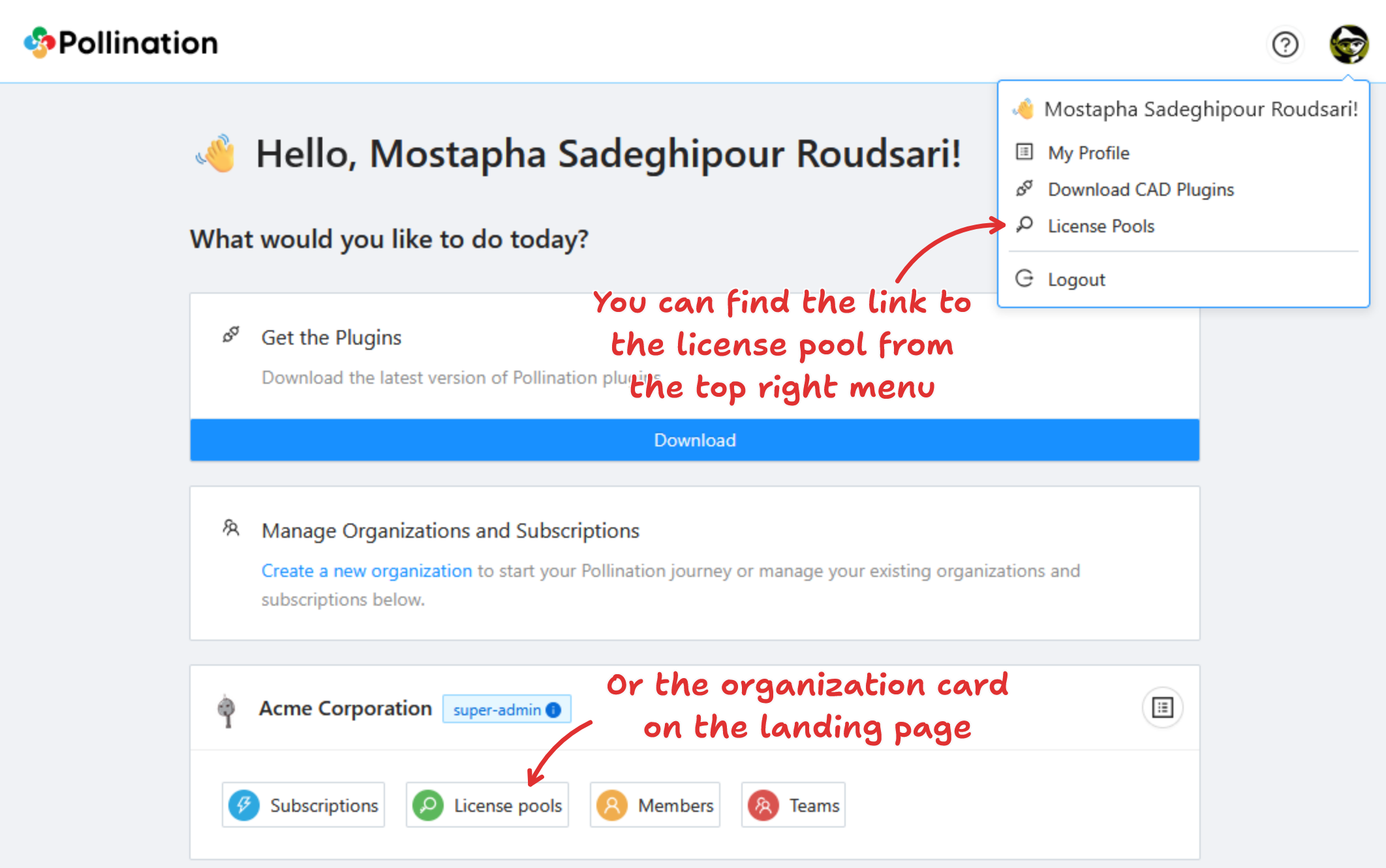
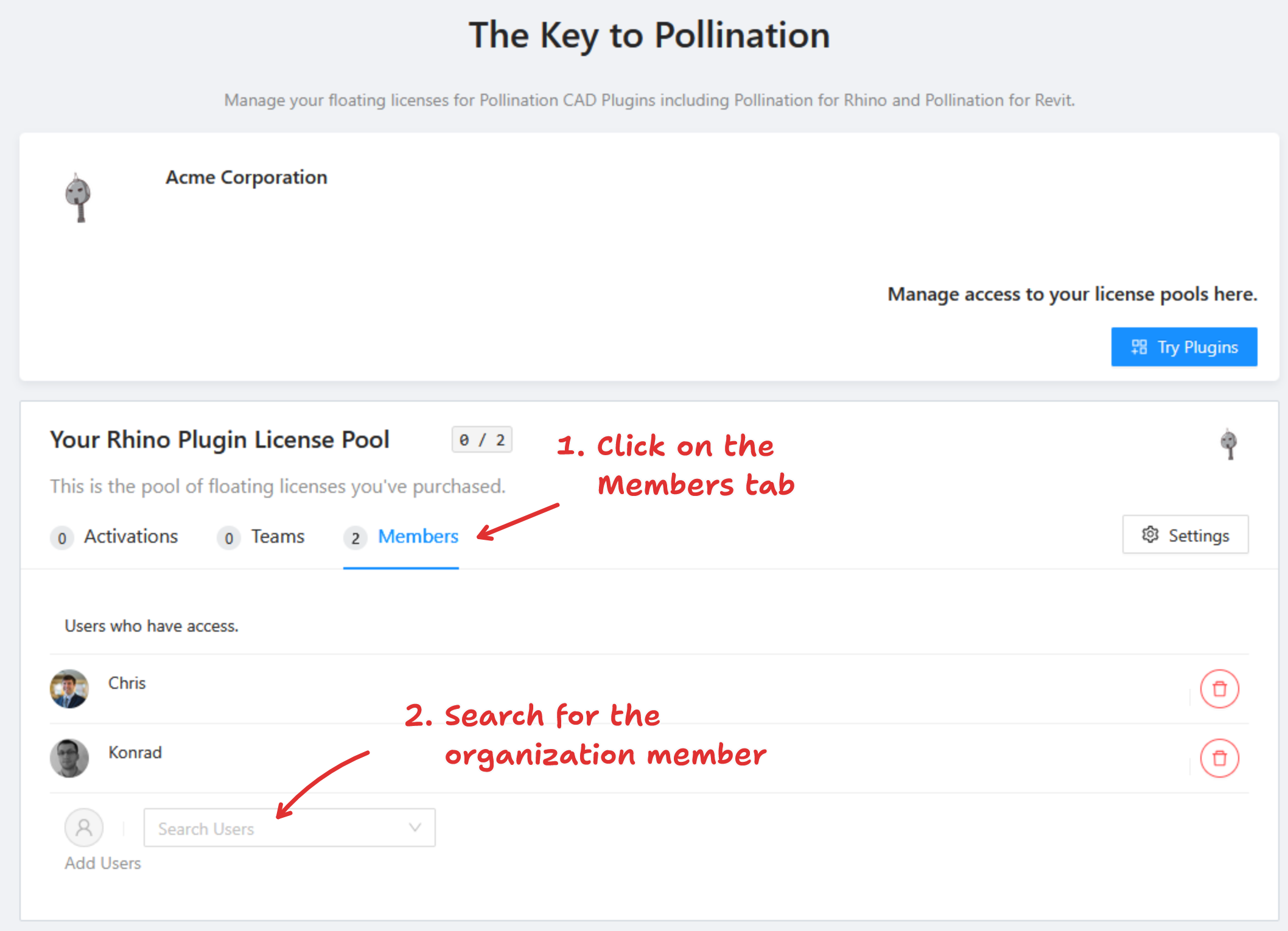
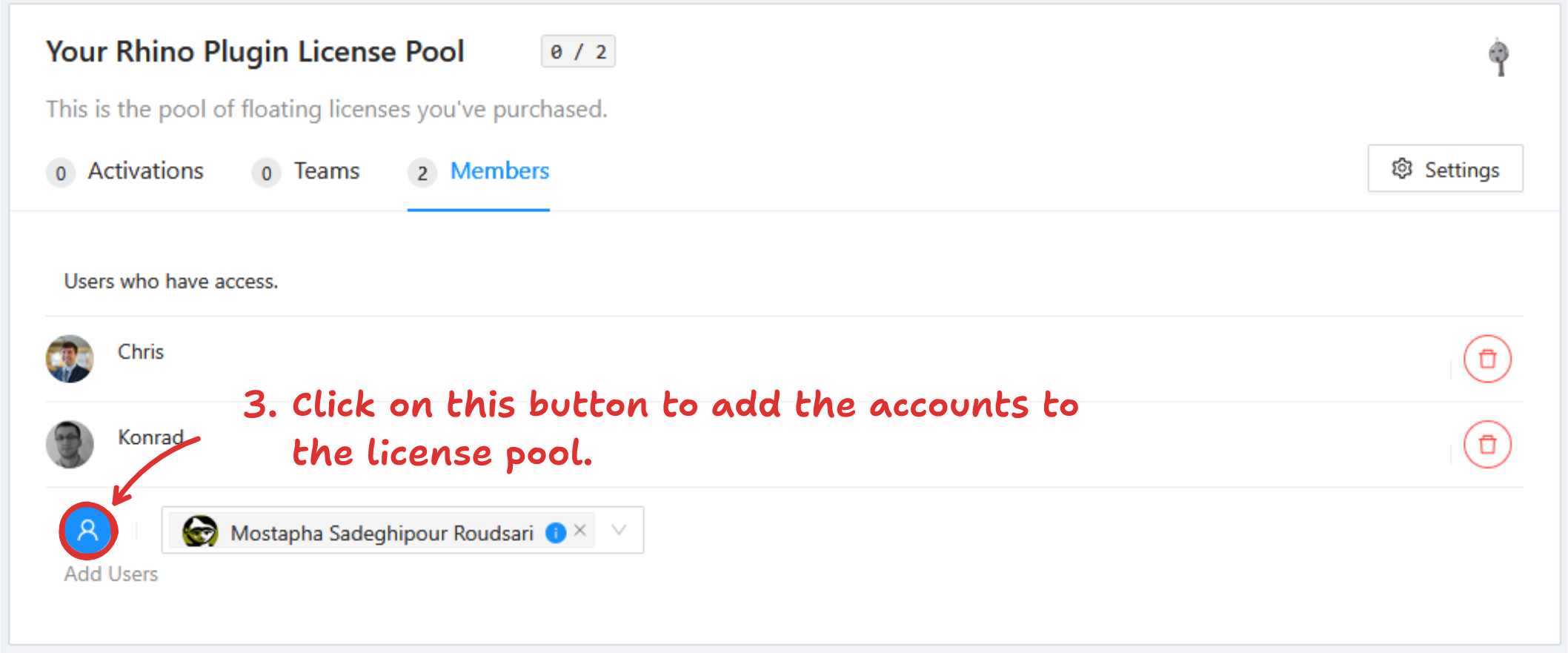
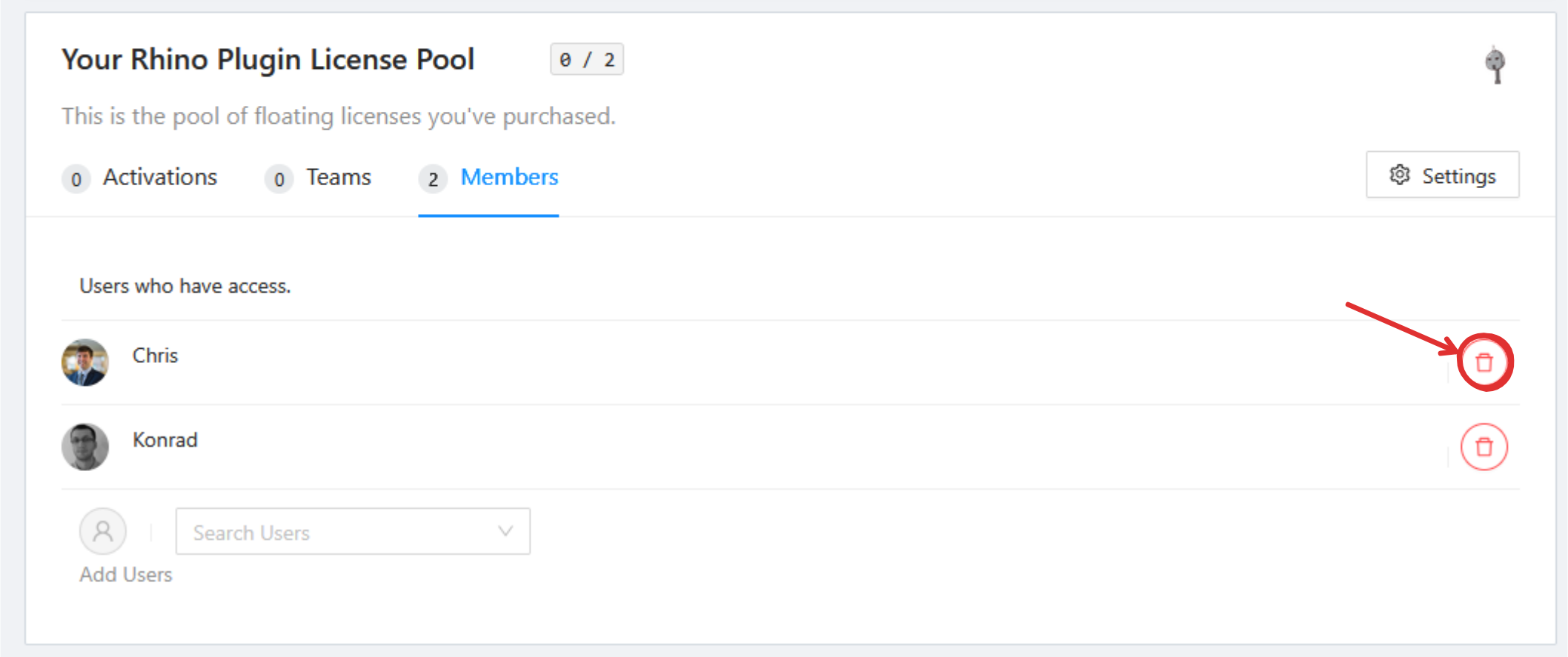
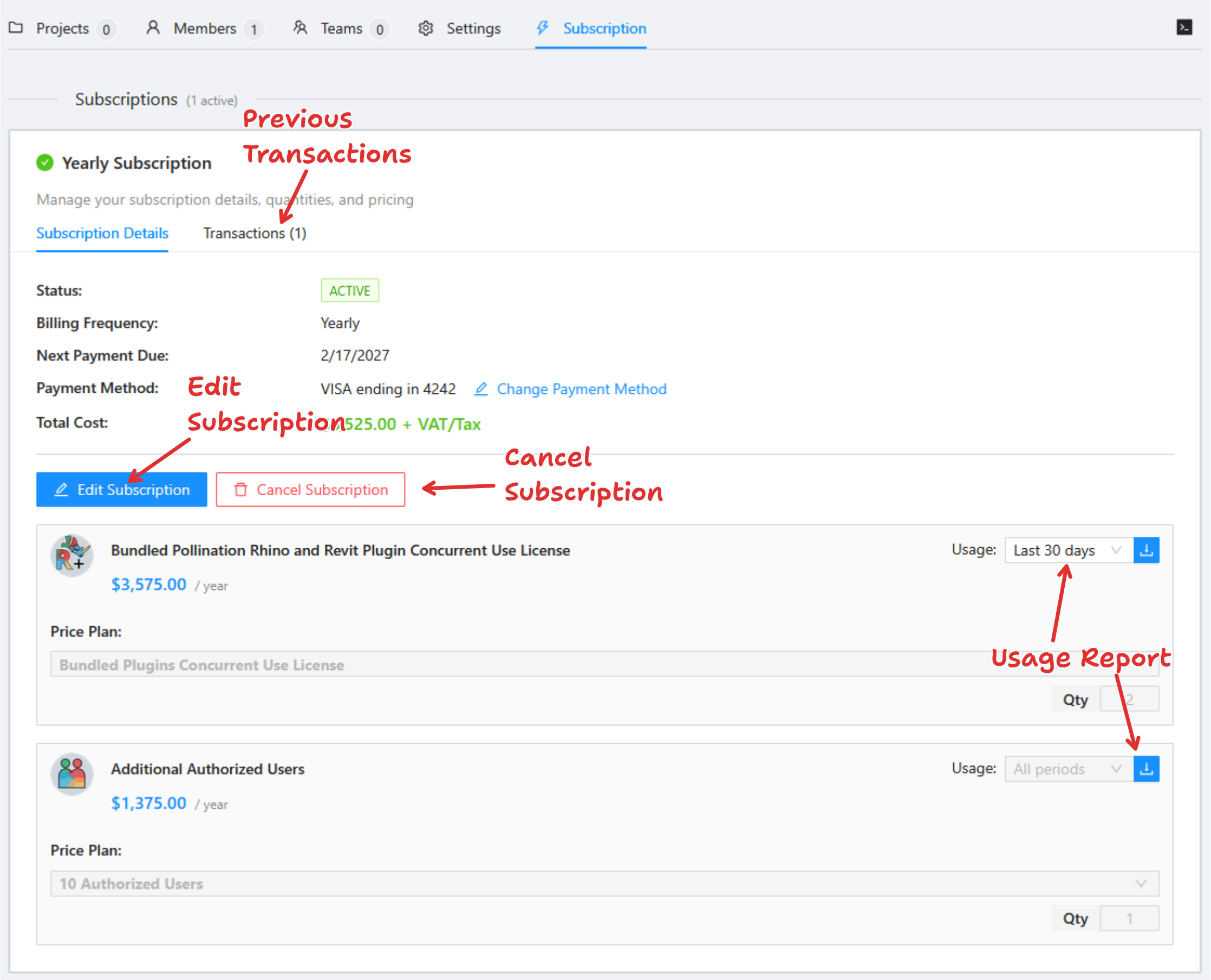
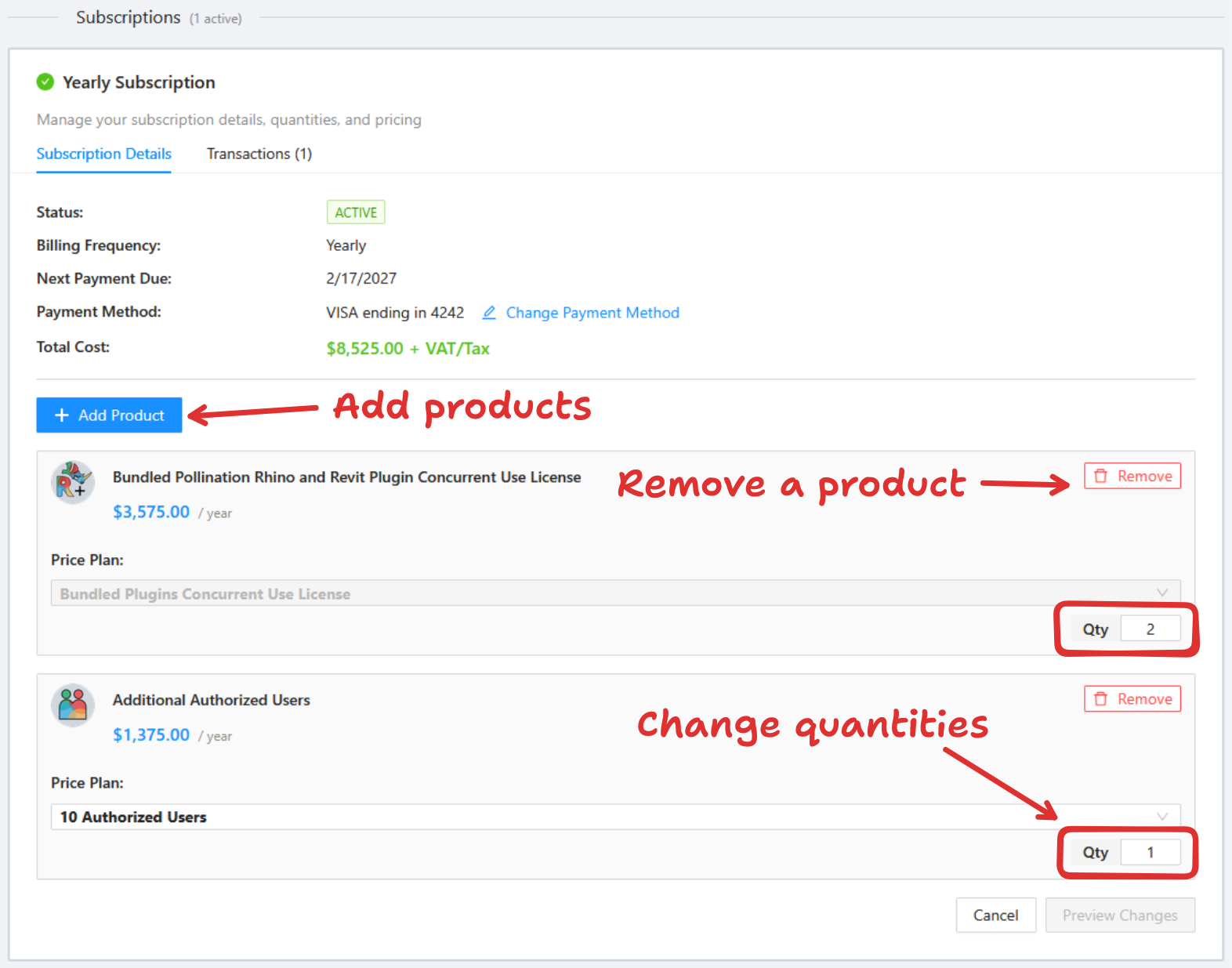
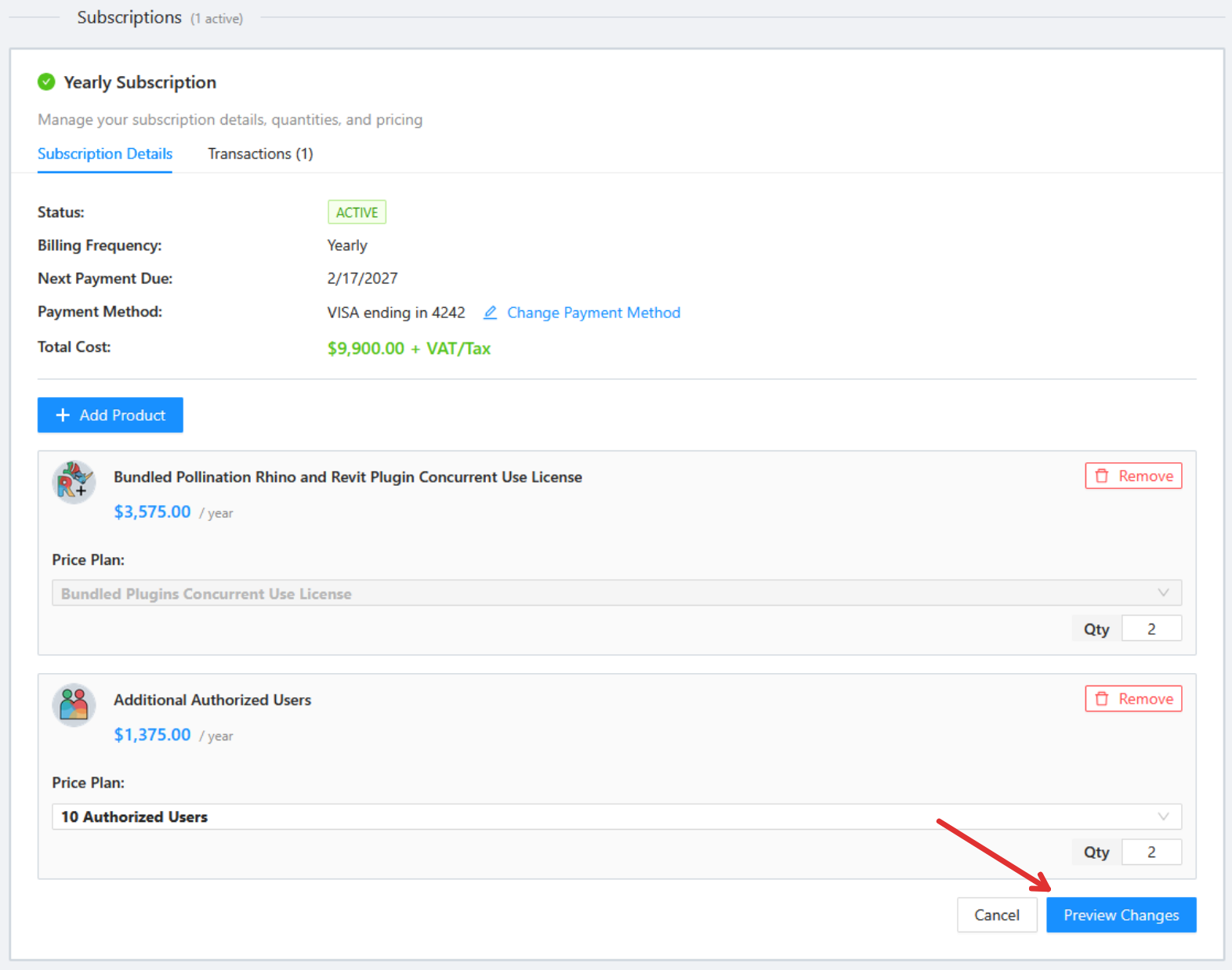
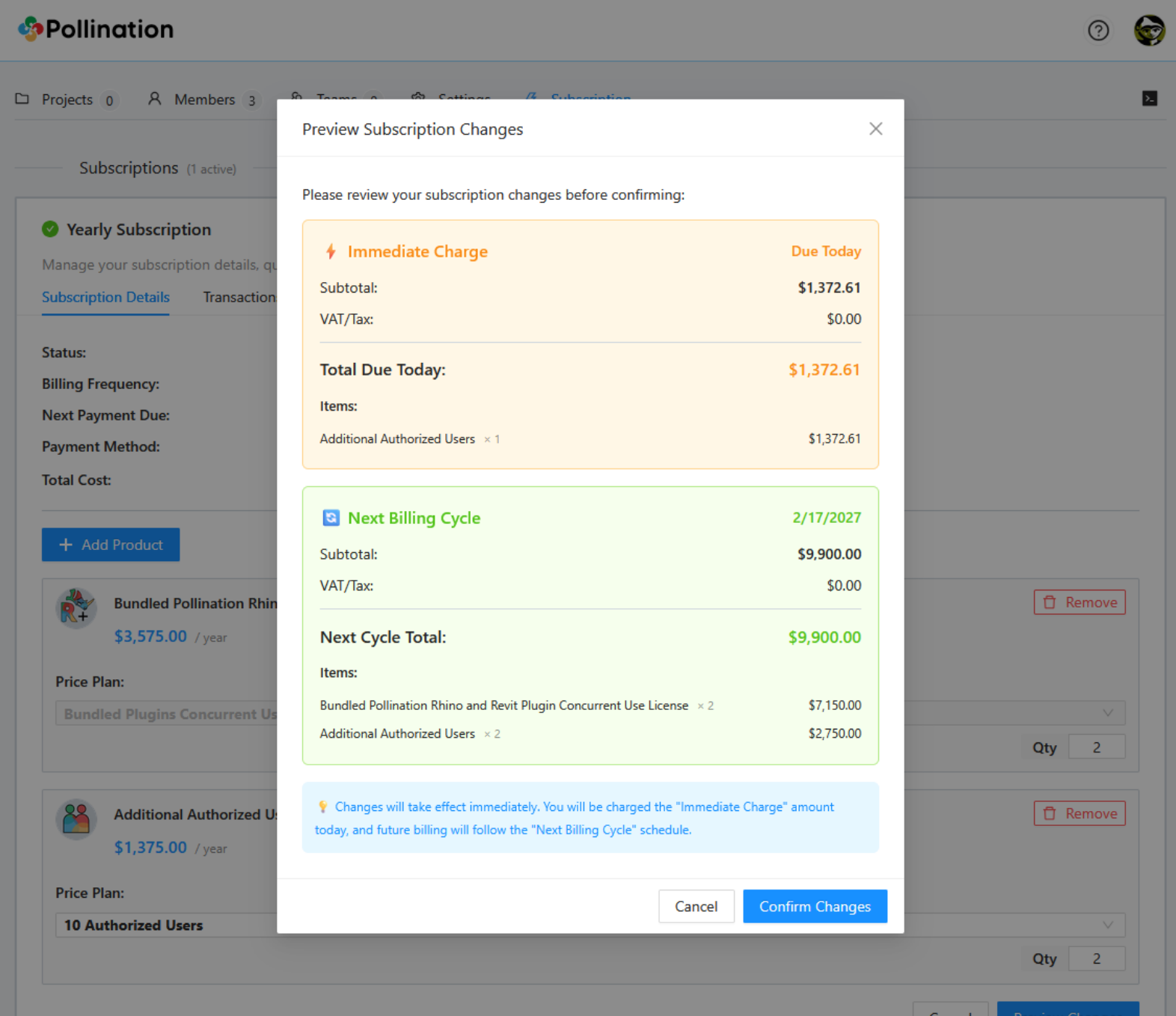
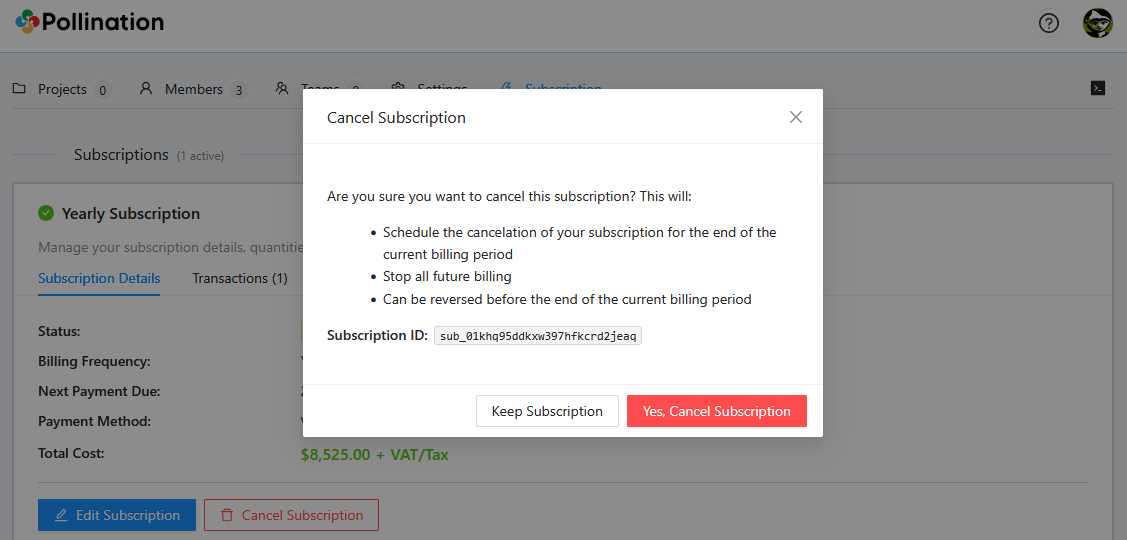
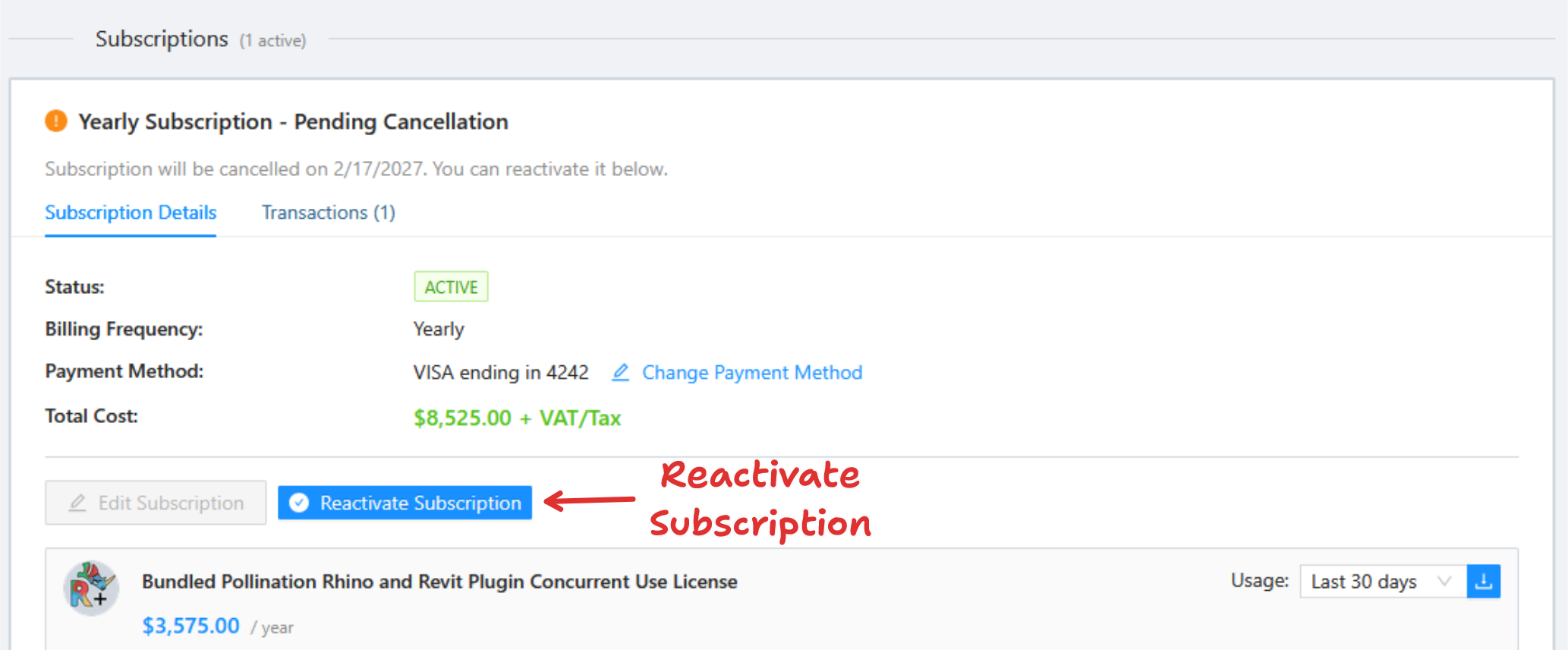

 License Manager
Use the License Manager button to return your existing license or retrieve a new license. [See here for more information](/user-manual/revit-plugin/core-concepts-and-best-practices/managing-pollination-revit-license).
### Discourse
Use the Discourse to open the Pollination Discourse website. The link takes you directly to the Revit category.
### User Manual
Use the User Manual button to access the Pollination Revit user manual (this page).
### About
Use the About button to see the information about the libraries installed in the Revit plugin.
License Manager
Use the License Manager button to return your existing license or retrieve a new license. [See here for more information](/user-manual/revit-plugin/core-concepts-and-best-practices/managing-pollination-revit-license).
### Discourse
Use the Discourse to open the Pollination Discourse website. The link takes you directly to the Revit category.
### User Manual
Use the User Manual button to access the Pollination Revit user manual (this page).
### About
Use the About button to see the information about the libraries installed in the Revit plugin.
 Enable/Disable Pollination
Use this button to enable or disable the Pollination plugin. Note that disabling the plugin erases any information related to Pollination from this model. You will **NOT** be able to access this information by enabling the plugin.
###
Enable/Disable Pollination
Use this button to enable or disable the Pollination plugin. Note that disabling the plugin erases any information related to Pollination from this model. You will **NOT** be able to access this information by enabling the plugin.
###  Update Checker
This button will notify you when a newer version of the Pollination Revit plugin is available. You can click on the button to go to the download page and download the latest version of the plugin.
### Reload Setting
This button reloads all the levels, phases, and links from Revit. This data is used by Pollination when creating an energy model.
## Resources
###
Update Checker
This button will notify you when a newer version of the Pollination Revit plugin is available. You can click on the button to go to the download page and download the latest version of the plugin.
### Reload Setting
This button reloads all the levels, phases, and links from Revit. This data is used by Pollination when creating an energy model.
## Resources
###  Material Manager
Select to access the available materials for energy simulation. You can also use this menu to create new materials or edit existing ones.
###
Material Manager
Select to access the available materials for energy simulation. You can also use this menu to create new materials or edit existing ones.
###  Construction Manager
Select to access the available constructions for energy simulation. You can also use this menu to create new constructions or edit existing ones.
###
Construction Manager
Select to access the available constructions for energy simulation. You can also use this menu to create new constructions or edit existing ones.
###  ConstructionSet Manager
Select to access the available construction sets for energy simulation. You can also use this menu to create new construction sets or edit existing ones.
###
ConstructionSet Manager
Select to access the available construction sets for energy simulation. You can also use this menu to create new construction sets or edit existing ones.
###  Schedule Manager
Select to access the available schedules for energy simulation. You can also use this menu to create new schedules or edit existing ones.
###
Schedule Manager
Select to access the available schedules for energy simulation. You can also use this menu to create new schedules or edit existing ones.
###  Program Type Manager
Select to access the available program types for energy simulation. You can also use this menu to create new program types or edit existing ones.
## Model
###
Program Type Manager
Select to access the available program types for energy simulation. You can also use this menu to create new program types or edit existing ones.
## Model
###  Show Bounding
Use this button to highlight the room-bounding elements in the view.
###
Show Bounding
Use this button to highlight the room-bounding elements in the view.
###  Hide Bounding
Use this button to turn off the highlighted room-bounding elements in the view.
###
Hide Bounding
Use this button to turn off the highlighted room-bounding elements in the view.
###  Un-Group All
Use this button to ungroup all the grouped items in Revit.
###
Un-Group All
Use this button to ungroup all the grouped items in Revit.
###  Manage Room Properties
Use this button to manage the properties for the selected rooms. The room properties manager allows for changing the construction set, program types, and HVAC, among other room properties.
***
###  Select Doors & Windows
Use the Select Windows/Doors menu to select the Revit families that should be translated to windows, skylights, or doors when exporting the rooms.
###  Select Roofs
Use the Select Roofs menu to select the Revit roof families that should be included in the Pollination model.
###  Export Rooms
Use Create Rooms to create Pollination rooms from Revit rooms, spaces, or areas. This menu also allows you to assign room properties and export them to a Pollination snapshot.
###  Export Shades
Use the Create Shades menu to select the objects in the Revit model that should be translated to shades. You can export the shades snapshot directly or include it as part of the rooms snapshot.
###  Export Model
Use this button to edit the snapshots and export them to any of the [supported file formats](/user-manual/model-editor/supported-file-formats/export).
# Managing Pollination Revit License
You need to make sure to have access to a valid license to use the Pollination Revit plugin. If you haven't used the Revit plugin in the past, you can use a 30-day free trial to test the plugin. You will need to buy a Pollination Revit license to use the Pollination Revit plugin after the trial period.
In either case, you can use the Pollination License Manager to retrieve a license from a license pool or return the license to the license pool.
## Checking out a license from the license pool
To activate your license:
1. Go to the Pollination tab, and click on the License Manager button.\\
Manage Room Properties
Use this button to manage the properties for the selected rooms. The room properties manager allows for changing the construction set, program types, and HVAC, among other room properties.
***
###  Select Doors & Windows
Use the Select Windows/Doors menu to select the Revit families that should be translated to windows, skylights, or doors when exporting the rooms.
###  Select Roofs
Use the Select Roofs menu to select the Revit roof families that should be included in the Pollination model.
###  Export Rooms
Use Create Rooms to create Pollination rooms from Revit rooms, spaces, or areas. This menu also allows you to assign room properties and export them to a Pollination snapshot.
###  Export Shades
Use the Create Shades menu to select the objects in the Revit model that should be translated to shades. You can export the shades snapshot directly or include it as part of the rooms snapshot.
###  Export Model
Use this button to edit the snapshots and export them to any of the [supported file formats](/user-manual/model-editor/supported-file-formats/export).
# Managing Pollination Revit License
You need to make sure to have access to a valid license to use the Pollination Revit plugin. If you haven't used the Revit plugin in the past, you can use a 30-day free trial to test the plugin. You will need to buy a Pollination Revit license to use the Pollination Revit plugin after the trial period.
In either case, you can use the Pollination License Manager to retrieve a license from a license pool or return the license to the license pool.
## Checking out a license from the license pool
To activate your license:
1. Go to the Pollination tab, and click on the License Manager button.\\

%20(1).png?alt=media)
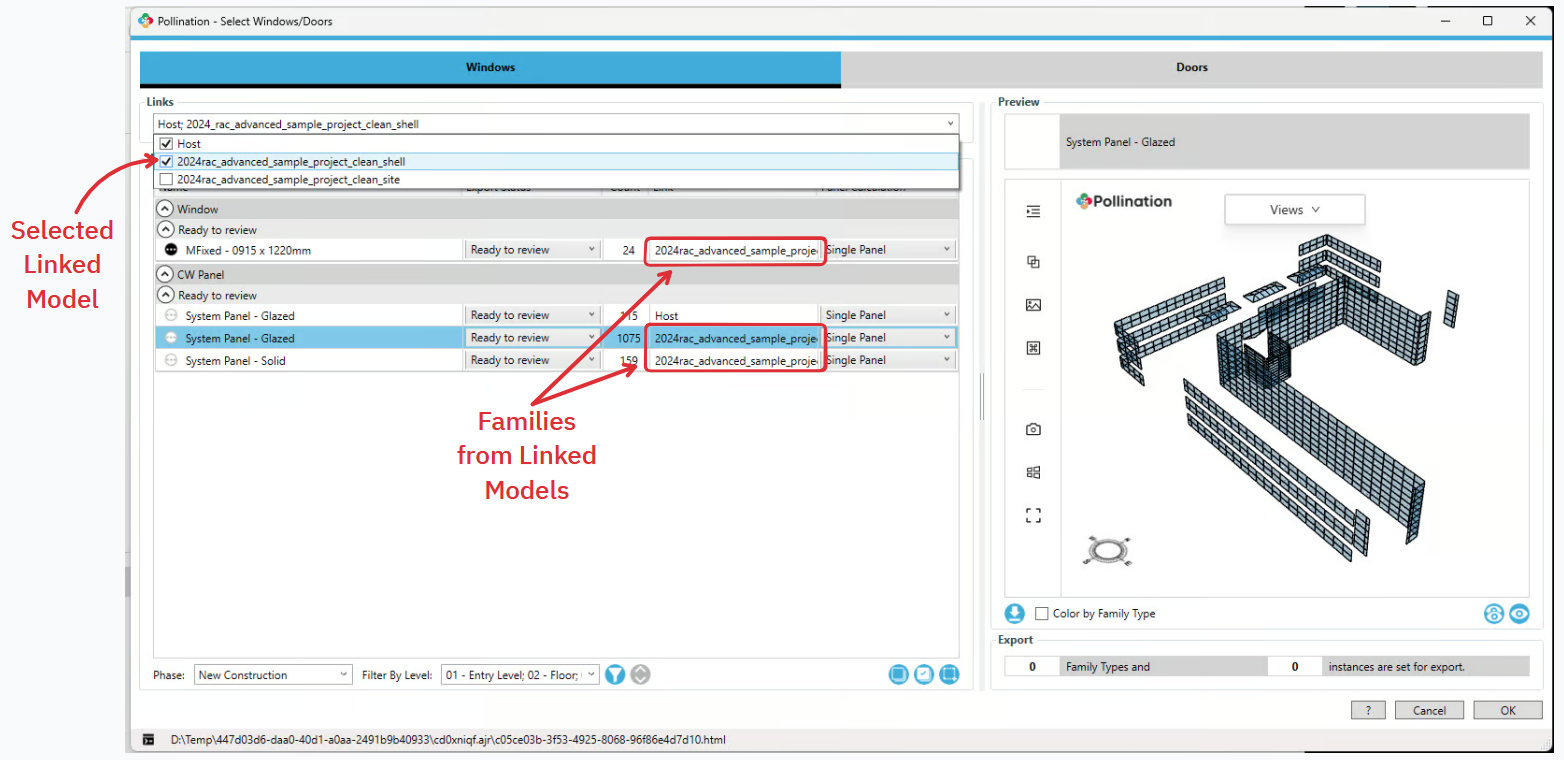


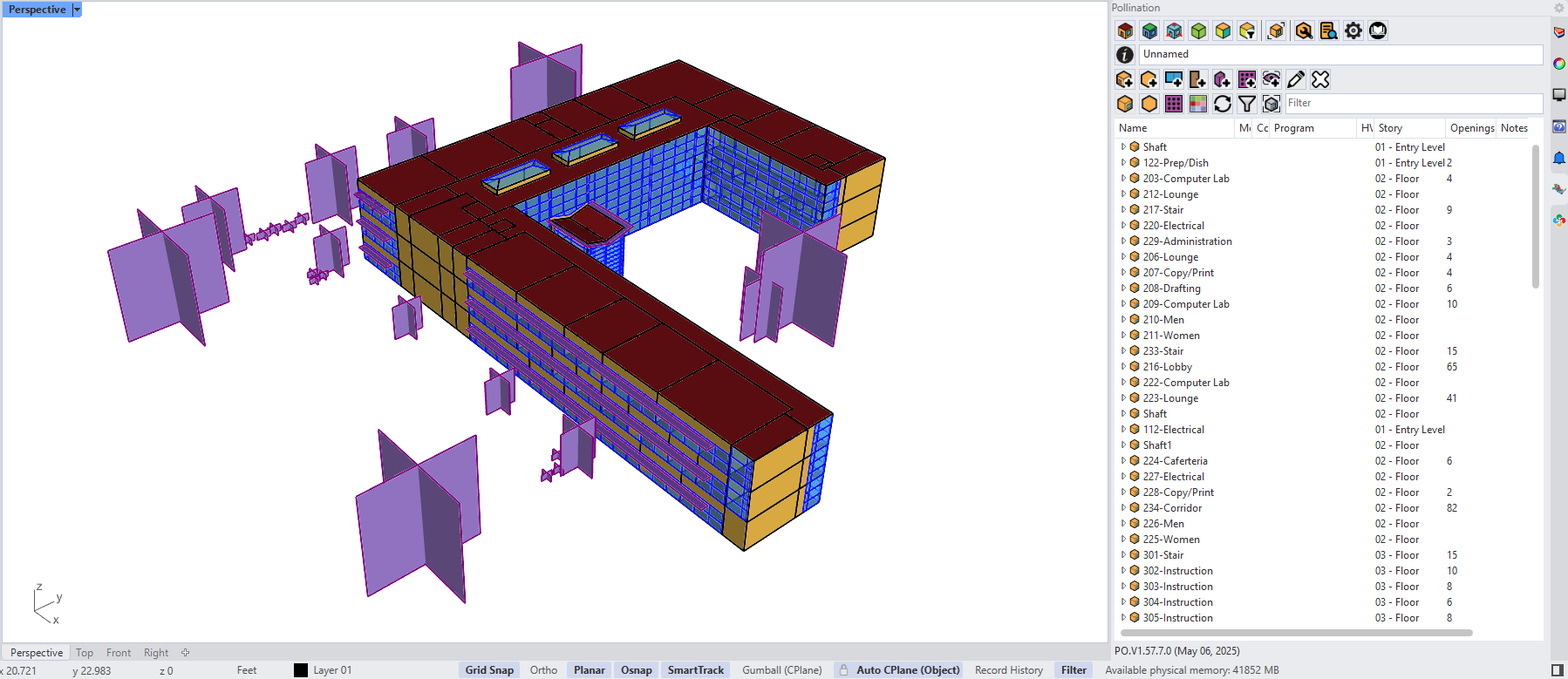
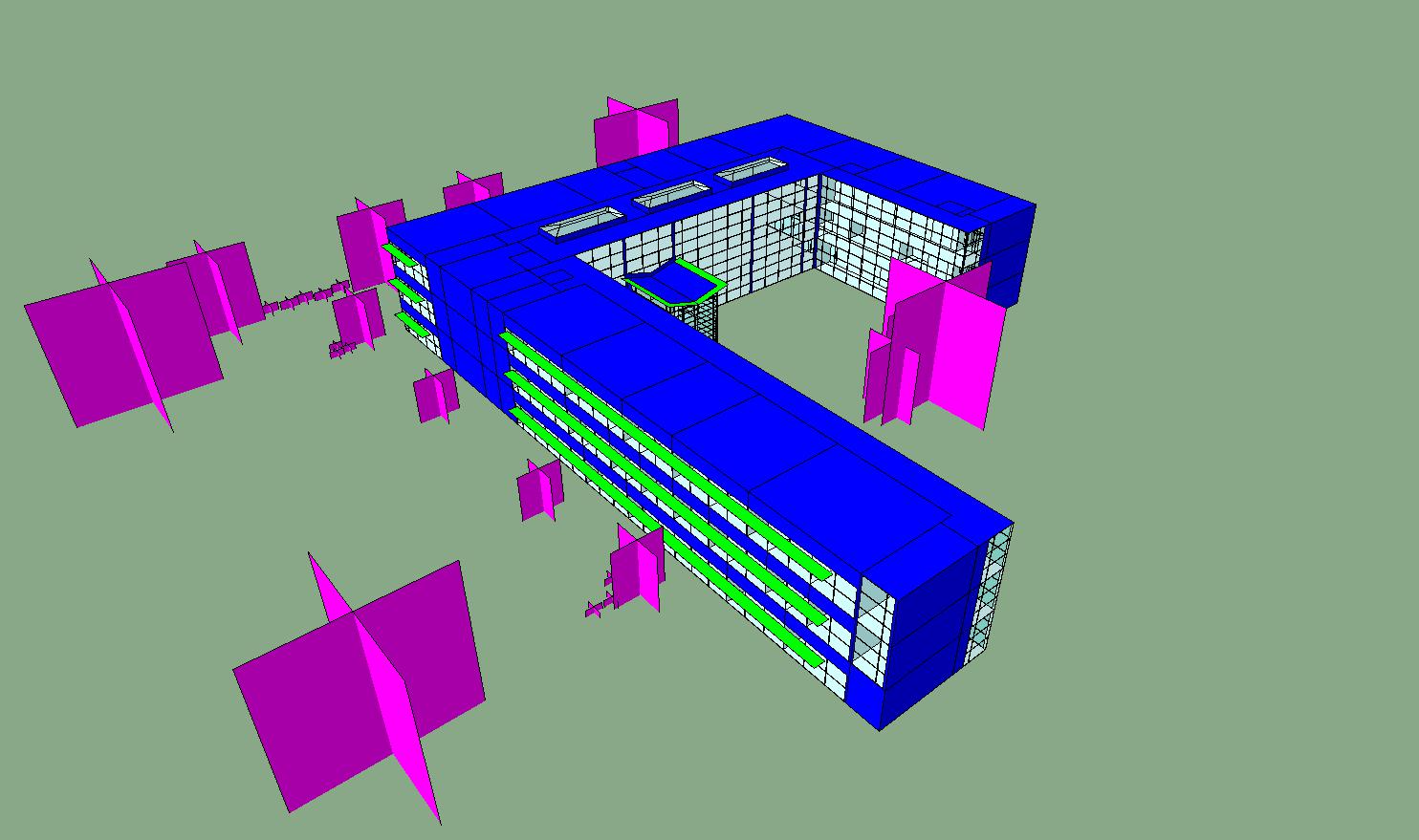
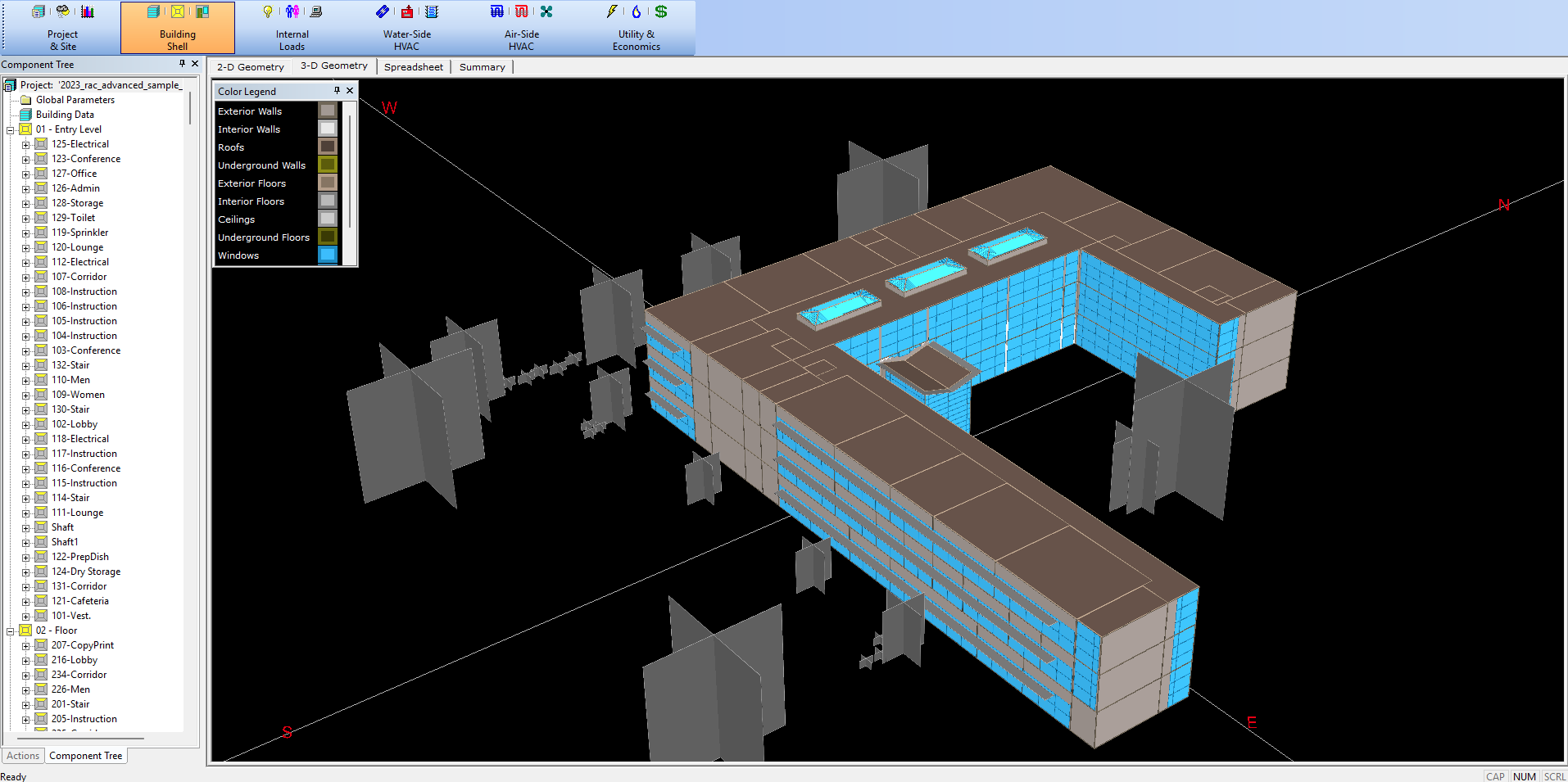

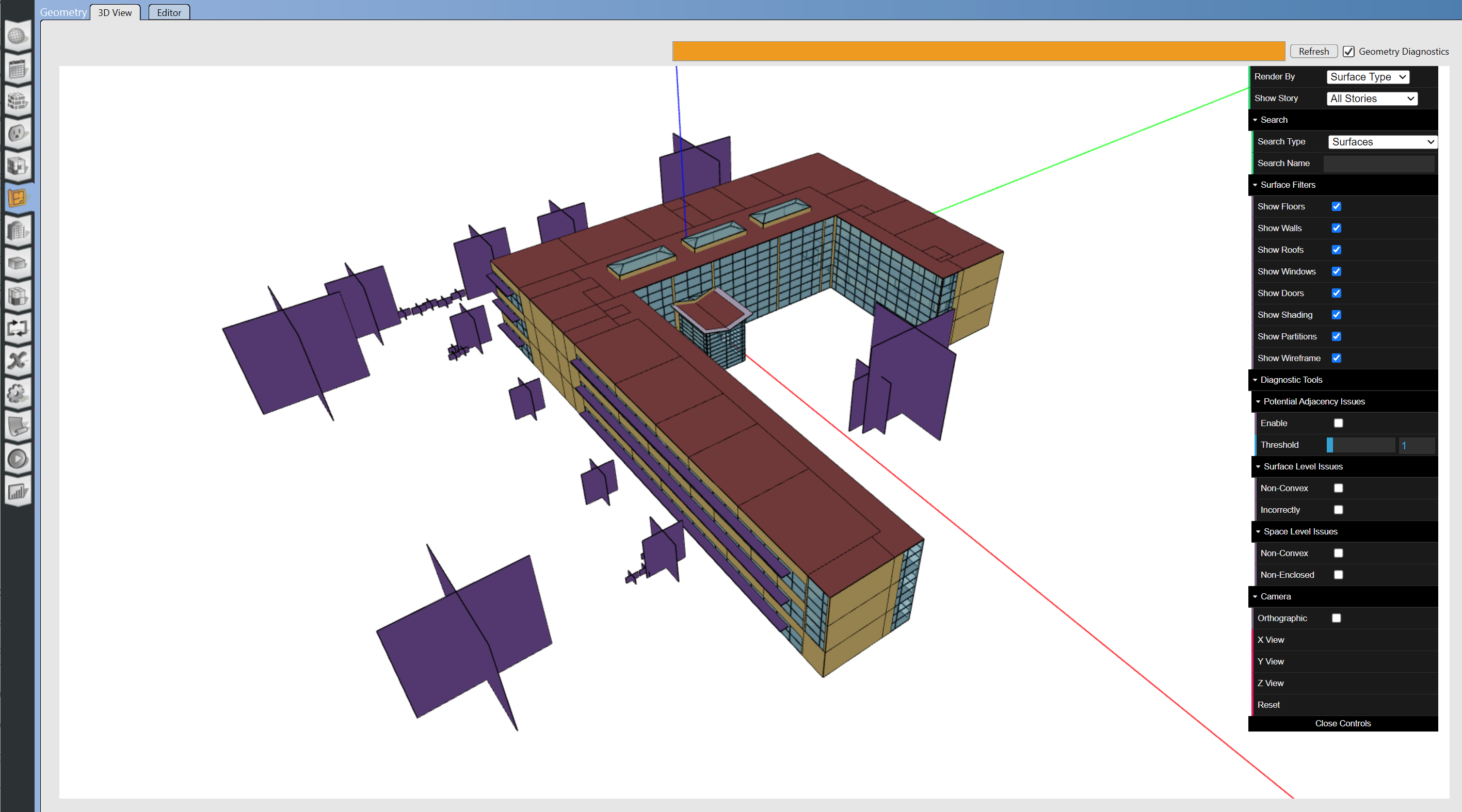
.png?alt=media&token=5b30c406-ef17-4428-af3a-bd0bd91e2967)
.jpg?alt=media&token=574bee0c-144c-4110-8a82-92b6e71cfc17)

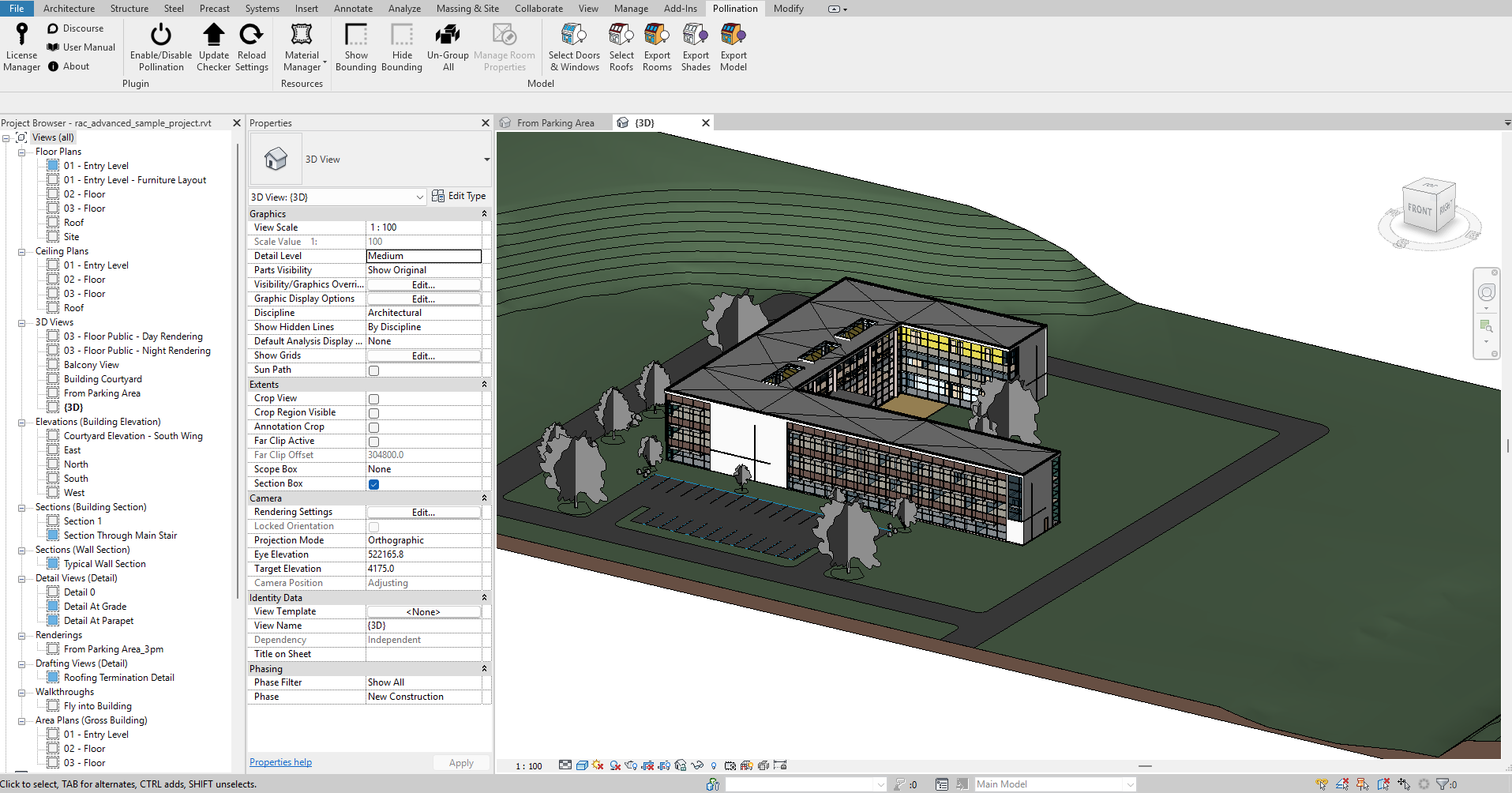
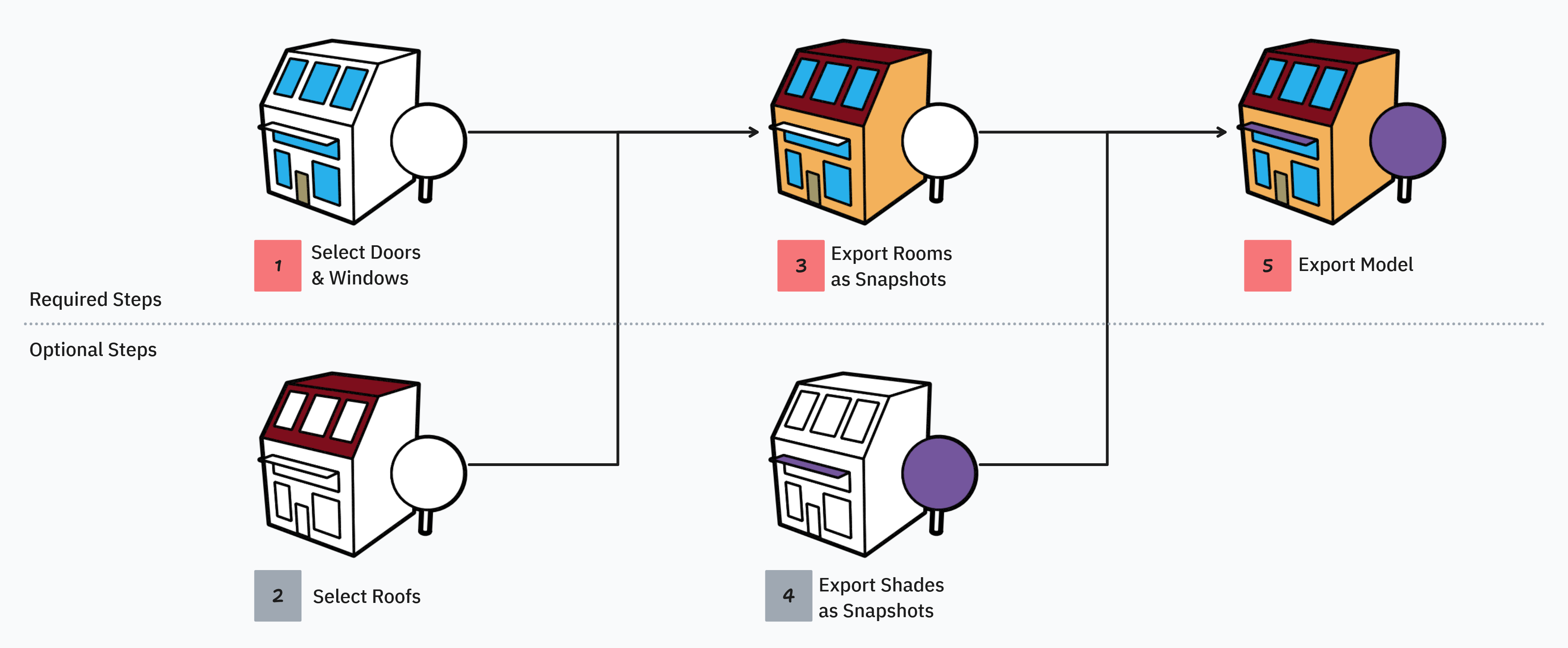

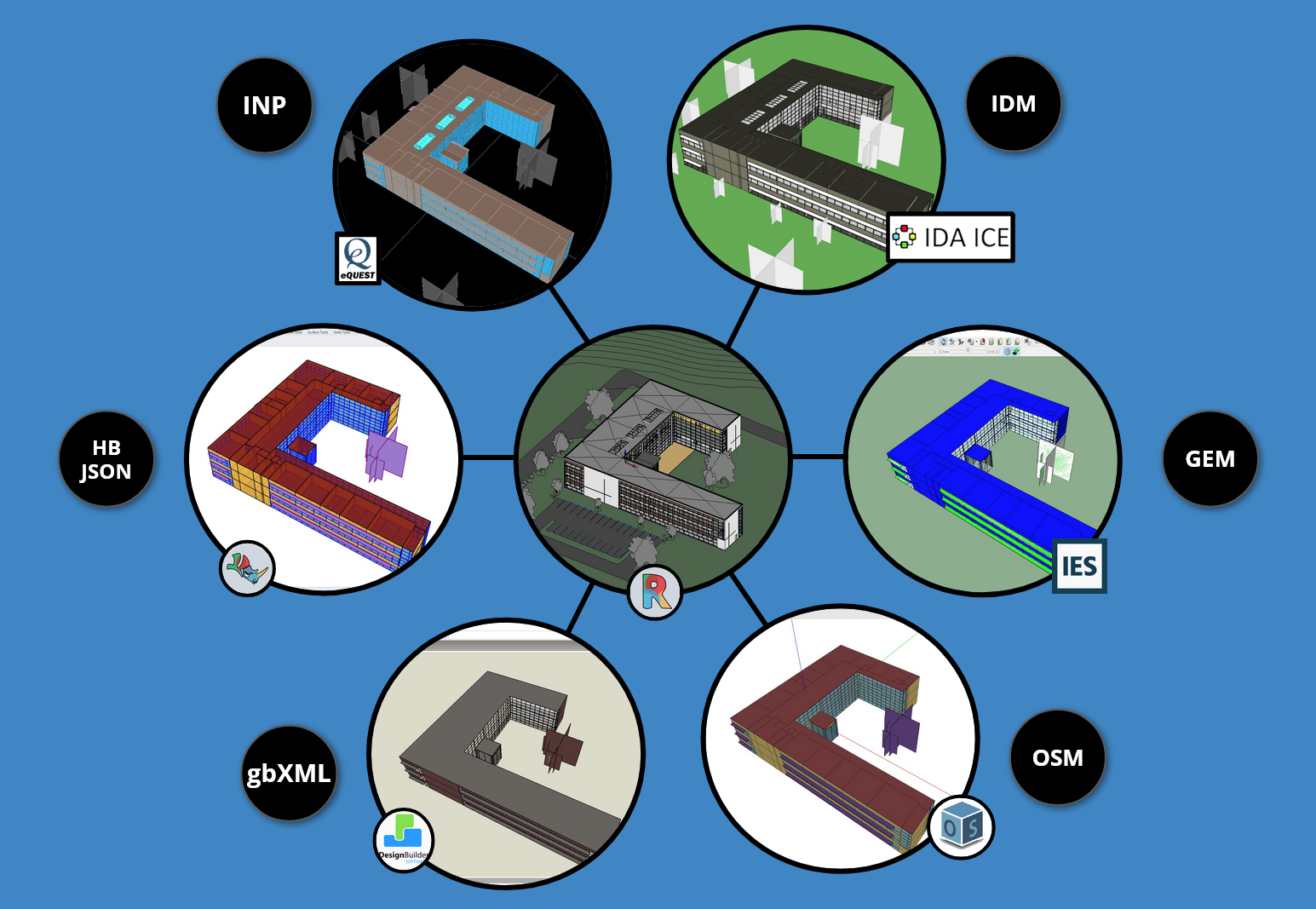

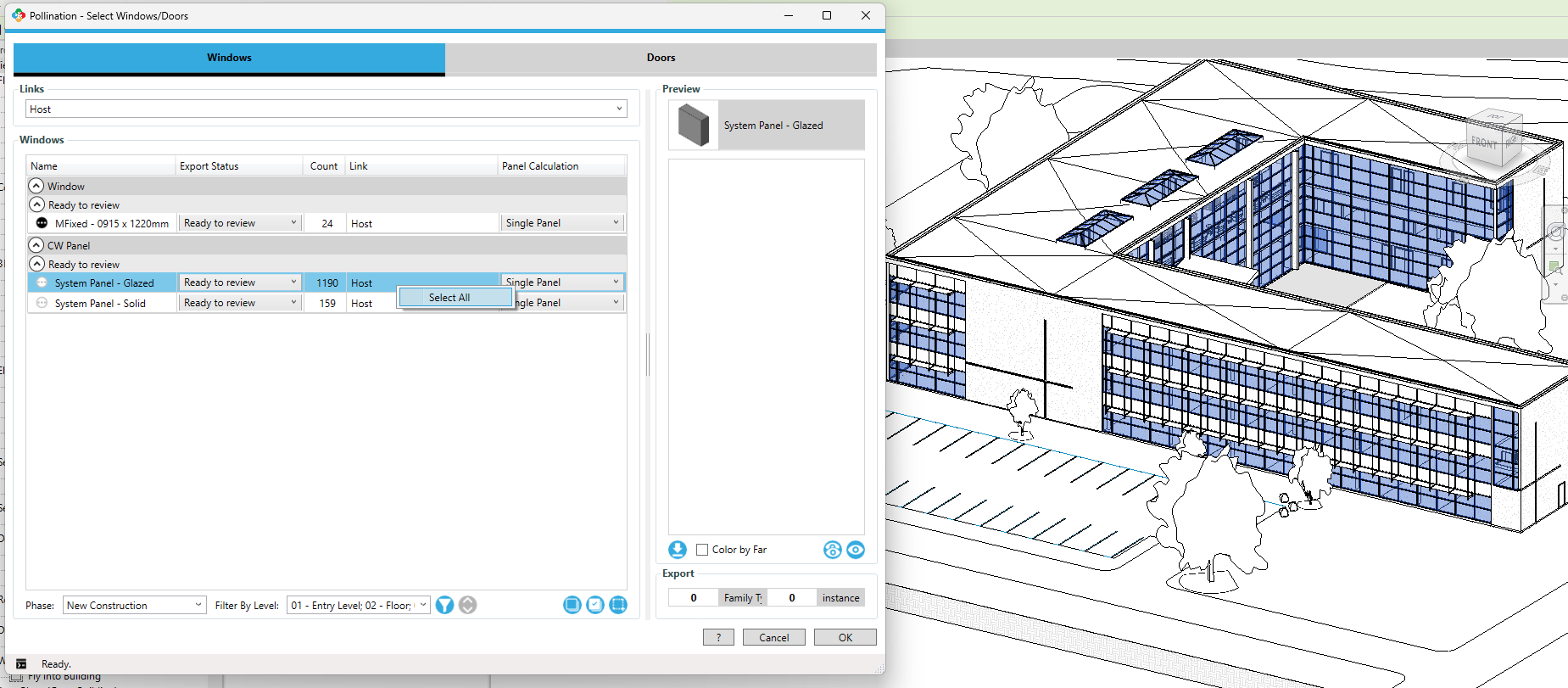
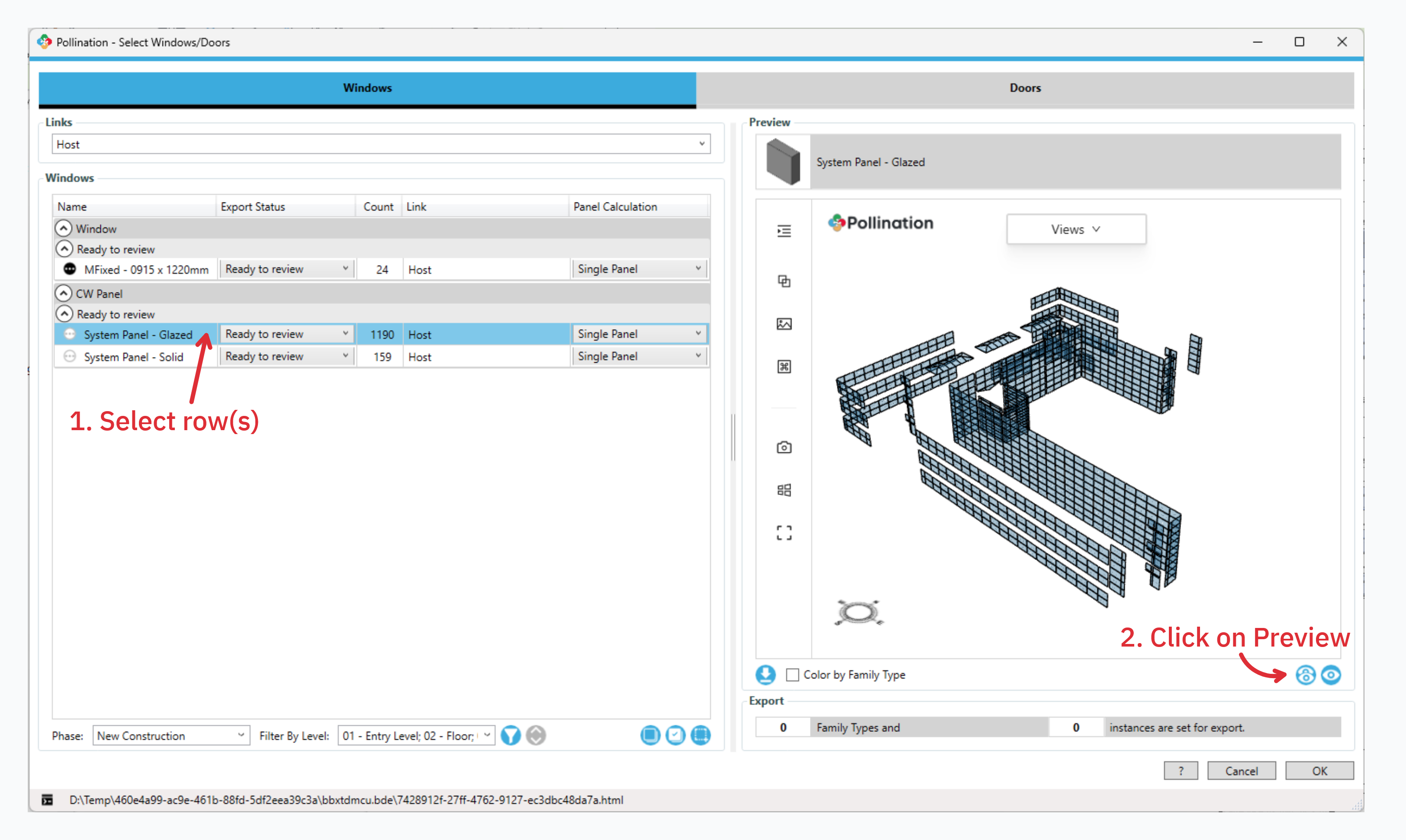
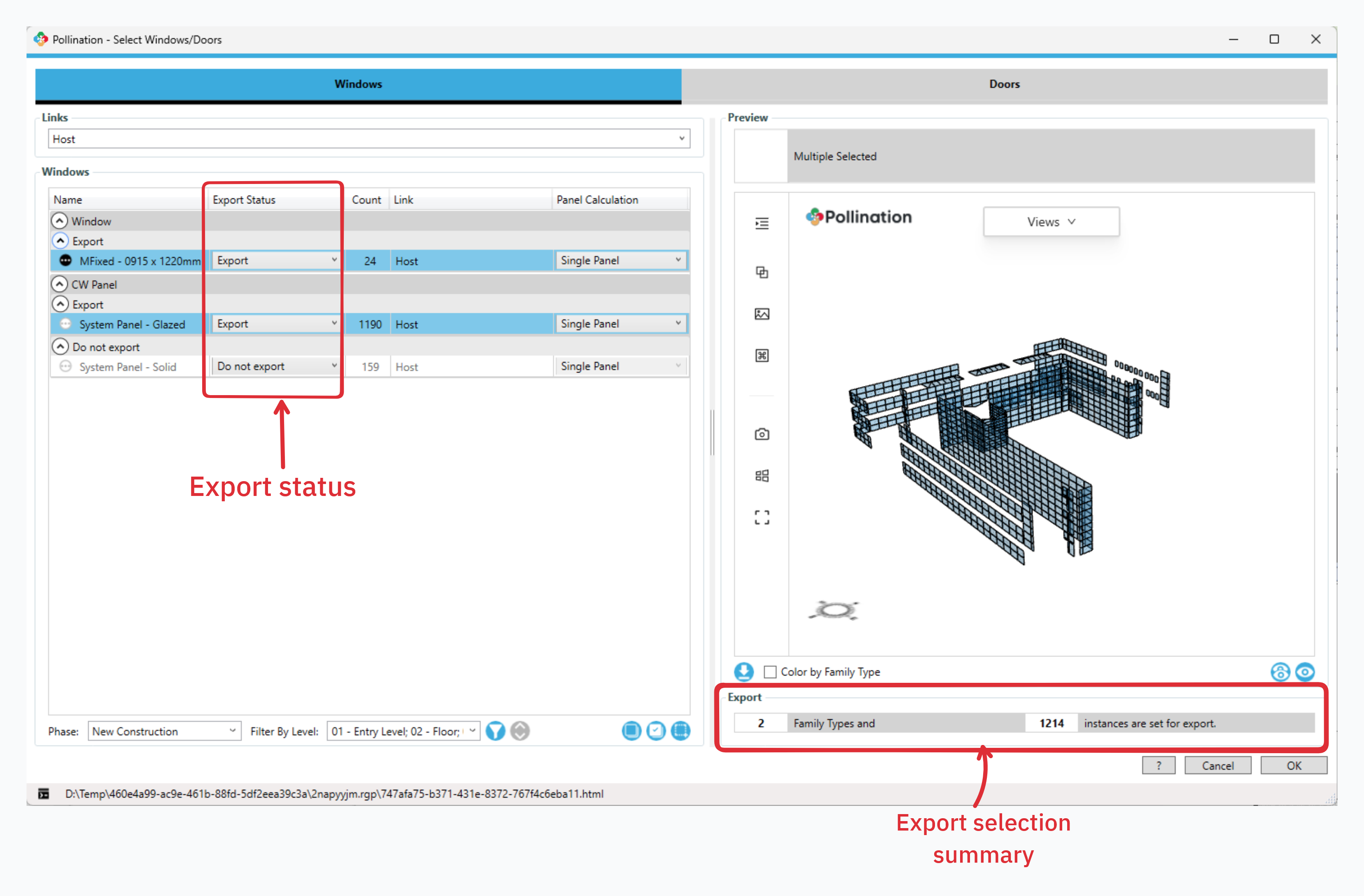
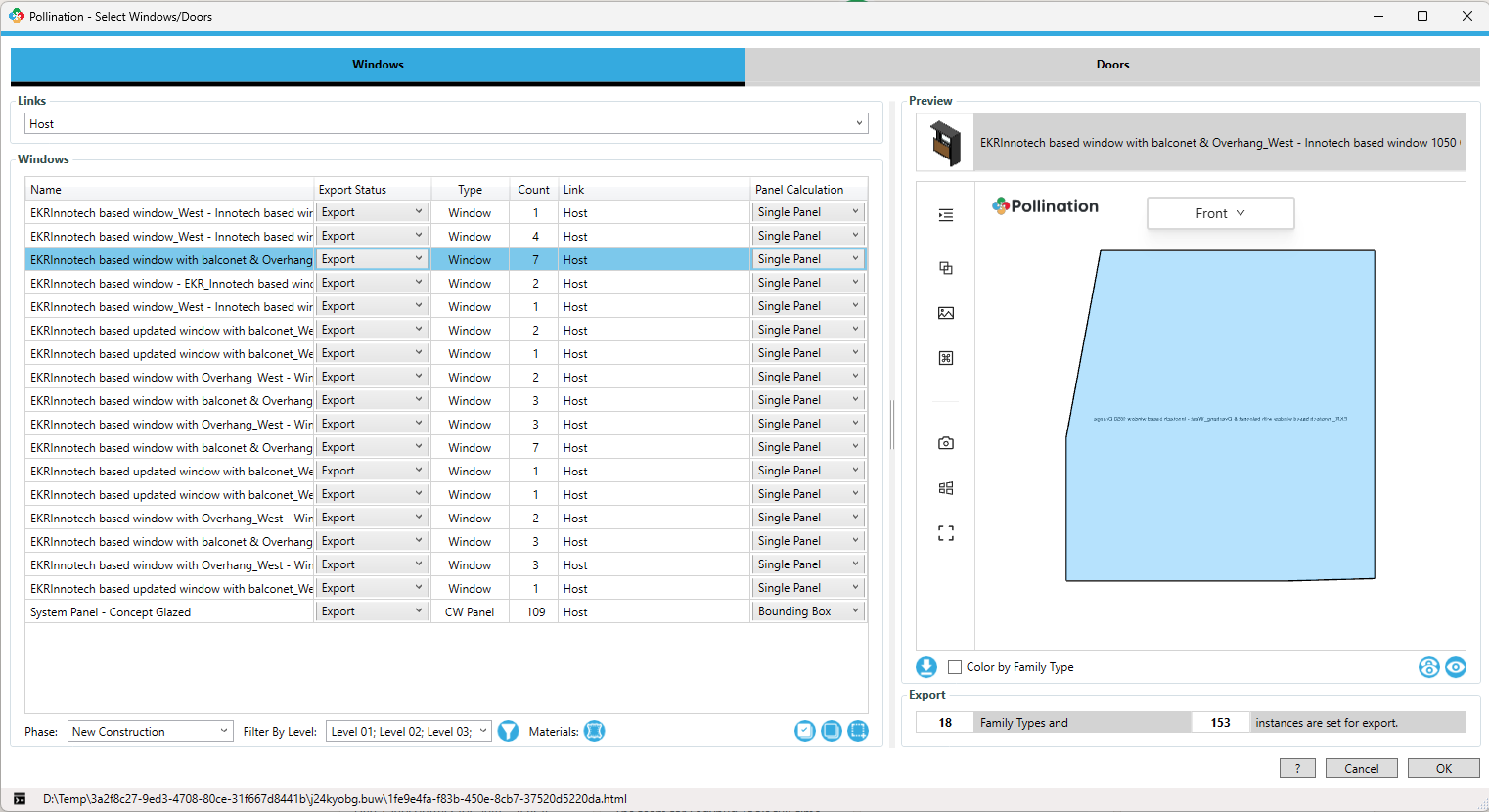
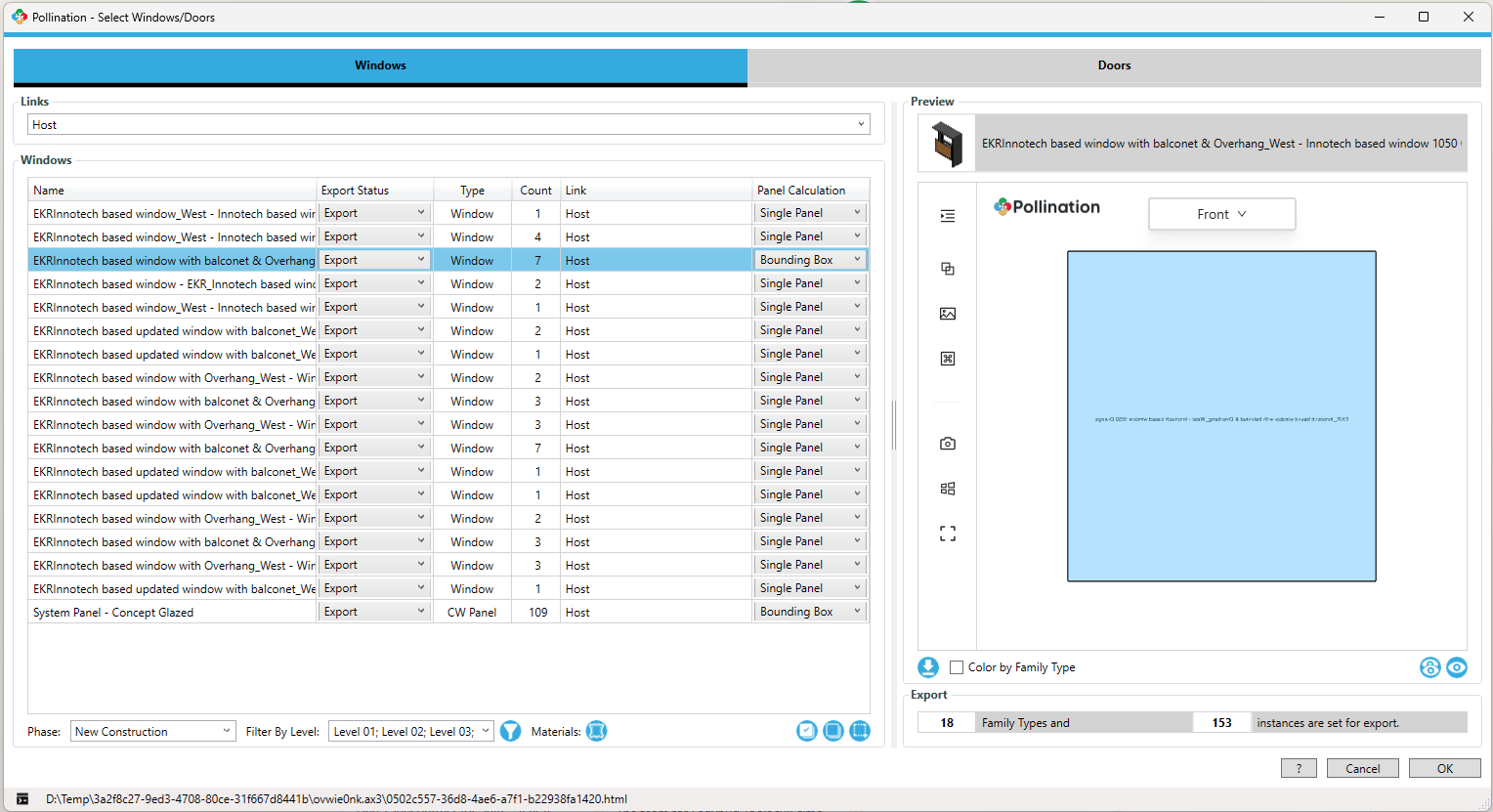
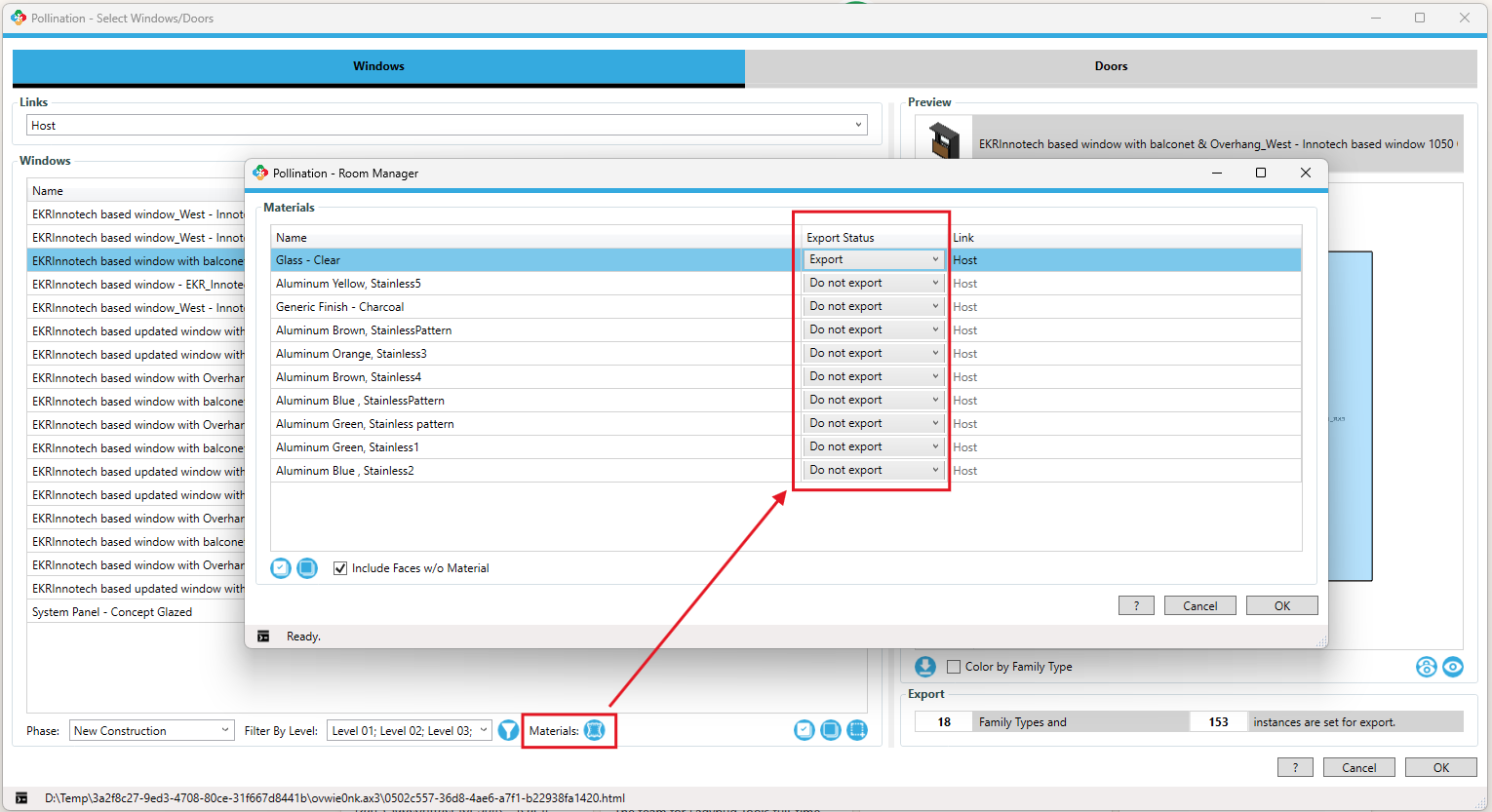


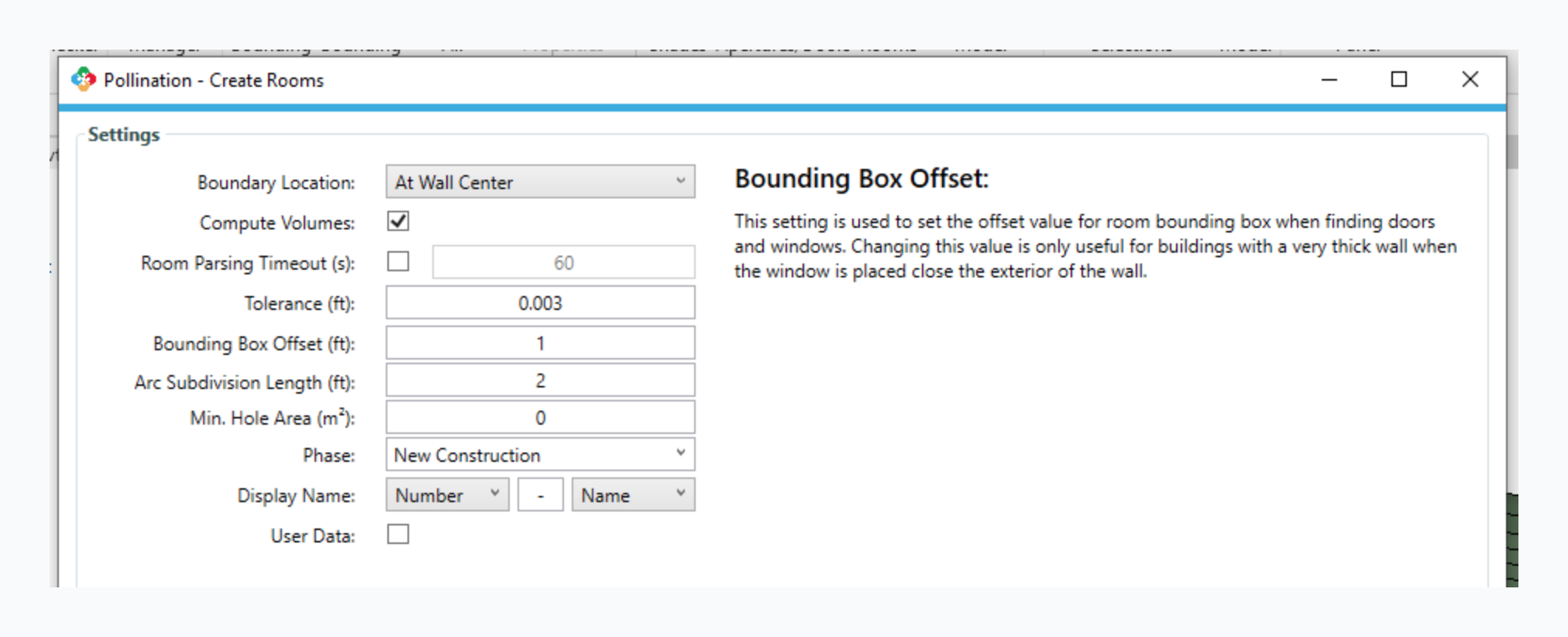
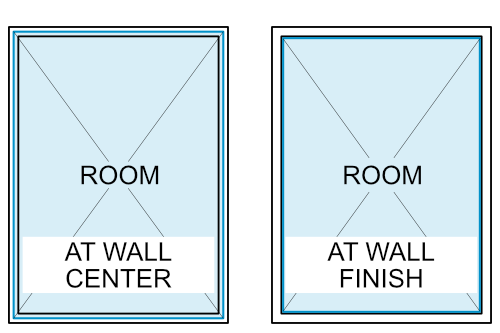
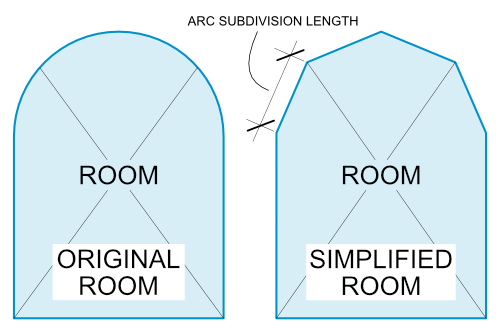
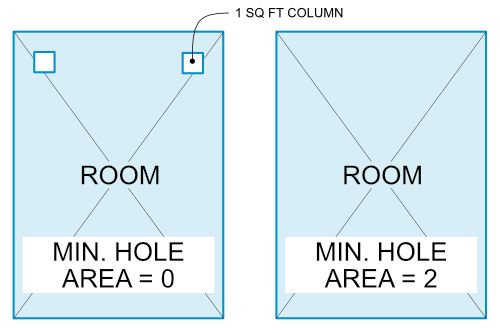
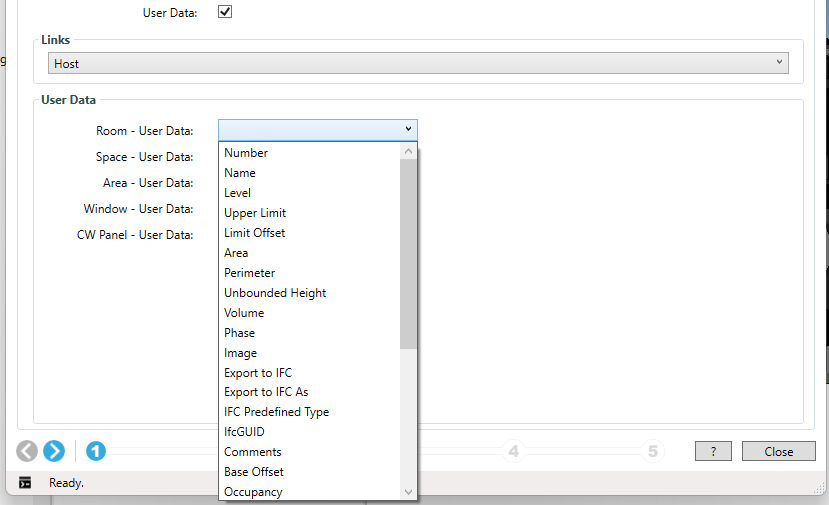
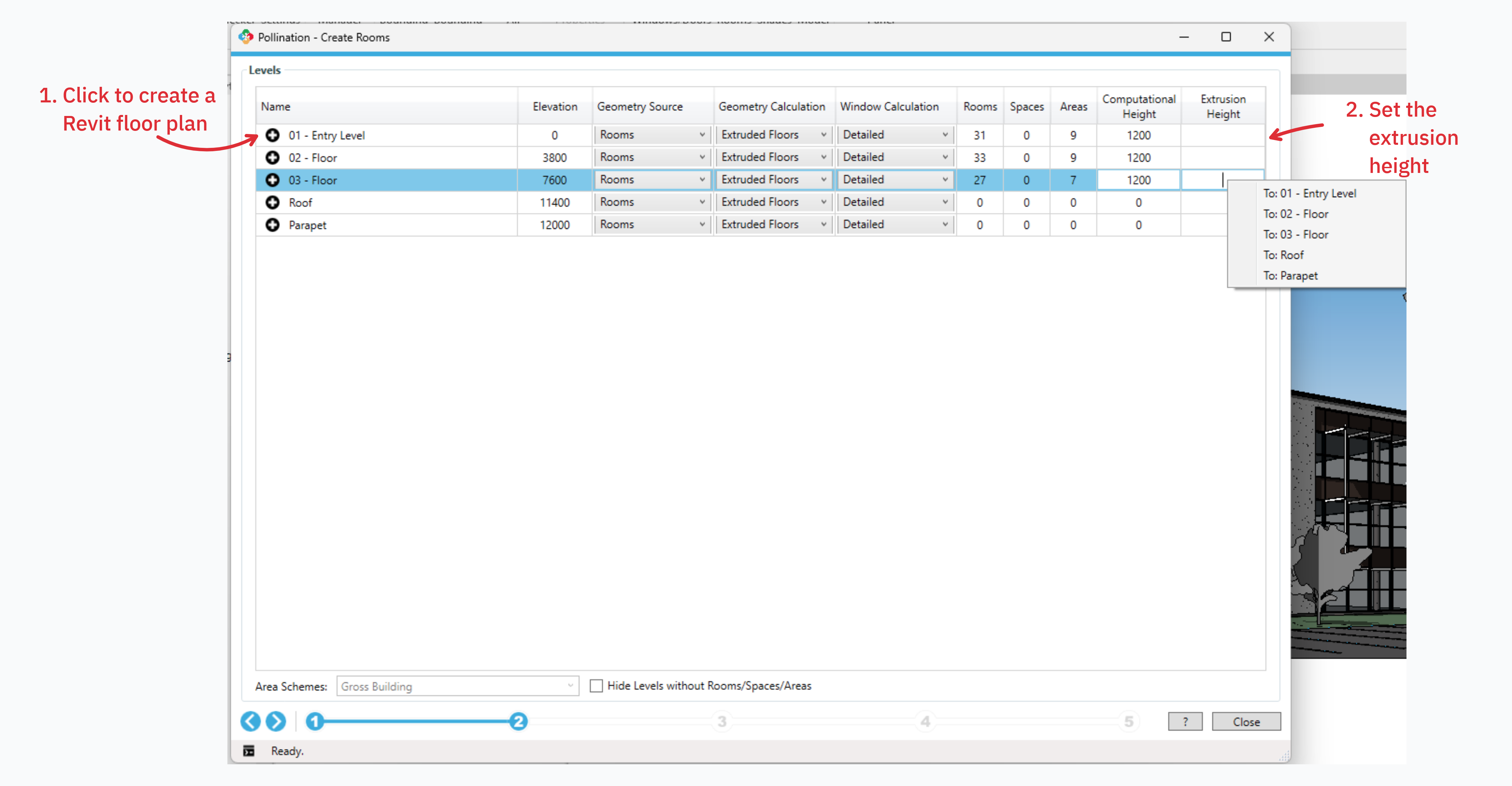
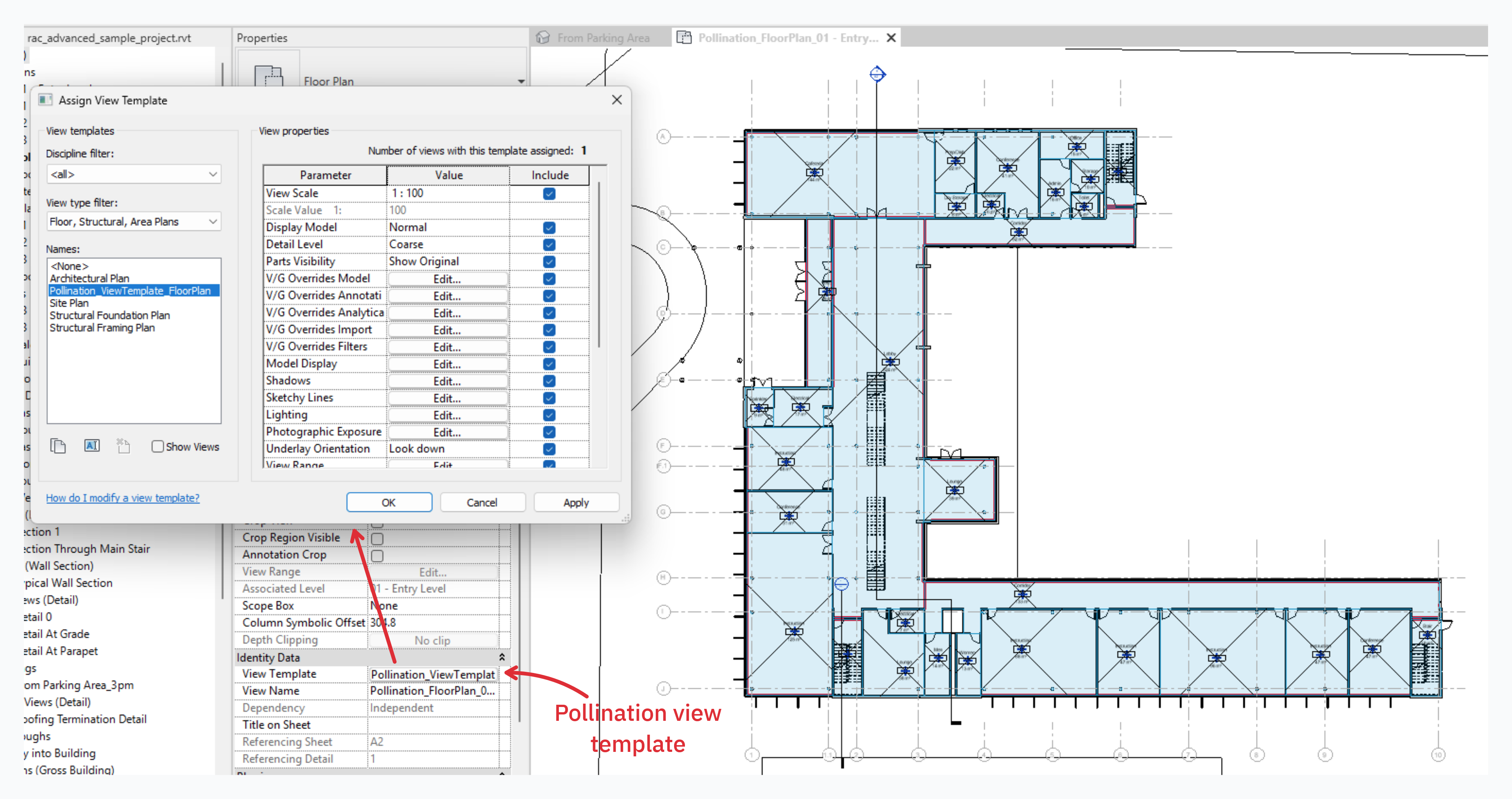
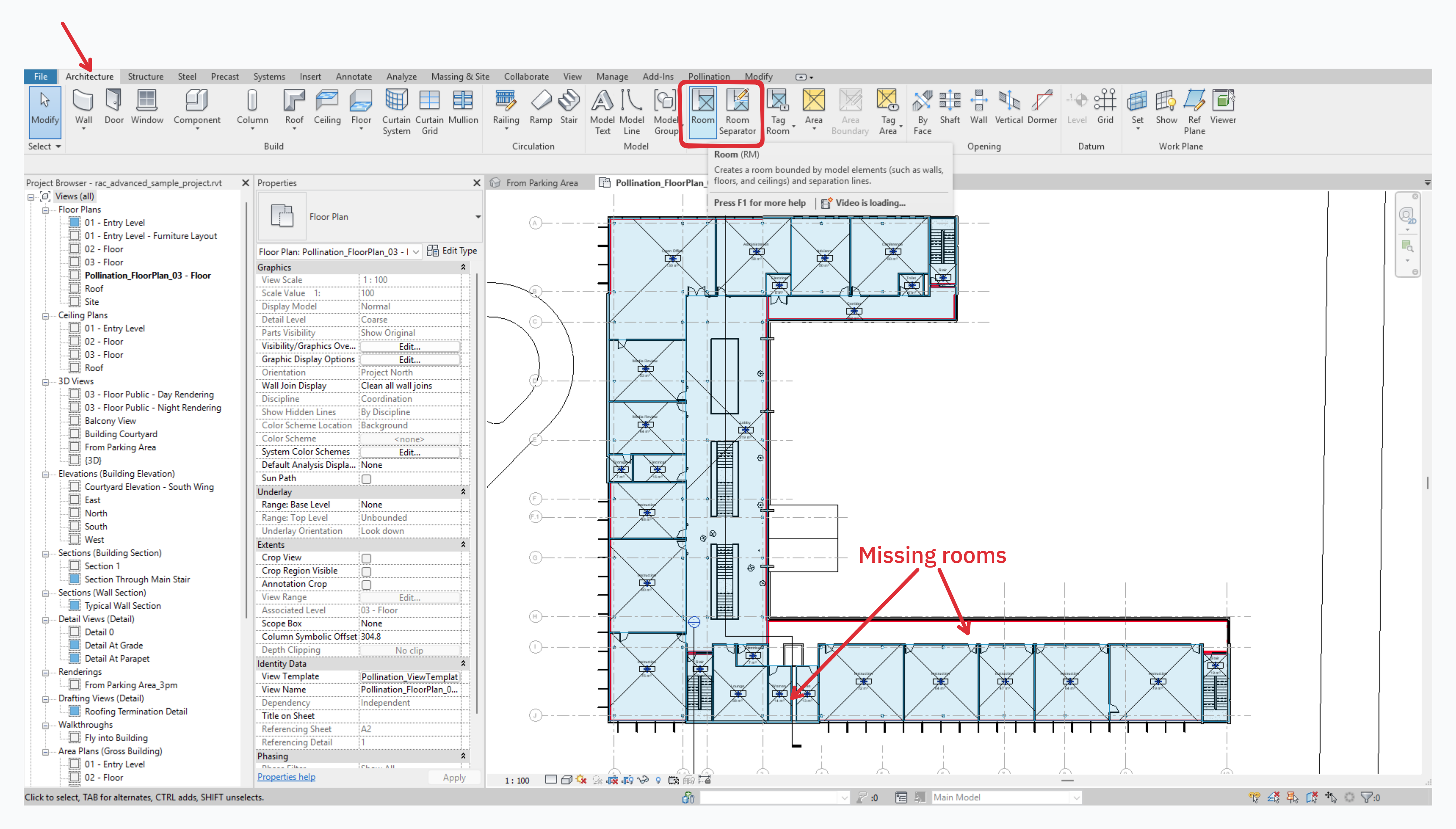

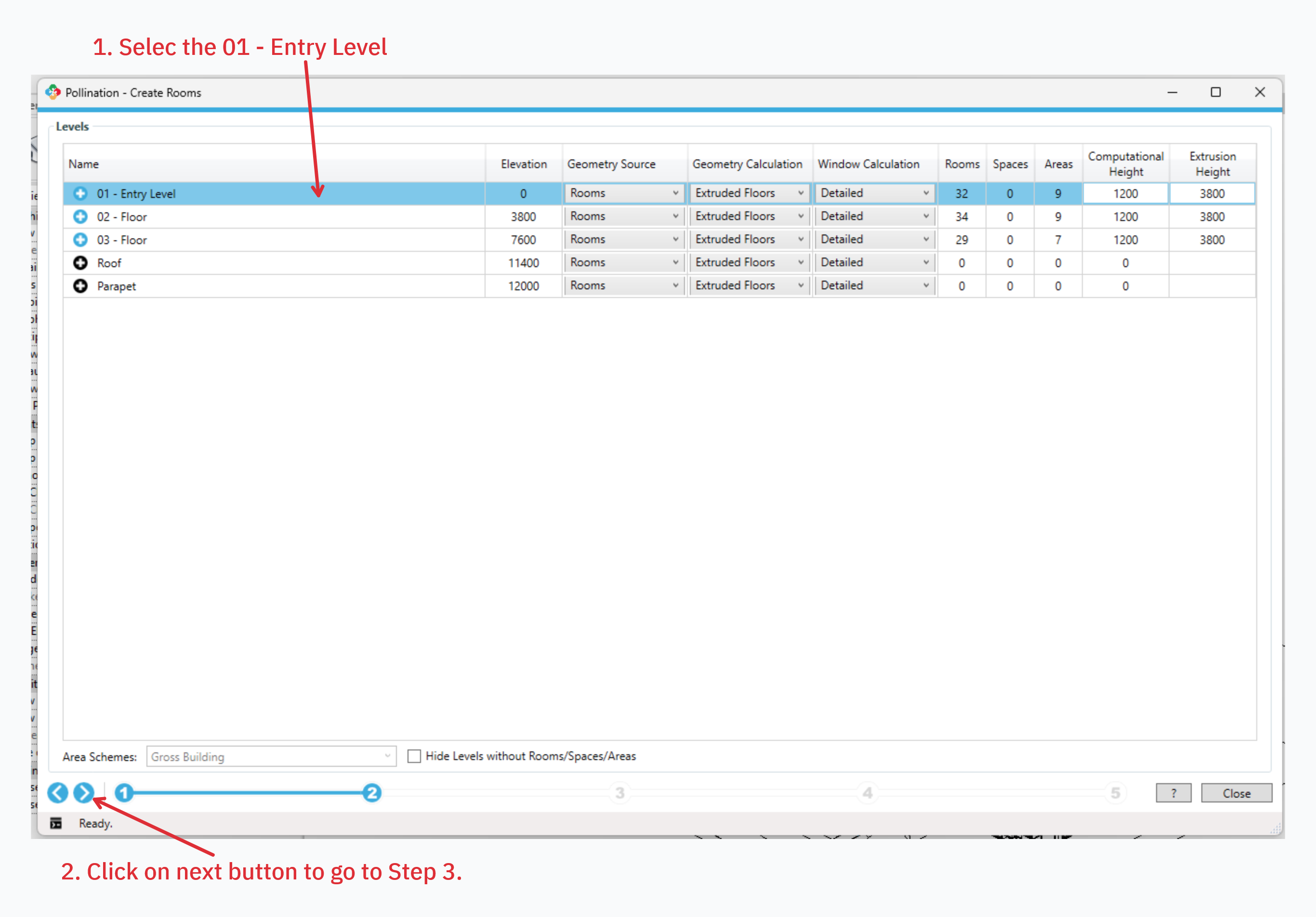
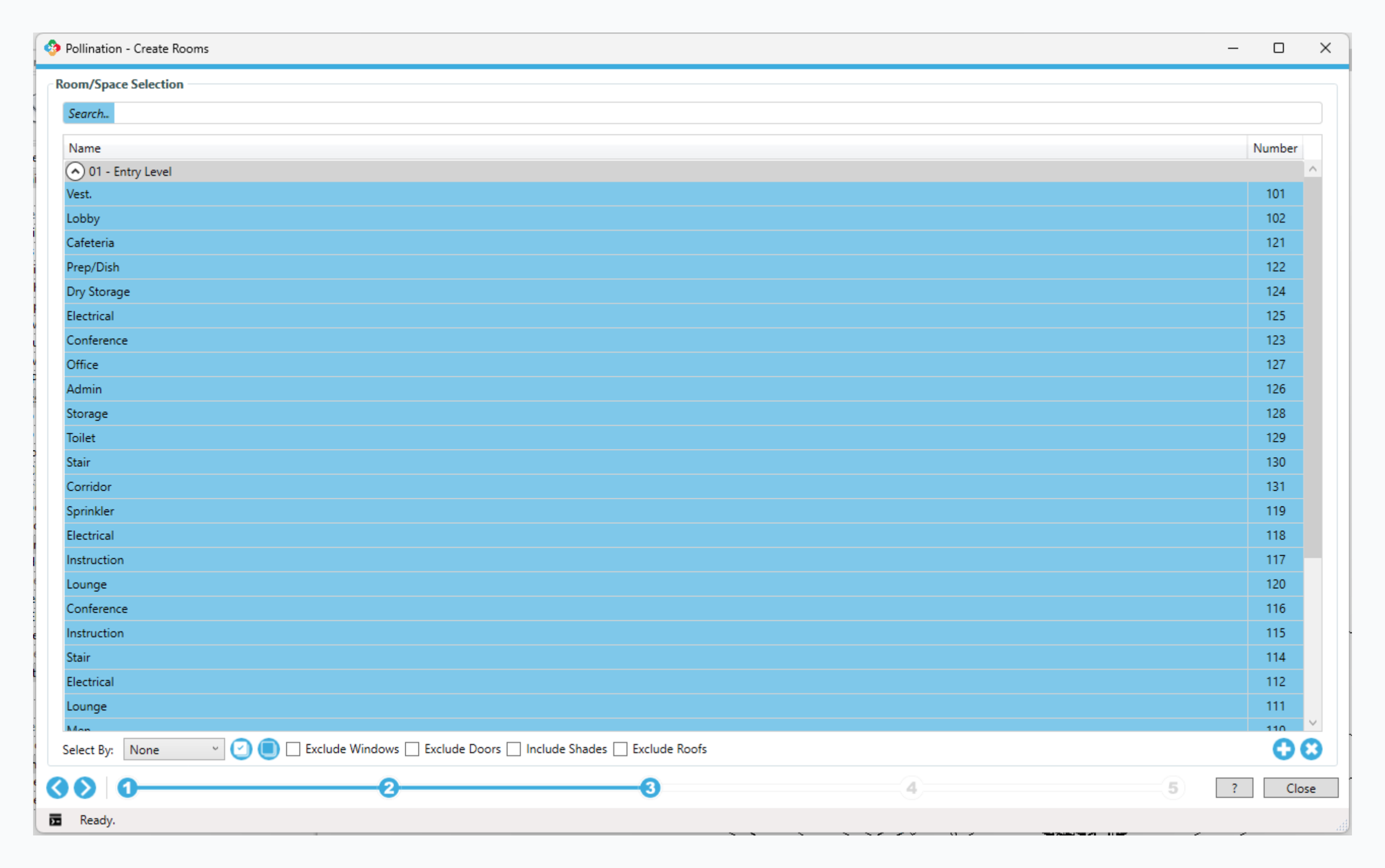
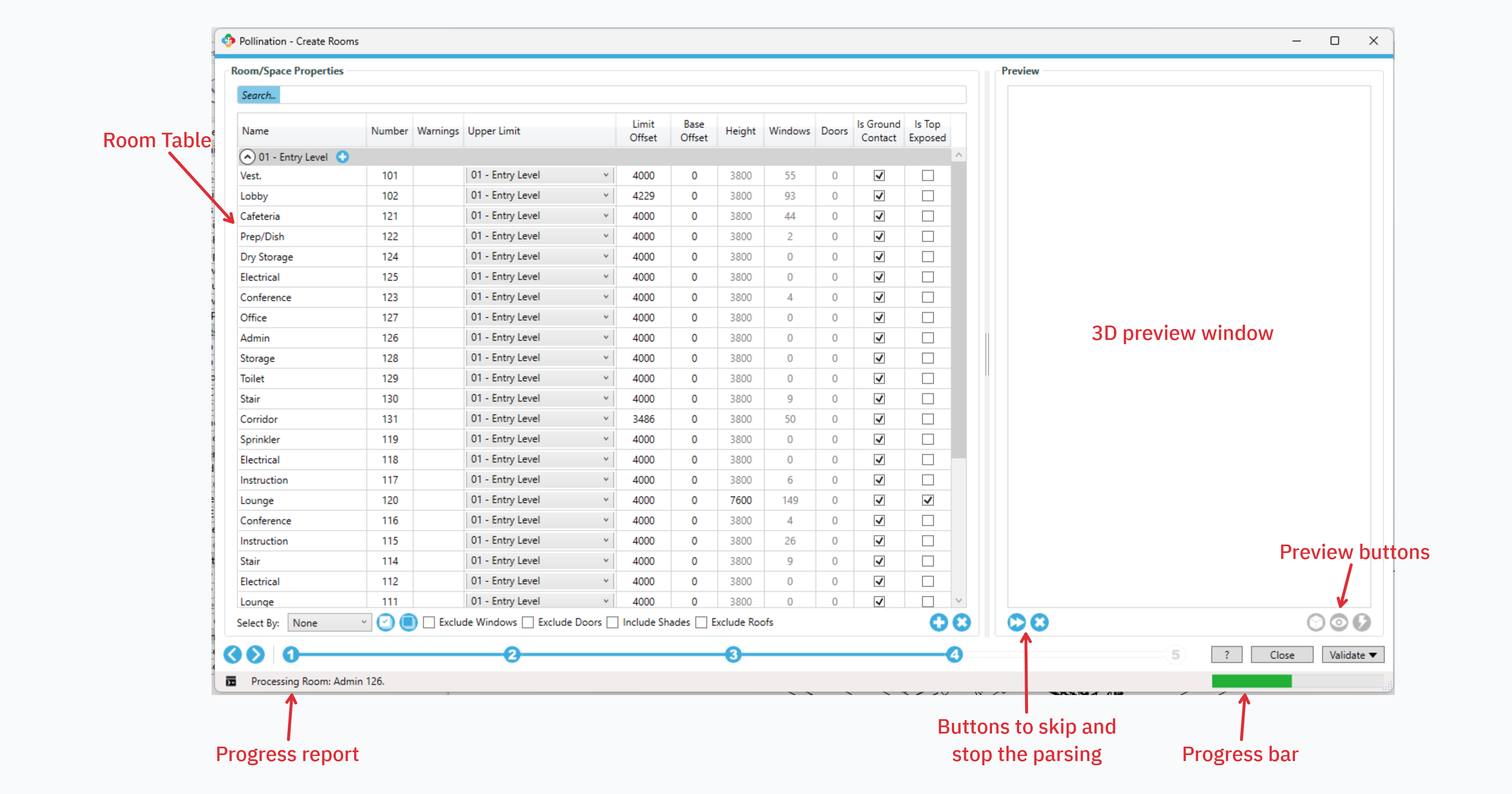
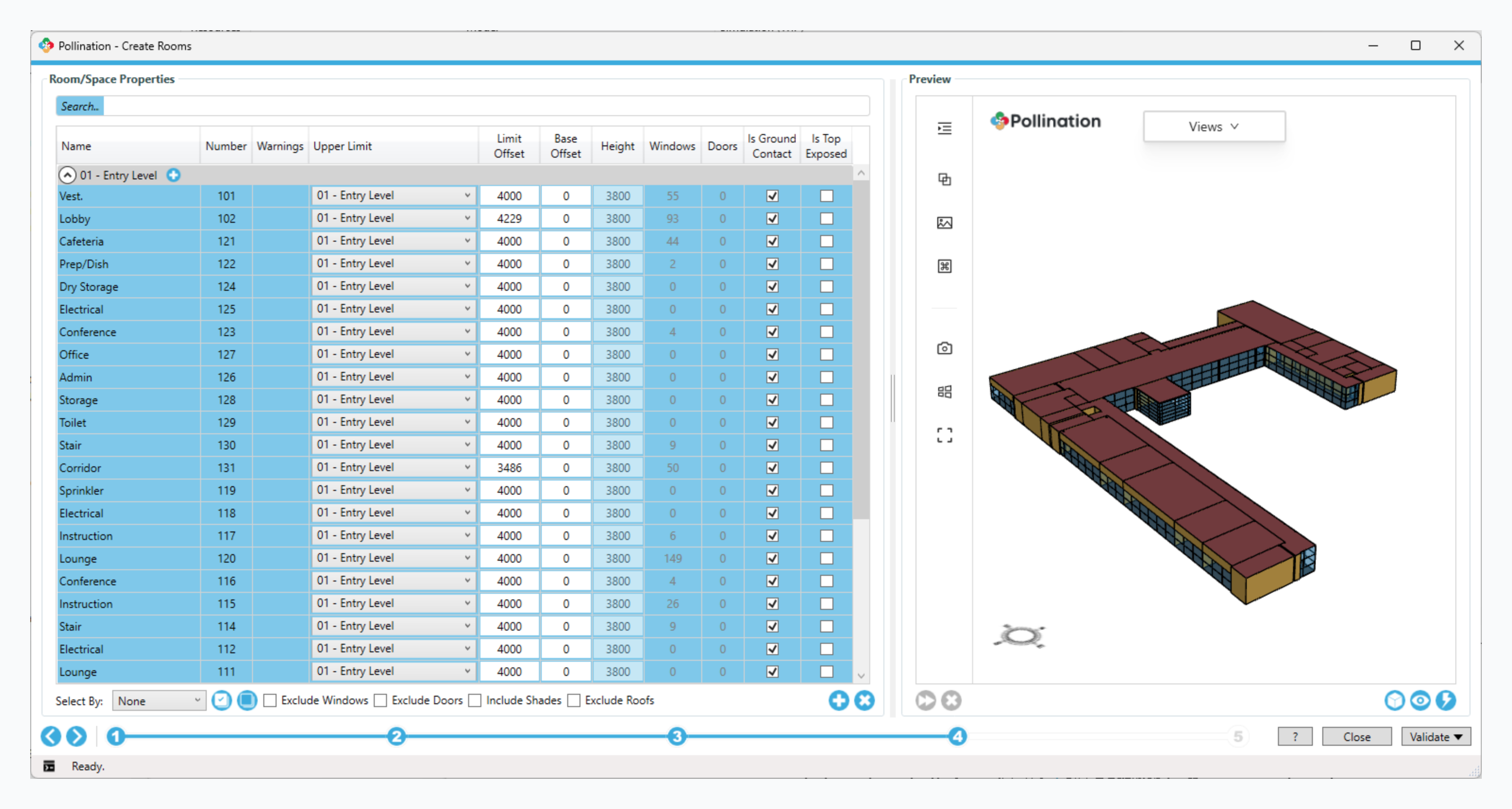
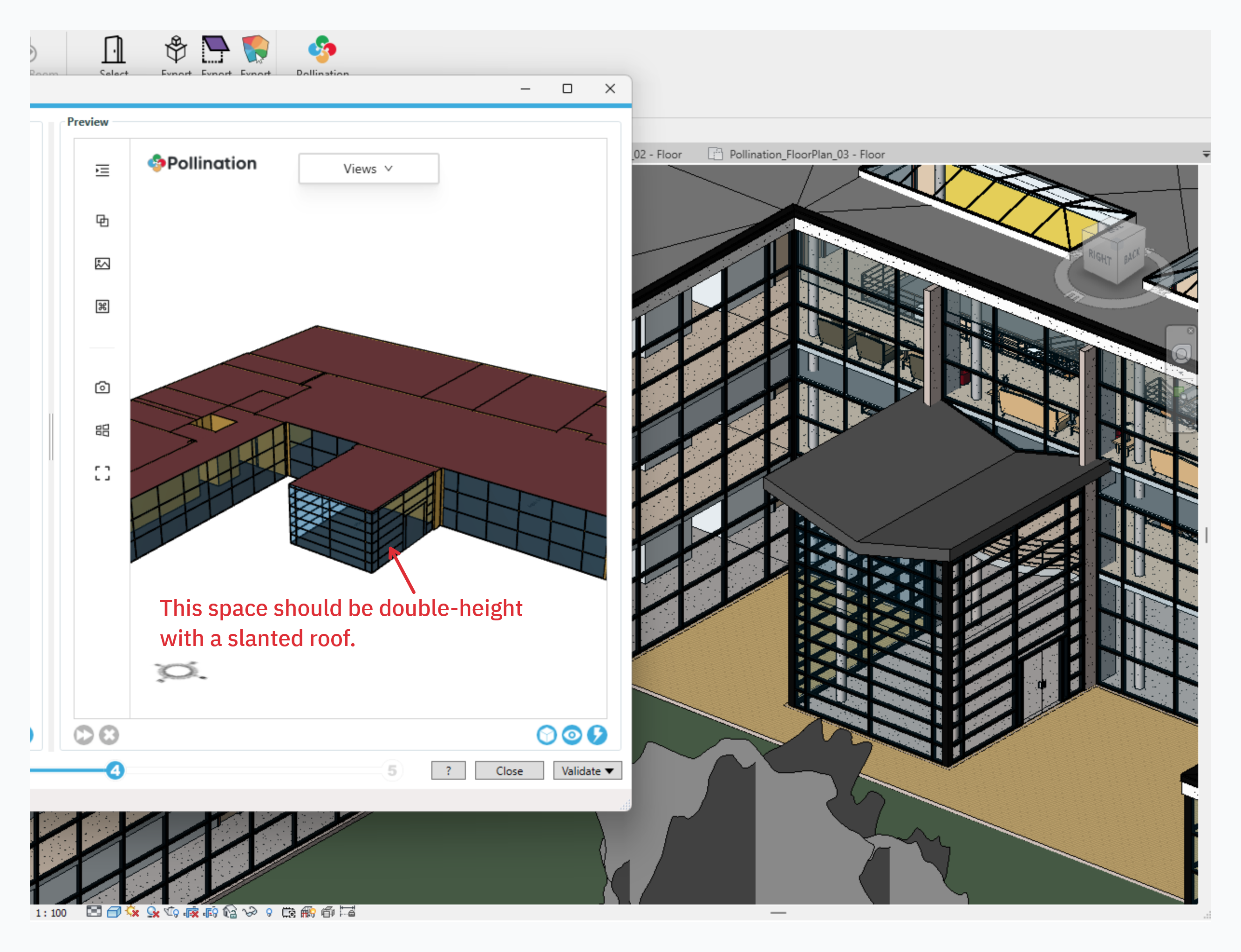
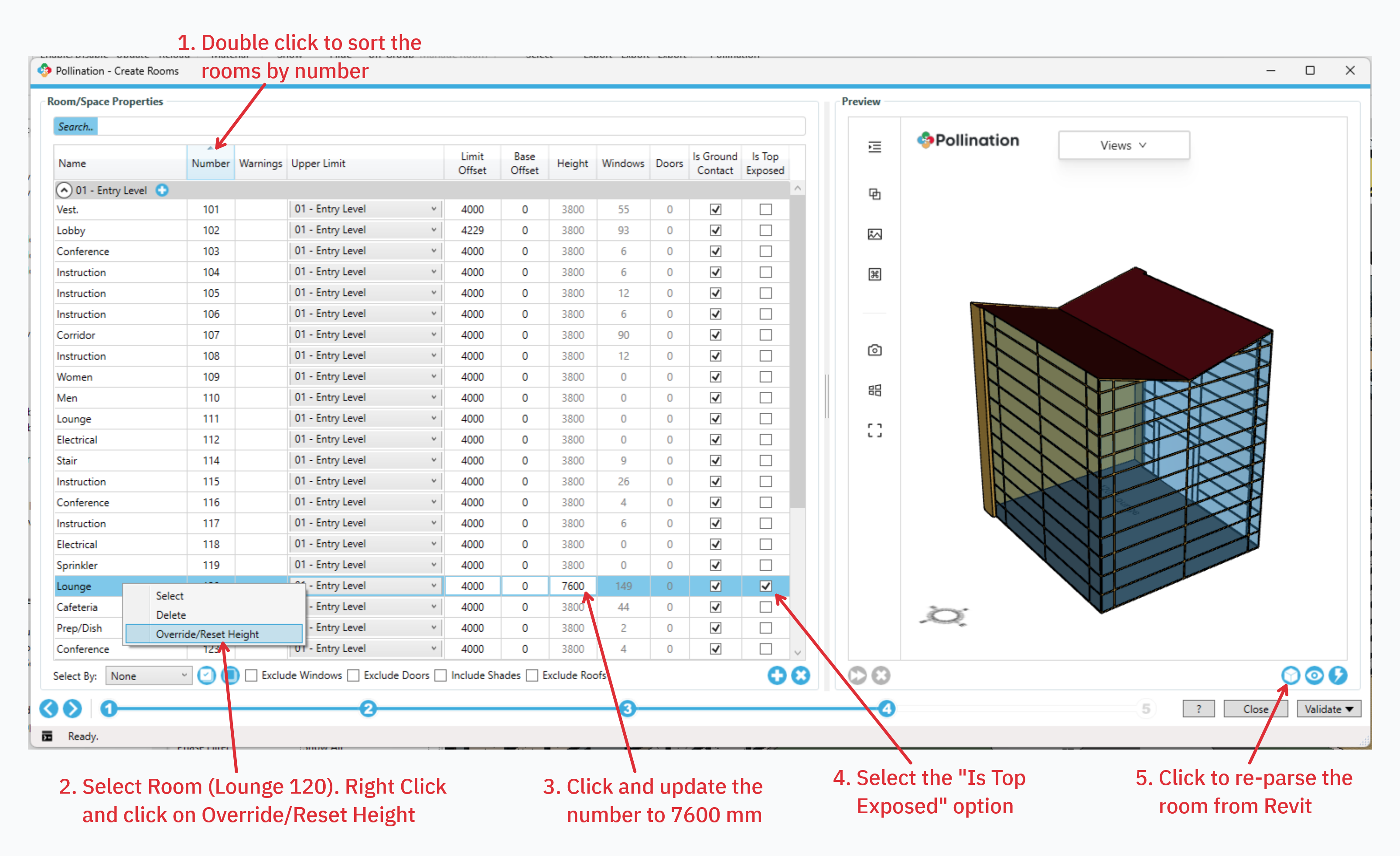
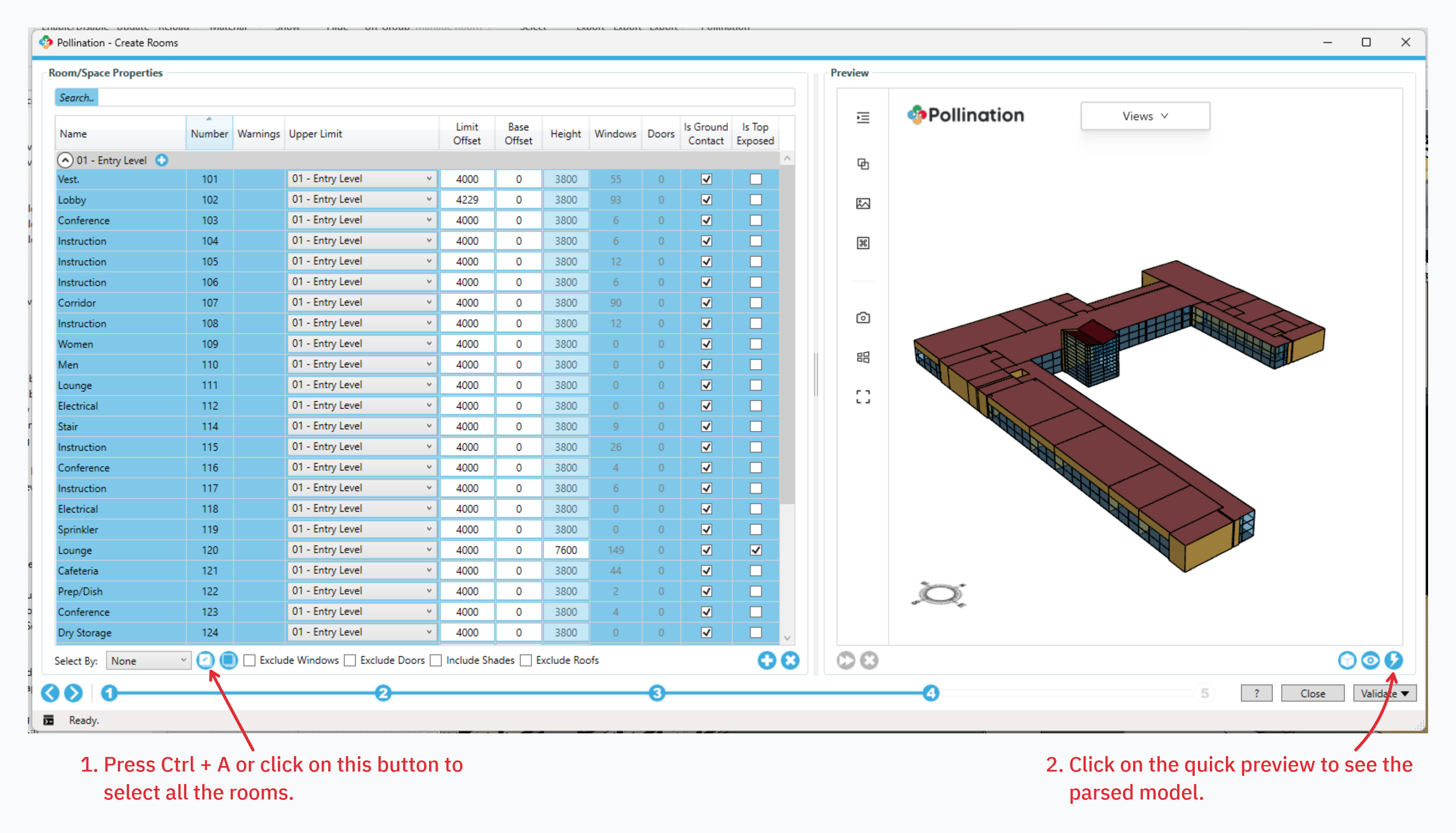
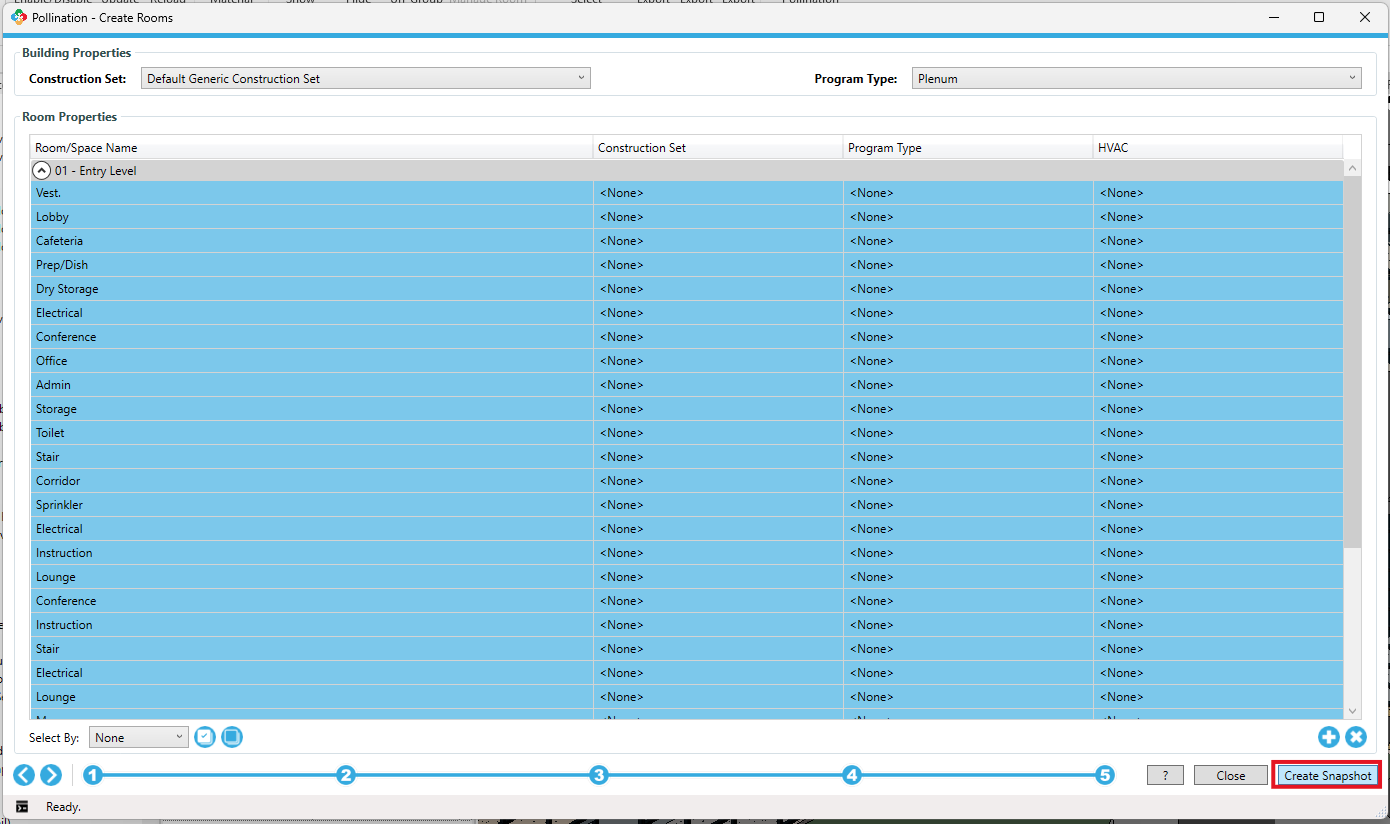
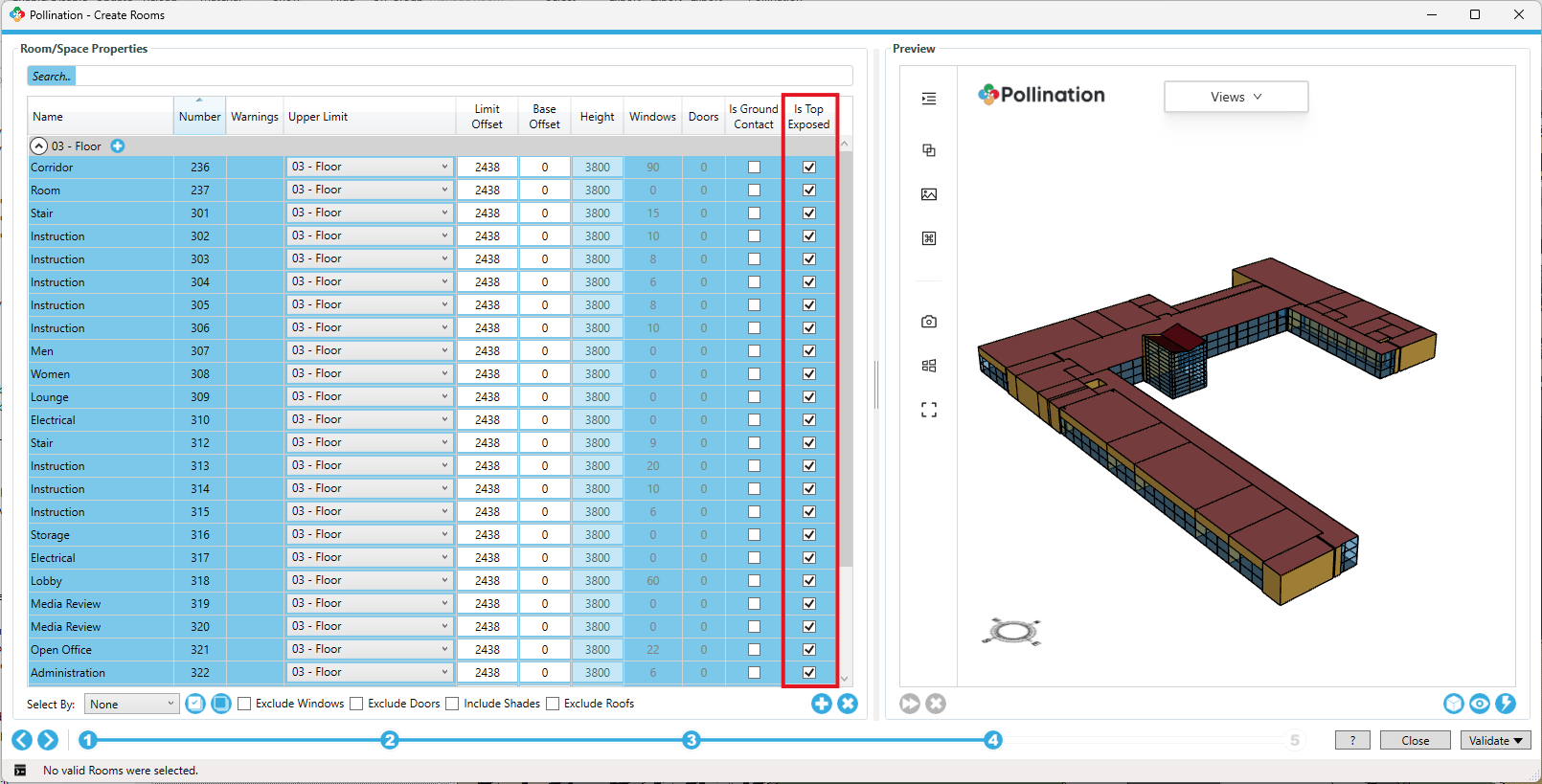

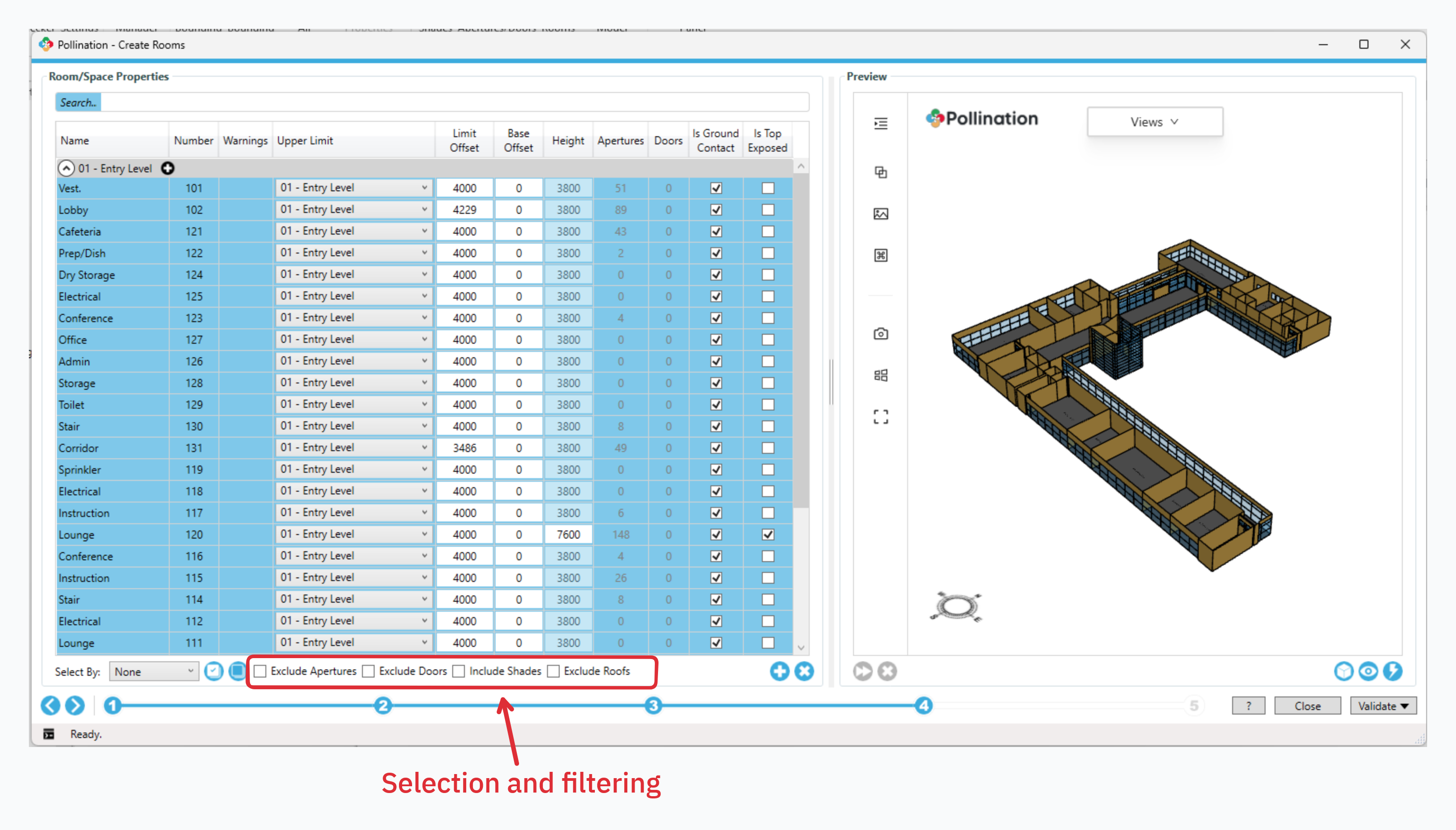
.png?alt=media)
.png?alt=media)

.png?alt=media)

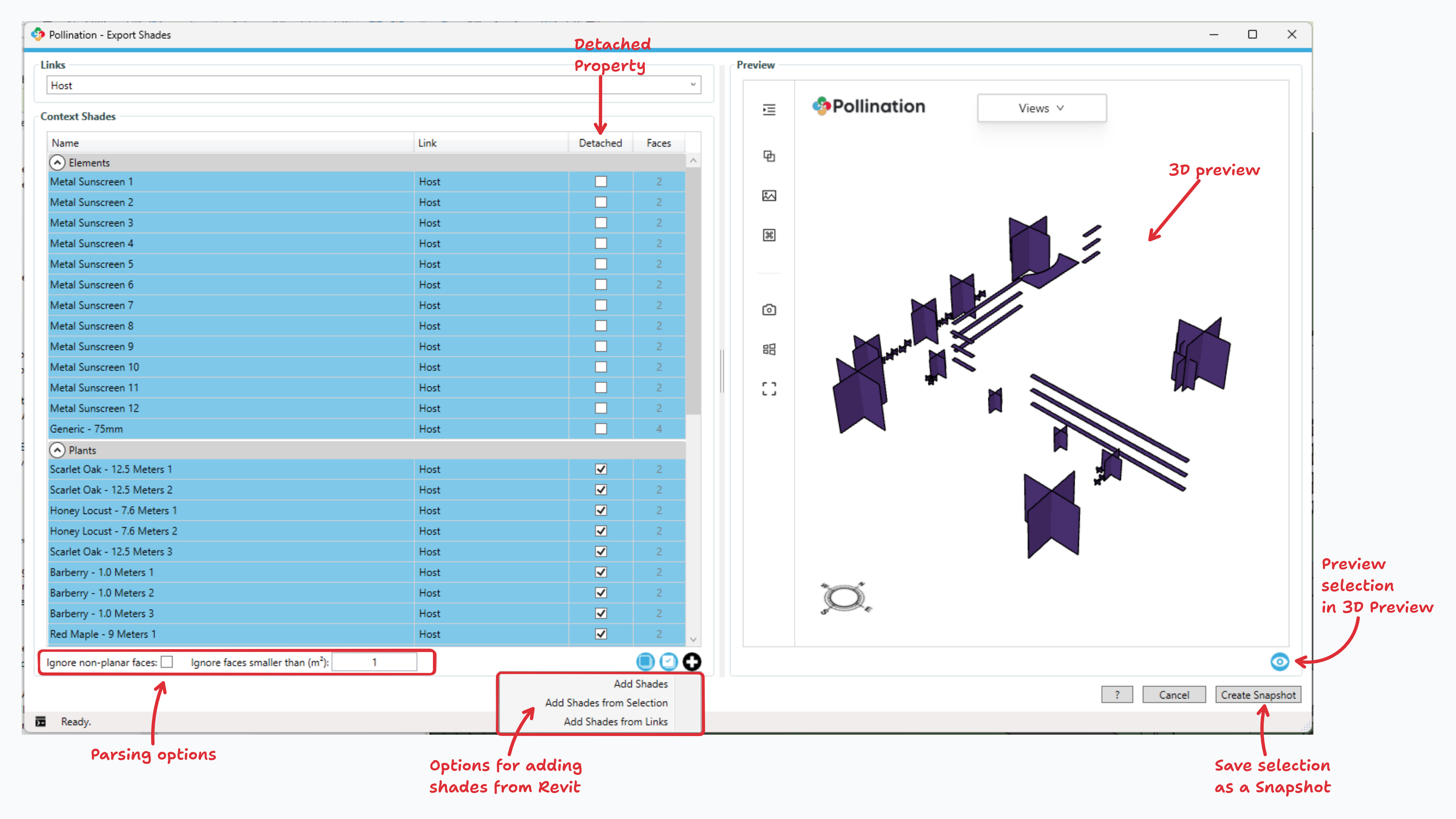
.png?alt=media)
.png?alt=media)



.png?alt=media)
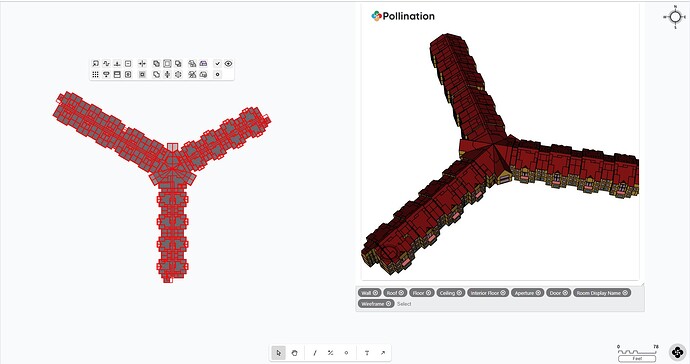
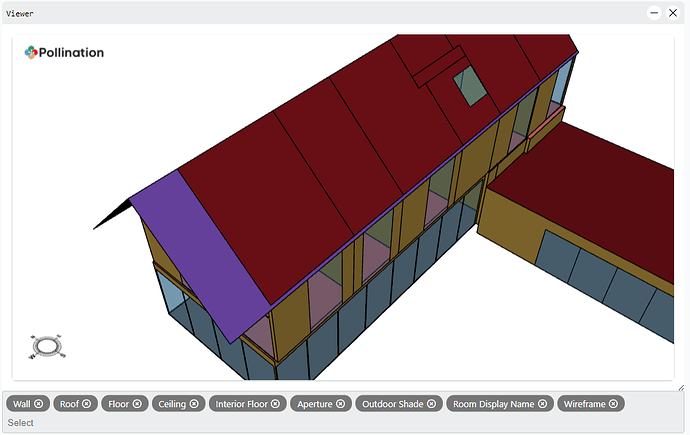
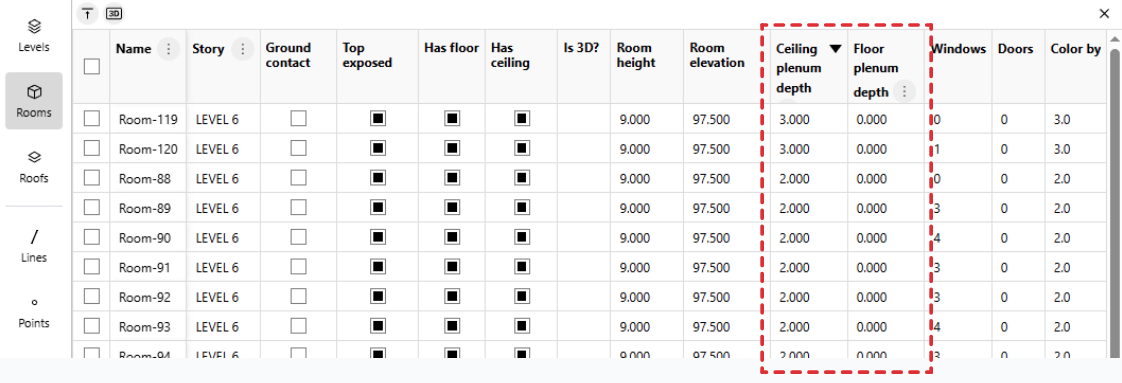
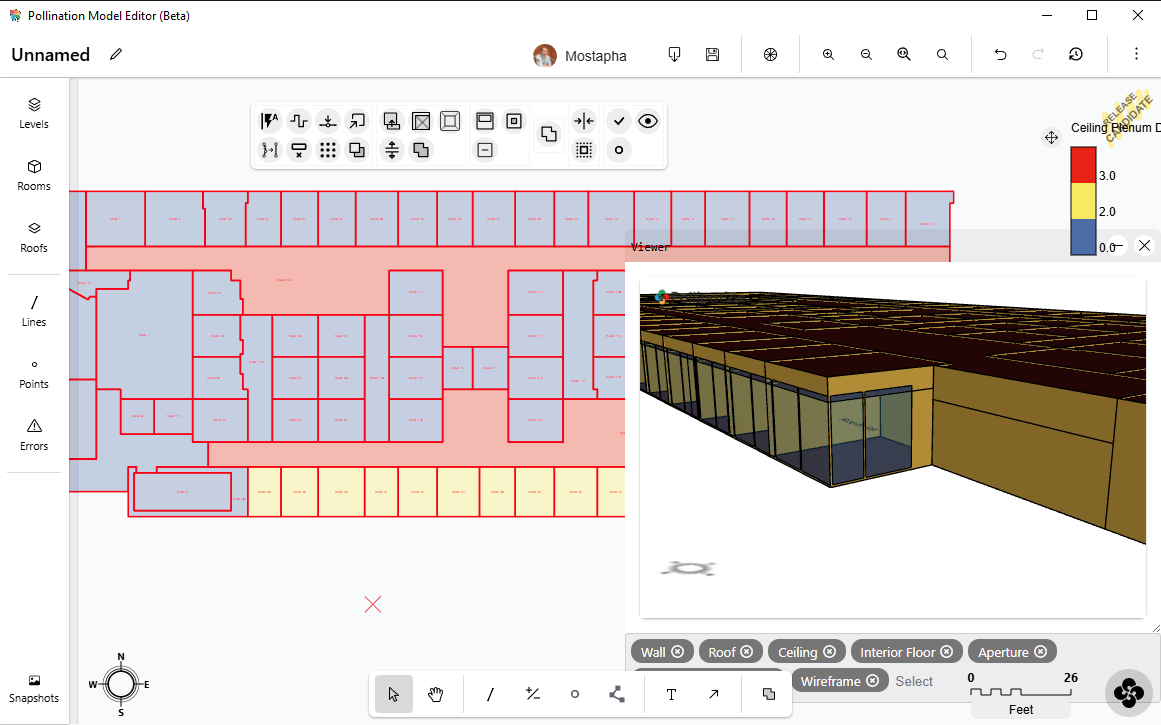
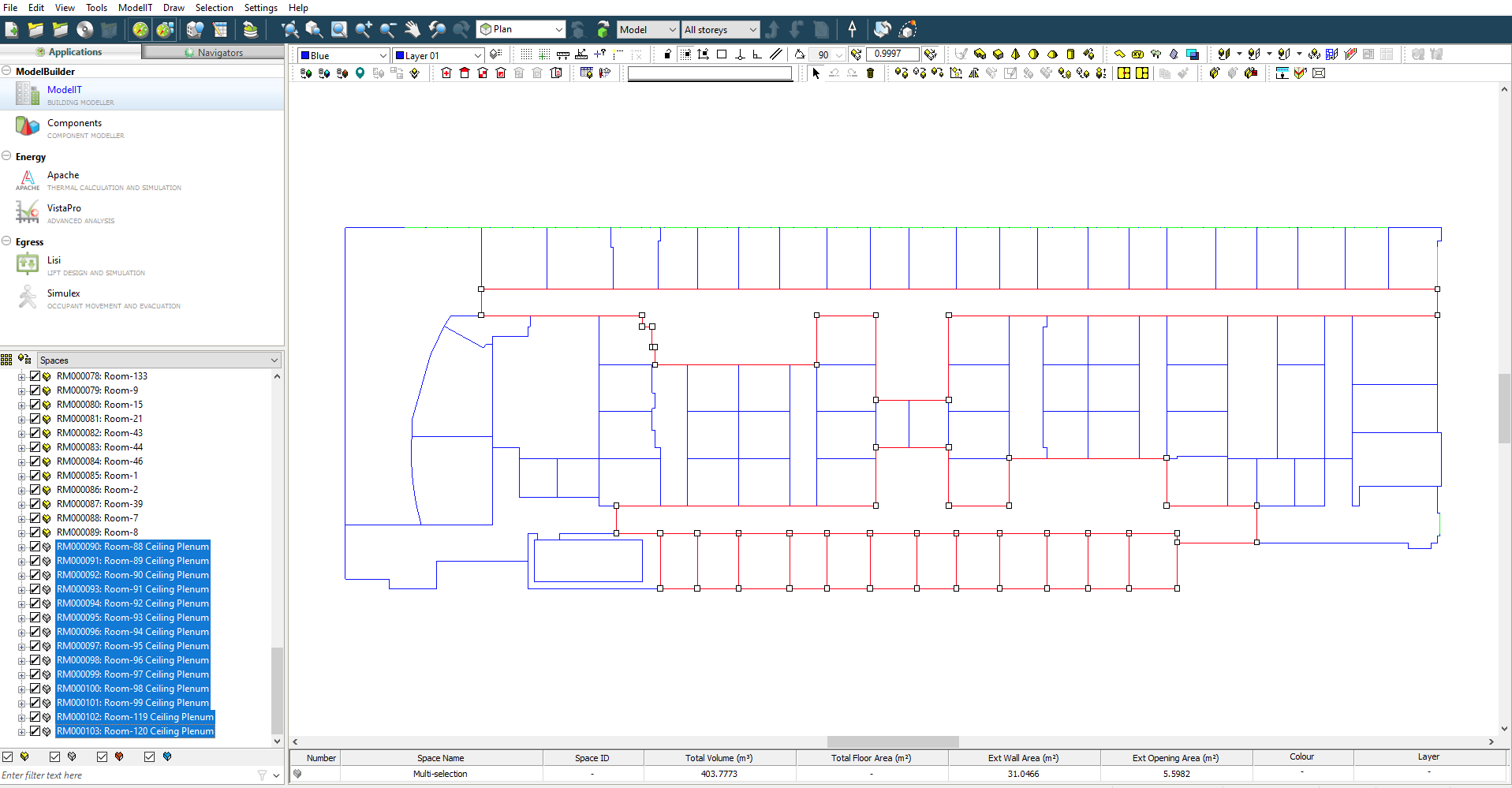
 Show the selected rooms and shades in 3D. The preview shows up in a new floating window.
## Options
* **Color By**
A dropdown to indicate what should be used for coloring the geometry in 3D preview.
* **Inter-Story Adjacencies**
Select to have the adjacency between the stories solved
* **Exclude Plenums**
Select to have ceiling and floor plenum depths ignored. This results in each room in the table translating to a single room in 3D instead of a base room with plenums split off of it
* **Merge Method**
Select how the rooms are merged during the translation. Merging rooms can reduce the complexity of the resulting Model and ultimately yield a faster simulation time with fewer results to manage. Note that rooms will only be merge-able if they form a contiguous volume across their solved adjacencies.
# Align
Show the selected rooms and shades in 3D. The preview shows up in a new floating window.
## Options
* **Color By**
A dropdown to indicate what should be used for coloring the geometry in 3D preview.
* **Inter-Story Adjacencies**
Select to have the adjacency between the stories solved
* **Exclude Plenums**
Select to have ceiling and floor plenum depths ignored. This results in each room in the table translating to a single room in 3D instead of a base room with plenums split off of it
* **Merge Method**
Select how the rooms are merged during the translation. Merging rooms can reduce the complexity of the resulting Model and ultimately yield a faster simulation time with fewer results to manage. Note that rooms will only be merge-able if they form a contiguous volume across their solved adjacencies.
# Align
 Align the selected rooms' vertices to the selected lines/polylines if the room vertices lie within the specified Alignment Distance.
## Options
* **Distance**
The maximum distance between a room vertex and the line or polyline at which point the vertex will be aligned to the line
* **Snap Method**
The method to be used for snapping room vertices to the lines. 'Snap Vertices' will snap the room vertices to the line/polyline vertices if they lie within the distance. 'Coordinate Vertices' will perform an additional step of inserting new room vertices when line/polyline vertices lie within the distance
* **Constrain Edges**
Select to have all axes of the room edges that were not pulled to the line geometry be preserved
# Auto align
Align the selected rooms' vertices to the selected lines/polylines if the room vertices lie within the specified Alignment Distance.
## Options
* **Distance**
The maximum distance between a room vertex and the line or polyline at which point the vertex will be aligned to the line
* **Snap Method**
The method to be used for snapping room vertices to the lines. 'Snap Vertices' will snap the room vertices to the line/polyline vertices if they lie within the distance. 'Coordinate Vertices' will perform an additional step of inserting new room vertices when line/polyline vertices lie within the distance
* **Constrain Edges**
Select to have all axes of the room edges that were not pulled to the line geometry be preserved
# Auto align
 Automatically align selected rooms to common axes identified across them. The command is intended to automatically perform most of the alignments that would typically be done manually. Note that having a line selected while running this command will force the generated alignment axes to be generated only in the plane of that line.
## Options
* **Distance**
The distance with which room vertices will be aligned to common axes. No vertex in the input rooms will be moved more than this distance
* **Exclude Angle**
A positive number in degrees for the maximum difference that a geometry segment can differ from the alignment axes for it to be ignored/excluded from alignment
* **Axes Only**
Select to have this command only output the common axes of the selected rooms into the scene and not perform any auto-alignment of rooms with these axes. This can give more control over which axes are or are not used by allowing manual selection and aligning with desired axes
* **Use Anchor Lines**
Select to have the currently selected line geometry override any suggested alignment axes. This can be used to ensure that auto-aligning does not move parts of the model that are already correct.
* **Constrain Group Boundary**
Select to have the boundary around the rooms set as anchor lines, ensuring that the outer edges of the group do not move during alignment and only cases within the room group are aligned
* **Group by Base Plane**
Select to have the command group the selected rooms by the underlying base plane that best fits the room geometry before auto-aligning them. This is useful in cases where the selected rooms contain different structural grids that are at angles to one another.
* **Base Story Name**
Optional text for the name of the level among the selected rooms to be used as a base for auto-aligning the other rooms in the selection. Rooms on this base story will not be edited during the alignment operation.
---
[Next Page](https://docs.pollination.solutions/user-manual/llms-full.txt/1)
Automatically align selected rooms to common axes identified across them. The command is intended to automatically perform most of the alignments that would typically be done manually. Note that having a line selected while running this command will force the generated alignment axes to be generated only in the plane of that line.
## Options
* **Distance**
The distance with which room vertices will be aligned to common axes. No vertex in the input rooms will be moved more than this distance
* **Exclude Angle**
A positive number in degrees for the maximum difference that a geometry segment can differ from the alignment axes for it to be ignored/excluded from alignment
* **Axes Only**
Select to have this command only output the common axes of the selected rooms into the scene and not perform any auto-alignment of rooms with these axes. This can give more control over which axes are or are not used by allowing manual selection and aligning with desired axes
* **Use Anchor Lines**
Select to have the currently selected line geometry override any suggested alignment axes. This can be used to ensure that auto-aligning does not move parts of the model that are already correct.
* **Constrain Group Boundary**
Select to have the boundary around the rooms set as anchor lines, ensuring that the outer edges of the group do not move during alignment and only cases within the room group are aligned
* **Group by Base Plane**
Select to have the command group the selected rooms by the underlying base plane that best fits the room geometry before auto-aligning them. This is useful in cases where the selected rooms contain different structural grids that are at angles to one another.
* **Base Story Name**
Optional text for the name of the level among the selected rooms to be used as a base for auto-aligning the other rooms in the selection. Rooms on this base story will not be edited during the alignment operation.
---
[Next Page](https://docs.pollination.solutions/user-manual/llms-full.txt/1)