> For the complete documentation index, see [llms.txt](https://docs.pollination.solutions/user-manual/llms.txt). Markdown versions of documentation pages are available by appending `.md` to page URLs; this page is available as [Markdown](https://docs.pollination.solutions/user-manual/getting-started/account-setup/managing-subscriptions.md).
# Managing Subscriptions
{% hint style="info" %}
Only `Super Admin` and `Billing Admin` roles can manage organization subscriptions.
{% endhint %}
{% hint style="info" %}
As a reminder, we use [Paddle](https://www.paddle.com/) to process all our payments. [See here for more information](/user-manual/getting-started/buying-pollination-products.md#how-can-i-set-you-as-a-vendor-in-our-companys-system).
{% endhint %}
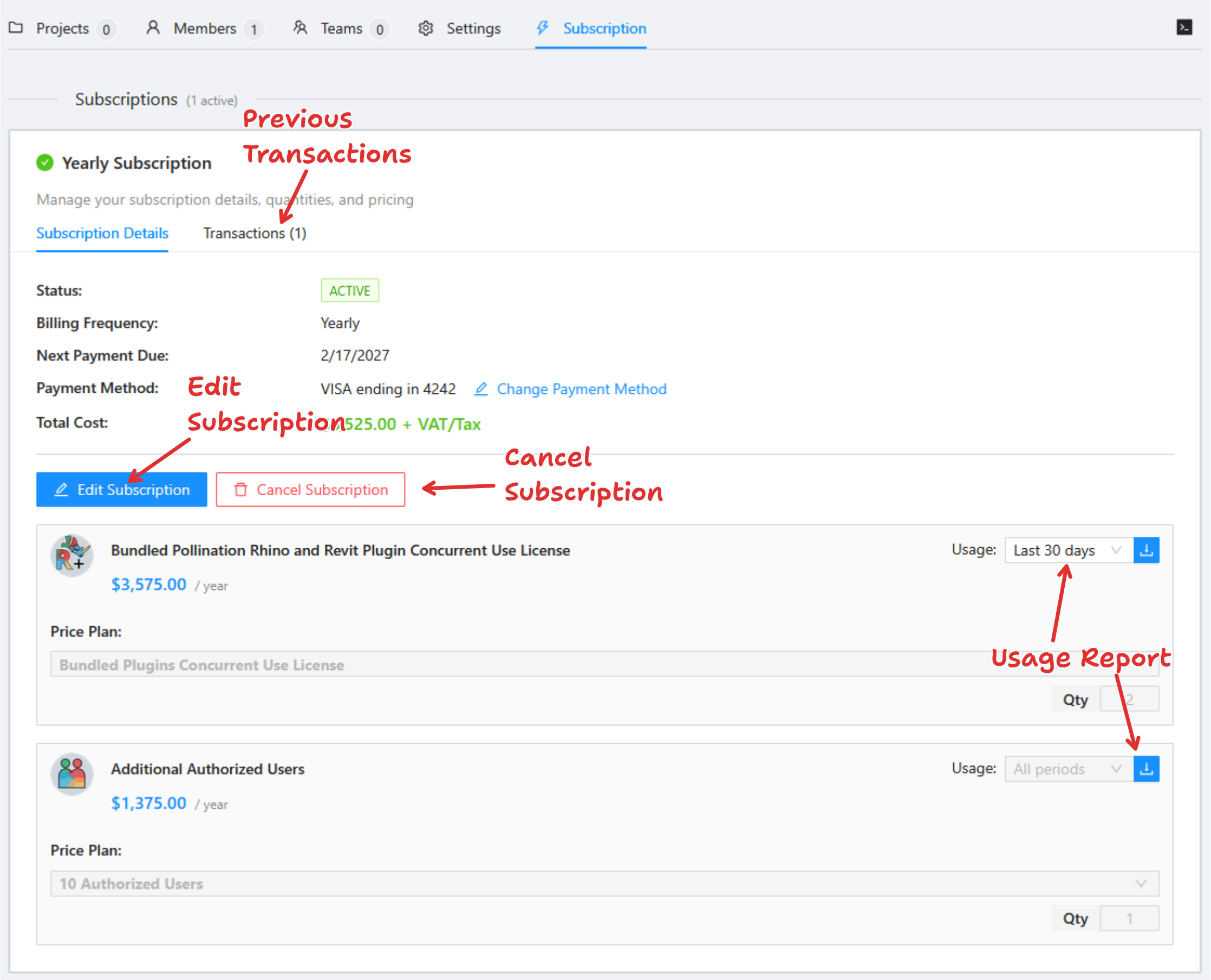
After [creating a subscription](/user-manual/getting-started/buying-pollination-products/creating-new-pollination-subscriptions.md), you can manage it through the user interface. You need to navigate to the organization and click on the "Subscription" tab.
The screenshot below highlights the key actions you can take.
### Editing a subscription
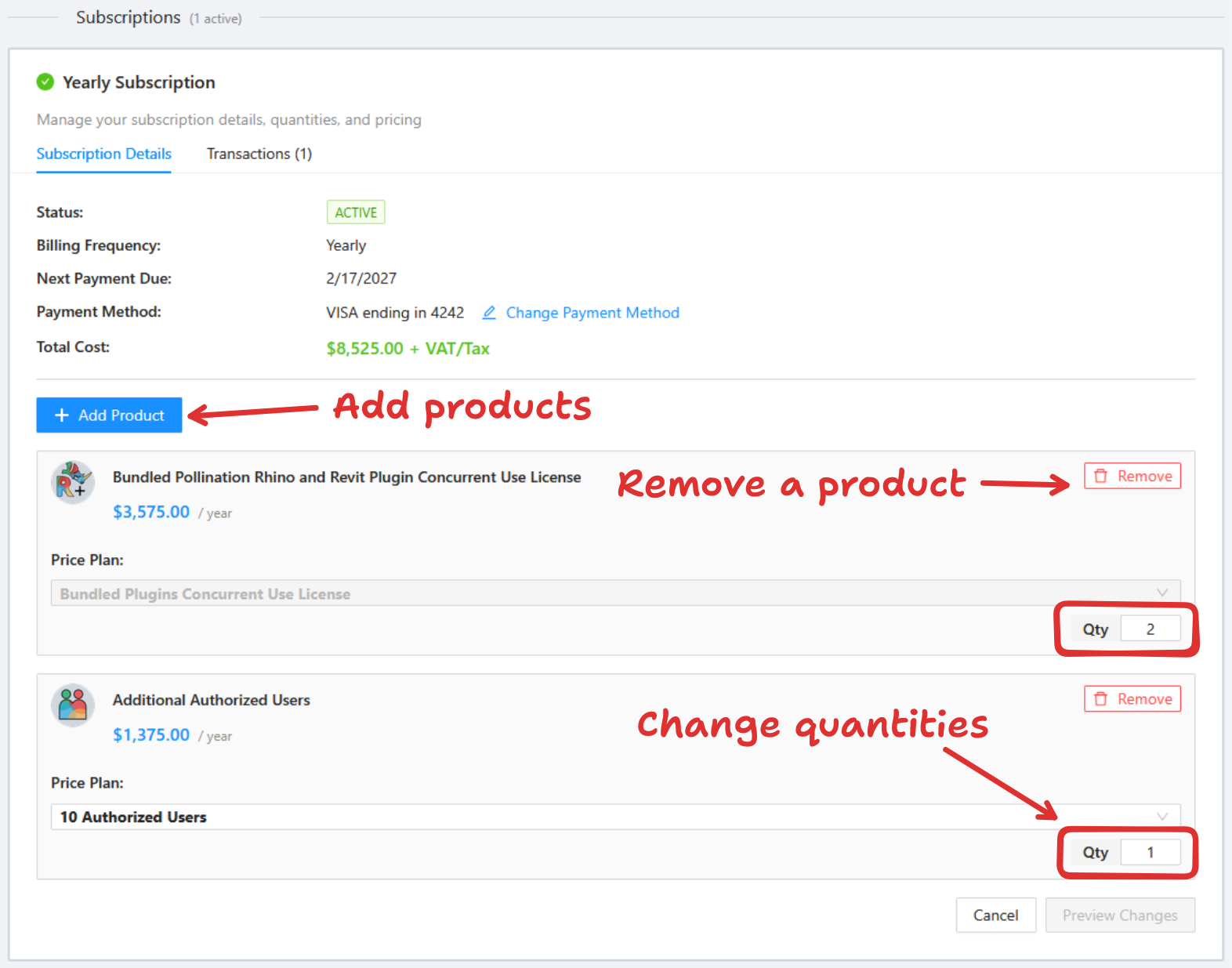
You can edit an existing subscription by clicking on the "Edit
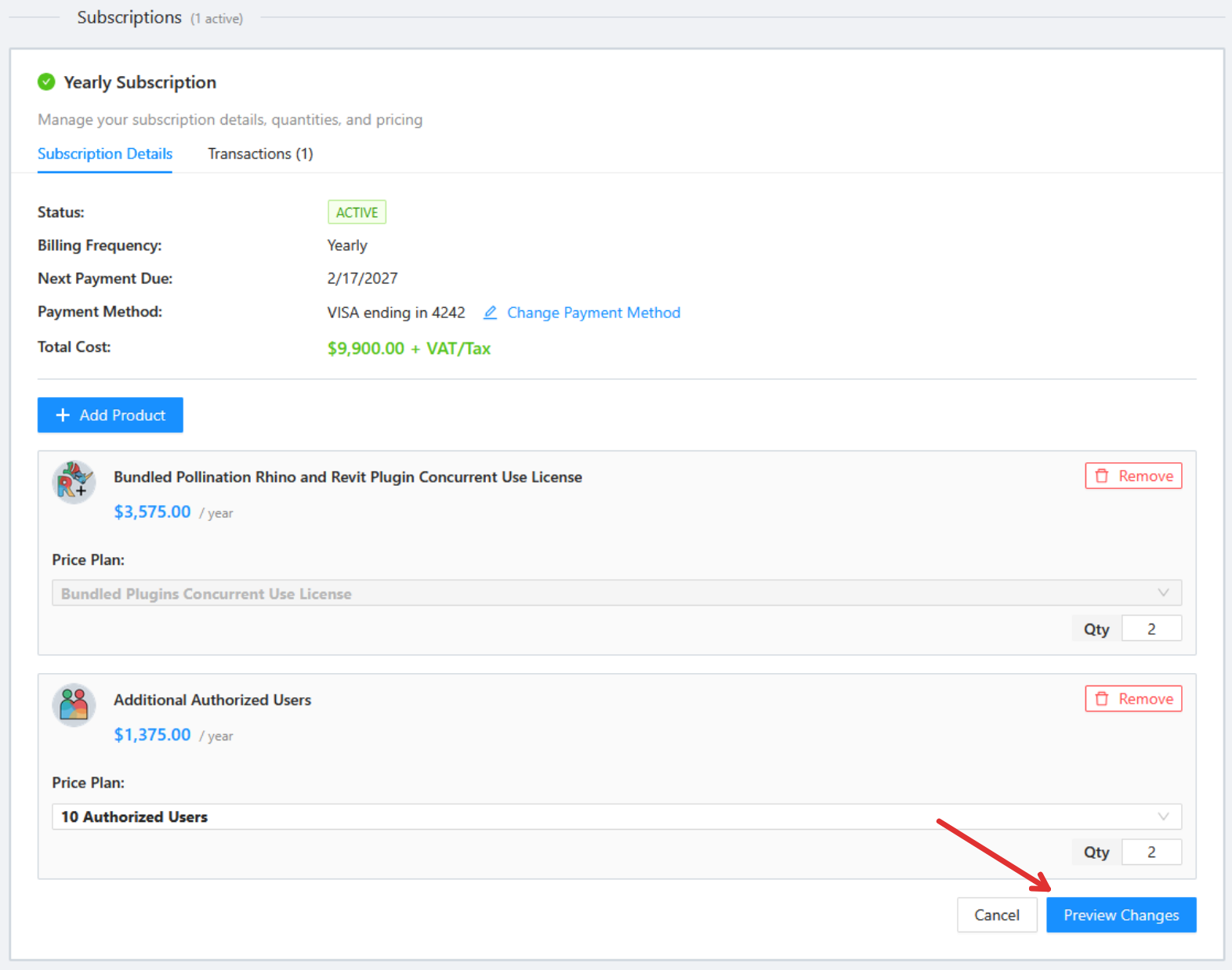
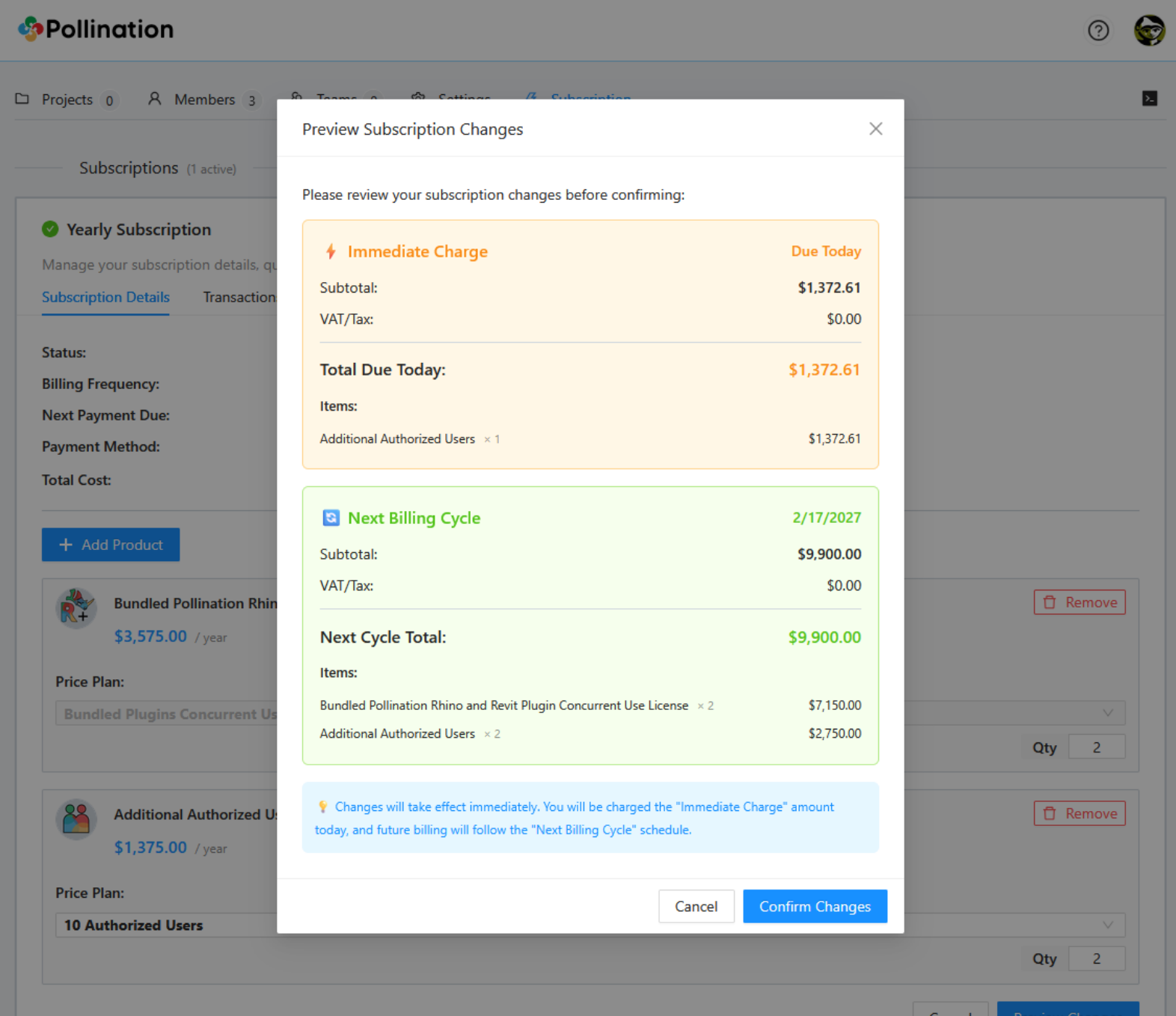
After you change a subscription, click on "Preview Changes" Button to preview the changes.
After reviewing the preview, you can confirm or cancel your changes.
### Subscription Modification Policy
* **Increasing Subscriptions**: If you add new products or increase quantities, the prorated amount will be charged immediately. You'll also see the updated cost for the next billing cycle.
* **Decreasing Subscriptions**: If you remove products or reduce quantities, the difference will be credited to your account for the next billing cycle. We cannot withdraw this difference from Paddle for a refund.
### Canceling a subscription
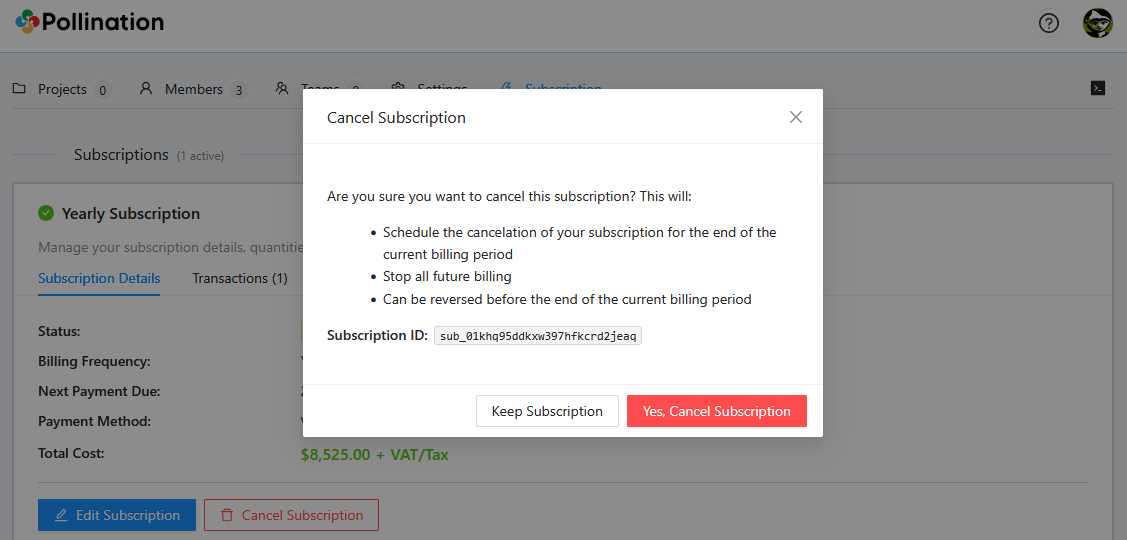
To cancel your subscription, click the "Cancel Subscription" button. Your subscription will remain active until the end of the current billing period.
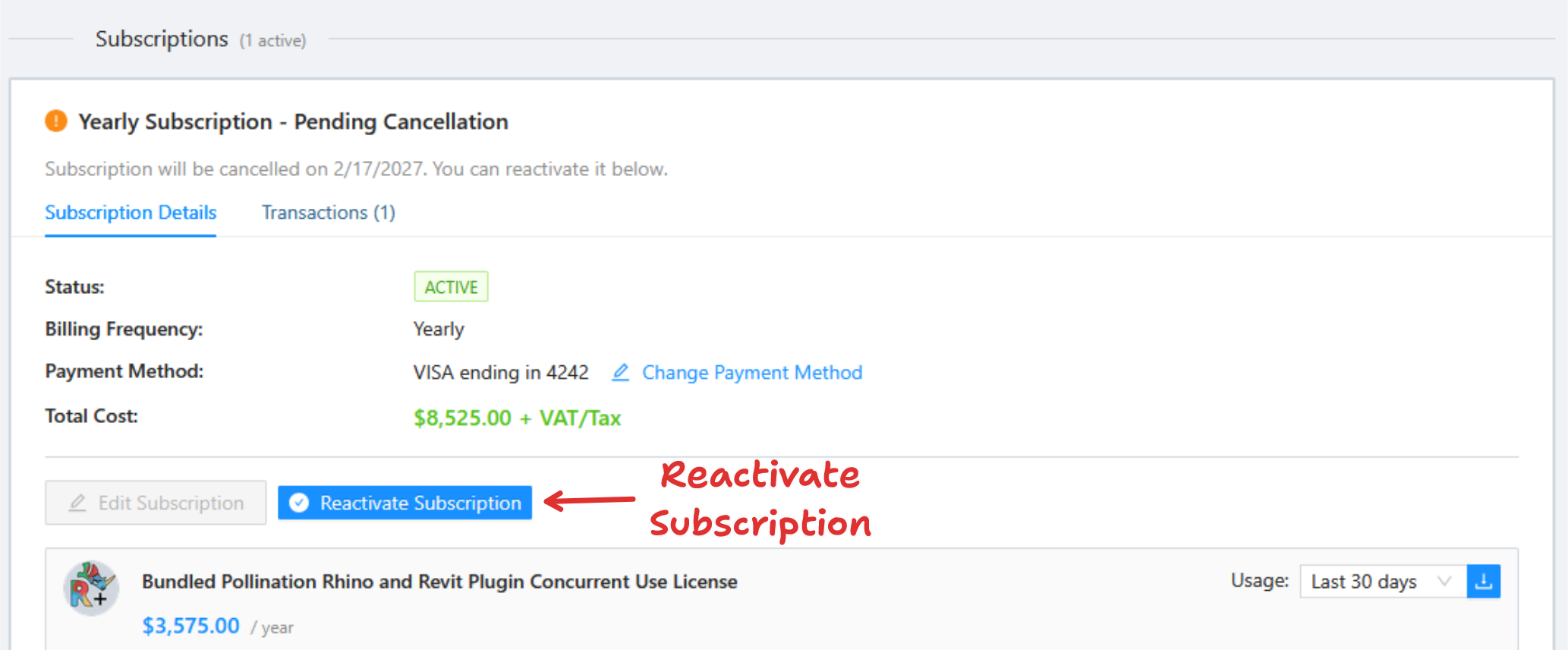
To reactivate your subscription, you must do so before the cancellation date.